
Are you looking to give your WordPress site a fresh new look? Changing your site theme can be the perfect way to update your website’s appearance and functionality.
Whether you want to reflect a new brand image or enhance user experience, choosing the right theme is key. But how do you make the switch without losing your content or causing disruptions? Don’t worry; it’s easier than you might think.
This guide will walk you through the steps to change your site theme in WordPress smoothly and effectively. You’ll discover tips and tricks to ensure your site looks fantastic and runs seamlessly, keeping your audience engaged and coming back for more. Ready to transform your site? Let’s get started!
Credit: wpengine.com
Importance Of Site Themes
Site themes make websites look different. Themes change colors and fonts. They also organize content on the page. A good theme makes a site easy to read. Themes can show a site’s style and purpose. For example, a business site might use a simple theme. A fun blog might use bright colors.
Choosing the right theme is important. It affects user experience. Visitors might leave a site if it is hard to use. A fast-loading theme is also crucial. Slow sites can frustrate users. Themes also impact search engine rankings. A well-coded theme can help a site rank higher. Regular updates to themes keep sites secure. This helps protect against hackers.
Choosing The Right Theme
Picking a theme is important. Look for a theme that matches your site. Check if the theme is fast and easy to use. Make sure it works well on phones. Think about the design. The colors and layout should fit your brand. Read reviews from other users. Ask if the theme gets updates often.
There are free themes. They cost nothing but may have fewer features. Premium themes cost money. They offer more tools and support. Free themes might have ads. Premium themes often don’t. Free options are good for small sites. Premium options are better for big sites. Choose based on your needs and budget.
Accessing The WordPress Dashboard
First, log in to your WordPress site. Use your username and password. Once logged in, you will see the dashboard. This is where you can manage your site. The dashboard is like a control panel. You can find many options here.
Look for the Appearance tab. It is on the left side. Click on it. This will open a new menu. In this menu, choose Themes. Here you can see all your themes. You can also add new themes. It is easy to explore different options.
Navigating To The Themes Section
First, open your WordPress dashboard. It’s the control center for your site. Look on the left side. Find the Appearance option. Click it to open more choices.
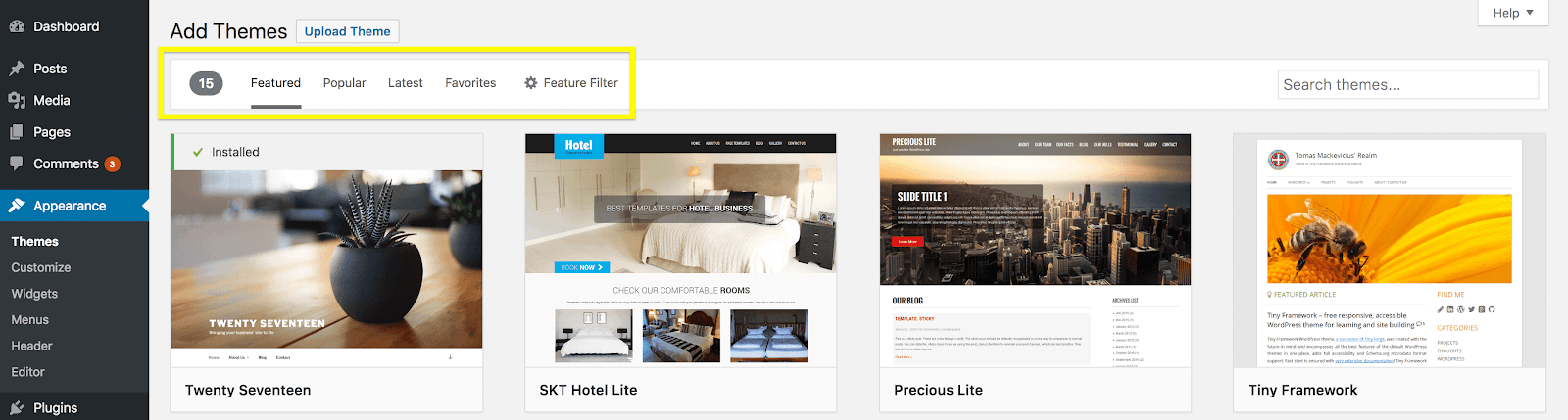
Under Appearance, you will see Themes. Click on Themes. This opens the Themes section. Here, you can see all available themes. You can pick a new theme to change your site’s look.
Make sure to click on Add New if you want more themes. This option lets you browse and add new designs. Choose a theme that fits your style. Always remember to activate the theme you like. This makes it live on your site.
Installing A New Theme
Open the WordPress dashboard. Click on Appearance. Then, choose Themes. You will see many themes. You can use the search bar. Find themes by name or features. Themes can change how your site looks. Popular themes are often easy to find. Choose one you like. Preview it before installing. This helps you see if it fits. Some themes are free. Others may cost money. Read reviews if unsure. They can help you decide.
Download the theme from a trusted site. The file will be a .zip. Go to the WordPress dashboard. Click on Appearance. Then choose Themes. Click Add New. You will see Upload Theme. Click on it. Choose the .zip file from your computer. Click Install Now. Wait for it to upload. Click Activate to use the theme. Your site will look new. Check if everything works well.
Activating The Chosen Theme
First, go to the WordPress dashboard. Click on Appearance in the menu. Then, choose Themes. You will see a list of available themes. Find the theme you want. Hover over it. You will see an Activate button. Click it. Your site will now use this theme.
Always check how your site looks. Ensure everything works fine. Sometimes, things may look different. This can happen with new themes. Test your site on different devices. Make sure it looks good everywhere.
Changing themes is easy. Just follow these steps. Enjoy your new look!
Customizing Your Theme
The Customizer Tool helps you change your theme easily. Find it in your WordPress dashboard. Click on Appearance, then Customize. You can see your changes live. No need to save every time. Try different settings until you like them.
Colors and fonts make your site unique. Click on Colors to pick new shades. Choose different fonts under Typography. Make sure the text is easy to read. Test different styles. It helps your site look nice.
Widgets add extra features to your site. Find them under Widgets in the Customizer. Add clocks, calendars, or search bars. Menus help visitors find pages. Edit them under Menus. Drag items to reorder. Keep it simple for easy navigation.
Testing The New Theme
Checking responsiveness is important for your site. Make sure it looks good on phones and tablets. Try resizing the browser window. Watch how your site changes. All elements should adjust. Images and text must not overlap. If they do, the theme needs fixing.
Ensuring compatibility with plugins is a must. Plugins add features to your site. First, open the admin panel. Then, check each plugin with the new theme. Does everything work? No errors should appear. If a plugin fails, try updating it. Or, find an alternative plugin. Always back up your site before big changes.
Backing Up Your Site
It’s important to back up your site. This keeps your data safe. If something goes wrong, you can restore your site. Use a plugin to help with backups. Many plugins are free and easy to use. Save your backup on your computer or in the cloud. This keeps it safe. Make backups a habit. You should do this often.
Always check your backup. Make sure everything is saved. This includes your posts, images, and settings. Test your backup to see if it works. You don’t want any surprises later. Backing up is simple, but crucial.

Credit: jetpack.com
Troubleshooting Common Issues
Switching your WordPress site theme can fix display issues or update the look. Access the WordPress dashboard, select “Appearance,” then “Themes,” and choose your new theme. Always preview before activating to ensure compatibility with your content.
Theme Conflicts
Sometimes, themes don’t get along with each other. This can break your site. The new theme might not work with old plugins. Or, some features might not show up. This is called a theme conflict. Always check compatibility before changing themes. Test your site after changing the theme. Make sure everything is working fine. If not, you might need to switch back.
Restoring A Previous Theme
If the new theme causes issues, it’s easy to go back. You can restore your old theme. Go to the WordPress dashboard. Find the “Appearance” section. Click on “Themes”. Then, activate the previous theme. This will bring back your old look. Remember to backup your site before making changes. This saves your work and settings.
Credit: kinsta.com
Frequently Asked Questions
How Do I Change My WordPress Site Theme?
To change your WordPress site theme, access your dashboard. Navigate to “Appearance” and select “Themes. ” Here, you can browse available themes. Click “Activate” on your desired theme to apply it. You can also upload new themes by clicking “Add New” and following the prompts.
Can I Customize My WordPress Theme Easily?
Yes, customizing your WordPress theme is simple. Use the “Customizer” tool in the “Appearance” section. You can adjust colors, fonts, and layout. This tool offers a live preview of changes. Some themes have additional settings or require plugins for advanced customization.
Will Changing My Theme Affect Site Content?
Changing your theme won’t affect site content. Your posts, pages, and media remain intact. However, layout and design may change. Widgets and menus may require reconfiguration. Always preview your new theme and make necessary adjustments to ensure optimal presentation and functionality.
How Do I Find A Responsive WordPress Theme?
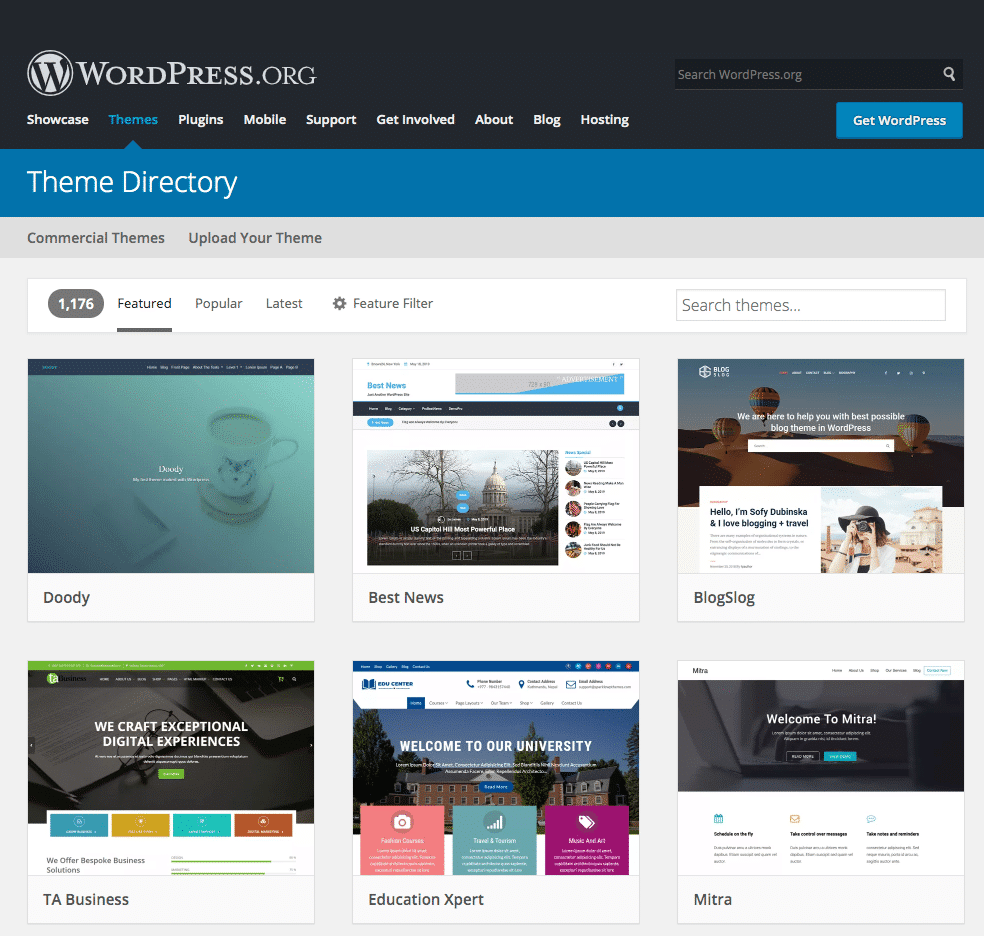
To find a responsive WordPress theme, visit the theme directory. Use the search filter for “responsive” designs. Read reviews and check ratings. Ensure the theme adapts well to mobile devices. Test its responsiveness using the Customizer’s preview on different screen sizes.
Conclusion
Changing your WordPress site theme is simple and effective. It breathes new life into your site. A fresh theme enhances user experience. It can improve site navigation and readability. Remember to back up your site before changes. Test the new theme thoroughly.
Ensure it suits your brand and audience. Consistency in design matters. Check for mobile responsiveness too. An appealing site can draw more visitors. Regular updates keep your site modern. Keep an eye on theme compatibility. Your site’s theme is its visual identity.
Choose wisely and make your site shine!


