
Are you feeling stuck with a primary domain that no longer serves your website’s needs? Switching your primary domain using GoDaddy web hosting might seem like a daunting task, but it doesn’t have to be.
Imagine the ease and satisfaction of having a domain that perfectly aligns with your brand or business goals. With the right steps, you can make this change seamlessly and without the technical headaches. In this guide, we’ll walk you through the process, ensuring you gain confidence and clarity every step of the way.
Discover how to take control of your online identity and unlock new opportunities for your site. Are you ready to transform your digital presence? Let’s dive in and make it happen!
Accessing Your Godaddy Account
Start by visiting the Godaddy website. Look for the login button at the top. Click it to open the login page. Enter your username and password. If you don’t remember, use the “Forgot Password” link. This will help you reset it. Once done, press the login button. You are now inside your account.
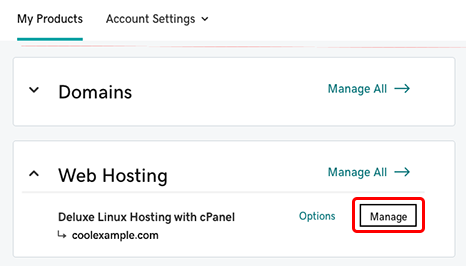
Find the “My Products” section. It’s on the main dashboard. Here, you will see all your services. Look for the Web Hosting option. Click on it to expand the list. Choose the hosting account you want to manage. This will open more options. Now, you are ready to change your primary domain.
Selecting The Hosting Plan
First, log in to your GoDaddy account. Find the “My Products” page. Look for the “Web Hosting” section. Here, you will see your hosting plans. Check which plan you want. Your plan details are important. They help in the next steps. Remember, each plan has different features.
Click on the “Manage” button next to your plan. This opens the hosting dashboard. You will see many options. Find “Settings” or “Details” tab. Here, you can view more about your plan. Note down the primary domain name. You need this for changes. Ensure everything is correct before moving forward.
Managing Domains
The current domain is like your website’s address. It helps people find your site online. Knowing your current domain is important. This helps in making any changes. Visit the Godaddy website. Sign in to your account. Check your domain list. Your primary domain is the main one. It is listed first. Remember this domain before you start.
Domain settings help you make changes. First, log into your Godaddy account. Click on the “My Products” section. Find your domain name. Click on “Manage.” This opens your domain settings. Here, you can change your primary domain. Changing domains is easy with these steps. Always save your work. You don’t want to lose changes.
Credit: www.godaddy.com
Changing The Primary Domain
First, log into your GoDaddy account. Find the hosting panel. Look for the domains section. Click on manage domains. Choose the domain you want as primary. Click on set as primary domain. Wait for changes to process. It may take a few minutes.
Check if the domain is now primary. Open a web browser. Type in your new primary domain. See if it loads your website. Check your hosting panel again. Ensure the right domain is set. If problems occur, contact GoDaddy support. They can help with any issues.
Troubleshooting Common Issues
Changing the primary domain in GoDaddy web hosting involves accessing your account settings. Navigate to the “Domain Management” section and select your preferred domain. Follow the prompts to update the primary domain and ensure your website points to the correct location.
Error Messages
Sometimes, error messages appear during domain change. Common errors include “Domain not found” or “Invalid settings.” Double-check domain name accuracy. Ensure DNS settings are correct. Clear browser cache to fix display issues. Contact support if errors persist.
Domain Propagation
Domain propagation means updating across the internet. Changes take time. Usually, 24 to 48 hours is needed. Check DNS records regularly. Verify changes with online tools. Be patient during propagation. Avoid making additional changes during this time. It’s normal if the site is temporarily unavailable. Monitor progress to ensure successful domain change.
Post-change Optimization
Switching your primary domain on GoDaddy is straightforward with these steps. Access your account, navigate to hosting settings, and select the domain to change. Ensure you save changes to update your hosting setup efficiently.
Updating Dns Records
It’s important to update your DNS records after changing the primary domain. This helps your website connect to the internet correctly. Go to your domain provider’s control panel. Look for the DNS settings. Update the A, CNAME, and MX records. Make sure they point to the new domain. This process ensures that emails and web traffic go to the right place. It might take a few hours for changes to take effect. Patience is key here. Don’t worry if you don’t see changes immediately. Everything will work fine soon.
Testing Website Functionality
After updating DNS, check your website. Ensure all pages load correctly. Click on links. Make sure they work. Test forms and buttons. Ensure they function as expected. Check images and videos. Ensure they display properly. Test on different browsers. This will make sure your site works for everyone. If you find any issues, fix them quickly. Your site should be smooth and error-free.
Support And Resources
The Godaddy Help Center is a great place to find answers. It has many guides and videos. These help you step by step. You can search your problem. Get instant answers. Easy and quick. Use keywords like “change primary domain”. Find help fast.
Community forums are places where people chat. They ask questions and share ideas. Godaddy has a community forum. Here, users talk about web hosting. You can ask about changing domains. Others may have done it before. They share tips and tricks. It’s helpful to learn from them. You can also help others. Join the chat. Share your experience.

Credit: www.youtube.com

Credit: wphowknow.com
Frequently Asked Questions
How To Change Primary Domain In Godaddy Hosting?
To change your primary domain in GoDaddy hosting, log into your account. Navigate to “My Products,” select “Manage” under Web Hosting, then choose “Settings. ” Click “Change Primary Domain” and follow the prompts. Ensure your new domain is not linked to another hosting account.
How Do I Change The Domain Name On My Godaddy Website?
Log into GoDaddy account, go to “My Products,” and select “Manage” next to your domain. Click “Change Domain. ” Follow prompts to update your domain name. Save changes and wait for DNS propagation. Ensure all website links and settings are updated with the new domain.
How Do I Change The Primary Domain In Cpanel?
Log into your cPanel account and go to the “Domains” section. Select “Addon Domains. ” Remove the current primary domain. Use the “Modify Domain” option to add a new primary domain. Confirm changes and update DNS settings if needed. Ensure domain propagation for changes to take effect.
Can I Have Multiple Domains On One Hosting Account Godaddy?
Yes, GoDaddy allows multiple domains on one hosting account. Choose a plan supporting multiple domains. Manage domains easily via the control panel. Ensure your hosting plan meets your domain requirements for optimal performance and management.
Conclusion
Changing your primary domain on GoDaddy is straightforward. Follow the steps carefully. Start by accessing your GoDaddy account. Navigate to your hosting settings. Select the domain you wish to change. Confirm your selection to complete the process. Ensure your new domain settings are correct.
This helps in avoiding future issues. Regularly check your domain and website settings. It keeps your site running smoothly. Contact GoDaddy support if you face challenges. They can assist you efficiently. Remember, small changes can make a big difference. Stay informed and manage your website effectively.
Happy hosting!


