
Are you tired of staring at the same old post header color on your WordPress blog? Changing it can breathe new life into your website and captivate your audience’s attention.
Imagine the impact of a fresh, vibrant header that perfectly aligns with your brand’s personality. The good news is, you don’t need to be a tech guru to make this transformation. With a few simple steps in the WordPress Theme Editor, you can customize your post header color and make your site look unique and inviting.
Keep reading to discover how easy it is to revamp your WordPress blog with just a few clicks, and watch as your audience becomes more engaged than ever before.
Accessing The Theme Editor
Begin by logging into your WordPress dashboard. Look for the menu on the left side. This menu shows many options. Find the one labeled “Appearance”. It’s usually near the middle of the list. Click on it to see more choices.
After clicking “Appearance,” a new menu will appear. Spot the option called “Theme Editor”. This is where you can change your site. Click on it carefully. A warning might pop up. It’s just to be cautious. Make sure you know what you’re doing.
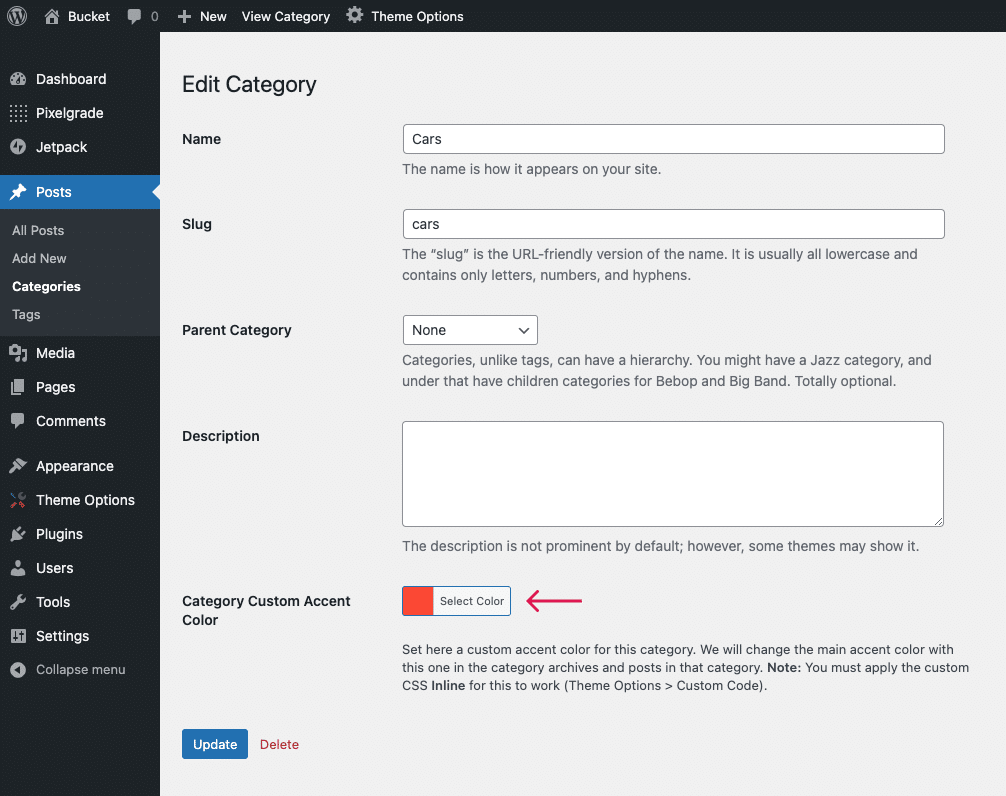
Credit: pixelgrade.com
Identifying The Header Code
Theme files are like a puzzle. Each piece has a job. Stylesheet tells the site how to look. Header.php holds important code. This is where the header lives. To change the header color, find this file. It’s usually in the theme folder. WordPress Dashboard helps you see these files. Go to Appearance, then Theme Editor. Now, you can explore!
Header section is in header.php. Look for a tag called `
Modifying Css For Header Color
Find your CSS file in the WordPress dashboard. Click on Appearance, then Theme Editor. On the right, locate style.css. This file holds your theme’s styles. You might see many files. But style.css is the key. This is where you will make changes. Always save a backup before editing. This prevents losing original settings.
Add custom CSS to change header color. Use this code: header { background-color: #yourcolorcode; }. Replace #yourcolorcode with your desired color. Save changes to see the new header color. Refresh your site to view the update. If it doesn’t change, clear the cache. This ensures the browser shows the latest version.
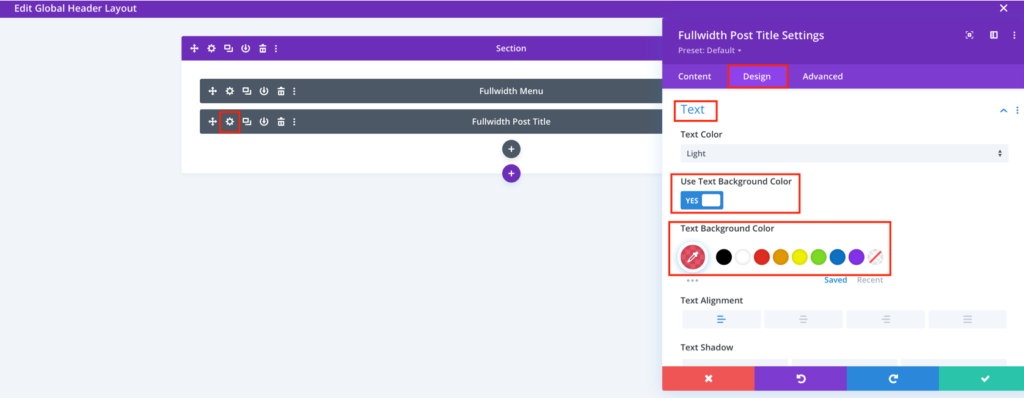
Credit: diviextended.com
Using Additional Css In Customizer
Opening the WordPress Customizer is simple. First, log into your WordPress dashboard. Next, find the “Appearance” option on the left. Click on it. Then, select “Customize”. This opens the WordPress Customizer. It is a tool to change your site’s look. You can see changes in real time. This makes it easy to try different styles.
Applying CSS for Header is the next step. In the Customizer, look for “Additional CSS”. Click on it. Now, you can add your own CSS code. To change the header color, type: header { background-color: #yourcolor; }. Replace #yourcolor with your desired color code. Click “Publish” to save changes. Your header color is updated now. It’s as easy as that!
Testing And Saving Changes
Change the post header color in WordPress by accessing the Theme Editor. Carefully test and save changes to ensure your design updates successfully. This simple tweak can enhance the visual appeal of your blog.
Previewing The Changes
Click the preview button to see your changes. Check if the header color is right. Look at different pages. Make sure everything looks nice. Sometimes changes don’t show up correctly. Be sure to refresh the page if needed. You can also use another browser to check. This helps to see if everything is okay.
Saving Your Work
Once you’re happy, save your changes. Find the save button in the editor. Make sure to click it. Your new header color will stay. Always save after making changes. This keeps your work safe. If you forget, changes might be lost. Saving is very important. It protects your hard work.
Troubleshooting Common Issues
Cache can make changes not show up. Clear your browser cache often. This helps see the new header color. Use tools like Ctrl + F5 to refresh. Some WordPress plugins also have cache. Deactivate these plugins to check changes. After seeing updates, activate them again. This ensures your new color shows up right away.
Sometimes, CSS rules clash. This can stop color changes. Check your CSS file for specific rules. Use more specific selectors like .header .post-title. This makes sure the right color shows up. If one rule does not work, try another. Experiment until it looks right.
Exploring Plugins For Header Customization
Plugins make header changes easy. No need to code. They offer flexibility. You can choose from many styles. Change colors fast. Some plugins allow live previews. See changes right away. User-friendly tools. Even beginners can use them. Update headers often. New look every time. Plugins save time. No long setups. Just a few clicks.
- Elementor: Offers many designs. Easy drag-and-drop.
- Header Footer Elementor: Change headers without coding.
- WP Customizer: Simple interface. Fast changes.
- Beaver Builder: Make headers unique. Many templates.
- SiteOrigin: Free options. Great for beginners.
Credit: www.elegantthemes.com
Frequently Asked Questions
How To Locate Theme Editor In WordPress?
To access the theme editor, go to your WordPress dashboard. Click on ‘Appearance’ and then select ‘Theme Editor’. This section allows you to modify your theme files directly. Always ensure you have a backup before making any changes.
Can I Change Header Color Without Coding?
Yes, you can change the header color using the theme customizer. Navigate to ‘Appearance’, then ‘Customize’. Look for ‘Colors’ or ‘Header’ options. Adjust the header color as per your preference. This method is user-friendly and doesn’t require coding.
What If Header Color Option Is Unavailable?
If the header color option is unavailable, you may need to edit CSS files. Go to the theme editor and locate ‘style. css’. Add or modify CSS code to change the header color. Make sure to backup your theme files before editing.
Does Changing Header Affect Website Performance?
Changing the header color generally doesn’t affect website performance. It’s a simple aesthetic change. However, ensure your CSS modifications are efficient. Overly complex code can slow down your site. Always test changes to avoid any issues.
Conclusion
Changing your post header color in WordPress is easy. Just follow the steps outlined. You can customize your blog to reflect your style. With a few clicks, your site looks fresh and engaging. Experiment with different colors. See what fits your brand best.
Keep it simple and user-friendly. Your readers will appreciate the effort. Make your blog stand out. A unique header can attract more visitors. Start customizing today. Enjoy the new look of your WordPress site.


