
Are you tired of seeing the same word placements on your WordPress theme? Do you feel like a few tweaks could make your site more engaging and user-friendly?
You’re not alone. Many WordPress users want to customize their sites but aren’t sure where to start. Changing the position of words in your WordPress theme can significantly impact your site’s aesthetics and functionality, catching your visitors’ attention and keeping them engaged longer.
In this guide, we’ll walk you through simple, step-by-step instructions to help you rearrange text elements effortlessly. Imagine giving your website a fresh look without needing to be a coding wizard. Ready to unlock the potential of your WordPress theme? Let’s dive in!
WordPress Theme Basics
Understanding WordPress themes is important. They control the look of your site. Themes decide how content shows up. Each theme has a unique style. Some themes are colorful. Others are simple and clean.
Importance of theme customization is huge. Customizing themes makes your site special. You can change colors and fonts. Move words around easily. This helps your site stand out. It also makes it more user-friendly. With customization, you can match your brand.
Credit: www.templatemonster.com
Identifying The Target Words
Find the right place in your theme files. The theme files hold the words you want to change. Open your theme folder. Look for PHP files like header.php or footer.php. These files usually hold the words you see on your site.
Use the Inspect Element tool in your browser. Right-click on the word you want to change. Choose “Inspect” from the menu. A box will show the HTML code for that word. This helps find where the word is in the theme files.
Modifying Theme Files
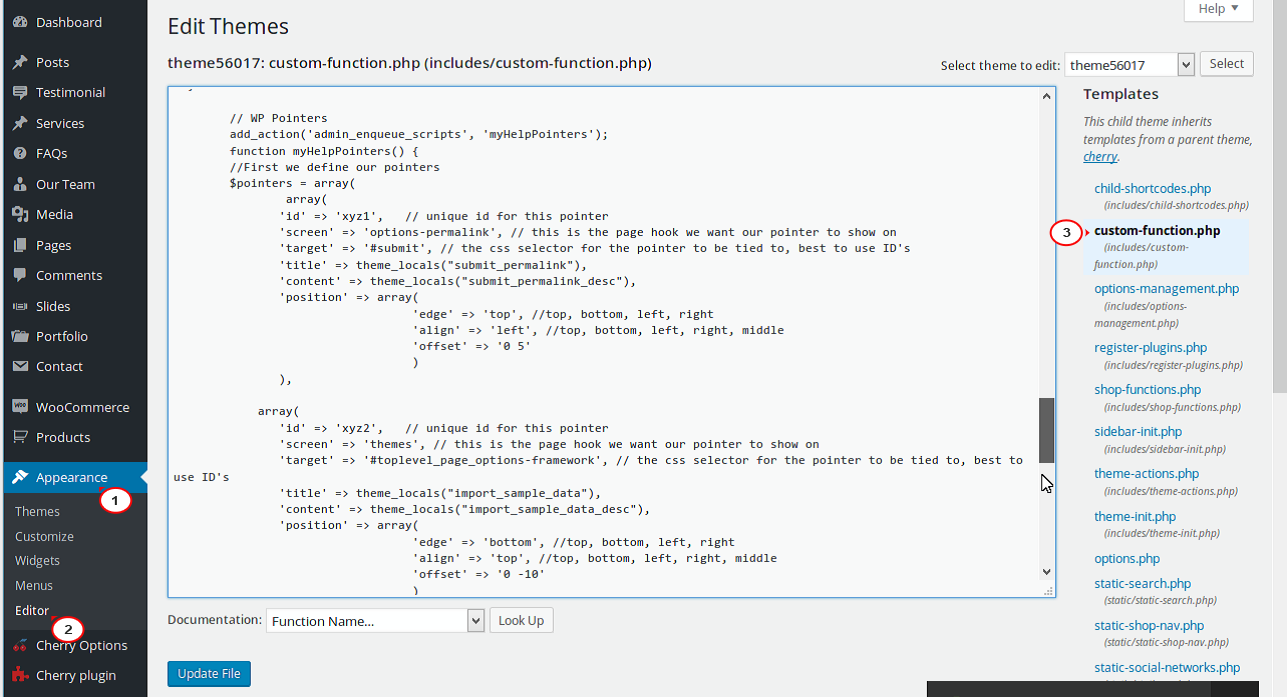
To change words, find the Theme Editor in your WordPress dashboard. Click on Appearance, then select Theme Editor. A list of theme files will appear. Make sure to back up your theme. This protects your work.
PHP files control how your site works. Look for a file called header.php or footer.php. These files often have text you want to change. Edit carefully. A small mistake can break your site. Always save changes and check your site.
CSS changes how your site looks. Find the style.css file in the Theme Editor. It controls text size and color. Use it to move words around. Change text-align to left, center, or right. Save your changes and refresh your site.
Credit: kaydee.net
Utilizing WordPress Plugins
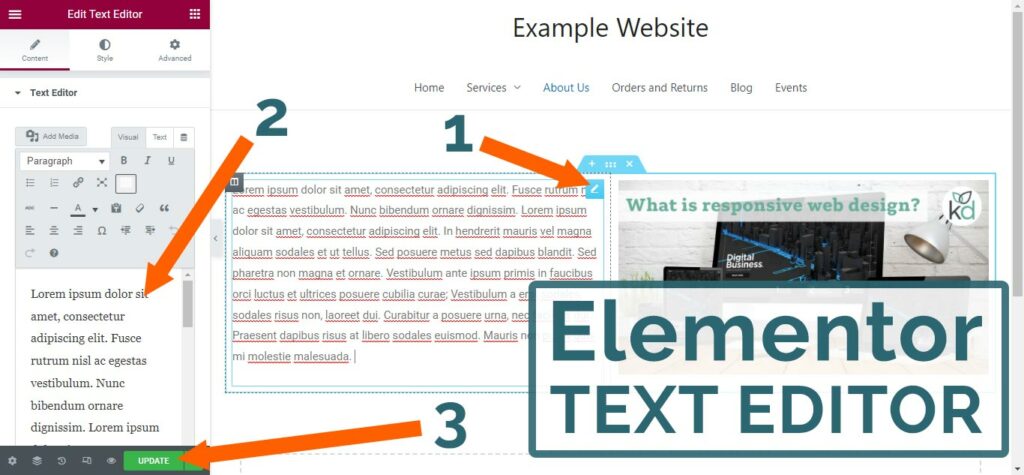
Some plugins can help move words in WordPress. WPBakery is a popular one. It helps change text positions easily. Another tool is Elementor. It’s user-friendly and helpful. Visual Composer is also good. It offers many options for text. These plugins make editing simple. They save time and effort.
First, go to the WordPress dashboard. Click on “Plugins”. Then click “Add New”. Search for your desired plugin. Click “Install Now”. Wait for it to install. After that, click “Activate”. Now, go to the plugin’s settings. Adjust them as needed. Follow the steps carefully. Setup is important for it to work well.
Testing And Verifying Changes
Editing word positions in a WordPress theme requires careful testing. Use the theme editor to make changes. Save and preview to ensure correct word alignment on your site.
Previewing Modifications
After changes, always preview them. Use the WordPress preview feature. This helps see the new look without making it live. Check if the words are in the right place. Ensure the text is readable. Sometimes, changes might not show correctly. Refresh the page to see updates. If errors occur, check the theme settings. Fix any issues before saving.
Ensuring Mobile Responsiveness
Mobile users are growing. Check if your changes look good on phones. Use the responsive design tool in WordPress. Test on different devices. Tablets and phones can show things differently. Adjust settings for the best view. Ensure the text is easy to read on small screens. A good mobile view improves user experience.
Troubleshooting Common Issues
Changing the position of words in a WordPress theme can solve layout issues. Access the theme editor through your WordPress dashboard. Navigate to the relevant PHP or CSS files to adjust the code.
Common Errors And Fixes
Sometimes, changing word positions can cause errors. Words may appear jumbled or misplaced. Check the CSS file for any mistakes. Small typos can create big problems. Use the WordPress Customizer to preview changes. It helps spot issues before saving. If the problem persists, consider reverting to the default theme. This can help identify if the theme is causing the issue. Updating plugins might also fix conflicts. Keeping plugins updated ensures compatibility. Clearing the cache can resolve display issues. Cached files may show old versions.
Restoring Backup If Needed
Always keep a backup before making changes. Backups save the current state of your site. If things go wrong, restore from the backup. This brings back the original setup. Use plugins like UpdraftPlus to create backups easily. These plugins are user-friendly. Regularly schedule backups for safety. This ensures you always have a recent version. Restoring a backup is simple and quick. It minimizes downtime and stress.
Best Practices For Theme Customization
A child theme keeps your changes safe. It keeps them safe during updates. Updates won’t erase your work. Make a child theme from the main theme. Copy the parts you want to change. Edit the copies, not the original files. This helps to keep the main theme clean.
It’s important to write down changes. Use a simple notebook or a digital file. Write each change you make. Include what you did and why. This helps you later. You can remember what you did. Also, it helps others who work on the site. They can see what changes you made.

Credit: www.namehero.com
Frequently Asked Questions
How Do I Rearrange Words In A WordPress Theme?
To rearrange words in a WordPress theme, access your theme editor. Locate the PHP or template files. Edit the text strings within the code. Always back up your theme before making changes. This ensures you can revert if something goes wrong.
Can I Change Text Position Without Coding?
Yes, you can use WordPress plugins to change text positions. Plugins like Elementor offer drag-and-drop features. They allow you to rearrange elements without coding. Always check plugin compatibility with your theme before installation.
What Tools Help In Editing WordPress Theme Text?
Tools like Elementor and Beaver Builder assist in editing theme text. They provide drag-and-drop interfaces. This makes it easy to reposition words. Always ensure your theme supports these tools for seamless integration.
Is It Safe To Edit Theme Files?
Editing theme files can be risky if not done correctly. Always back up your site before making changes. Use a child theme to prevent losing modifications during updates. Ensure you have a recovery plan in case of errors.
Conclusion
Changing the position of words in a WordPress theme is simple. With a few clicks, rearrange elements to suit your needs. It improves your site’s readability and user experience. Practice makes perfect. As you grow confident, experiment more. Discover new layouts.
Every tweak can enhance your website’s look. Keep learning. Adapt to new updates and features. Always backup your site before changes. This ensures safety. Enjoy customizing your WordPress theme. Make it uniquely yours. Let creativity guide you. A well-organized site attracts visitors.
Happy editing!


