
Struggling to refresh your website’s look? Changing pictures in your WordPress theme can instantly revamp your site’s appearance and engage your audience more effectively.
Whether you’re looking to update your homepage visuals, swap out old gallery images, or simply add a personal touch to your blog, mastering this simple skill can make a big difference. Imagine the impact of a captivating image that resonates with your brand and captures your visitors’ attention right from the start.
In this guide, you’ll learn step-by-step how to seamlessly change pictures in your WordPress theme, ensuring your site stands out and keeps visitors coming back for more. Get ready to transform your website’s aesthetic in just a few clicks!
Access WordPress Dashboard
First, log into your WordPress account. Use your username and password. Once logged in, find the Dashboard on the left. It shows many options. Look for the Appearance section. Click it to expand.
Next, select Customize. This opens the theme options. Here, you can change the look of your site. Search for the Header or Background image option. These are where you change pictures.
Upload a new image by clicking Upload. Choose a picture from your computer. Make sure it fits the size requirements. Preview the changes. If it looks good, click Save to update.
Locate Appearance Settings
Find the Appearance tab on the left side of your screen. Click on it to open options for customizing your theme. You will see a menu with several choices. Choose Customize from this menu. A new screen will show all the settings you can change. Look for the Header or Background image option. Click on it to change the picture. Select a new image from your library or upload a fresh one. Make sure the picture fits the theme design. Press the Save button to keep changes.
Navigate To Theme Customizer
First, open your WordPress dashboard. Find the Appearance tab on the left side. Click on it. A list will appear. Select Customize from the list. This opens the Theme Customizer. You can change pictures here. It is simple and easy. See the options on the left panel. They help you change your site. Look for the Header Image or Background Image option. You may find it under different names. It depends on your theme.
Click on the image option you need. Here you can upload a new picture. Choose a file from your computer. Make sure it fits the size. Some themes have image size limits. After uploading, click Save or Publish. Your new picture will show on your site. Check your website to see the changes. It is fun to customize your site!

Credit: jetpack.com
Find Header Image Options
First, go to your WordPress dashboard. Look for the “Appearance” tab. Click on it. Next, find the “Customize” option. Click it to open the customization menu. This menu has many settings. Look for “Header Image” options.
Some themes have different names. It might be called “Header” or “Banner Image”. Once you find it, click to open. Now you will see the current image. There may be a button to “Change Image”. Click it to upload a new picture.
Always use high-quality images. This keeps your site looking nice. After uploading, don’t forget to “Save” changes. Your new header image will now show on your site. Enjoy your fresh look!
Upload New Picture
Click on the “Upload” button. Find the picture on your computer. Select the picture you want to use. Make sure it is the right size. Click “Open” to add the picture. Wait for it to upload. It may take a few seconds. When done, the picture will show up.
Click on the “Media Library” tab. This shows all your pictures. Pick the one you want. You can scroll to find it. Click on the picture. Then click the “Insert” button. The picture will be added to your theme. It is now ready to use. You can check it on your site.
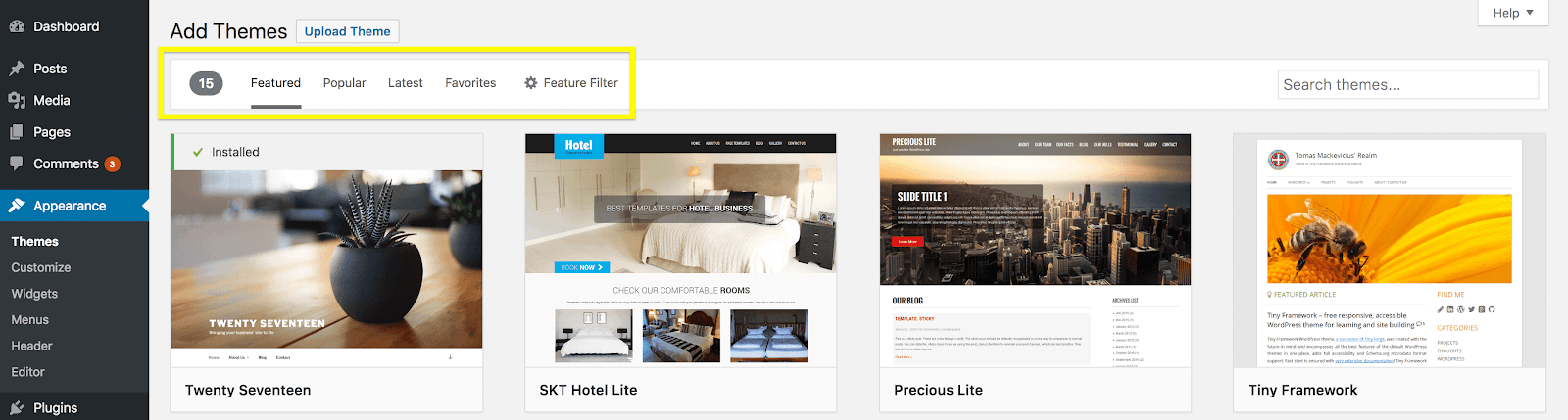
Credit: wpengine.com
Adjust Image Settings
Crop and position images in WordPress easily. Open the media library. Choose the picture you want to edit. Click on the edit button. Use the crop tool to trim the image. Make sure it’s the right size. Drag the image to the desired position. Check the alignment. This helps the picture fit well. A well-placed image catches the eye.
Set image visibility to make images visible or hidden. Go to the image settings. Find the visibility option. Choose ‘Public’ to show the image. Select ‘Private’ to hide it. Hidden images won’t appear to visitors. This feature is great for special content. Keep some images secret if needed.
Preview Changes
Always preview your changes before you save them. It helps to see how your new picture looks on the site. Click the “Preview” button after you upload your picture. This shows you the changes without making them live. Make sure the picture fits well with other elements on the page. Look at the colors and the layout. Everything should look neat and tidy. If something looks off, adjust the picture size or try another image. Previewing helps you avoid mistakes. You get a chance to make everything perfect before anyone else sees it.
Save And Publish
Click on the save button to store your changes. This keeps your work safe.
Then, press the publish button. This makes your picture go live.
Now, everyone can see your new picture. If you made a mistake, you can always change it again.
Remember to preview your changes before publishing. This helps catch errors.
Troubleshoot Common Issues
Changing a picture in a WordPress theme can be tricky. Find the theme’s customization options under “Appearance” in the dashboard. Upload the new image, save changes, and refresh to see your updated site.
Image Not Displaying
Sometimes, pictures don’t show up in WordPress. This can happen for many reasons. Check the file path. Make sure it’s correct. The image file might be missing. Upload it again if needed. Another reason could be a broken theme. Update the theme. Or switch to a different one. Plugins can also cause issues. Try disabling them one by one. This helps find the problem.
Incorrect Image Size
Images might not fit well on the website. They can appear too big or too small. Adjust the image size in the settings. Use the WordPress media library for help. It lets you edit and crop pictures easily. Sometimes, the theme restricts the size. Check the theme settings for size options. Plugins can also help. Install a plugin to resize images automatically. Always preview changes. Make sure everything looks good before saving.

Credit: www.templatemonster.com
Frequently Asked Questions
How Do I Upload A New Theme Picture?
To upload a new theme picture, go to the WordPress dashboard. Click on ‘Appearance,’ then ‘Customize. ‘ Navigate to the section where the current image is set. Click ‘Change Image,’ select your new image, and save changes. This updates the theme picture.
Can I Change The Header Image Easily?
Yes, changing the header image is simple. Access ‘Appearance’ from the WordPress dashboard, then ‘Customize. ‘ Locate ‘Header Image’ and click ‘Change Image. ‘ Upload your desired image and save. Your header will be updated instantly.
What Image Formats Are Supported?
WordPress supports various image formats including JPEG, PNG, and GIF. Ensure your image is optimized for web use. This helps in maintaining the site’s performance. Always check your theme’s specifications for any specific format requirements.
Is Image Size Important For Themes?
Yes, image size is crucial for themes. Large images can slow down your website. Ensure your image dimensions match the theme’s requirements. This helps in maintaining aesthetic and performance. Use image editing tools to resize your images.
Conclusion
Changing a picture in your WordPress theme is simple. Follow the steps, and you’ll update your site quickly. Remember, a fresh image can make your site look appealing. Keep your pictures relevant to your content. Regular updates keep visitors engaged.
Your site represents you, so choose images wisely. Practice makes it easier. Don’t rush; take time to select the right image. A well-chosen picture can boost your site’s impression. Stay creative and enjoy customizing your WordPress theme. Keep learning, and soon you’ll manage changes effortlessly.
Your site will thank you for the care.


