
Imagine visiting your website and seeing the same old photo that no longer reflects your brand or message. It’s like wearing last season’s fashion.
You might wonder how to refresh your site’s look without diving into complex coding or hiring an expensive developer. The good news? Changing a photo in your WordPress theme is simpler than you think. In this guide, you’ll discover step-by-step instructions that even a beginner can follow.
Visualize the satisfaction of showcasing a new image that captures your audience’s attention and complements your content perfectly. Ready to make your website shine? Let’s get started!
Choosing The Right Image
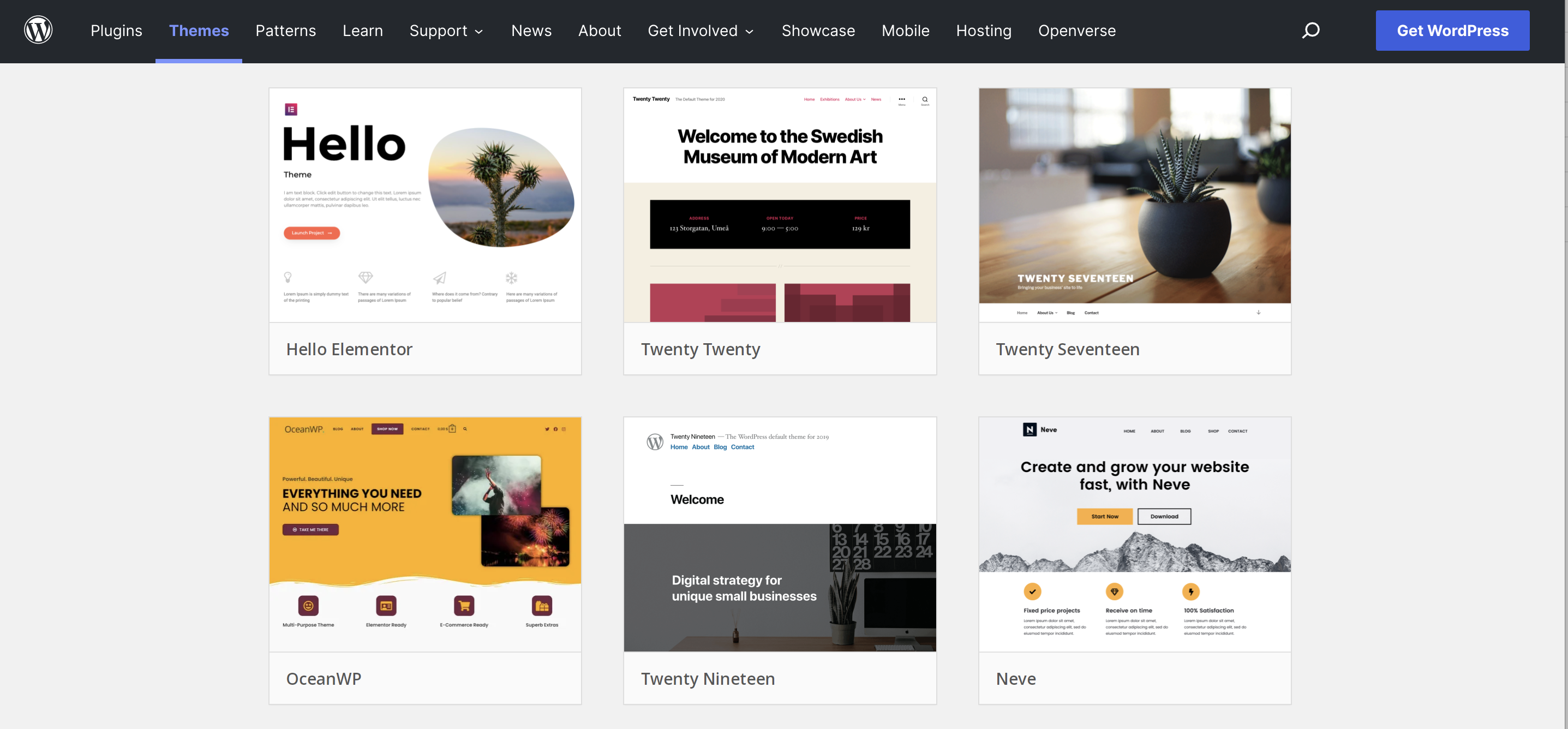
Picking the right image size is important. It should fit well on your site. Too big, and it slows down loading. Too small, and it looks blurry. Most WordPress themes work well with images that are 1200 pixels wide. Common formats are JPEG and PNG. JPEG is good for photos. PNG is better for graphics with fewer colors. Always check your theme’s image guidelines. This will help you choose the best size and format.
High-quality images make your site look great. Low-quality images can hurt how it looks. Use clear and bright images. Avoid dark or blurry ones. Ensure the image is not pixelated. Many tools can help improve image quality. Try using online editors to adjust brightness and contrast. Compress images without losing quality. This helps in faster loading times. A good image makes your site more attractive to visitors.
Credit: jetpack.com
Accessing The WordPress Dashboard
Start by opening your web browser. Type the website name into the address bar. Follow with “/wp-admin” at the end. You will see a login page. Enter your username and password. Click the “Log In” button. You are now in the WordPress dashboard. This is where you control your website.
Find the “Appearance” option on the left menu. Click on it to see more choices. Choose “Customize” from the list. The Theme Customizer will open. You can change many things here. Look for the “Header” or “Background” option. Click to change the photo. Follow the steps to upload a new picture. Click “Publish” to save changes.
Locating The Image To Change
To change a photo in a WordPress theme, first identify the image’s location. Access the WordPress dashboard and navigate to the theme’s settings or media library. Once there, find the image you want to replace.
Identifying The Image Location
First, find the page where the image is. Check the page or post. Right-click on the image. Choose “Inspect.” This will show the image’s URL. Note down the URL. It helps in finding the image in the theme files.
Understanding Theme Structure
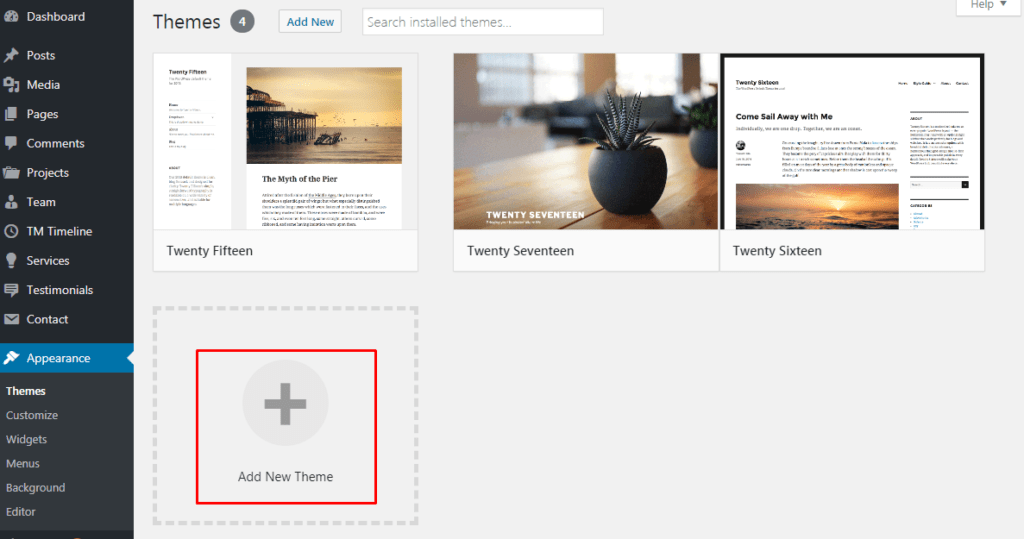
WordPress themes have many folders and files. Images are often in the “images” folder. Sometimes, they are in subfolders. Knowing the structure is important. Themes can be complex. But, look for familiar names. This helps in locating the right file. Be patient and thorough.
Credit: www.templatemonster.com
Uploading A New Image
First, go to the WordPress dashboard. Click on Media. Then, select Add New. This opens the Media Library. You can see all your uploaded images here. To add a new one, click Select Files. Choose your photo from your computer. The photo uploads to the library. Now, it is ready to use. Easy, right?
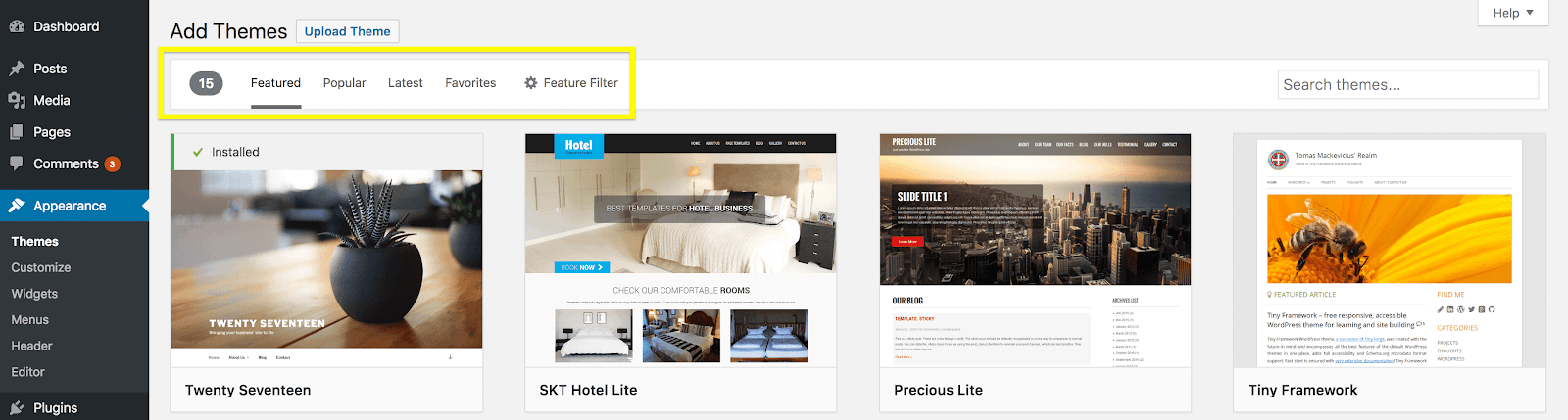
Navigate to your WordPress dashboard. Click on Appearance, then Customize. Find the section where you want to add a photo. Click on Upload or Add Image. A window will open. Choose your photo from the computer. Wait for it to upload. It will appear on your site. Now, your new photo is live!
Replacing The Existing Image
Find the Customizer under the Appearance menu. Click it. The Customizer helps you change settings. Look for the image you want to change. Click on the image. A new screen appears. You can upload a new photo here. Choose a picture from your computer. Select the image you want. Click on upload. Wait for it to finish.
After uploading, you can see a preview. Check if the image looks good. If not, change it again. Make sure it fits well. Look at the size. Is it right? If everything looks good, click Save. Your new image is now live. It’s easy to change pictures this way.
Credit: wpengine.com
Saving And Publishing Changes
It’s important to save drafts of your work. This keeps your changes safe. You can find the save button on the top right. Click it often to keep your work secure. Saving drafts lets you make changes without worries. You can come back later and finish your work.
Once you are happy with the changes, publish the theme. Find the publish button next to the save button. Click it to make your changes live. Everyone can see your new photo now. Publishing is the last step in updating your theme. Make sure everything looks great before you publish.
Troubleshooting Common Issues
Changing a photo in a WordPress theme often involves accessing the media library and updating the image. Navigate to the Appearance section, select Customize, and choose the image you want to change. Save your changes to ensure the new photo displays correctly on your site.
Image Not Displaying
Images might not show if your file size is too big. Try using a smaller image. Also, check the file format. Most themes support JPEG and PNG. Ensure you have uploaded the image correctly. Look at your media library to confirm. Sometimes, your internet connection might be slow. This can cause images not to load.
Theme Compatibility Problems
Your theme might not support the image you uploaded. Some themes have limits. Check the theme settings for any restrictions. Your theme might need an update. Older themes can have bugs. Always keep your theme updated. Plugins can also cause issues. Disable plugins one by one. This can help find the problem. If problems continue, contact your theme support team. They can provide more help.
Optimizing Images For Performance
Big images slow your website. Use tools to compress images. Small images load faster. They use less space. Keep image quality good. Do not make them blurry. Find a balance. Fast and clear.
Responsive images change size. They fit any screen. This keeps your site looking nice. Use HTML code to make images responsive. Add width and height tags. This helps the browser. It shows the best size for each device. Everyone sees your photos clearly. On phones and computers.
Frequently Asked Questions
How Can I Update My WordPress Theme Photo?
To update your WordPress theme photo, navigate to your dashboard. Go to Appearance > Customize, then select Header or Background Image. Choose your new photo and upload it. Make sure it fits the recommended dimensions. Save changes to reflect the update on your site.
Why Is My Photo Not Changing In WordPress?
If your photo isn’t changing, try clearing your browser cache. Ensure the image file is compatible and not too large. Check if your theme supports image changes. Sometimes, a plugin might be conflicting with the update. Disable plugins and try again.
Can I Use Any Image Format In WordPress?
WordPress supports common image formats like JPEG, PNG, and GIF. Ensure your images are optimized for web use. Avoid using high-resolution images that slow your site. Use tools to compress images without losing quality. This ensures faster loading times and better user experience.
How Do I Optimize Photos For WordPress?
Optimize photos by resizing them to recommended dimensions. Use image compression tools like TinyPNG or ImageOptim. This reduces file size without losing quality. Always use alt text for SEO benefits. Properly optimized images improve site speed and user engagement.
Conclusion
Changing photos in a WordPress theme is simple and rewarding. It helps your site look fresh and inviting. Follow easy steps for a smooth process. Start by choosing the right image. Next, update your theme settings. Check how it appears on mobile.
Make adjustments if needed. Keep your site updated regularly. This boosts user engagement and enhances visual appeal. Enjoy your new, vibrant site! Your readers will notice the change. Happy blogging and designing!


