
Are you feeling frustrated with your current WordPress theme not displaying your content just the way you want? You’re not alone.
Many WordPress users face the challenge of tweaking their page setup to match their vision. Fortunately, you don’t need to be a tech wizard to make your pages look exactly as you dream. Imagine the satisfaction of having a website that not only looks great but also functions perfectly.
By learning how to change your WordPress theme’s page setup, you’ll have the power to control your site’s appearance and improve user experience. You’ll discover simple, step-by-step instructions to transform your website into a masterpiece. Unlock the potential of your WordPress site by delving deeper into this guide, and watch your online presence flourish effortlessly.

Credit: wordpress.com
Choosing The Right Theme
Check if the theme has good features. Look for easy customization. Make sure it supports plugins. This helps add new options. Good support is important too. It helps fix problems fast.
A responsive theme looks good on all devices. Test it on phones and tablets. This keeps users happy. It also helps with search engines. They like responsive sites.
An SEO-friendly theme helps rank higher. Look for clean code. This makes loading faster. Also, check for built-in SEO tools. These tools help with keywords and meta tags.
Installing A New Theme
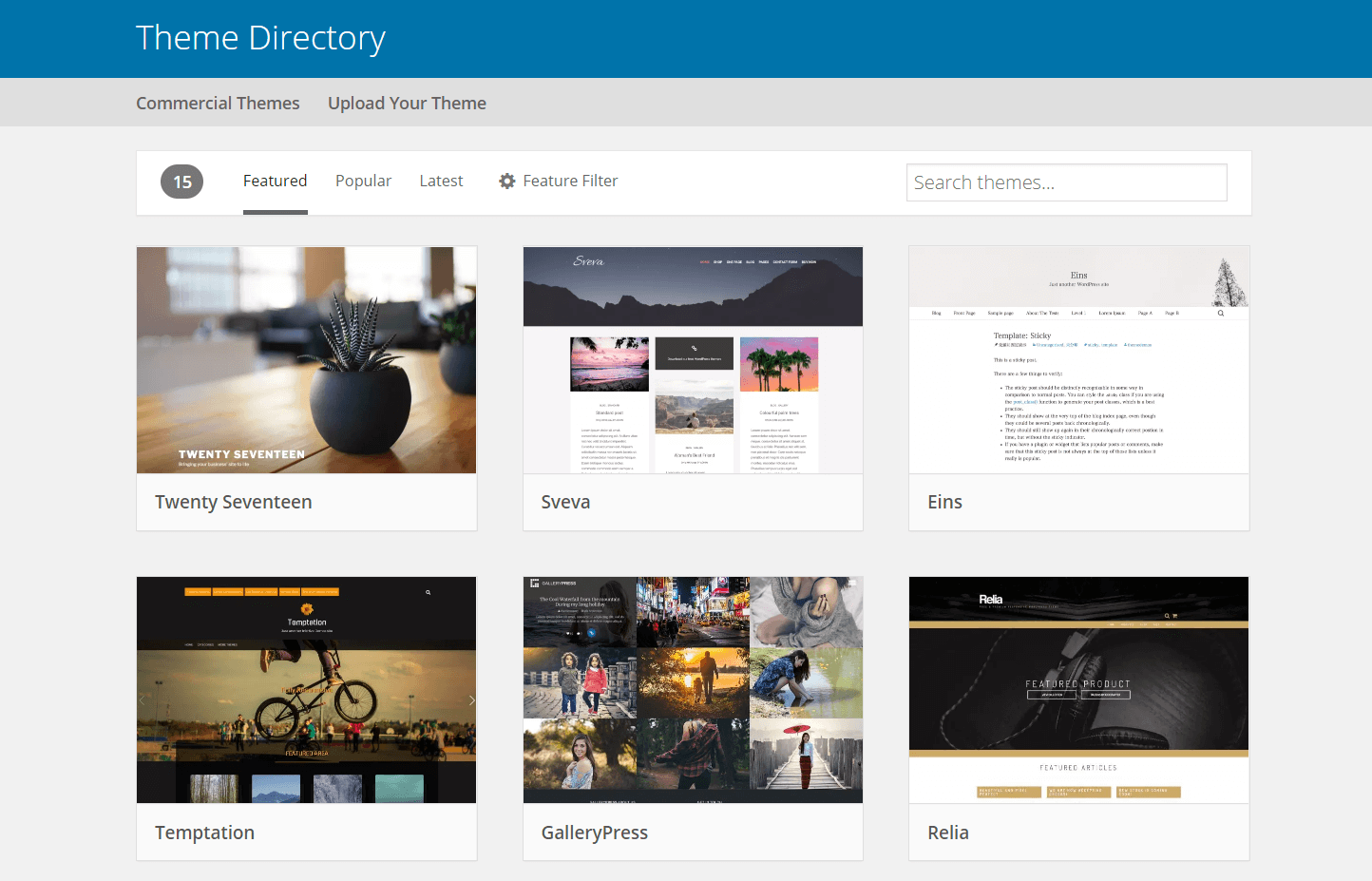
First, find the WordPress Dashboard on your website. Click on Appearance in the menu. Choose Themes from the options. This is where all themes are stored. You will see the Theme Directory. Here, many themes are available. You can search for a theme using the search bar. Use filters to find themes. Themes can be sorted by popularity, latest updates, and more. Click on a theme to see details. Use the Preview button to view how it looks. Click Install to add the theme to your site.
Find a theme you like from the internet. Save it on your computer as a .zip file. Go to your WordPress Dashboard. Click on Appearance and then Themes. Look for the Upload Theme button. Click it to upload your theme. Select the .zip file from your computer. Click Install Now. Wait for the upload to finish. Activate the theme to use it. Your custom theme is now ready. Your site will have a new look.
Customizing Theme Settings
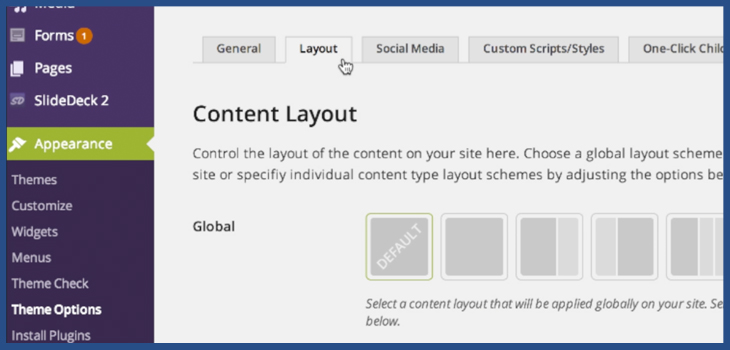
Change the layout to make your site look good. Pick between different layouts. Some are wide, some are boxed. Choose what suits your style best. Make sure the layout works well on phones too.
Colors make your site fun. Pick colors that match your brand. Bright colors can make a site pop. Soft colors feel calm. Change colors for links, text, and background. Make sure colors are easy to see.
Fonts can change how a site feels. Use big fonts for titles. Use small fonts for normal text. Pick fonts that are easy to read. Bold fonts can make words stand out. Keep the font style simple.
Credit: wpengine.com
Using The WordPress Customizer
The Customizer is a tool in WordPress. It helps change your theme. Find it in the WordPress dashboard. Look for the “Appearance” option. Click on “Customize.” This opens the Customizer interface. On the left, you see menus. On the right, a live preview of your site. Choose a menu to change settings. Options may include colors, fonts, and more. Changes appear in the preview instantly.
Previewing changes is easy. Adjust settings in the Customizer. Look at the right side. This is your live preview. It shows how your site looks with new settings. You can see changes without saving. This helps decide if changes are good. If you like them, click “Save & Publish.” Your site updates with new settings.
Setting Up Menus And Widgets
Menus help your visitors find pages easily. Go to your WordPress dashboard. Click on Appearance. Then select Menus. Add pages by checking boxes next to each page. Click Add to Menu. Arrange the order by dragging and dropping. Set the menu location to the primary spot. Save your changes to see them live.
Widgets add extra features to your site. Navigate to the WordPress dashboard. Click Appearance. Choose Widgets. Find the sidebar area. Drag and drop items like search bars or calendars. Customize each widget’s settings. Press Save to keep your changes. Widgets appear on your site instantly.
Credit: slocumthemes.com
Optimizing For Mobile
Mobile users need a smooth experience. Your website should fit any screen size. This means images must adjust automatically. Buttons should be easy to tap. Text must be clear and readable. Responsive design helps your website look good on all devices. Many WordPress themes offer this feature. Choose a theme with built-in responsiveness. Test your site on different phones. Make sure it looks great everywhere.
Testing is important for mobile usability. Use tools like Google’s Mobile-Friendly Test. Check if your site is easy to use. Look for broken links and slow pages. Ask friends to visit your site on their phones. Get feedback about their experience. Make changes based on their feedback. A good mobile site keeps visitors happy. This helps them stay on your site longer.
Saving And Publishing Changes
Check your changes before saving. It’s important to see how your page looks. Mistakes can happen. Look at the colors, fonts, and layout. Everything should match your plan. If something seems off, fix it now.
Once satisfied, click save. This keeps your work safe. Then, preview the page. This shows how visitors will see it. Make sure all links work. Check images too. They should appear correctly. If not, adjust them.
Hit the publish button. Your changes go live. Everyone can see your updated theme. Visit your site to double-check. Ensure everything displays as intended. Your page setup is now complete.
Frequently Asked Questions
How Do I Access WordPress Theme Settings?
To access WordPress theme settings, log in to your WordPress dashboard. Navigate to ‘Appearance’ and select ‘Customize. ‘ Here, you can adjust various theme settings, including layout, colors, and fonts. This section allows you to personalize your website’s appearance to match your brand or preference.
Can I Change Page Layout In WordPress?
Yes, you can change the page layout in WordPress. Go to the ‘Pages’ section in your dashboard. Select the page you want to edit. Use the ‘Page Attributes’ or ‘Layout Settings’ to modify the layout. Themes and page builders offer additional layout customization options for enhanced flexibility.
What Plugins Help With Theme Customization?
Several plugins assist with theme customization in WordPress. Elementor and WPBakery are popular page builders offering drag-and-drop features. Customize themes without coding. Plugins like Customizer and SiteOrigin also offer extensive customization options. These tools help tailor your website’s design to suit your needs.
How Do I Change Header Settings?
To change header settings, navigate to ‘Appearance’ and click ‘Customize. ‘ Select ‘Header’ or ‘Header Options. ‘ You can modify header layout, colors, and add custom logos or menus. Some themes offer advanced header settings. Ensure changes are saved and previewed before publishing.
Conclusion
Changing your WordPress theme setup can feel daunting. But, it’s totally doable. Follow steps carefully. Customize your site to match your vision. Use the theme settings wisely. Experiment with different layouts. Check your changes frequently. Ensure your site remains user-friendly.
Aim for a clean and attractive design. Keep your audience in mind. Make your site easy to navigate. Enhancing your WordPress theme boosts user experience. It also improves your site’s appearance. Take time to explore and tweak settings. Your site reflects your brand.
Happy customizing!


