
Are you ready to give your WordPress site a fresh look but not sure where to start? Changing your WordPress theme can breathe new life into your website, making it more appealing to visitors and aligning it with your brand’s vision.
But if you’ve never done it before, it might seem a bit daunting. Don’t worry, though—you’re not alone in this. With just a few simple steps, you can transform your site’s appearance without breaking a sweat. In this guide, you’ll discover not only how to change your WordPress theme effortlessly but also some insider tips to ensure a smooth transition.
Stick around, and you’ll soon have a website that looks as stunning as you’ve always imagined.
Credit: www.hostpapa.com
Choosing A New Theme
Think about what you want from your website. Is it for a blog, a store, or a portfolio? List your goals on paper. This will help you find the right theme. Make sure the theme matches your brand colors. Consider how you want your website to look. Simple? Modern? Fun?
Check the WordPress theme directory for free themes. There are thousands of choices. You can also look at premium themes. These might cost money but have more features. Visit theme shops like ThemeForest or Elegant Themes. Always read reviews before choosing. User feedback is very helpful.
Make sure the theme is mobile-friendly. Many people use phones to browse. Check if it supports plugins you need. Does it load fast? Fast themes keep visitors happy. SEO-friendly themes help your site rank better. Look for themes with good support. You might need help setting it up.
Credit: help.one.com
Backing Up Your Website
Changing your WordPress theme requires careful steps to ensure smooth transition. Start by backing up your website to avoid data loss. Use a reliable plugin for easy backup and restore options. Then, select a new theme that fits your needs.
Preview before activation to check compatibility and design.
Using Backup Plugins
Plugins help save your website data safely. They make backups easy. Choose a plugin that suits your needs. Some plugins can save your files daily. Others offer weekly backups. Look for plugins that are easy to use. Install the plugin on your WordPress dashboard. Set up your backup schedule. This ensures your data is always safe. Popular plugins include UpdraftPlus and BackupBuddy. They are reliable and widely used. Always keep your plugin updated. This protects against bugs and errors.
Exporting Content Manually
Manual export is simple and effective. Log into your WordPress dashboard. Navigate to the tools section. Select the “Export” option. Choose what you want to export. This can be posts, pages, or media. Download the export file to your computer. This file saves your data safely. Store it in a secure location. This way, you can access it anytime. Regular manual exports ensure your content remains safe.
Installing The New Theme
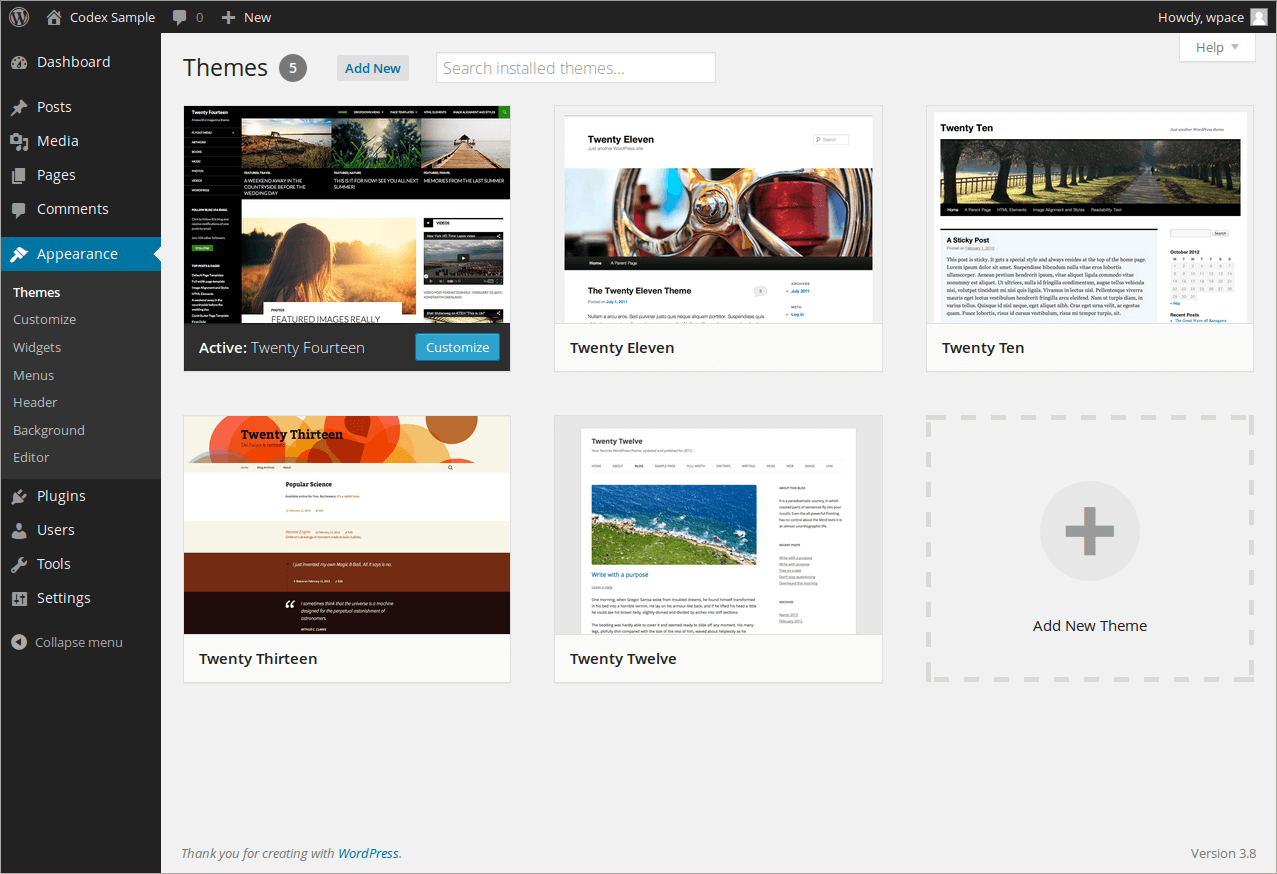
First, log in to your WordPress dashboard. Use your username and password. The dashboard is your control center. You can change settings here. Find the “Appearance” menu on the left side. Click on it to see more options. This is where you start to change your theme.
Download your new theme from a trusted site. Save it as a .zip file on your computer. Go back to the dashboard. Click on “Themes” under the “Appearance” menu. You will see an “Add New” button at the top. Click it. Now, click on “Upload Theme” and choose your .zip file. Finally, click “Install Now”.
After installation, you will see an “Activate” button. Click it to use your new theme. Your site will now have a fresh look. Check your site to see the changes. Make sure everything works well. You can customize it more if needed.
Customizing The New Theme
Switching your WordPress theme is simple. Go to your dashboard, find ‘Appearance’, and select ‘Themes’. Choose a new theme and click ‘Activate’. Make sure to preview changes to ensure everything looks great. Customize your new theme for a fresh, personalized look.
Using The WordPress Customizer
Open the WordPress Customizer from your dashboard. It’s the easiest way to make changes. You can change colors, fonts, and more. See changes instantly. No need to save each time. Preview before you publish. It’s fun and easy!
Adjusting Theme Settings
Go to the theme settings in your dashboard. Look for the “Settings” or “Theme Options” tab. Change the layout or header style. Adjust site width if needed. You can also change the background. Make your site look just right.
Adding Widgets And Menus
Widgets add extra features to your site. Find them under “Appearance” and “Widgets”. Drag and drop them into place. Add a menu to guide visitors. Go to “Appearance” and then “Menus”. Create new menus or edit old ones. Easy to organize and update.
Testing Your Website
Ensure your theme works with all plugins. Broken plugins can cause problems. Look for any errors or warnings. Fix them before launching. Some themes may not support old plugins. Always update plugins for best performance.
Check your site on phones and tablets. Text must be easy to read. Images should fit the screen. Buttons need to be big enough. Mobile users are important. A good mobile site keeps visitors happy. Test every page for best results.
Test all links to ensure they work. Click each button. Check forms and shopping carts. Make sure users can submit forms. Broken links frustrate visitors. Keep everything functioning smoothly. Happy users return to your site.

Credit: visualmodo.com
Optimizing For Seo
Updating SEO settings is important. Make sure the meta tags are correct. Titles should be short and clear. Use keywords in them. The description helps search engines. It should explain the page well. Use keywords here too. This boosts your visibility.
Checking page load speed is crucial. Slow pages lose visitors. Compress images for faster loading. Remove unused plugins. They slow down the site. Use caching tools. They help load pages faster. Fast sites rank better.
Ensuring proper indexing helps search engines find your site. Use a sitemap. It guides search engines. Check robots.txt. It tells search engines what to index. Avoid blocking important pages. Important pages should be visible to search engines.
Maintaining Your Theme
Switching your WordPress theme can refresh your site’s look. Start by navigating to the WordPress dashboard. Choose “Appearance,” then “Themes,” and browse available options. Install your preferred theme and click “Activate” to update your site’s design. Always preview before finalizing to ensure compatibility.
Regularly Updating The Theme
Updating your theme is very important. It helps keep your site safe. New updates fix bugs and add features. Check for updates weekly. Go to your WordPress dashboard. Find the updates section. Click to update your theme. Always back up your site first. This way, you won’t lose data.
Managing Theme Conflicts
Theme conflicts can happen. They cause your site to look weird. Sometimes, plugins don’t work well with themes. Check for plugin updates too. Disable plugins one by one. See which one causes the problem. Try changing your theme if needed. Back up your site before changes. Always keep a backup.
Securing Your Website
Security is key for your site. A secure theme helps keep hackers away. Use strong passwords. Update WordPress regularly. Install security plugins. Keep your theme code clean. Avoid using free themes from unknown sites. They might be risky. Check theme reviews before using them.
Frequently Asked Questions
How Do I Install A New WordPress Theme?
To install a new WordPress theme, go to your dashboard. Navigate to “Appearance” > “Themes,” then click “Add New. ” Browse or search for a theme, and click “Install. ” Once installed, activate the theme to apply it to your site.
Ensure the theme is compatible with your WordPress version.
Can I Change My WordPress Theme Without Losing Content?
Yes, you can change your WordPress theme without losing content. Themes affect design, not the content itself. However, backup your site before changing themes. Some custom settings might need adjustments. Check if plugins are compatible with the new theme to ensure smooth transition.
How Do I Preview A WordPress Theme?
To preview a WordPress theme, go to “Appearance” > “Themes” in your dashboard. Click “Live Preview” on any theme you want. This allows you to see how your site will look with the new theme. You can make adjustments before activating it.
Are Free WordPress Themes Reliable?
Free WordPress themes can be reliable if sourced from reputable developers. Check reviews and ratings before installation. Ensure they are regularly updated for security. Free themes might lack customization options compared to premium ones. Always verify compatibility with your WordPress version and plugins.
Conclusion
Changing your WordPress theme is simple with these steps. Start by picking a theme that suits your style. Backup your site to keep your content safe. Install your new theme and activate it. Customize your settings for a fresh look.
Test your site to ensure everything works smoothly. Remember, a new theme can refresh your site’s appearance. Enjoy the new design and improved user experience. Keep exploring different themes for more ideas. Your site can always evolve with new designs.
Happy blogging and designing!


