
Are you looking to personalize your WordPress site by changing the name of your theme? Whether you’re rebranding, tidying up your dashboard, or just want a fresh start, altering the theme name can be a simple yet impactful step.
You might think it’s a daunting task, but what if I told you it’s easier than you imagine? In this guide, you’ll discover straightforward steps to seamlessly change your WordPress theme name without breaking a sweat. Imagine the satisfaction of having a site that truly feels like it belongs to you, right from its core identity.
Keep reading, and you’ll learn how to make that happen effortlessly.
Backup Your WordPress Site
Backing up your WordPress site is very important. It keeps your data safe. Imagine losing all your hard work. Not fun, right? That’s why a backup is key.
There are many ways to back up. You can use plugins. Plugins make it easy. They save your data on the cloud. Some popular plugins are UpdraftPlus and BackWPup. These plugins are easy to install. They also offer automatic backups. This means you don’t have to do it manually.
Another way is using your hosting service. Many hosting companies provide backup features. Check if your host offers this. If yes, enable it. Always keep a backup before changing theme names. It helps to restore your site if needed. Stay safe and happy blogging!
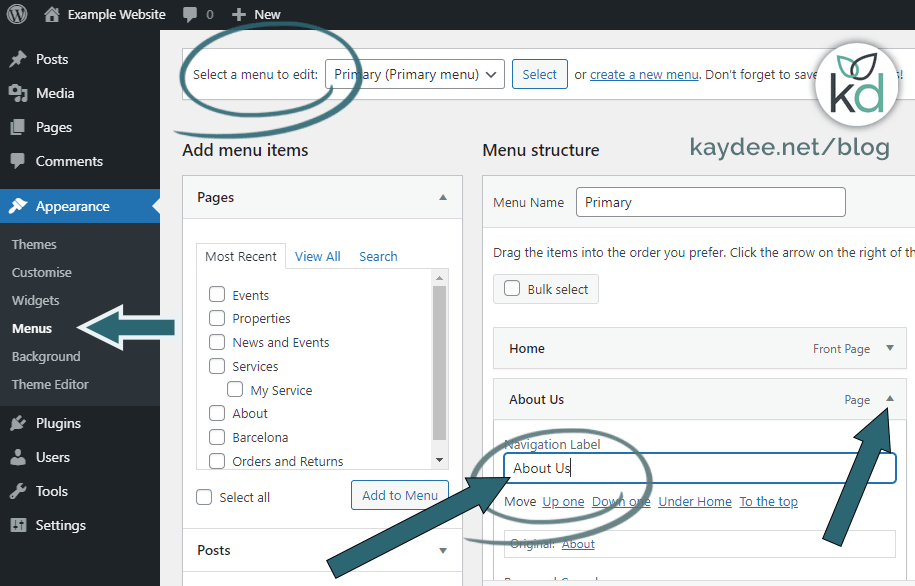
Credit: kaydee.net
Locate Theme Files
Start by logging into your WordPress Dashboard. Find the Appearance tab on the left. Click on it. This will open up the themes section. Here, you can see all installed themes. Choose the theme you want to rename. This step allows you to see the theme’s details. You can also find the theme’s folder name here.
You need an FTP client or a File Manager in your hosting. Connect using your login details. Navigate to the wp-content folder. Then go to the themes folder. Find the theme folder you want to rename. Right-click on the folder name. Select rename. Enter the new name. Make sure it is simple and clear. Save your changes.
Modify Theme Name In Style.css
Open the style.css file of your WordPress theme. This file holds important details about the theme. Find the section at the top with Theme Name. Change the name to your desired name. Save the changes. Your theme now shows the new name.
Locate the Author and Version lines in the same file. Replace the existing author name with your name. Update the version number if needed. Save the file again. Your theme now has updated details. Be sure to check the site for any errors.

Credit: www.nexgi.com
Change Theme Folder Name
Connect to your website using FTP client. Find the wp-content/themes folder. This folder holds all your themes. Select the theme folder you want to rename. Right-click on it and choose rename. Enter the new name you want. Make sure the name is simple and easy. Press enter or confirm the change.
Log into your hosting account. Open the File Manager tool. Navigate to wp-content/themes. Locate the theme folder you wish to change. Click on the folder name. Choose the rename option. Type the new folder name. Confirm the change by clicking save or enter. Refresh your site to see changes.
Adjust Theme Files
Changing the text domain helps make themes work better. Find the text domain in the theme’s main file. Open the file and look for load_theme_textdomain. Change the old name to the new one. This updates your theme’s language settings. Save the file after making changes.
Functions need correct names to work. Check all function names in the theme. Look for ones starting with the old name. Change them to start with the new name. This makes sure the theme works correctly. Find these in files like functions.php. Keep file names organized. This helps avoid errors.

Credit: www.youtube.com
Refresh And Test The Site
Clearing Cache is important after changing a theme name. This step ensures the latest changes appear. Start by clearing the browser cache. This action removes stored data from old visits. Next, clear the WordPress cache if you use a caching plugin. Check the plugin settings for an option to clear cache. This helps display the updated theme name correctly. Remember, caches store old versions of your site. Without clearing them, visitors might see outdated information.
Ensuring Site Functionality is the next step. Visit your site to confirm everything looks right. Click through each page and post. Make sure images load and links work. Check the site on different devices. This ensures the theme name change doesn’t affect how the site works. If any issues arise, revisit the theme settings. Fix any errors to keep your site running smoothly.
Troubleshooting Common Issues
Changing a theme name might lead to broken links. Always check the links in the menu. Make sure they still point to the right pages. Use a link checker tool if needed. Fix links quickly to keep the website working well. Broken links can confuse visitors. They might leave your site if links don’t work.
Changing a theme name can cause style conflicts. Your website may look different. Check the appearance after the name change. If styles look odd, review the CSS files. Make sure styles are loading correctly. Adjust CSS if needed. Keep the website looking nice. Visitors like sites that look good. Style issues can make the site hard to use.
Frequently Asked Questions
How Can I Rename My WordPress Theme?
To rename your WordPress theme, access your theme files via FTP or cPanel. Locate the theme directory, and rename it. Update the theme name in the style. css file. This ensures consistency and avoids potential issues.
Will Changing A Theme Name Affect My Site?
Changing a theme name won’t affect site functionality or content. It might reset theme-specific settings. Backup data before proceeding, to ensure smooth transition.
Is It Safe To Change Theme Name?
Yes, it’s safe if done correctly. Ensure you update the theme name in style. css file. This prevents errors and maintains site integrity.
Can I Change Theme Name Without Ftp?
Yes, use the WordPress admin panel. Navigate to Appearance > Editor. Edit style. css directly. Ensure you update the theme name carefully.
Conclusion
Changing your WordPress theme name is simple and effective. It helps personalize your site. Follow the steps carefully to avoid errors. Backup your site before making changes. Use a child theme for safe modifications. Keep your theme updated regularly. This ensures security and functionality.
A unique theme name can enhance your brand identity. It also helps in organizing your files better. Customizing your WordPress theme adds a personal touch. Enjoy creating a site that truly represents you. Happy blogging!


