
Are you tired of the current look of your WordPress blog? Ready to give it a fresh, new vibe that truly reflects your style?
Changing your WordPress blog design theme can feel like flipping through a fashion magazine, picking a new outfit for your digital presence. It’s exciting, yet it can also be a bit daunting if you’re not sure where to start. But don’t worry! You’re not alone, and this guide is here to simplify the process for you.
Imagine the thrill of transforming your blog with just a few clicks, making it more appealing and engaging for your readers. Stick around, and you’ll discover the step-by-step process to effortlessly switch your WordPress theme, ensuring your blog not only looks stunning but also performs at its best. Let’s dive in and unlock the potential of your WordPress blog design!
Credit: www.etsy.com
Choosing The Right Theme
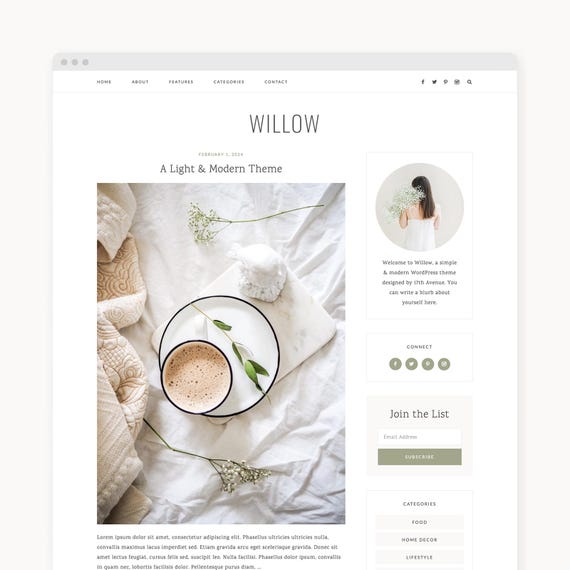
Every blog has a purpose. It might be about travel or cooking. A theme should match this purpose. A travel blog needs vibrant colors. A cooking blog might need space for recipes. Look for themes that fit your content. This helps readers enjoy your blog.
Free themes are simple and cost nothing. They work well for beginners. Premium themes often have more features. They can make a blog look professional. But they cost money. Some premium themes have support and updates. Decide what your blog needs.
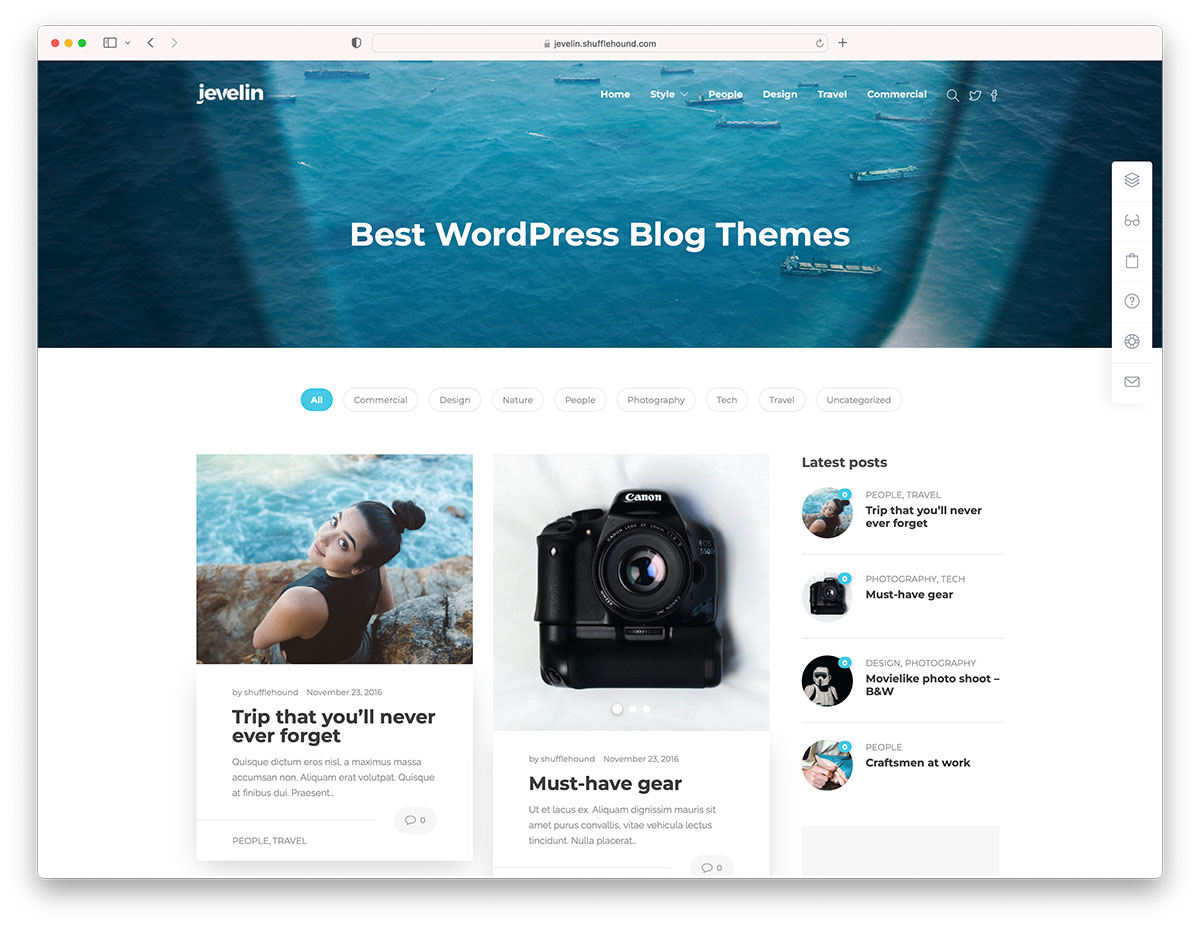
A good theme looks great on any device. This is called responsiveness. Many people use phones to read blogs. A responsive theme adjusts to fit screens. This makes reading easy on phones and tablets. Always test a theme on different devices.
Installing A New Theme
Log into your WordPress account. Find the dashboard on the left side. Click on Appearance. Choose Themes. This opens the theme section. Here, you can change your blog design.
Click on Add New. Browse the Theme Directory. There are many free themes. Check them out. Use the search bar for specific themes. Click Install on the theme you like. Finally, click Activate to use the theme.
Download a theme from the internet. Go to the dashboard again. Click on Add New. Choose Upload Theme. Select your downloaded theme file. It should be a .zip file. Click Install Now. Wait for the upload to finish. Click Activate to apply the theme.
Customizing Your Theme
The WordPress Customizer is your friend. It helps you change how your blog looks. Find it in your dashboard. Click “Appearance,” then “Customize.” You can see changes in real time. This is very helpful. You can edit many things. Try changing your site’s title. Or, pick a new background color. These small tweaks can make a big difference. Enjoy exploring!
Colors and fonts make your blog unique. Try bright colors for a fun look. Or use soft colors for a calm feel. Fonts are also important. Choose clear, easy-to-read fonts. Comic Sans or Arial can be good choices. You can try different combinations. Find what suits your style. Simple changes can make your blog stand out.
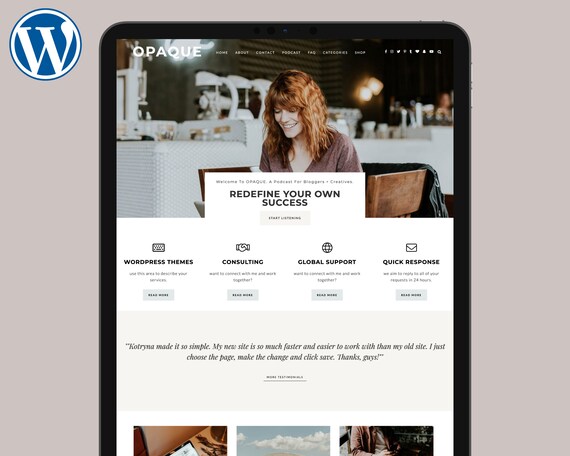
Widgets are like small tools. They add features to your blog. You can find them in the Customizer. Add a search bar widget. Or a calendar to show dates. Drag and drop them to rearrange. This is easy to do. Place them where they fit best. Widgets help improve your blog’s functionality. Your readers will love these extra features.
Credit: www.etsy.com
Testing Your Theme Design
Previewing Changes is easy in WordPress. Go to the dashboard. Find the “Appearance” tab. Click on “Themes.” Here, you can see the preview button. Click it to see how your blog looks. This way, you know if the theme fits your style.
Ensuring Mobile Compatibility is crucial. Most people use phones to browse. Open your blog on a phone. Check if everything looks good. Make sure buttons and text are easy to click and read. Your readers will be happy if your site works well on their phones.
Checking Browser Consistency is a good idea. Use different web browsers like Chrome, Firefox, and Safari. Open your blog in each one. Look for any problems. Make sure your blog looks the same in all browsers. This keeps your blog professional and neat.
Maintaining Theme Performance
Changing your WordPress blog design theme improves site performance. Select a new theme from the WordPress dashboard. Ensure it matches your style and speeds up your page loading.
Optimizing Load Times
Fast loading is important. Slow websites lose visitors. Compress images to reduce size. Use a good hosting provider. Choose themes with clean code. Remove unnecessary plugins. Enable browser caching. Reduce server requests. Use a content delivery network (CDN).
Regular Theme Updates
Update themes often. Updates fix bugs. They improve security. Themes get new features. Check theme settings. Use auto-updates if possible. Keep WordPress updated too. Backup your site before updates. Test updates in a staging environment. Ensure compatibility with plugins.
Monitoring User Feedback
User feedback helps improve your site. Check comments for issues. Ask users about their experience. Use surveys for feedback. Track visitor behavior. Use analytics tools. Adjust themes based on feedback. Keep users informed about changes. Respond to user concerns quickly.
Credit: colorlib.com
Frequently Asked Questions
How Do I Change My WordPress Theme?
To change your WordPress theme, go to your dashboard. Navigate to Appearance > Themes. Click ‘Add New’ to browse themes. Select your desired theme and click ‘Install’. Once installed, click ‘Activate’ to make it live. Always preview your changes before activating to ensure compatibility and maintain your site’s aesthetics.
Can I Customize My WordPress Theme?
Yes, you can customize your WordPress theme. Use the Customizer tool under Appearance > Customize. It allows you to change colors, fonts, and layout. You can also add widgets and menus. For advanced customization, consider using a child theme or custom CSS.
Will Changing Themes Affect My Blog Content?
Changing themes won’t affect your content. Your posts, pages, and media remain intact. However, theme-specific settings may change, like widgets and menus. Always back up your site before changing themes to prevent data loss. Review your site after changes to ensure everything displays correctly.
How Do I Find Responsive WordPress Themes?
Find responsive themes in the WordPress theme directory. Look for themes labeled ‘responsive’. You can also filter themes by responsiveness. Responsive themes adapt to different screen sizes, improving user experience. Check theme demos to see responsiveness in action and ensure compatibility with your site.
Conclusion
Changing your WordPress theme can refresh your blog’s look. It’s easy with the right steps. Pick a theme that fits your style. Always back up your site before changes. Test the new theme thoroughly. Make sure it works on all devices.
Check your plugins for compatibility. Keep your content clear and engaging. A fresh design can attract more readers. Remember, your blog reflects your personality. Choose wisely and enjoy the transformation. With a well-chosen theme, your blog can shine. Happy blogging!


