
Are you ready to give your WordPress blog a fresh new look? Changing your blog theme can feel like a breath of fresh air, reinvigorating your site with updated aesthetics and improved functionality.
But the process might seem daunting if you’ve never done it before. Don’t worry—you’re not alone, and it’s easier than you think. In this guide, we’ll walk you through each step to ensure that your theme change is seamless and stress-free.
Imagine your blog transforming into the visual masterpiece you’ve always dreamed of, capturing more attention and engaging your audience like never before. Keep reading, and discover how simple it is to make your blog truly shine.
Choosing The Right Theme
Think about your blog’s purpose. Is it for sharing stories or selling products? Determine the features you need. A photo gallery or a shopping cart? Your theme should match these needs. Design is important too. Bright colors or calm tones? Your theme should fit your blog’s style.
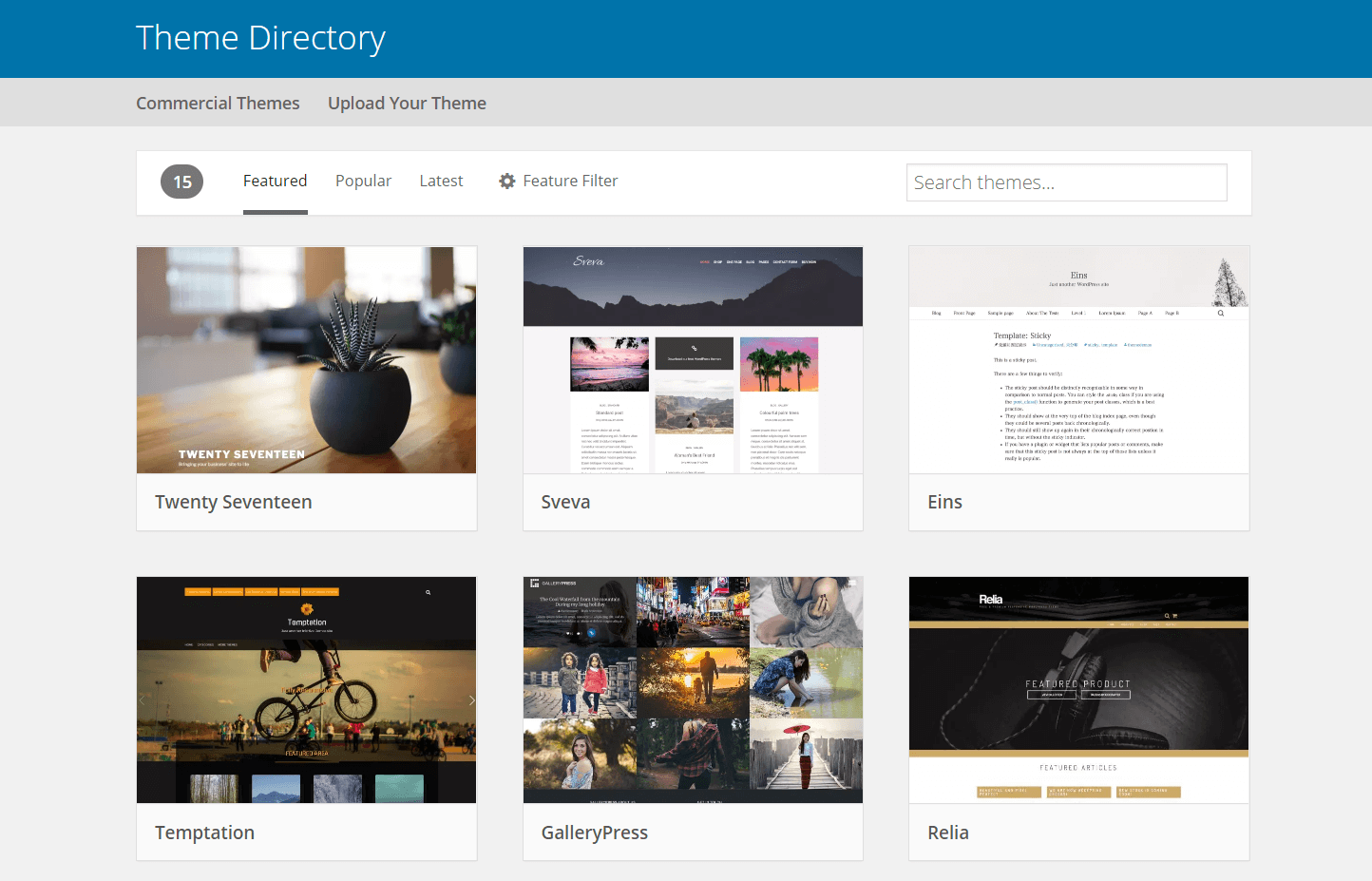
WordPress offers many themes. Some are simple, others are complex. Start with the WordPress theme directory. You can search by category. Find themes for blogs, shops, or portfolios. Check the ratings and reviews. What do users say? This helps you choose a reliable theme.
Free themes cost nothing. They have basic features. Perfect for new bloggers. Premium themes cost money. They offer more customization. Also, better support. Choose based on your budget. Both have pros and cons. Decide what fits your needs best.
Credit: wpengine.com
Preparing For The Change
Before changing your theme, backing up your blog is crucial. It keeps your content safe if anything goes wrong. Use a plugin like UpdraftPlus or BackupBuddy. They help you save your posts, images, and settings. A backup is your insurance policy. It provides peace of mind. Always keep a copy stored safely. You can also use your hosting service’s backup feature. Check if it is available. This is a great way to ensure data security.
New themes might not work well with all plugins. Check compatibility before changing your theme. Some plugins might stop working or cause errors. Review your active plugins. Make a list of essential ones. Visit the theme’s page. Read reviews and comments. Look for compatibility issues. Test in a staging environment first. This helps avoid problems on your live site. Always keep your plugins updated to the latest version.
Installing A New Theme
First, open your web browser. Then, type in your blog’s web address. Add /wp-admin at the end. You will see a login page. Enter your username and password. Click the Log In button. Now, you are in the WordPress Dashboard. This is where all changes happen.
Click on Appearance in the sidebar. Then, select Themes. You will see the themes available. Browse the Theme Directory. You can search for themes. Use the search bar. Once you find a theme you like, click Install. After installing, click Activate to use it.
Sometimes, you have a theme file. Go to Appearance, then Themes. Click Add New at the top. Click Upload Theme. Choose your theme file from your computer. It should be a .zip file. Click Install Now. After it installs, click Activate to set it.

Credit: cyberchimps.com
Customizing Your Theme
Changing your WordPress blog theme is simple and fun. Visit the dashboard, click ‘Appearance,’ then ‘Themes. ‘ Browse options or upload a new one. Select ‘Activate’ to change your blog’s look.
Using The WordPress Customizer
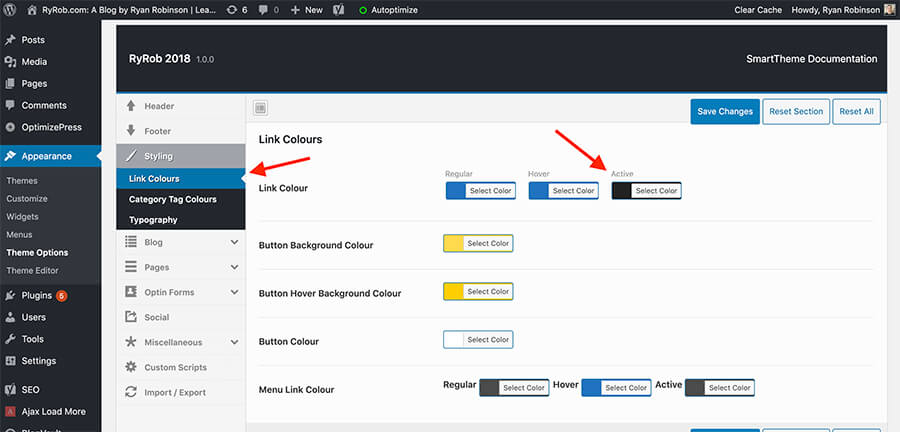
The WordPress Customizer helps you change your blog’s look. It is easy to use. Access it from your dashboard. Click on “Appearance” then “Customize.” You can see changes live. Try different colors and fonts. Adjust the header and footer. Save changes to see them on your blog.
Adjusting Layout And Design
The layout sets how your blog looks. Choose a new layout in the Customizer. Pick a grid or list style. Change the size of images. Make sure your blog is easy to read. Use simple designs. Too many elements can confuse readers. Save your design changes when done.
Adding Custom Widgets
Widgets add extra features to your blog. Find widgets in the Customizer. Drag and drop them into place. Add a search bar or recent posts. Try adding a social media link. Widgets make your blog fun and helpful. Check how they look on your blog. Adjust if needed.
Testing And Troubleshooting
Previewing changes helps you see how your blog looks. It is important to preview before making themes live. Click “Live Preview” to view changes. This step helps catch mistakes early.
Checking for broken links ensures all links work. Broken links frustrate readers. Use tools to scan for broken links. Fix any broken ones you find. Working links make your site user-friendly.
Ensuring mobile responsiveness is crucial. Many people use phones to browse. Your theme should look good on small screens. Test your site on different devices. Adjust settings if needed. Mobile-friendly sites attract more visitors.
Finalizing Your Theme Change
Explore changing your WordPress blog theme effortlessly. Navigate to the dashboard, select ‘Appearance,’ then ‘Themes. ‘ Preview and activate your chosen theme for a fresh look. Ensure compatibility with your plugins and content to maintain functionality. Adjust widgets and settings for a seamless transition.
Optimizing For Seo
Pick a theme that is SEO-friendly. This helps your blog rank better. Use SEO plugins like Yoast or All in One SEO. They guide you on improving your blog posts. Focus on keywords relevant to your content. Add alt text to images. This helps search engines understand your images. Make sure your site loads quickly. Slow sites can lower rankings. Use a responsive design. This ensures your blog looks good on all devices.
Gathering Feedback
Ask readers about your new theme. Check if they find it easy to use. Look for comments on social media. This helps you know what to improve. You can also use surveys. Short surveys get more responses. Feedback is key for a better user experience. Change elements if many suggest it. Always aim for a clear and clean design.
Monitoring Performance
Use tools like Google Analytics. This tracks your site’s performance. Check how long visitors stay on your page. Longer visits mean better engagement. Look at bounce rates. High bounce rates may need design changes. Check if your site loads fast. A fast site keeps visitors happy. Keep an eye on mobile performance. Many users browse on phones now. Always look for ways to improve.
Credit: www.ryrob.com
Frequently Asked Questions
How Do I Install A New WordPress Theme?
To install a new WordPress theme, go to your dashboard. Click on ‘Appearance’ and then ‘Themes. ‘ Choose ‘Add New’ to browse themes. Select your desired theme and click ‘Install. ‘ Activate it to apply changes. Ensure compatibility with your plugins and WordPress version before installing.
Can I Change My Theme Without Losing Content?
Yes, changing your WordPress theme won’t affect your content. Posts, pages, and media remain unchanged. However, some widgets or custom settings might need reconfiguration. Always preview before activating a new theme to check layout changes. Backup your site to avoid accidental data loss during transitions.
What Should I Consider Before Changing Themes?
Before changing themes, check compatibility with your plugins and WordPress version. Review theme ratings and support. Consider layout, customization options, and responsiveness. Ensure the theme aligns with your branding and functionality needs. Backup your site to prevent data loss. Test the theme on a staging site first.
How Do I Preview A WordPress Theme?
To preview a WordPress theme, go to ‘Appearance’ and ‘Themes’ in your dashboard. Hover over a theme and click ‘Live Preview. ‘ This shows how your site will look with the new theme. You can test different settings without affecting your live site.
Make necessary adjustments before activating.
Conclusion
Changing your WordPress theme is simple. Start by exploring different themes. Choose one that matches your blog’s style. Install the theme through your WordPress dashboard. Preview it before activating to ensure it suits your needs. Remember, a new theme can refresh your blog’s look.
Keep your audience in mind when selecting a theme. Consider readability and navigation ease. Regularly update your theme for security and performance. Enjoy the process of customizing your blog’s appearance. A well-chosen theme enhances your blog’s appeal and functionality. Happy blogging!


