
Are you tired of your WordPress theme’s menu blending into the background or simply not matching the vibrant personality of your brand? A splash of color might be all you need to transform your website and capture your audience’s attention.
Imagine your menu standing out, guiding your visitors smoothly through your content, and enhancing their overall experience. Changing the menu color in your WordPress theme might sound technical, but it’s simpler than you think—and incredibly satisfying once you see the results.
In this guide, you’ll discover how easy it is to tweak your theme’s menu color, making it as unique and engaging as your content. Ready to give your site a fresh, inviting look? Let’s dive in!
Understanding WordPress Themes
WordPress themes give websites their look and feel. They are like clothes for your site. Themes have styles, colors, and fonts. They help in making each site unique. Some themes are free. Others cost money. You can change themes anytime. It is easy and fun to try different looks.
What Is A WordPress Theme?
A WordPress theme is like a skin for your site. It controls how your site looks. Themes have different styles. Some are bright. Some are simple. You can pick what you like. Themes also have features. They help you make your site better. You can find themes in the WordPress library.
Importance Of Customizing Themes
Customizing themes makes your site special. You can change colors and fonts. This helps your site match your style. It also helps with branding. People will know your site by its look. Custom themes can make your site easier to use. This keeps visitors happy. A happy visitor stays longer. They might even return.
Accessing Theme Settings
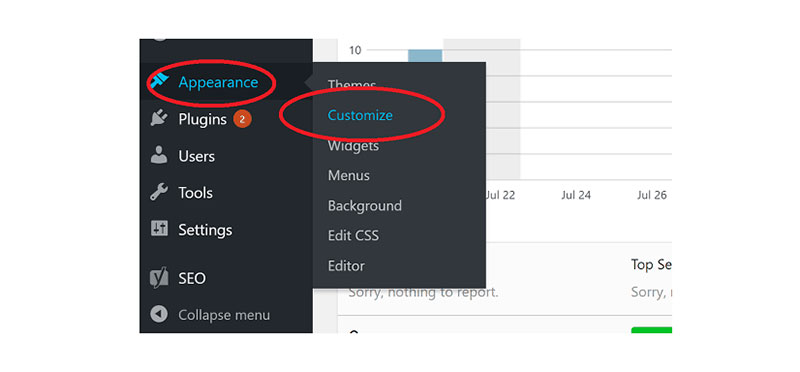
Begin by logging into your WordPress dashboard. Look for the Appearance option. This is found on the left side menu. Click on it. This opens up several options. One of them is the Theme Customizer. This tool helps change the look of your site.
Navigating To Appearance Menu
The Appearance menu is your gateway to theme settings. It lets you manage your site’s look. To change menu colors, you need to explore this menu. Click on it and explore the options.
Exploring Theme Customizer
The Theme Customizer is key to changing colors. It shows a preview of your site. You can see changes live before saving. Look for the Menus option. Click on it. Here, you can pick colors for your menu. Save changes to apply them.
Using Css For Menu Color Changes
CSS is like a paintbrush for websites. It tells the website how to look. You can change colors, fonts, and more. To change the menu color, you need to know some basic CSS rules. CSS rules are like instructions. They tell the computer what to do. By changing these rules, you can make the menu any color you like.
To add custom CSS in WordPress, you need to find the right place. Go to your dashboard. Look for the “Appearance” tab. Click on “Customize”. There, you will see an option called “Additional CSS”. Click on it. A box will appear. You can type your CSS code there. This will change the menu color on your site.
Credit: templatic.com
Utilizing Theme Customizer
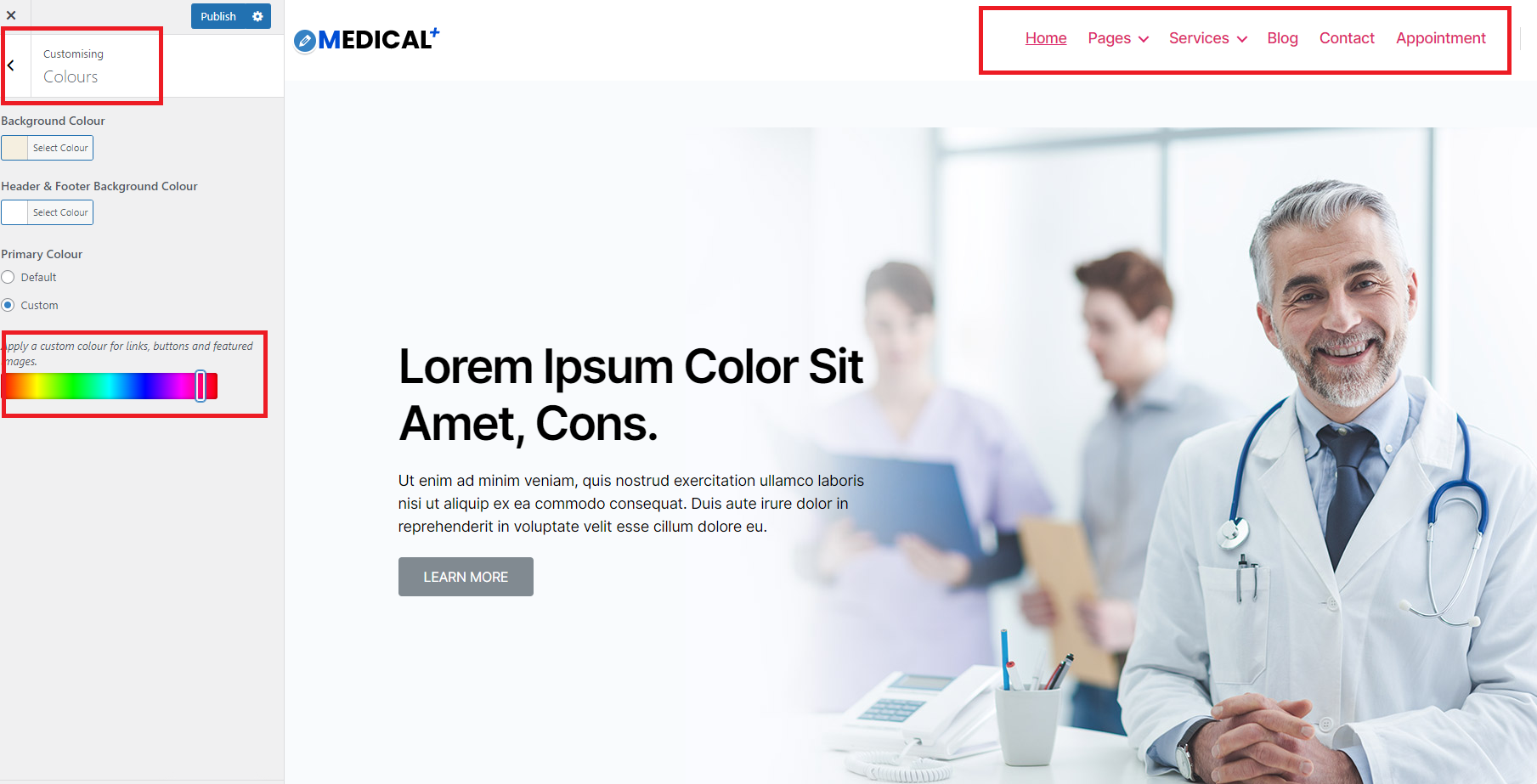
Go to your WordPress dashboard. Click on Appearance, then on Customize. Look for the Menus section. This section may vary by theme. Some themes have a Colors option. Others may have a Menu Colors tab. Take your time and explore these options.
Click on the color settings. Choose your desired menu color. You can use the color picker tool. This tool helps to find the right shade. After picking, click on Publish. This saves the changes. Check your website to see the new menu color.
Leveraging Page Builders
Discover the simple steps to change menu colors in WordPress themes using page builders. Navigate theme customizer options to adjust the color scheme effortlessly. Enhance your website’s visual appeal with user-friendly tools, ensuring an engaging and personalized experience for visitors.
Popular Page Builders
Page builders help change menu colors easily. Some popular choices include Elementor, Beaver Builder, and Divi. These tools are easy to use. They offer drag-and-drop features. You can change colors with a few clicks.
Customizing Menus With Page Builders
Using a page builder, you can customize menu styles quickly. First, open your page builder. Next, locate the menu section. You’ll find options to change colors. Select the color you like. Save your changes. Your menu will look new and fresh.
Each builder has its own settings. Experiment with different features. This helps you find the best look for your site. Remember, practice makes perfect. Try different designs. See what fits your style best.

Credit: nestify.io
Using Plugins For Easy Customization
Plugins make your menu look great. They are simple to use. You can find many options online. Some popular ones are Max Mega Menu and WP Mega Menu. These plugins help you change colors quickly. They also offer other styling options. No need to know coding.
Go to your WordPress dashboard. Click on “Plugins”. Then, click “Add New”. Search for your chosen plugin. After finding it, click “Install Now”. Once installed, activate the plugin. You will find a new menu option. Click on it. Start changing your menu colors. Adjust settings as you like. Enjoy your new, colorful menu.
Testing Changes Across Devices
Responsiveness is key for a good website. A menu that looks nice on a computer must also look nice on a phone. Test the menu on different screen sizes. Check if buttons are easy to click. Make sure the text is clear and not too small. Try rotating the phone to see if the menu still works well. This ensures users have a good experience no matter the device.
Ensuring Responsiveness
Color changes should adapt to all device screens. Test on both small and large screens. Check if color looks good in both bright and dark settings. Make sure colors do not clash with background. This helps keep the website user-friendly and visually appealing.
Cross-browser Compatibility
Test the menu in different browsers. Chrome, Firefox, and Safari are popular choices. Colors might look different in each. Ensure they stay consistent. Check older versions too. Some users might not have updated their browser. This guarantees everyone sees the menu as intended.
Credit: wpdatatables.com
Troubleshooting Common Issues
Changing menu color in a WordPress theme involves navigating to the theme editor or customizer. Locate the menu color settings, often under “Appearance” or “Customize”. Select your desired color and save changes. Ensure the theme supports color changes for menus to avoid complications.
Identifying Common Problems
Colors not changing can be frustrating. Check theme settings first. Locate the menu color option. It’s sometimes hidden. Inspect if you’re using a child theme. Child themes override parent settings. Verify browser cache. It might show old colors. Clear cache for real-time changes. Check plugin conflicts. Some plugins alter theme styles. Disable plugins one by one. Find the culprit causing issues.
Solutions And Fixes
Update your theme regularly. New updates fix bugs. Use Customizer for color changes. It’s user-friendly and direct. Try different browsers. Sometimes browsers show errors. Use WordPress support forums. They have solutions from experts. Consider reaching out to theme developers. They know their product best. Backup your site before changes. It prevents data loss. Experiment with different themes. Some are more compatible.
Frequently Asked Questions
How Can I Change Menu Color In WordPress?
To change the menu color, navigate to Appearance > Customize in your WordPress dashboard. Then select ‘Menus’ and ‘Menu Colors’. Use the color picker to choose your desired color. Click ‘Publish’ to save changes. Some themes may require custom CSS for advanced color customization.
Which Plugin Helps In Changing Menu Colors?
Several plugins can assist, such as ‘YellowPencil’ or ‘CSS Hero’. These plugins offer user-friendly interfaces to customize menu colors without coding. Install the plugin from the WordPress repository, activate it, and follow its instructions. They provide extensive styling options for your menu.
Can I Change Menu Color Without Coding?
Yes, many themes offer built-in customization options. Navigate to Appearance > Customize in your dashboard. Locate ‘Menus’ and adjust colors using the available settings. If your theme lacks this feature, plugins like ‘CSS Hero’ offer customization without coding. This makes it easier for non-developers.
Is Css Necessary For Menu Color Change?
Basic color changes often don’t require CSS. However, for advanced customization, CSS can be helpful. Navigate to Appearance > Customize > Additional CSS and add custom code. This allows precise control over menu colors. Many tutorials are available online to guide you through the process.
Conclusion
Changing your WordPress theme menu color is simple. Start with the customization panel. Choose colors that match your site’s style. Experiment with different shades for a fresh look. Preview changes before saving. This ensures your menu looks perfect. Remember, consistent colors enhance user experience.
They make your site more appealing. So, keep it simple and visually pleasing. Practice makes perfect. With these steps, you can easily update your menu color. Transform your site’s appearance with ease. Enjoy customizing your WordPress theme. Happy designing!


