
Are you tired of your WordPress theme looking cluttered or misaligned? Changing the margins in your WordPress theme can make a world of difference.
By adjusting these simple settings, you can transform your website into a cleaner, more professional space. You’ll discover straightforward steps to tweak your theme’s margins, giving your site a polished look that will captivate your visitors. Whether you’re a beginner or a seasoned WordPress user, you don’t need to be a tech wizard to follow along.
Stick with us, and you’ll learn how to effortlessly enhance the visual appeal of your site. Ready to make your WordPress theme stand out? Let’s dive in!
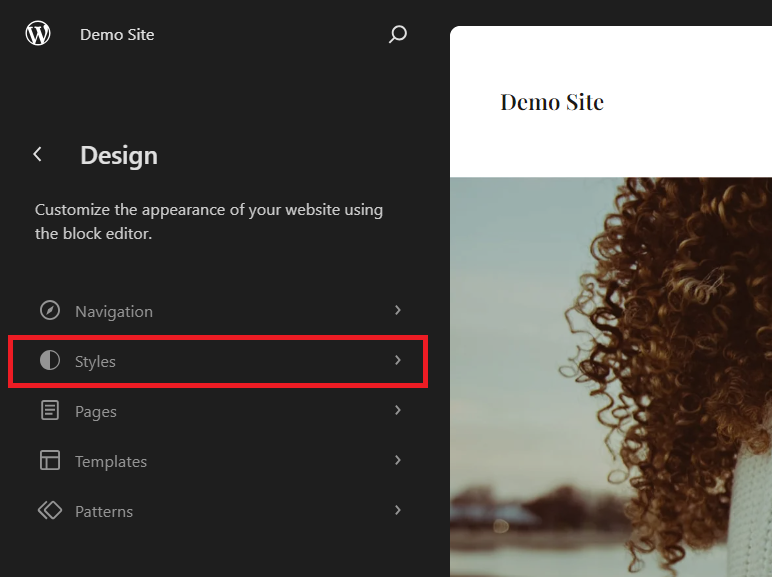
Credit: nestify.io
Selecting The Right Theme
Choose a theme that fits your needs. Compatibility is key. Check if the theme works with your plugins. Some themes may not. This can cause problems. Look for a theme that updates often. This helps keep your site secure. Check reviews from other users. This can give you clues about the theme’s quality. Make sure it supports mobile devices. Many users browse on phones or tablets.
Good themes have clear documentation. This helps you understand how to use them. Look for guides on changing margins. These guides are helpful. Documentation should include screenshots or videos. This makes it easier to follow. Check if there is a support team. They can help if you get stuck. A well-documented theme saves time. It makes changes easier and faster.
Accessing The WordPress Dashboard
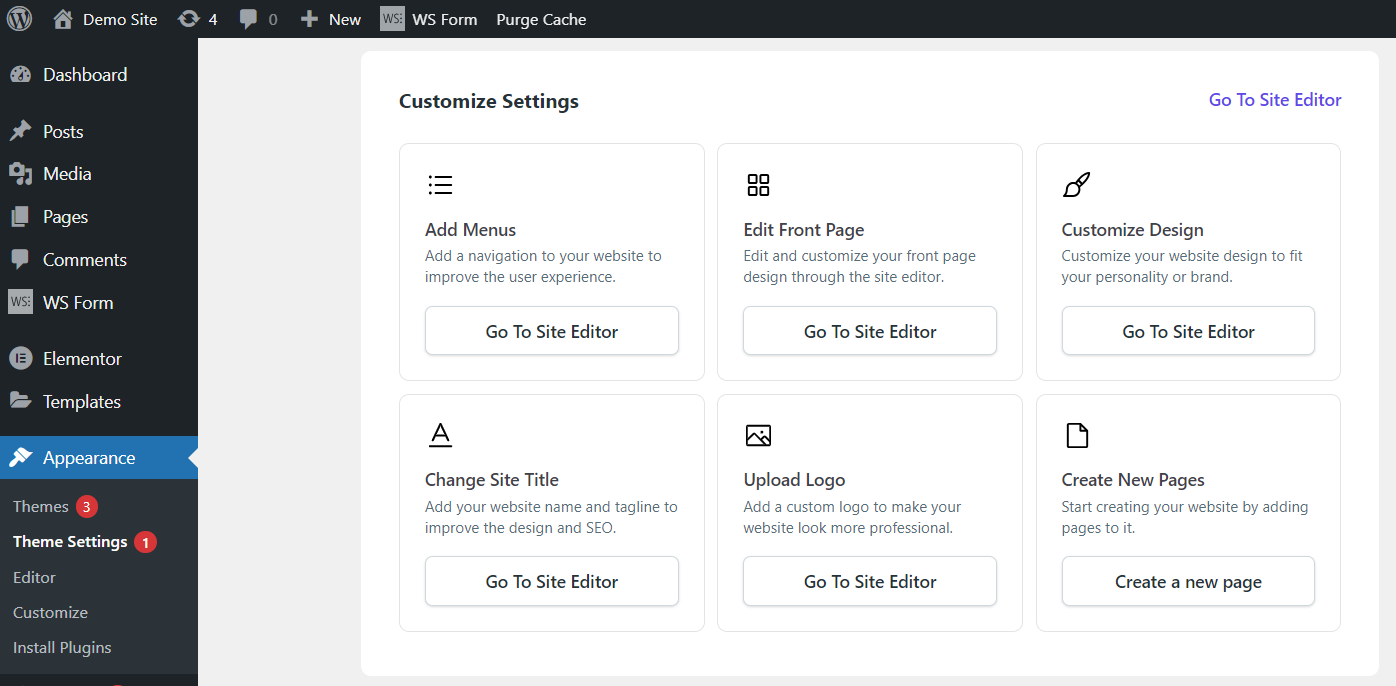
First, log into your WordPress Dashboard. Use your username and password. The dashboard is the main screen. It shows everything you need. From here, you can make changes.
Find the Appearance section. It’s on the left menu. Click it to see more options. This is where you change how your site looks. Important for your site’s style.
Inside Appearance, find Customizer Tool. It lets you change margins. Click on it to open. You will see many settings. Choose the ones you need. Adjust margins easily.
Using The Customizer
Discover how to adjust margins in your WordPress theme using the Customizer tool. Access the Customizer, navigate to the “Additional CSS” section, and input the desired margin values. These simple steps allow for a personalized look that enhances your site’s design effortlessly.
Locating Margin Settings
Access the WordPress dashboard. Click on Appearance. Then, select Customizer. This opens the theme settings. Look for the Advanced Settings or Layout options. Different themes may have different names. Find the Margin or Padding settings. These allow changes to the space around elements. Check each section to locate these settings.
Adjusting Margins Using Sliders
Once you find the margin options, look for sliders. These sliders help adjust margins easily. Move the slider to increase or decrease space. Watch the preview window as you adjust. This shows real-time changes. Experiment with different values. Make sure the content looks good. Always save changes before exiting. This ensures your adjustments are applied.
Editing Theme Files
Changing margins in a WordPress theme involves editing specific theme files. Locate the style. css file in your theme’s directory. Adjust the margin values to suit your design needs, ensuring a balanced layout. Save changes and refresh your site to see the updates.
Using The Theme Editor
Open your WordPress dashboard. Find the Appearance tab. Click on Theme Editor. You will see many files on the right. Look for the style.css file. This file controls your site’s look. Click on it to open.
Modifying Css For Margins
Find the element you want to change. Use the Inspect tool in your browser. Right-click on the element. Choose Inspect. Check the class name. In the style.css file, search for this class. Change the margin values. Use numbers like 10px or 20px. Save your changes. Refresh your site to see the effect.
Utilizing Custom Css
Adding custom CSS is easy in WordPress. First, go to your WordPress dashboard. Find the Appearance tab and click on Customizer. Inside the Customizer, look for the Additional CSS option. Click on it to open a text box.
Here, you can type your own CSS code. To change the margins, use the margin property. For example, type body { margin: 20px; } to add space. The code changes the margin on all sides. You can also set different values. Try margin: 10px 15px 20px 25px;. This sets different margins for top, right, bottom, and left.
Testing Margin Changes
After writing your CSS, preview the changes. Click the Preview button in the Customizer. See if the margins look right. If not, adjust the numbers. Keep testing until satisfied. When happy, click Publish to save changes. Now your website has new margins!
Using A Child Theme
A child theme is a safe way to modify your WordPress site. It keeps your changes safe when the main theme updates. To create one, make a new folder in the themes directory. Name it like your main theme with “-child” at the end. Make a style.css file inside. Add code to tell WordPress about your child theme. Include the name and template of the parent theme.
You also need a functions.php file in the folder. This file loads the parent theme’s styles. Now, activate your child theme in the WordPress dashboard. Your child theme is ready!
To change margins, open the style.css of the child theme. Add CSS rules to set new margins for elements. For example, to adjust the margin of a paragraph, use p { margin: 20px; }. This sets the margin to 20 pixels. You can change numbers to whatever you need. Test the changes on your site to see the difference. This way, you safely adjust margins without affecting the main theme.
Leveraging Page Builders
Page builders simplify changing margins in WordPress themes. Adjust settings to modify spacing effortlessly. Users can create visually appealing layouts by tweaking these margins.
Exploring Popular Page Builders
Page builders help you design your WordPress site easily. These tools give you many options. Elementor and Beaver Builder are very popular. They have drag-and-drop features. You can adjust things quickly. No need to know coding. You can change your margins with these tools. This makes your website look better. Customize your site to fit your needs. Adding widgets and blocks is simple. It makes your site more interesting.
Adjusting Margins With Builder Tools
Changing margins is easy with builder tools. First, open your page builder. Then, find the margin settings. They are usually in the style tab. Next, adjust the numbers. Make them bigger or smaller. Watch how your page changes. Save your work often. This keeps your changes safe. If you make a mistake, you can fix it. These tools are friendly. They help you learn as you go.
Testing And Previewing Changes
To change margins in a WordPress theme, access the theme editor in your dashboard. Locate the CSS file and adjust margin values. Preview changes by refreshing your site to ensure the layout looks good.
Using Preview Mode
WordPress has a helpful feature called Preview Mode. This lets you see your changes before they go live. First, find the “Preview” button. It is often near the top of the page. Click it to open a new tab with your changes. This tab shows how your site will look. Make sure everything appears just right. If something looks wrong, you can fix it. This way, you do not mess up your live site.
Ensuring Compatibility Across Devices
Devices like phones, tablets, and computers can show your site differently. Check your site on each type of device. Use a phone to see if text fits the screen. On a tablet, check if images load correctly. Use a computer to see the full layout. Testing helps ensure that everyone sees your site properly. This makes your visitors happy. Happy visitors might come back more often.
Troubleshooting Common Issues
Margins can sometimes look wrong. They may be too big or too small. This can make your website look messy. Look at your website carefully. Check if text or pictures are too close to the edges. Compare with other websites. If something looks odd, it may be a margin problem. Another sign is content not lining up correctly. Fixing these can make your website look better.
Online guides can help fix margin problems. Many websites offer free tips. Some have step-by-step instructions. WordPress forums are useful too. Many people share solutions there. You can ask questions and get help. Video tutorials are also a good way to learn. They show how to adjust settings in WordPress themes. Remember, always save your work before making changes.

Credit: www.youtube.com
Credit: nestify.io
Frequently Asked Questions
How To Adjust Margins In WordPress Theme?
To adjust margins in a WordPress theme, access the theme’s CSS file through the WordPress dashboard. Locate the specific class or ID controlling the margins. Modify the margin values to your desired measurements. Save changes and preview your site to ensure the new margins are applied correctly.
Can I Change Margins Without Coding?
Yes, you can change margins without coding by using a WordPress page builder plugin. These plugins offer intuitive interfaces, allowing you to modify margins through drag-and-drop features. Popular options include Elementor and Beaver Builder. They provide easy customization options without needing to edit CSS directly.
Why Are My Theme Margins Not Changing?
If theme margins aren’t changing, ensure you’re editing the correct CSS file and clearing your cache. Sometimes, caching plugins or browser cache may display the old version. Also, check if a child theme is overriding your changes. Review settings and update accordingly.
What Tools Help Change WordPress Margins?
Tools like Elementor, Beaver Builder, and CSS Hero help change WordPress margins easily. These plugins offer user-friendly interfaces, enabling margin adjustments without direct CSS editing. They provide real-time previews, ensuring your changes are applied correctly. Choose a tool that suits your customization needs.
Conclusion
Changing margins in a WordPress theme is simple. Follow the steps mentioned. Customize your site’s look with ease. Adjusting margins improves layout and design. It enhances user experience. A neat appearance attracts visitors. Pay attention to detail. Small changes make a big difference.
Practice makes perfect. Experiment with settings. Find what suits your style best. Keep your site updated. Regular tweaks ensure optimal performance. Happy customizing! Your site can reflect your vision. Let your creativity shine through. Make your WordPress theme uniquely yours.
Enjoy the process and the results.


