
Do you ever feel like your WordPress website could use a little more personality? Maybe the link text doesn’t quite match the vibe you’re going for.
Whether you want your links to pop with color, change fonts, or simply blend seamlessly with your theme, knowing how to tweak these elements can make a big difference. In this guide, we’ll walk you through the steps to easily change link text properties in your WordPress theme.
Imagine the satisfaction of seeing your site’s links perfectly aligned with your brand’s style. By the end of this article, you’ll have the tools to transform those plain links into attention-grabbing elements that enhance your site’s appeal. Let’s dive in and unleash your website’s full potential!
Accessing Theme Editor
First, log in to your WordPress dashboard. Then, find the Appearance section. It is on the left side of the screen. Click on it. A menu will drop down. Choose Theme Editor from the list.
A warning might appear. It says to be careful. You can make changes to your theme here. It is important to know what you are doing. Changes can affect your whole site. Check all changes before saving. This will help avoid mistakes.
Identifying Css Files
First, locate the CSS files in your WordPress theme. These files control the look of your site. You can find them using a file manager or an FTP client. CSS files are usually in the theme folder.
Look for files named style.css or custom.css. These files have code for the text styles. Open the file using a text editor. Now, you can change link text properties easily.
Remember, changes in CSS affect the whole site. Be careful while editing. Always back up your files. This way, you can restore them if needed.
Locating Link Text Properties
First, open your WordPress dashboard. Go to the Appearance tab. Click on Customize. This brings up the theme customizer. Next, find the Additional CSS section. It is usually at the bottom. Click on it. A text box will appear. This is where you add your CSS code.
Now, find the link text you want to change. Use the Inspect tool in your browser. Right-click on the text. Choose Inspect. This opens the developer tools. Look for the CSS class of the link text. Write down the class name.
Go back to the Additional CSS section. Type your CSS code. Use the class name you found. Change color, font-size, or style as needed. Click Publish to save changes.
Modifying Font Style
Select a font family to make your text look special. Use simple fonts like Arial or Times New Roman. They are easy to read. You can change the font in the WordPress customizer. Go to your dashboard. Click on Appearance and then Customize. Find Typography and change the font family. Remember, the right font makes your site look better.
Change the font size to make text bigger or smaller. Bigger text is easier to read. Smaller text fits more words on a line. In the WordPress customizer, find the Typography section. Here, you can adjust the font size. Use slider tools to make changes. Check if the text looks good on your site. This helps in making your website user-friendly.
Changing Text Color
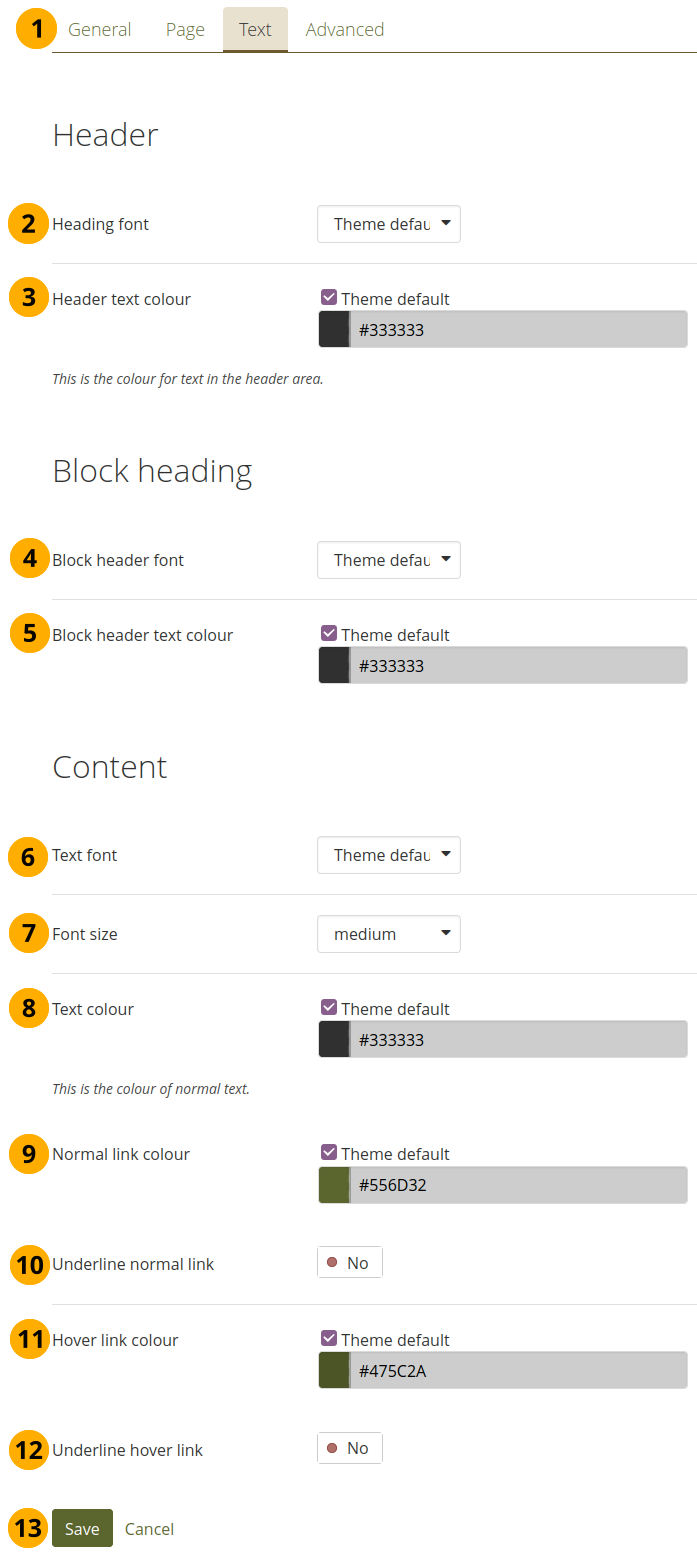
Hexadecimal codes help change text color. These codes start with a # symbol. They have six characters. Each character represents color value. Values range from 00 to FF. For example, #FF0000 makes red text. This code is easy to use. Find it in the theme settings. Change your link text color with it.
RGB stands for Red, Green, and Blue. Each color has a number. Numbers range from 0 to 255. These numbers mix to create text color. For example, rgb(255, 0, 0) makes red text. Use theme settings to apply RGB values. Change link text colors easily.

Credit: helpv4.wpestatetheme.org
Adjusting Text Decoration
Adding Underline to link text can make it clear. To underline text in WordPress, use CSS. Add the following code to your theme’s style.css file:
a {
    text-decoration: underline;
}
This code will underline all links in your theme. It’s simple and effective. Make sure to save changes after editing.
Removing Underline from links is also easy. Sometimes, you want a clean look. Use this CSS code to remove underlines:
a {
    text-decoration: none;
}
This will make links look plain. It’s important to keep your theme neat. Always preview your changes to ensure the look is right.
Adding Hover Effects
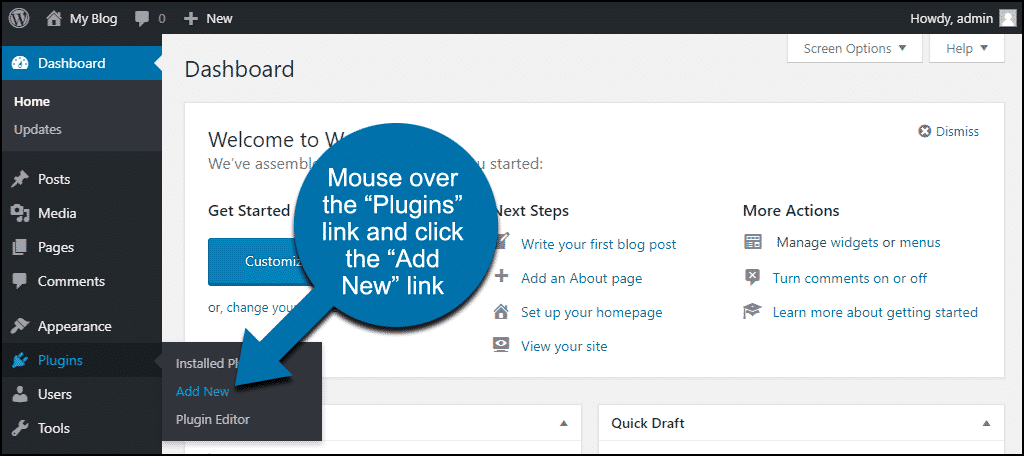
Changing Color on Hover makes links fun. You can do it easily. Use CSS to change the link color. Add a hover effect. Start by going to your theme’s CSS file. Find the link style. Add this code: a:hover {color: red;}. Replace ‘red’ with your color. Save changes. Check your site. Your link changes color when you hover.
Transforming Font on Hover is cool. It makes links stand out. You can change the font style. Use CSS again. Add this code: a:hover {font-style: italic;}. This makes the font italic on hover. Want bold? Use font-weight: bold; instead. You can also increase the size. Try font-size: 18px;. Explore different styles. Make your links unique. Save your work and view the changes.
Credit: www.greengeeks.com
Customizing Link States
Visited links need special styles. This helps users know where they have been. To change these styles, use CSS. Find the class or ID of the link. Then, use the :visited selector. Choose a color and style for visited links. Save changes and refresh the page. Now, visited links have your new style. This makes navigation easy.
Active links show the current page. Styling them is easy. Use the :active selector in CSS. Pick a style that stands out. Bold or bright colors work well. These styles help users know they are on the right page. Save changes to see results. This makes your website more user-friendly.
Saving And Previewing Changes
After changing link text, save your work. Look for the Save or Publish button. Click on it. This will keep your changes safe. Next, see how your changes look. Use the Preview option. It shows your website with new link text. Check everything carefully. Make sure links look right. If something is wrong, go back. Adjust the link text again. Save and preview once more. Repeat until you are happy. Remember, saving and previewing help you see real results.
Troubleshooting Common Issues
Changing link text properties in a WordPress theme can seem tricky. Navigate to your theme’s CSS file. Adjust the “a” tag to modify font size, color, or style. Save changes and refresh your site.
Fixing Css Conflicts
Sometimes, CSS rules can clash. This might affect your link text styles. Check which CSS file controls your links. Use browser tools to see active CSS rules. Look for any conflicting styles. Remove or adjust them. This can help restore your link text design. Ensure all link styles are consistent. This prevents unwanted changes.
Overcoming Cache Problems
Browser cache often stores old versions of your site. This means changes might not show. Clear your browser cache regularly. This helps update link text quickly. WordPress cache plugins can also cause issues. Disable caching temporarily. Then, check if the changes appear. Once fixed, enable caching again. This ensures faster page load times.
Credit: manual.mahara.org
Frequently Asked Questions
How Can I Change Link Text Color In WordPress?
To change link text color, access your WordPress theme’s customizer. Navigate to ‘Additional CSS’ and enter your desired CSS code. This allows you to set a specific color for link text. Save the changes to see the updated link color on your site.
Can I Modify Link Font Style In WordPress?
Yes, you can modify link font style by using custom CSS in your theme. Access the theme’s customizer, add CSS to specify font properties like font family or size for link text. Save and publish the changes to see the updated font style.
How Do I Adjust Link Text Size In WordPress?
Adjust link text size by adding custom CSS to your WordPress theme. Use the customizer to input CSS code specifying the desired font size for links. This change will apply across your site, enhancing visibility of link text.
Is It Possible To Change Link Hover Effects?
Yes, you can change link hover effects using custom CSS. Access the theme customizer and add CSS for hover states. You can modify color, font style, or add animations. Save your changes to see the updated hover effects on your website.
Conclusion
Changing link text properties in your WordPress theme is easy. Follow the steps mentioned and enjoy customizing your website. By modifying CSS, you can adjust the appearance to match your style. Remember to backup your theme before making changes. This ensures safety and easy recovery.
Experiment with different styles to find what suits your site. Keep your design clean and user-friendly. With practice, customizing becomes simple. Stay creative, and make your site unique. Happy editing!


