
Are you tired of the default link color on your WordPress site not matching your brand’s aesthetic? The color of your links can significantly impact how users perceive and interact with your content.
It’s not just a matter of style; it’s a crucial part of your site’s user experience and branding. Imagine how much more cohesive and appealing your website could be with links that perfectly complement your theme. In this guide, you’ll discover simple, step-by-step instructions on how to change the link color in your WordPress theme.
Say goodbye to generic link colors and hello to a tailored, vibrant look that captures your audience’s attention and keeps them engaged. Ready to elevate your website’s design? Let’s dive in and transform those links!
Why Change Link Color?
Changing the link color on your WordPress theme can make your site better. It helps visitors see important links easily. Different colors make links stand out. A good link color improves the user experience. It can match your brand colors too. This makes your site look professional.
Links with the same color as text are hard to find. Visitors might miss them. Using a different color for links solves this problem. It is a simple change, but it makes a big difference. It also helps in making your site more accessible to everyone.
Choosing The Right Color
Colors can change the look of a website. Pick a color that matches your theme. Links should be easy to see and stand out. Bright colors catch the eye. Soft colors are gentle. Always check if the color is readable. Some colors may be hard to see. Test the color on different devices. Some screens show colors differently. Avoid colors that clash with the background. This can make links hard to read. Use colors that complement your site.
Think about the mood you want. Colors can make people feel happy or calm. Blue is cool and calm. Red is bold and strong. Choose colors that fit your message. A good color can improve your site’s look. It helps users find links easily.
Using WordPress Customizer
Open your WordPress dashboard. Find the Appearance option on the left. Click on it. Choose Customizer from the dropdown menu. The customizer will load on your screen.
Look for the Colors option in the customizer. It might be under a different tab. Click on it to open the color settings. You will see different color options here.
Find the option to change link color. Click on the color box to open the color picker. Choose a new color for your links. Make sure it’s visible and easy to read. Click Publish to save your changes. Your link color is now updated!

Credit: kubiobuilder.com
Editing Theme Css
Adjusting link color in WordPress involves editing theme CSS. Access the WordPress dashboard, navigate to Appearance, then Customize. Add custom CSS code under Additional CSS to change link color effortlessly.
Locating The Css File
First, open your WordPress Dashboard. Go to the Appearance section. Click on Theme Editor. You will see many files on the right side. Look for a file named style.css. This is the file you need.
Modifying Link Color
In the style.css file, find the part with a { }. This part controls the link styles. To change the link color, add color: blue; inside the curly brackets. Replace blue with your desired color.
Saving Changes
After changing the color, make sure to save your changes. Look for the Update File button and click it. Now, refresh your site. Your links should show the new color.
Utilizing A Child Theme
First, make a new folder in your WordPress themes directory. Name it “child-theme”. Inside, create a file named style.css. Add a header comment with details like the theme name and template. This connects it to the parent theme. Keep it simple. Just a few lines to start.
Open the style.css file in your child theme. Add CSS code to change link colors. For example, write a { color: #123456; }. This changes all link colors. Save the file after adding your code. Keep your changes clear and easy to follow.
Go to the WordPress admin dashboard. Navigate to the Appearance tab, then click on Themes. Find your child theme and click Activate. Your new styles will now show. Make sure your child theme is active before checking the changes.
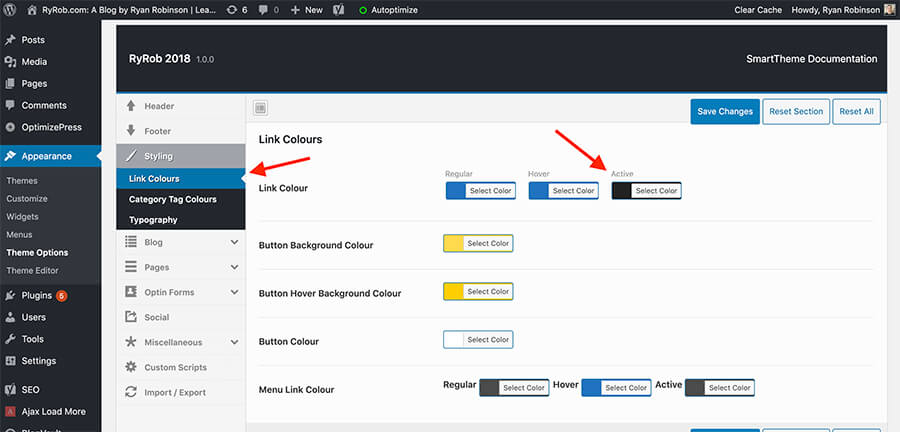
Credit: www.ryrob.com
Employing A Plugin
Many plugins can change link color. Choose one with good reviews. Check if it’s compatible with your theme. Popular options include WP Customizer and Custom CSS. Download the plugin from the WordPress repository. Ensure it meets your needs.
Install the plugin from your WordPress dashboard. Click on Plugins. Then, click Add New. Search for the plugin name. Click Install Now. After installation, click Activate. Your plugin is now ready to use.
Access the plugin settings. Look for link color options. Choose a new color from the palette. You can enter a hex code too. Save changes when you’re done. Check your site to see the new link color.
Verifying Changes
Easily change link colors on your WordPress theme by accessing the customizer. Navigate to the Colors section and select your desired shade. Remember to save the changes to see the new color in action.
Previewing On Different Devices
It’s important to check your link color change on all devices. Use your phone and tablet to preview the changes. This helps ensure a consistent look everywhere. Colors can look different on screens. So, double-check on each device. This step helps in catching any issues early. Adjust if necessary. Make sure the links are easy to see and read.
Checking For Consistency
Ensure the new link color matches your theme. Consistency is key for a professional look. Check your pages and posts. Make sure the link color appears the same everywhere. This includes headers, footers, and sidebars. If a link looks different, update it. Keep your website looking neat and tidy. This makes it easy for visitors to navigate.
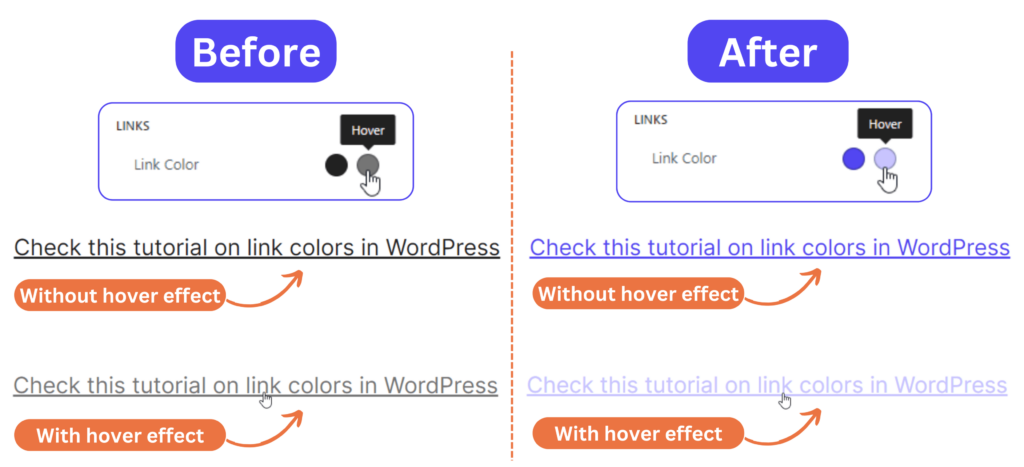
Credit: kubiobuilder.com
Troubleshooting Common Issues
Changing link color in a WordPress theme can sometimes be tricky. Navigate to the theme customizer or use CSS code to adjust colors. Ensure changes are saved and previewed for consistency across your site.
Changes Not Reflecting
Sometimes, changes don’t show right away. Clear the browser cache. This helps in loading the new style. Update the WordPress theme. Outdated themes can cause issues. Check the child theme settings. They might override your changes. Make sure you saved your changes. It’s a simple step but easy to forget.
Compatibility Problems
Some themes don’t work with certain plugins. Test plugins one by one. This helps to find the problem. Check theme documentation. It might have special instructions. Switch themes temporarily. This checks if the issue is theme-related. Disable all plugins. Then, enable them one by one. This finds the conflicting plugin.
Best Practices For Link Colors
Choosing the right link color is important. Make sure the color is easy to see. Contrast is key. Links should stand out against the background. This helps everyone see them, even those with vision problems. Using the WCAG guidelines can be helpful. It suggests a contrast ratio of at least 4.5:1. Check this with online tools. They can make the task easier.
Links should match your brand colors. But they must still be clear. Consistent colors build trust. People will recognize your site easily. Use brand colors for links, but ensure they are distinct. Testing different shades can help. It finds the right balance between brand and visibility. Every link should be easy to spot.
Frequently Asked Questions
How Do I Change Link Color In WordPress?
To change link color in WordPress, navigate to Appearance > Customize. Select ‘Additional CSS’ and enter your preferred CSS code to modify link colors. Save changes to apply the new color scheme. Ensure your theme supports custom CSS for this method to work effectively.
Can I Customize Link Color Without Coding?
Yes, you can. Many WordPress themes offer built-in customization options. Navigate to Appearance > Customize > Colors. Locate the link color settings and choose your preferred color. Save changes to update your theme without any coding knowledge.
Why Won’t My Link Color Change?
Your link color might not change due to theme restrictions or caching issues. Ensure your theme supports custom CSS. Clear your browser cache and any cache plugins. If problems persist, try using a child theme or consult your theme’s documentation for guidance.
What Css Code Changes Link Color?
To change link color, use the CSS code: `a { color: #yourcolorcode; }`. Replace `#yourcolorcode` with your desired color code. Insert this code in Appearance > Customize > Additional CSS. Save changes to apply the new link color across your WordPress theme.
Conclusion
Changing link color in WordPress is simple and impactful. It improves your site’s look and feel. Customize links to match your brand’s style. This helps visitors recognize links easily. Follow the steps shared in this guide. You’ll find changing colors straightforward.
Experiment with different hues. Test what works best for your audience. A consistent color scheme enhances user experience. Make sure your links stand out. This small tweak can boost engagement. Happy customizing!


