
Are you using the Lovecraft theme on your WordPress site and want to customize your link colors? You’ve come to the right place!
The appearance of your website plays a crucial role in how visitors perceive your content. The right link color can enhance readability, ensure better navigation, and even evoke emotions that keep your audience engaged. You might be wondering how to make these changes without getting tangled in complex coding.
Don’t worry—this guide is designed with you in mind! We’ll walk you through the process step-by-step, ensuring your website not only looks great but also feels uniquely yours. Ready to transform your site’s aesthetics and make those links pop? Let’s dive in!
Credit: housedivided.dickinson.edu
Lovecraft Theme Overview
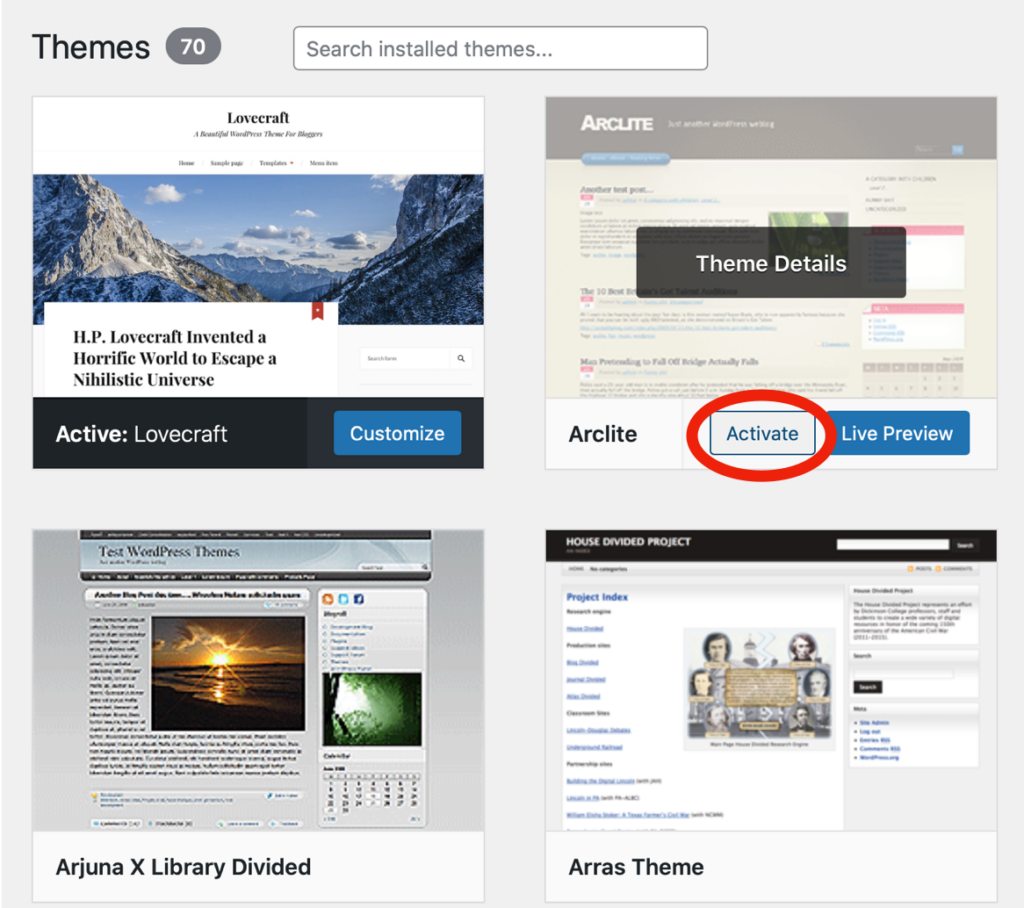
Lovecraft is a popular theme for WordPress. It has a clean, simple design. Many bloggers love its classic look. The theme is easy to use. It works well for beginners. You can customize it to fit your style. Changing the link color is one option. This helps your site stand out. Different link colors can grab attention. They guide visitors to important parts. You can change these colors in settings. WordPress makes it easy to adjust. The theme options offer many choices. Pick a color that matches your brand. This small change can make a big difference.
Accessing Theme Customizer
Open WordPress dashboard. Find the Appearance menu. Click on it. Choose Customize. Theme Customizer will open. It helps change theme settings. Look for Colors option. Click to explore color settings.
Change link color here. See a color picker tool. Use it to select a new color. Choose a color that fits your site. Preview changes instantly. Make sure it looks good.
Save changes by clicking Publish. Your link color is updated. It is easy to do. A few simple steps. You can change it anytime.
Using Additional Css
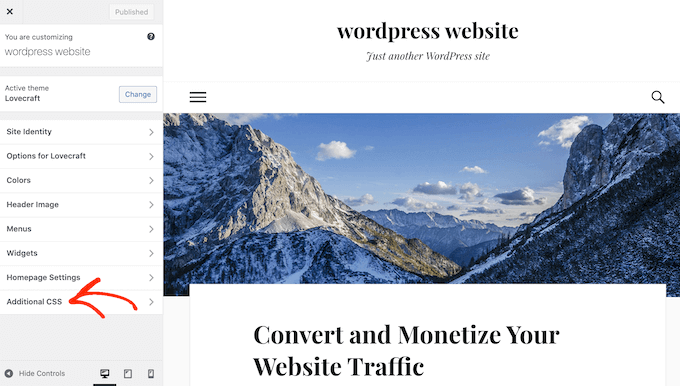
To change the link color, first, go to your WordPress dashboard. Find the Appearance option. Click on it, then select Customize. Look for Additional CSS at the bottom of the menu. Click it to open the editor. This is where you can add your custom CSS code. Make sure you are in the right section before proceeding.
In the Additional CSS section, type your code. Use the format: a { color: your-color-choice; }. Replace your-color-choice with the color you want. For example, use red or #ff0000. This will change the link color. Save your changes by clicking Publish. Now your links will have the new color.

Credit: procoders.tech
Identifying Link Elements
Links are usually underlined and colored differently. This helps users see them. Hover over a link and see if the color changes. If it does, you have identified a link. Links can be in text or images. In text, they are often blue. In images, they might not be obvious. Click on an image to see if it is a link.
To change a link’s color, you need to know its CSS class. Use your browser’s developer tools. Right-click the link and select “Inspect”. Look for the CSS class name. This will help you change the color.
Choosing Link Colors
Pick colors that are easy to see. Make sure links stand out. Check your background color first. Use contrasting colors for links. Avoid colors that are hard to read. Bright colors work well. Test different shades. Consider your site’s theme. Balance is important.
Color Selection Tips
Use tools to find colors. Online tools are helpful. Some tools let you preview colors on a webpage. Check accessibility tools. These tools ensure colors are easy to see. Find tools that show color contrasts. Use tools that help pick harmonious colors.
Tools For Color Selection
| Tool Name | Features |
|---|---|
| Color Picker | Choose and preview colors |
| Contrast Checker | Verify visibility of colors |
| Palette Generator | Create matching color sets |
Applying Css Code
To change the link color in the Lovecraft theme, use simple CSS. First, open your WordPress dashboard. Then, navigate to Appearance and click on Customize. Look for the Additional CSS option. Click on it to add your own CSS code.
You can use this code:
a { color: #FF5733; }
Replace #FF5733 with your desired color code. Save the changes. Now, your links will have a new color.
Make sure to preview your site. Check if the color looks good. Adjust the code if needed.
Testing Changes
Altering the link color in the Lovecraft theme on WordPress is simple. Access the customization settings, then navigate to the “Additional CSS” section. Insert the desired CSS code to change the link color easily.
Previewing On Different Devices
Check how your link color looks on phones, tablets, and computers. Each device shows colors a bit differently. It’s important to make sure the link color is easy to see on all screens. Sometimes colors look good on one device but not on another. Adjust the color if it looks wrong. Try different shades until it looks right everywhere.
Checking Browser Compatibility
Browsers like Chrome, Firefox, and Safari show colors differently. Test your link color in each browser. Ensure it works well in all of them. Some browsers may change the color slightly. Make sure the links are easy to read in every browser. Bold colors help in making links stand out. Adjust if necessary for consistent appearance.
Credit: www.wpbeginner.com
Saving And Publishing
Click the Save Changes button to keep your work. It’s important to not lose your changes. Always save before leaving the page. Next, find the Publish button. This makes your changes live. Everyone can see the new link color now. Check your site to ensure the color looks right. If not, you can always go back and adjust. Remember, saving and publishing are two different steps. Do both to successfully update your site.
Frequently Asked Questions
How Do I Customize Link Color In Lovecraft Theme?
To change link colors, navigate to Appearance > Customize in WordPress. Use the Additional CSS section to add custom CSS code. Specify the desired color using CSS properties like `color`. Save changes to update the link color throughout your Lovecraft theme website.
Can I Change Link Color Without Coding?
Yes, you can change link colors using WordPress plugins like “Simple Custom CSS. ” This plugin allows you to add custom CSS without coding knowledge. Simply install the plugin, navigate to its settings, and insert your CSS code to modify link colors in your Lovecraft theme.
What Is The Default Link Color In Lovecraft?
The default link color in the Lovecraft theme is typically a shade of blue. This color may vary slightly depending on the theme version. To check the exact default color, inspect a link using browser developer tools or refer to the theme documentation.
How To Use Customizer For Link Color Change?
To change link color using the Customizer, go to Appearance > Customize. Look for the “Colors” section, where you can adjust link colors. This method is user-friendly and doesn’t require CSS coding, providing a straightforward way to customize your Lovecraft theme.
Conclusion
Changing link colors in the Lovecraft theme is straightforward. Follow the steps, and you’ll see results. Customize your site to match your style. A small tweak can make your blog unique. Visitors notice these details, enhancing their experience. Consistency in design keeps readers engaged.
Remember, aesthetics matter in retaining audience interest. Take your time with adjustments. Experiment with different colors. Find what suits your brand best. With patience, your site can look professional. Your blog’s appearance speaks volumes. Happy blogging with your new link colors!


