
Are you struggling to navigate through your WordPress theme because it’s not in your preferred language? You’re not alone.
Many WordPress users face this issue, and while it might seem daunting at first, changing the language on your WordPress theme is simpler than you think. Imagine being able to fully understand every feature and option your theme offers without the language barrier holding you back.
Picture yourself customizing your website with ease, and making it truly yours. You’ll discover a step-by-step guide on how to change the language on your WordPress theme, enhancing your user experience and making your website management a breeze. So, let’s dive in and unlock the full potential of your WordPress site together!
Why Change Language On WordPress Theme
Changing the language on a WordPress theme can help reach more people. Many users prefer content in their own language. It makes them feel more comfortable. A familiar language can improve user experience. It helps users understand content better.
Businesses can reach new markets by changing languages. This can lead to more visitors. More visitors can mean more sales. Having a multilingual site can also improve search engine rankings. Search engines prefer websites that cater to diverse audiences.
Language change is also essential for global brands. It shows that the brand cares about its users. It respects their language and culture. This can build trust and loyalty.
Checking Theme Language Compatibility
Check if your WordPress theme supports different languages. Many themes have built-in language options. This means you can switch easily. Visit your theme settings. Look for language settings. If you find them, you can change the language. Some themes might need extra plugins. These plugins help with translations. Always check theme details before buying. Some themes are only in English. Others have multiple languages. Check reviews and descriptions. User feedback can help you. They will tell if the theme works well in other languages. Ensure compatibility to avoid issues later. This step saves time and trouble.
Changing Language In WordPress Dashboard
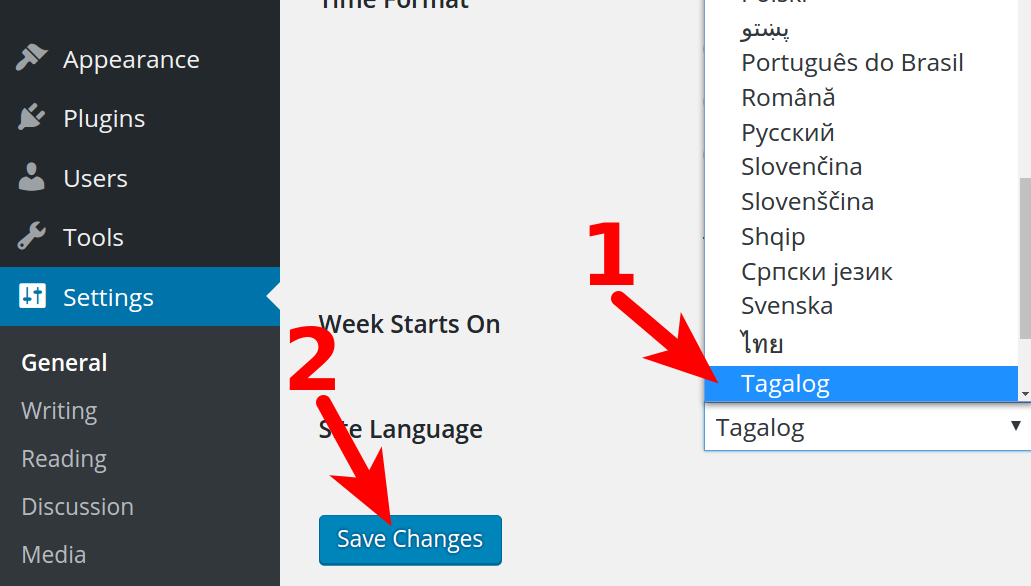
Start by logging into your WordPress Dashboard. Look for the Settings option. It is usually on the left-hand menu. Click it to open. You will see General Settings. This is the place to make changes. You can change language here.
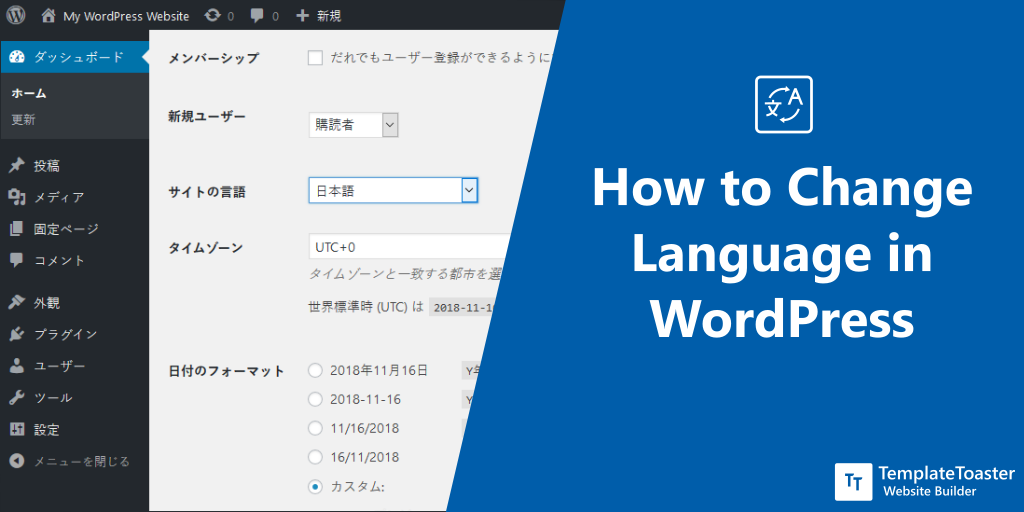
In General Settings, find the Site Language section. There is a dropdown menu. Click it to see all language options. Choose your preferred language. Don’t forget to save changes. Click the Save Changes button. Your site will now use the new language.
Credit: www.inmotionhosting.com
Translating Theme With Poedit
PoEdit is a tool for translating themes. First, go to the PoEdit website. Click the download button. Choose the version for your computer. Install it by following the steps on screen. PoEdit is now ready for use. It’s simple and free.
Find the language files in your theme folder. Open WordPress dashboard. Go to Appearance and select Theme Editor. Look for a folder named languages or lang. Inside, you will find files ending with .pot or .po. These are the language files. Copy them to your computer.
Open PoEdit and click Create new translation. Select your copied .pot file. Choose the language you want. Edit each text string. Write the translation in the box provided. Save your work. PoEdit will create a .mo file. Upload this file back to the theme folder. Your theme is now translated.
Using Loco Translate Plugin
First, go to the WordPress dashboard. Click on Plugins and then Add New. In the search box, type Loco Translate. Click on the Install Now button. Once installed, click Activate. Loco Translate is now ready to use. This plugin helps to translate your theme easily.
Go to Loco Translate in the dashboard. Choose Themes from the menu. Select the theme you want to translate. Click on New Language. Choose your desired language. Click Start Translating. Find the string you want to change. Enter the translation in the box. Press Save. Your theme is now in a new language.
Credit: blog.templatetoaster.com
Manual Language File Editing
To change your theme language, first access the theme directory. Open your WordPress dashboard. Go to Appearance and then Theme Editor. Find your active theme. Look for the languages folder. This folder holds language files. These are usually named with .po and .mo extensions. You might need an FTP client. Use it to access these files if you can’t find them in the dashboard.
Make sure to edit the .po file first. It stores text strings in your theme. Use a tool like Poedit to open it. Translate the text you see. Save changes to create a new .mo file. This file is crucial for WordPress. It reads the translations from here. Upload the new .mo file back to your theme’s language folder. Refresh your site to see changes.
Handling Language-specific Plugins
Changing the language on a WordPress theme involves using specific plugins. These plugins allow easy customization of your site’s language settings. Users can select their preferred language for both the dashboard and the website interface.
Identifying Compatible Plugins
Before changing the language, check your theme’s plugin compatibility. Plugins help you translate your theme. Polylang and WPML are popular choices. They offer multiple languages. Ensure the plugin works with your theme. Read reviews and check ratings. This helps in choosing the right plugin. Compatibility is key. It prevents errors and issues. Always pick plugins with good support. This ensures help when needed.
Integrating With Theme
After picking a plugin, integrate it with your theme. Start by installing the plugin. Follow the steps given by the plugin. This often includes setting a default language. Then, add other languages you need. Ensure the theme supports these languages. Some themes need extra settings. Always check your theme’s documentation. This helps in smooth integration. Test the language changes. Make sure everything looks right. Check all pages and posts. Confirm text appears in the chosen language.
Testing Language Changes
Verifying Frontend Display is simple. Visit your website to see the changes. Check every page. Look at the menu, footer, and widgets. Make sure everything is translated. If text is missing, it could be a plugin issue. Double-check plugin settings. Some plugins need manual translation. Themes sometimes hide language options. Explore theme settings. Look for language or translation sections. Ensure all settings are correct.
Troubleshooting Common Issues can be necessary. Sometimes, translations don’t show up. Clear your browser cache. This helps refresh the display. If problems persist, check your theme files. Ensure they are updated. Outdated files can cause issues. Consider a plugin like Loco Translate. It helps with translations. Review WordPress language settings. Ensure WordPress is set to your desired language. This can resolve many issues.
Maintaining Language Consistency
Language files are crucial. They keep words consistent. To update, find the right file. Use the WordPress dashboard to access it. Then, download the file. Edit with a text editor. Save changes. Upload back to your site.
Sometimes, you need to download a new file. This happens if the original is missing. Always make sure your files are updated. This keeps your site in one language. It looks better and works better.
Plugins are important. They add features to your site. But they use language too. So, check if they have translations. Go to the plugin settings. Look for a language option. Change it if needed.
Some plugins need manual language files. Search for these files online. Download and upload them to your site. This helps keep everything in one language. It makes your site easier to use.
Credit: blog.templatetoaster.com
Frequently Asked Questions
How Do I Change Language In WordPress Theme?
To change the language in your WordPress theme, go to Settings > General. Then, select your preferred language from the Site Language dropdown menu. Save your changes to apply the new language to your theme.
Can I Use Multilingual Plugins For Language Change?
Yes, multilingual plugins like WPML or Polylang help manage multiple languages on your WordPress site. They offer options to translate content and switch languages easily, enhancing user experience.
Is It Possible To Change Language Without Coding?
Absolutely! You can change the language without coding by using WordPress settings or multilingual plugins. These tools provide user-friendly interfaces to make the process simple and efficient.
Does Changing Theme Language Affect Seo?
Changing your theme language can impact SEO positively by targeting a specific audience. Ensure proper translations and use hreflang tags for better search engine visibility and user engagement.
Conclusion
Changing the language on your WordPress theme is simple. Follow the steps carefully. Customize your site’s language to match your audience. This enhances user experience and accessibility. Remember, your site’s language setting is crucial. It impacts readability and engagement. Ensure you choose the correct language for your audience.
Regularly check for updates and adjust as needed. A well-set language option makes your content more relatable. Your readers will appreciate the effort. Keep exploring and learning. Your website will benefit greatly. Happy blogging!


