
Are you eager to give your WordPress site a fresh look? Changing images in your WordPress theme can make all the difference, transforming your website’s appearance and capturing your audience’s attention.
Whether you’re a seasoned blogger or a small business owner, learning how to change images in your WordPress theme is a skill that can enhance your site’s visual appeal and better convey your brand message. Imagine the impact of a well-chosen image that resonates with your audience, encouraging them to stay longer and explore more.
In this guide, you’ll discover straightforward steps to effortlessly update images in your WordPress theme, ensuring your site reflects your unique style and vision. Ready to elevate your website’s aesthetics and engage your visitors like never before? Let’s dive into the details!
Selecting The Right Image
High-resolution images look sharp and clear. But they are large in size. Big images slow down your website. Small images load fast. But they may look blurry. Choose a balanced image size. This keeps the site fast and the picture clear.
JPEG and PNG are common image formats. JPEGs are smaller in size. They are good for photos. PNGs keep background transparency. Use them for logos. Choose the right format for a better website performance.
Pick images that match your content. Relevant images keep users interested. They help tell your story. A good image makes your page look professional. Choose wisely for a better user experience.
Accessing WordPress Dashboard
To start, visit your WordPress site login page. Enter your username and password. Click the login button. You will see the WordPress dashboard. This is where you will make changes.
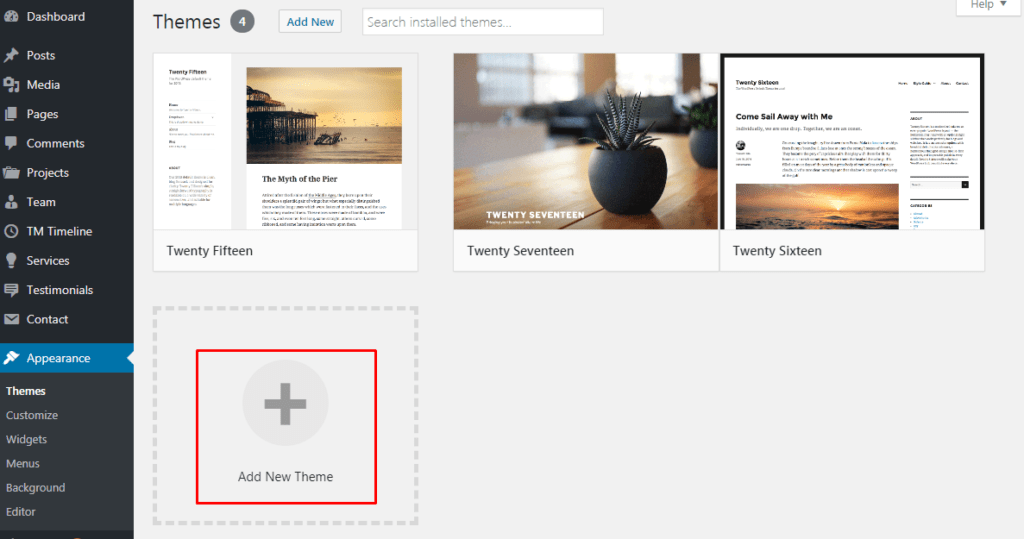
On the dashboard, look for the Appearance option. It is on the left side. Click on it. You will see different options like Themes and Customize. Choose the option you need to change images. Start your edits from here.
Finding The Theme Customizer
Locating Theme Options is a simple task. First, go to your WordPress dashboard. Look for the “Appearance” tab. Click it to see a list. The list shows different options. Find “Customize” in this list. This will open the Theme Customizer.
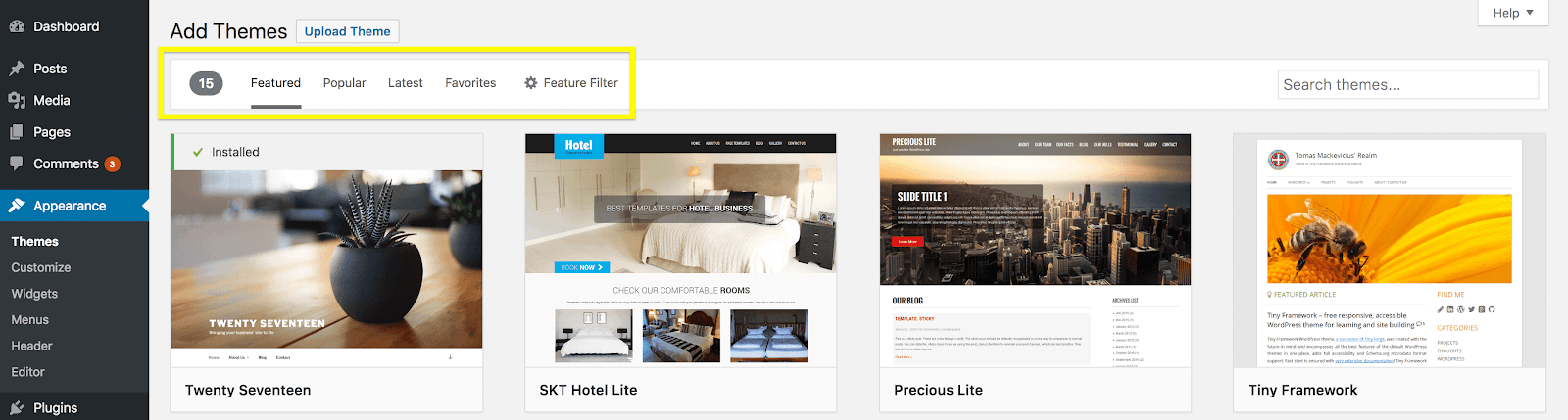
Exploring the Customize Menu is like a treasure hunt. You will see many settings. Look for the “Header Image” or “Background Image”. These options may vary by theme. Click on the image option you want to change. You can upload a new image here. Make sure your new image fits the theme. It should be clear and bright.
Credit: wpengine.com
Uploading A New Image
The Media Library is a place for all your pictures. You can find existing images here. Click on “Add New” to upload a picture. Choose the file from your computer. After it uploads, the image appears in the library. Remember to select the right image size. Use small images for faster loading.
Start by going to the Dashboard. Find the “Media” section. Click “Add New” to begin. A window will pop up. Pick the image from your files. Drag and drop is also possible. Your image uploads in seconds. Now it is ready to use in your theme.
Replacing The Existing Image
Updating images in a WordPress theme involves accessing the dashboard. Navigate to ‘Appearance,’ select ‘Customize,’ and find the specific section. Replace the image by uploading a new one from your computer or media library. Save changes to update the image successfully.
Identifying The Current Image
First, locate the image you want to change. Go to your WordPress dashboard. Find the Appearance tab. Click on Editor. Search for the file with your image. Images can be in header, footer, or sidebar. Check the theme documentation if needed. It helps to know the exact file name. You might find images in the Media Library. This makes it easy to locate. Knowing the image location saves time.
Applying The New Image
Upload your new image. Use the Media Library in WordPress. Click on Add New. Select the image from your computer. After uploading, copy the image URL. Go back to the editor where you found the old image. Replace the old image URL with the new one. Save your changes. Check your website. Make sure the new image appears. If not, clear your browser cache. You might need to refresh the page.
Credit: jetpack.com
Adjusting Image Settings
Cropping helps in focusing on the important part of an image. It removes unwanted sections. Resizing makes the image fit better. Both tools are found in the media library. Click on the image to open these options. Choose the part you want to keep. Adjust the size to make it perfect. Save changes after editing.
Proper position makes the image look good. Alignment options are left, center, and right. These options are found in the image settings. Select one that suits your need. Test different alignments to see what works best. A well-aligned image looks neat. It improves the page’s appearance.
Saving Changes
Previewing the new look is crucial before publishing. It helps you see if the image fits well. Use the preview button in WordPress. Click it after making changes. The preview shows how the site will appear. Check for alignment and color balance. Ensure the image does not look odd. If all is good, proceed to the next step.
Publishing The Updates
Once satisfied with the preview, it’s time to publish. Publishing makes the changes visible to everyone. Click the publish button in WordPress. Wait for the update to complete. Refresh the page to see the new image. Ensure everything looks perfect. Your site is now updated with the new image. Congratulations on making the change!
Credit: www.templatemonster.com
Troubleshooting Common Issues
Changing an image in a WordPress theme is straightforward. Navigate to the theme customization section. Find the image settings and upload your new picture. Refresh the page to ensure the changes take effect.
Image Not Displaying
Images might not display due to wrong file paths. Check the URL of the image. Ensure it is correct. Verify the image is in the media library. Sometimes, themes have settings for images. Check if the image is turned off in these settings. Permissions can also cause issues. Make sure the image file has proper permissions. Refresh the page after changes. This might solve the issue.
Incorrect Image Size
Images can appear too big or small. This often happens due to theme settings. Adjust the image dimensions in the theme options. Use the WordPress editor to resize images. Check the CSS for image size rules. These might need changes. Look for image size settings in the media library. Make sure the image fits the design. Always preview changes to see the image size. Sometimes plugins affect image size. Deactivate plugins to test if the size changes.
Optimizing Images For Performance
Image compression tools help make pictures smaller. This helps webpages load faster. These tools keep good quality while reducing size. TinyPNG and JPEGmini are popular choices. They are easy to use. Just upload your image and let the tool work. It’s quick and simple.
Balancing quality and speed is important. Large images can slow down a site. But, too much compression makes images look bad. Try different settings to find the best balance. Make sure your site runs fast and looks good. Fast sites make visitors happy. Happy visitors stay longer.
Frequently Asked Questions
How Can I Change An Image In WordPress Theme?
To change an image, navigate to the WordPress admin panel. Go to Appearance, then Customize. Find the section for images or headers. Upload a new image or select from media library. Save changes to update your theme.
What Tools Help Edit WordPress Images?
WordPress offers built-in image editing tools. Use the media library to crop, resize, or rotate images. External plugins like WP Paint or Smart Image Editor can enhance functionality. These tools are user-friendly and support various formats.
Can I Use Custom Images In Themes?
Yes, you can use custom images. Upload your image via the media library. Select the image in the Customize section of your theme. Ensure images are optimized for web and appropriately sized for best performance.
Are Plugins Necessary For Image Changes?
Plugins aren’t necessary but can enhance capabilities. WordPress’s built-in features handle basic image tasks. Plugins like Envira Gallery offer advanced options for galleries and editing. Choose plugins based on your specific needs.
Conclusion
Changing images in WordPress themes is straightforward. Follow simple steps to update visuals. Use the WordPress dashboard to access theme settings. Upload new images directly. Customize your site’s look with fresh visuals. Engage visitors with appealing design. Remember to preview changes before saving.
Test on different devices for consistency. Keep your site’s branding in mind. Regular updates can enhance user experience. Images are key to your site’s appearance. Make them count. Stay consistent with your theme’s style. Enjoy creating a visually compelling website.
Stay creative and keep your site fresh. Happy designing!


