
Are you tired of staring at the bulky header on your Houzez theme in WordPress and wondering how to make it sleeker? You’re in the right place.
Adjusting the header height can instantly refresh your website’s appearance and improve user experience. A well-proportioned header not only makes your site look more professional but also enhances navigation for your visitors. Imagine the satisfaction of transforming your site into a more visually appealing space with just a few simple tweaks.
You’re about to discover how easy it is to customize your header height, giving your website a fresh, modern look. Read on to learn the step-by-step process and turn your website into a more inviting digital space.
Understanding Houzez Theme
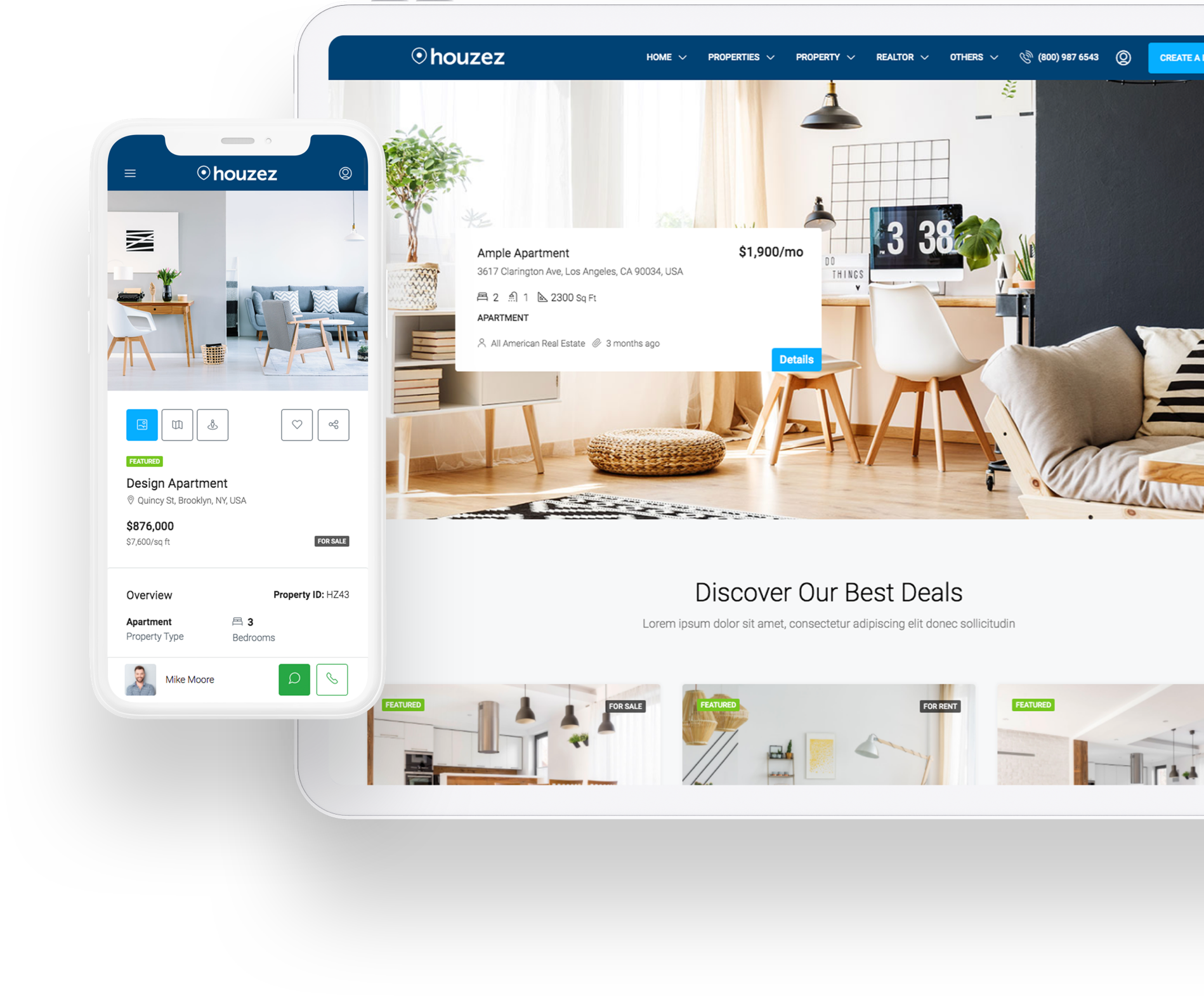
The Houzez theme is great for real estate websites. It offers responsive design. This means it looks good on all devices. It has drag and drop page building. You can create pages easily. There is a property management system. It helps manage listings. Advanced search options help users find properties fast.
The theme provides membership packages. They help monetize your site. You can also use Google Maps integration. This shows property locations clearly. Customizable headers are another feature. You can change header height if needed.
Houzez offers many ways to customize. You can change colors and fonts. This helps match your brand. There are multiple header styles. Choose the one you like. You can also edit the footer design. Use your own logos and text. Sidebar widgets can be added easily. They provide extra functionality.
The theme supports translation-ready features. Make your site available in many languages. SEO-friendly settings are built-in. This helps improve search rankings. You can also use custom CSS. This gives more styling options.
Credit: www.elegantthemes.com
Accessing Theme Customizer
Start by logging into the WordPress dashboard. Locate the sidebar on the left. Look for the menu labeled “Appearance”. Click on it. A list of options will appear. Select “Customize” from the list. This opens the theme customization panel.
The customization panel allows changes to your theme. Find the section for header settings. Click on the header section. Look for header height options. Adjust the height using the slider. Save changes before exiting.
Locating Header Settings
Houzez theme has many customization options. Header settings are important. First, log into your WordPress dashboard. Look for Appearance on the left menu. Click it. Now, find Customize. This opens the theme customizer. It has many settings. Headers are one of them. Scroll down to find Header. Click it. You are now in the right section.
Inside the Header section, look for Layout Options. This is where you can change things. Find the header style option. Different styles have different heights. Pick the style you like. Save changes by clicking Publish. Your header will adjust on the site.
Height adjustment is in the layout settings. Some styles have specific controls. Look for Height Slider. Adjust it to change height. Try different settings. See what fits best. Always save changes after adjusting. Your header will update automatically.
Credit: houzez.co
Adjusting Header Height
Houzez theme allows easy header height change. Use the slider tool in the settings. This tool helps you make precise adjustments. Move the slider left or right. The header height changes immediately. This is a simple way to see the results.
For exact header height, use manual input. Enter the number in the height field. This option is perfect for specific height needs. Type the number and save changes. The header adjusts to the exact height specified. It’s an easy way to get the perfect fit.
Previewing Changes
Live Preview Feature lets you see changes instantly. Adjust the header height and view results. It’s easy to switch and check different settings. See how it looks on your screen. Use the feature to make your site better.
Switching Between Devices helps you understand how your site looks everywhere. Check views on phones, tablets, and computers. Make sure your header height fits all screens. This feature is important. It makes sure everything looks nice and clear.
Saving And Publishing Adjustments
Adjusting the Houzez theme header height in WordPress is simple. Navigate to the theme settings, find the header section, and modify the height to suit your design preferences. Save and publish your changes for immediate effect.
Saving Your Customizations
After changing the header height, it’s important to save your work. Look for the save button in your WordPress dashboard. Click it to keep your changes. This step ensures your header stays the same when you return.
Publishing The Changes
Once saved, it’s time to show your changes to everyone. Find the publish button in the same area. Click it so your website visitors see the new header height. Check your site to make sure everything looks right. If not, go back and adjust again. Keep the website looking the way you want.
Troubleshooting Common Issues
Sometimes, the header might look too large or too small. This can make your site look strange. Always check the theme settings first. Ensure you have the right dimensions for your header. If it’s still not right, clear your browser cache. This helps to see the new changes. Use the WordPress Customizer to adjust the header size. Preview the changes before saving them.
If changes make things worse, go back to the start. Find the reset button in your theme settings. Clicking this will restore all original settings. Be careful, as this erases all custom changes. Save a backup of your current settings. This lets you try different settings without fear.
Credit: favethemes.zendesk.com
Additional Customization Tips
Adjusting header height in the Houzez theme enhances your website’s appearance. Utilize custom CSS for precise modifications. Experiment with padding and margins to achieve a balanced look.
Exploring Advanced Options
Adjusting the Houzez theme header height offers a unique look. Use Custom CSS for more control. This method requires some coding skills. Add your CSS in the WordPress dashboard. Navigate to Appearance > Customize > Additional CSS. Here, you can write your own code.
For example, change the header height using the following code:
header {
    height: 150px;
}
Replace 150px with the height you want. Be careful with changes. Check how it looks on different devices. Experiment with other CSS properties. Try changing colors or fonts. This makes your site unique and appealing.
Frequently Asked Questions
How Do I Adjust Houzez Header Height?
To change the Houzez theme header height in WordPress, navigate to the theme customizer. Look for the ‘Header’ settings section. You can adjust the height by modifying padding and margins. Save your changes to see the updated header appearance.
Can I Change Houzez Header Height Without Coding?
Yes, you can change the Houzez header height without coding. Use the theme customizer in WordPress. Look for header options and adjust settings like padding and margins. This allows you to change the header height easily.
What Tools Help Modify Houzez Header Height?
To modify the Houzez header height, use the WordPress theme customizer. It’s user-friendly and requires no coding. Navigate to the ‘Header’ section. Adjust padding and margins to change the header height. Save changes to update your site instantly.
Does Changing Header Height Affect Mobile View?
Yes, changing the header height can affect mobile view. Ensure your adjustments are responsive by checking on different devices. Use WordPress customizer to preview changes for both desktop and mobile. This ensures a consistent and user-friendly experience across devices.
Conclusion
Changing the Houzez theme header height is simple. Follow the steps mentioned. Adjusting the header enhances your site’s appearance. It can improve user experience. Keep your site’s design consistent and neat. A well-organized header can attract visitors. It helps them navigate easily.
Remember, small changes make a big difference. Regularly check your site’s layout. Ensure it meets your needs and looks professional. Stay updated with theme features. This ensures your site remains modern and functional. With these tips, managing your WordPress site becomes easier.
Enjoy a seamless website experience!


