
Are you struggling to change the homepage of your WordPress theme? You’re not alone.
Many WordPress users face this challenge, wondering how to make their websites look just right. A homepage is like a first impression; it sets the tone for your entire site. Getting it right is crucial for engaging your visitors and keeping them coming back.
Imagine having a homepage that perfectly aligns with your brand, showcasing your content in the most appealing way. This guide will walk you through each step, ensuring you can confidently customize your WordPress homepage. No more confusion or frustration—just a straightforward path to a homepage that truly reflects your vision. Stick with us, and by the end, you’ll have the tools you need to make your WordPress site stand out.
Accessing WordPress Dashboard
Begin by logging into your WordPress Dashboard. You can do this by typing your website URL, followed by /wp-admin. Enter your username and password. You will see the WordPress main screen. This screen shows many options on the left side. The dashboard is your site’s control center. Here, you can make changes to your website. You have access to themes, plugins, and settings. It’s easy to navigate and use. Spend some time exploring this area. You’ll find many useful tools. These tools help you manage your site. The dashboard is where you change your home page. Look for the “Settings” option in the menu. Click it to start making changes.
Credit: kinsta.com
Navigating To Theme Customizer
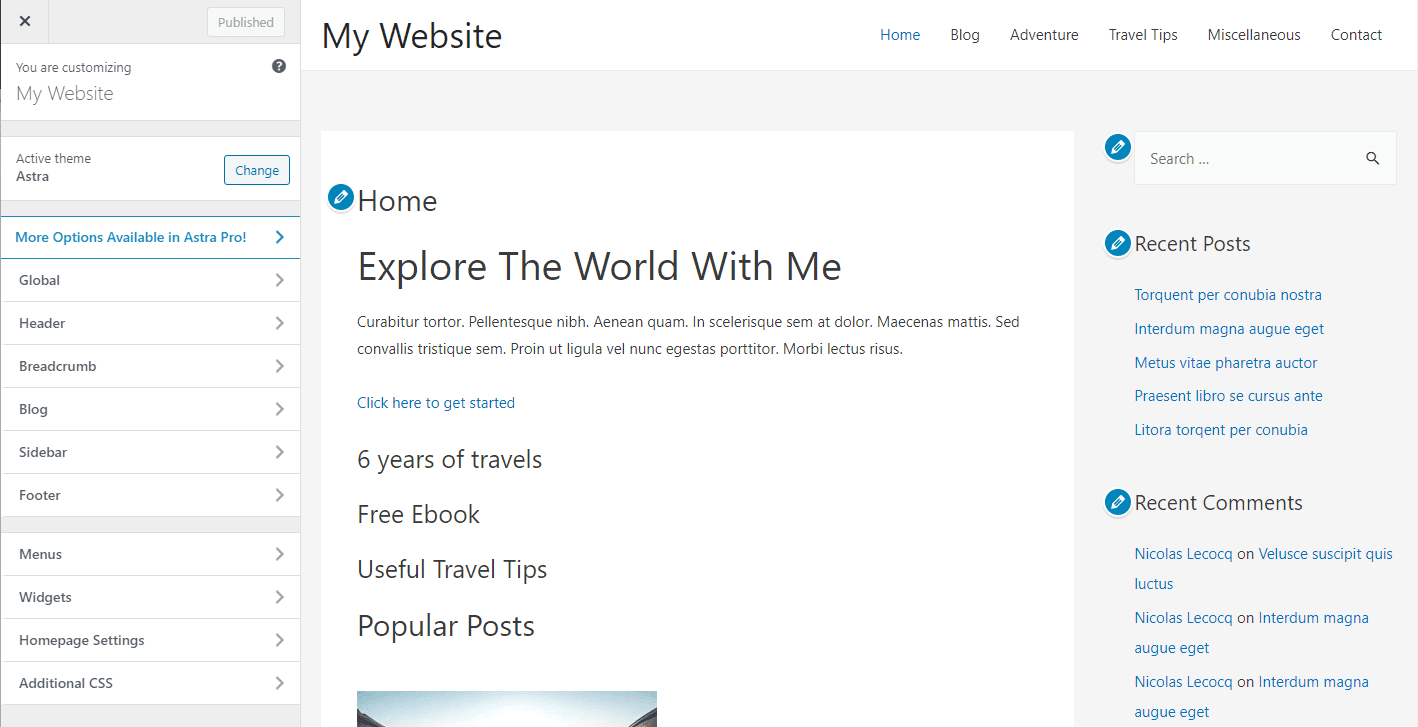
Start by logging into your WordPress dashboard. Look for the Appearance tab. It’s usually on the left side. Click on it. You will see Customizer. Click the Customizer link. Now you are inside the theme settings.
Find the Home Page Settings. It might be under Homepage Settings. Select a page you want as your home page. Save changes by clicking Publish. This updates your site’s home page.
Changing the home page is simple. Just follow these steps. You can always return to make more changes. Explore other settings while you are there. Adjust colors or menus if needed. Customizer is a great tool for this.
Selecting Home Page Settings
To change your home page, first go to your WordPress dashboard. Click on “Settings” and then choose “Reading”. Here, you can set your home page. Pick the option that says “A static page”. This allows you to choose which page you want as your home page. From the drop-down menu, select the page you prefer. Once done, remember to click “Save Changes”. This will update your home page settings.
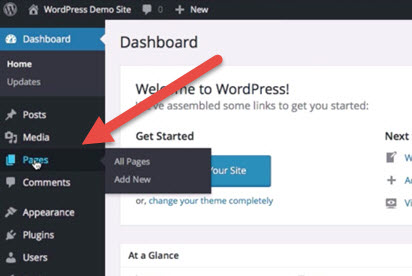
If you don’t see the page you want, create a new one. Go to “Pages” and click “Add New”. Name your new page and publish it. Now, repeat the steps to set it as the home page.
Credit: docs.presscustomizr.com
Choosing A Static Front Page
First, go to the WordPress dashboard. Click on “Pages”. Then, click “Add New”. Name your page. Write some content if needed. Save it by clicking “Publish”. Now, your new page is ready.
Open “Settings” in the dashboard. Choose “Reading”. Look for “Your homepage displays”. Select “A static page”. Pick your new page from the dropdown list. Save changes by clicking “Save”. Your homepage is now changed. Easy steps for a new look!
Using A Homepage Template
WordPress themes often offer different homepage templates. These templates change how your home page looks. First, go to your theme settings. Look for the section called “Templates” or “Homepage Options”. This is where you find different styles. Each template may have unique features. Some might have big images. Others may focus on text. Compare the templates to see which fits your needs. Make sure you choose one that matches your site’s purpose. A good template helps your site look neat.
Once you have picked a template, it’s time to activate it. Go back to your theme settings. Find the option to set the homepage template. Click on your chosen template. Save your changes to make the template live. Visit your site to see the new look. If it doesn’t look right, you can change again. Always check your site after each change. This ensures everything works well. A good homepage makes your site inviting.
Customizing Home Page Content
Widgets make your home page lively. They add special sections. Drag and drop them in the widget area. You can add text, images, and videos. Choose widgets that match your website’s theme. Some themes have more widget spaces. Find the widget section in your dashboard. Explore different widgets. Experiment with layout. Save changes after adding.
Custom blocks are special. They allow unique designs. Use blocks for text, images, and buttons. Go to the block editor. Select the “Add Block” button. Choose the type of block you want. Arrange blocks in any order. Customize colors and styles. Preview your changes often. It helps to see how they look. Make your page stand out with creativity.
Saving And Publishing Changes
Make sure your changes are saved. Look for the Save button. Click it. This keeps your work safe. Now, it is time to publish. Find the Publish button. Click on it. Your changes go live. Everyone sees your new home page. Always check your page. Ensure it looks good. Fix any mistakes. Test it on phones and computers. View it in different browsers. Your home page should be easy to read. It must be simple to navigate. A good home page attracts visitors. It keeps them interested. Make sure it loads quickly. Fast pages help user experience. Slow pages lose visitors. A clean design is important. Good content makes a difference. Remember to update regularly. Keep your site fresh. Stay organized. Happy publishing!

Credit: www.youtube.com
Troubleshooting Common Issues
Page not found errors can be confusing. First, check your page URL. Make sure it matches the correct link. Sometimes, permalinks need updating. Go to Settings and select Permalinks. Click on Save Changes. This action refreshes links. If the error remains, check your page status. Ensure it is published, not in drafts.
Layout issues can affect user experience. Begin by clearing your browser cache. Cached pages may show old layouts. Next, examine your theme settings. Some themes have customizable layouts. Adjust settings to match your preferences. If problems persist, check for plugin conflicts. Deactivate plugins one by one. See if the layout improves. Re-activate only the necessary plugins. These steps help fix layout issues.
Exploring Additional Plugins
Plugins can make your homepage better. They add new features. You can use them for slideshows or contact forms. This makes your page look nice. Some plugins help with design. Others help with speed. Choose plugins that are easy to use. This will make your site more fun. Remember, too many plugins can slow your site. So, pick only what’s needed. This way, your homepage stays fast and fun.
Some plugins add special widgets to your homepage. These widgets can show recent posts or popular items. They can make your site look more modern. You can also add social media links. This helps visitors share your content. Adding a search bar can be useful too. People find it easy to explore your site. Always test new features. Ensure they work well on your site.
A fast homepage is important. Use plugins that improve speed. These plugins compress images. They also clean up unused files. This makes the site load quicker. A fast site is good for visitors. It also helps with search engines. Check plugin reviews before installing. Choose those with high ratings. This ensures you pick reliable tools. Aim for a balance between features and speed.
Frequently Asked Questions
How Do I Change My WordPress Home Page?
To change your WordPress home page, go to Settings > Reading. Select a static page from the dropdown menu. Ensure your desired page is published. Save changes to apply. You can customize this page using the WordPress editor or your theme’s options.
Can I Set A Custom Page As Home?
Yes, you can set a custom page as your home page. Navigate to Settings > Reading. Choose a static page from the dropdown menu. This allows you to use any published page as your home page, offering more customization options.
What Is The Default WordPress Home Page?
The default WordPress home page is typically your latest posts. It displays your blog feed by default. You can change this to a static page in the settings. This allows for more personalized and tailored content presentation.
Why Change The WordPress Home Page?
Changing the WordPress home page allows for better content presentation. It enhances user experience by showcasing important information. You can tailor the home page to fit your brand or business needs. This customization is essential for effective website design.
Conclusion
Changing the home page of your WordPress theme is simple. Follow the steps carefully. Explore different options to make your site unique. Adjust settings to fit your style and needs. Remember to save changes regularly. Test your home page to ensure it looks great.
Keep experimenting with layouts and features. WordPress offers flexibility to showcase your creativity. Updates can enhance functionality and design. Enjoy customizing your website. A well-designed home page attracts more visitors. You now know how to make your website shine. Dive in and create something special.


