
Are you looking to customize your WordPress site without risking the stability of your main theme? Changing the header.php file in a WordPress child theme can be a game-changer.
It allows you to tweak your website’s appearance and functionality without altering the original theme files. This means you can experiment with new designs or features with peace of mind, knowing your changes won’t be overwritten by future theme updates.
Imagine the freedom of creating a unique header that truly reflects your brand’s personality. It’s a powerful way to captivate your audience right from the first glance. In this guide, we’ll walk you through the simple steps to modify the header. php in your child theme. Whether you want to add a custom logo, change the navigation style, or introduce new scripts, you’ll find the process easier than you think. Stay with us, and you’ll soon have a distinct, professional-looking website that stands out from the crowd.
Credit: www.hostpapa.com
Understanding Child Themes
Child themes help you keep your main theme safe. They allow changes without touching the original theme files. This means your updates stay even after updating the main theme. Using child themes is smart for those who like to tweak their site. They offer a risk-free way to test new things. Beginners find them easy to use. Developers love them too. They offer flexibility. They make WordPress more fun and less scary.
Safety is the key benefit of child themes. Your changes won’t disappear after updates. Child themes keep things organized. They allow easy management of custom code. You can experiment without fear. Mistakes are easy to fix. Backup and restore become simple tasks. Performance remains strong with clean code. The main theme remains untouched. This ensures smooth updates and less downtime.
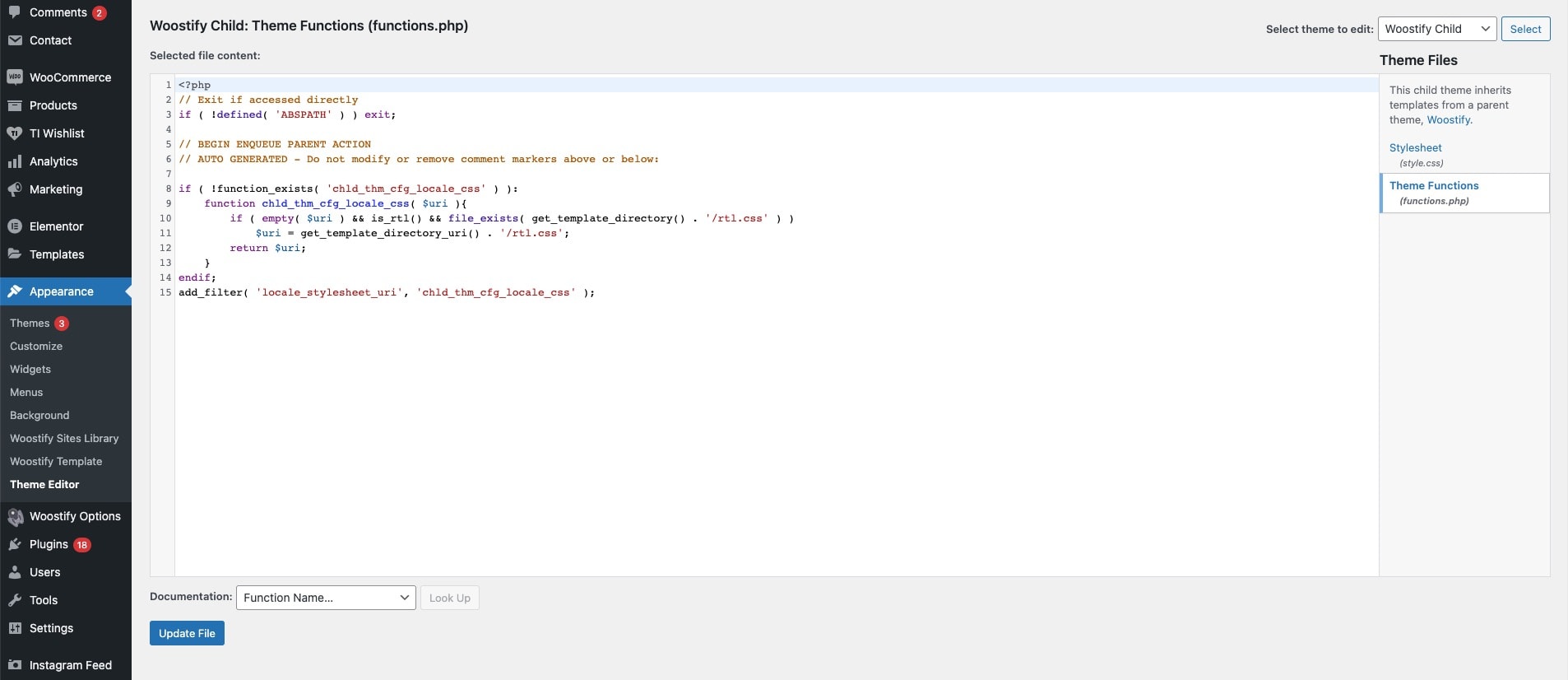
Start by making a new folder. Give it a name like “theme-child”. Create a new file named style.css. Add basic theme details inside. Next, make a functions.php file. Use it to enqueue the parent theme styles. This keeps the child theme tied to the main theme. Upload the folder to the themes directory. Activate your new child theme from the WordPress dashboard. Your site will now run on the child theme. Start customizing without worry.
Credit: woostify.com
Locating The Header.php File
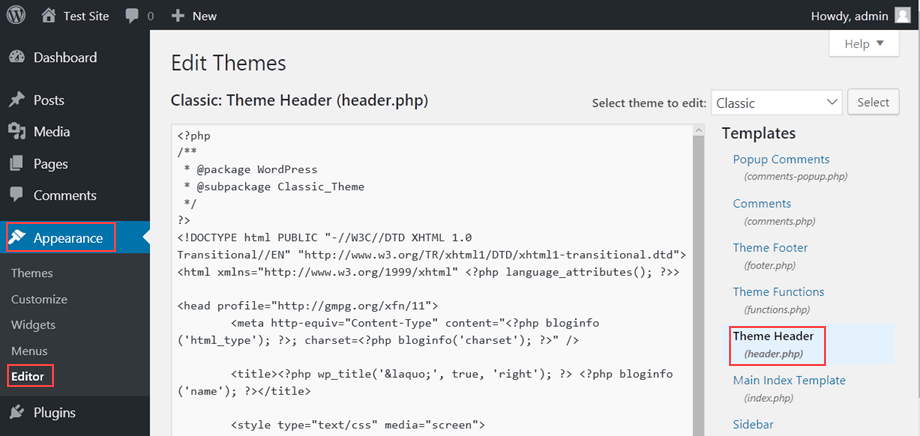
The WordPress Dashboard helps find theme files. Open the dashboard. Click on Appearance then Theme Editor. The editor shows theme files. Look for Header.php. Click to open it. This file controls header settings. Edit carefully. Changes affect site look.
FTP is another way to access theme files. First, install an FTP client like FileZilla. Connect to your site server. Navigate to wp-content/themes. Find your child theme folder. Inside, locate Header.php. Download the file. Edit it on your computer. Upload it back to the server. Changes will reflect on your site.
Making Safe Edits
Always keep your theme files safe. Create a backup before editing. Save a copy on your computer. Use an FTP client for this task. It helps you download files easily. This way, you avoid losing important data. Backups are like a safety net. They protect your work from mistakes. Always remember to back up first.
Copy header.php file to the child theme. First, locate the file in the parent theme. Use an FTP client to find it. Then, copy it to your child theme folder. This action keeps your edits safe. It prevents changes from being lost during updates. Always work in the child theme. This way, your changes stay secure.

Credit: wordpress.stackexchange.com
Modifying Header.php
Changing the title of your site is common. You can also add a logo. Many users update the menu links. These make navigation easier. Some add a custom message or contact info. These changes improve site look and feel.
You can add Google Analytics code. This helps track site visitors. Some add social media icons. This connects users to social pages. Many like to include custom scripts. These scripts enhance site functionality. Ensure the code is correct. Wrong code can break your site. Always check after adding new code.
Testing Changes
After editing the header.php file, check your site. Click on your site link. This opens the main page. Changes should show here. Look at the top of the page. This is where the header is. If your changes appear, you did it right. If not, check your edits again. Mistakes in code can cause problems. Always save your work before previewing. Saving is important. It shows your latest changes.
Previewing Changes In WordPress
WordPress has a preview option. Use it to see changes safely. Click the preview button. This shows your site with new changes. No need to publish yet. Preview first. Check if everything looks good. If not, fix it. Preview helps avoid mistakes. It saves time. It also prevents errors before going live.
Troubleshooting Common Issues
Sometimes changes do not show. This can happen. Check your browser cache. Clear cache to see updates. Also, check your code. Look for errors. Errors stop changes from showing. Check permissions too. Files need right permissions to update. If stuck, ask for help. Forums can be helpful. Many people face similar issues. Sharing helps solve problems quickly.
Best Practices
To change the header. php in a WordPress child theme, first create a child theme folder. Then copy the original header. php file from the parent theme and paste it into the child theme folder. Edit the copied file as needed, ensuring your changes won’t be lost in theme updates.
Ensuring Future Compatibility
Always make changes in a child theme. This helps keep the main theme clean. Use the latest version of the theme. This ensures new updates work well. Check the official WordPress documentation. It often has useful tips. This makes sure your site stays current and safe. Keep a list of what you change. This helps you fix things if problems occur later.
Keeping Track Of Changes
Create a backup before editing. This saves your work in case of a mistake. Write down every change. Use a notepad or a simple file. This helps you remember what was done. Regularly review your changes. This helps keep your site running smoothly. Use version control tools if possible. They help track changes easily. This also allows you to revert back if needed.
Frequently Asked Questions
What Is A WordPress Child Theme?
A WordPress child theme is a sub-theme that inherits styles and functions from a parent theme. It allows you to modify or add features without affecting the original theme. This ensures that updates to the parent theme won’t override your customizations.
Why Edit Header.php In A Child Theme?
Editing header. php in a child theme ensures your changes are preserved during updates. This file controls the header section’s appearance and functionality. By editing it in a child theme, you keep your customizations intact while benefiting from future updates to the parent theme.
How Do I Safely Change Header.php?
To safely change header. php, copy it from the parent theme to the child theme. Make edits in the child theme’s version. This method keeps your modifications secure from updates. Always back up your site before making changes to avoid data loss.
Can Header.php Affect Site Performance?
Yes, header. php can impact site performance. Inefficient code or scripts in this file may slow down page load times. Optimize and streamline code to enhance performance. Proper management ensures your site’s header is fast and responsive, improving user experience.
Conclusion
Editing the header. php in a WordPress child theme is simple. Follow the steps carefully. Always back up your files first. This ensures safety from data loss. Use a text editor to make changes. Double-check your edits for errors. Save and upload the file when done.
Refresh your website to see changes. Practice makes perfect over time. Keep learning and experimenting. This process helps customize your site easily. Enjoy the creative freedom it brings.


