
Are you looking to personalize your WordPress site, but stuck on how to tweak that stubborn footer text? You’re not alone.
The footer is often overlooked, yet it’s a vital part of your website’s identity. It’s the final impression you leave with your visitors, and it should reflect your brand perfectly. But if you’re like many WordPress users, you might find yourself puzzled about where to start.
Don’t worry, you’re in the right place. This guide will walk you through the steps to change your footer text with ease, so you can ensure your website leaves a lasting, professional impression. Read on to discover how simple adjustments can make a world of difference in your site’s overall look and feel.

Credit: www.interserver.net
Accessing The WordPress Dashboard
First, open your web browser. Type your website’s URL and add “/wp-admin”. Press “Enter”. You will see the login page. Enter your username and password. Click “Log In”. Now, you are inside the WordPress Dashboard.
The dashboard is the main area. Here, you can manage your site. Look for the left menu. It has many options. You can change settings, add pages, and more. To change the footer text, you will need this dashboard.
Locating The Footer Section
Finding the footer is easy. First, log into your WordPress dashboard. Go to Appearance. Click on Editor. Here, you will see theme files. Look for the file named footer.php. This file holds the footer content. Scroll through the lines. Find the text you want to change. Sometimes, themes have custom footer options. Check if your theme has a theme settings panel. This panel might have a footer section too. Always remember to backup your files. Changes can sometimes mess things up. Backups keep your site safe.
Using The WordPress Customizer
First, log into your WordPress dashboard. Look for the Appearance option on the left side. Click on it. Then, select the Customizer. This tool helps you change how your site looks. It’s easy to use.
Inside the Customizer, find the Footer section. This is where you can change the footer text. Click on it. You’ll see different options for your footer. Look for the one that says Footer Text or similar.
Click on the Footer Text option. A box will appear. You can type your new text here. Make sure your text is clear and neat. After typing, click Publish to save your changes. Now your footer has new text!
Editing Footer Via Theme Settings
Start by logging into your WordPress dashboard. Look for the Appearance tab on the left menu. Click it, then select Customize. This takes you to the theme settings. Here, you can find options to change the look of your site.
In the theme settings, locate the Footer section. You might see an area labeled as Footer Text or similar. Click on it. Now, change the text to whatever you want. Save your changes. Your new footer text should show up on your site now.
Modifying Footer With Widgets
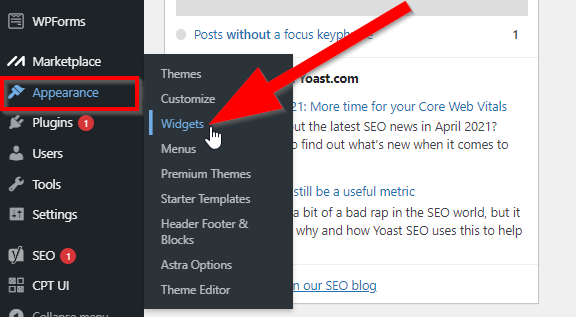
Enhance your WordPress footer by changing text with widgets. Access the WordPress dashboard, navigate to Appearance, then Widgets. Select Footer Widget Area to modify content easily, giving your site a refreshed look.
Understanding Widgets
Widgets are small blocks. They let you add special features. You can find widgets in the WordPress dashboard. Widgets can be used in many areas, not just the footer. They help make your site unique. You can use them to add text, images, or links.
Adding Footer Widgets
First, visit the dashboard. Look for the ‘Appearance’ menu. Click on ‘Widgets’. Here you will see different areas. Choose the footer area. Drag widgets to the footer area. You can add text widgets or image widgets. Save your changes. Check your site to see the new footer.
Customizing Widget Content
Click on your widget in the dashboard. You can add text or links. You can also change the color. Make sure it matches your site. You can add images too. Keep it simple for easy reading. Save your changes. Review your site to see the footer. Adjust as needed.
Utilizing A Child Theme For Changes
A child theme lets you change your site safely. First, create a new folder in your theme directory. Name it after your theme with “-child” at the end. Next, make a style.css file. Write the theme’s name and add “Template: parent-theme-name”. Save this file. Your child theme is ready.
Open the footer.php file in your child theme. This file controls the footer text. Find the text you want to change. Change it to what you like. Save your changes. Your new footer text will show on your site.
Updates can change your theme’s files. Using a child theme keeps your changes safe. Only the parent theme updates. Your changes in the child theme stay the same. This method protects your work from updates.
Using Plugins For Footer Modification
Easily change footer text in your WordPress theme using plugins. These tools allow quick customization without coding skills. Modify text to suit your brand and enhance site design effortlessly.
Choosing The Right Plugin
Many plugins can help change the footer text. Choose a plugin that is popular and well-reviewed. This makes sure it is safe and works well. Search for plugins in the WordPress plugin directory. Read the descriptions and user reviews. This helps find the best one for your needs.
Installing And Activating Plugin
Go to your WordPress dashboard. Click on “Plugins” and then “Add New”. Type the plugin name in the search bar. Click on “Install Now” when you find the right one. After installation, click “Activate” to start using it.
Configuring Plugin Settings
Find the plugin settings in your WordPress dashboard. Each plugin has its own settings page. Look for a section that says “Footer” or “Text”. Enter the text you want in the footer. Save your changes to see the new footer text on your site.
Testing And Saving Changes
Preview changes before saving. This helps see if the footer looks good. Use the Preview button in WordPress. It shows how changes appear on your site. Check each part of the footer. Ensure links work. Make sure text is correct. Look for any errors. Fix them before saving.
Save changes after previewing. Click the Update button. It saves the new footer text. This makes your site show the new text. Check the live site after saving. Ensure everything works as expected. This confirms updates were successful. Regular updates keep the footer fresh. They ensure correct information is visible to visitors.
Troubleshooting Common Issues
Changing footer text in a WordPress theme can be tricky. Access the theme editor, locate the footer. php file, and modify the text directly. Remember to save changes and refresh your site to see updates immediately.
Dealing With Cache Problems
Cache can cause problems with changing footer text. Always clear your cache after making changes. Your browser and website might store old versions. This can make you think changes aren’t working. Try using a private browser window to check your changes. This helps you see the latest version of your site. Sometimes, plugins also have caching. Make sure to clear plugin cache too. This ensures your changes are visible.
Resolving Theme Conflicts
Different themes might not work well together. This can cause footer text issues. Disable other themes to see if the problem goes away. Always use a child theme. This keeps your custom changes safe. Check your theme’s settings for specific footer options. Theme updates can also help fix conflicts. Always keep your theme updated for best results.
Ensuring Mobile Responsiveness
Your footer text should look good on all devices. Check how it appears on a phone. Use tools to preview your site on mobile. Some themes have specific mobile settings. Adjust these to ensure text looks right. Keep footer text short for small screens. This helps it stay readable on phones and tablets.

Credit: www.youtube.com
Credit: www.crazyegg.com
Frequently Asked Questions
How Can I Change Footer Text In WordPress?
To change the footer text in WordPress, access your theme’s customization options. Navigate to Appearance > Customize > Footer settings. Edit the footer text field to your desired content. Save changes to update the footer across your site. Some themes may require additional steps or custom code.
Is Coding Required To Edit Footer Text?
Coding is not always required to edit footer text in WordPress. Many themes offer built-in customization options for the footer. You can access these via the WordPress Customizer. However, some themes might need custom CSS or PHP edits for advanced changes.
Can I Change Footer Text Using A Plugin?
Yes, you can change the footer text using a plugin. Plugins like “Insert Headers and Footers” or “Custom Footer” allow easy footer customization. Install the plugin from the WordPress repository, activate it, and follow the plugin instructions to modify your footer text.
Will Changing Footer Text Affect My Seo?
Changing footer text can affect SEO if keywords or links are added. Ensure your footer remains relevant and keyword-optimized. Avoid keyword stuffing or irrelevant links. A well-optimized footer can enhance user experience and improve search engine visibility.
Conclusion
Changing the footer text in a WordPress theme is simple. Just follow the steps outlined above. Start by accessing your WordPress dashboard. Then navigate to the theme customizer. Look for the footer settings. Make your changes and save them. Check your site to see the new footer text.
This small update can refresh your website’s look. It helps convey your brand’s message clearly. Regular updates keep your content relevant. Keep experimenting and enhancing your WordPress site. Enjoy the creative process.


