
Are you looking to give your WordPress site a fresh new look by changing the footer color? Whether you’re aiming for a sleek, professional appearance or a vibrant, eye-catching design, customizing your footer color can make a significant difference.
Imagine the impact of a footer that perfectly complements your brand’s identity! In this guide, you’ll discover easy-to-follow steps to transform the footer color in any WordPress theme. No coding skills? No problem! You’ll learn simple techniques that anyone can apply.
By the end of this article, you’ll have the tools to create a cohesive and visually appealing website. Dive in and unlock the potential of your WordPress theme today!
Accessing Theme Customizer
Start by going to your WordPress dashboard. Look for the Appearance option on the left menu. Click on it. A new set of options will appear. Select Customizer from this list. Now, the Customizer panel should be open. This panel helps you make changes to your site.
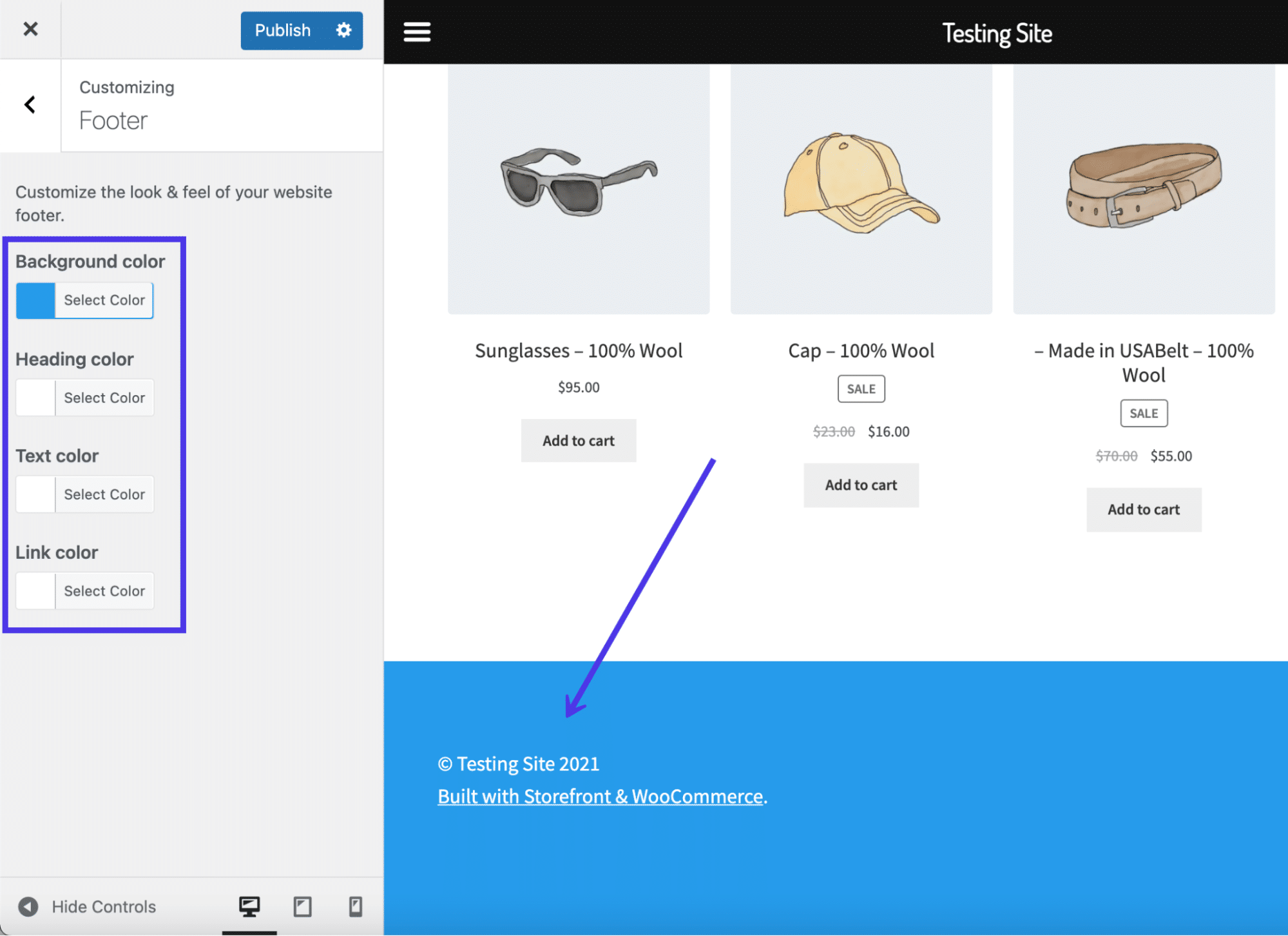
Find the Colors option. It might be under a section named Footer or Theme Options. Click to explore these settings. Here, you can change the footer color. Choose a color that matches your style. Make sure to save your changes. There should be a Publish button at the top. Click it to save your new footer color.
Using Additional Css
Change your WordPress theme’s footer color with ease using Additional CSS. Navigate to the Customizer, then add custom CSS code to redefine your footer’s appearance. Tailor the design to match your brand effortlessly.
Locating The Css Option
Find the Appearance menu in your WordPress dashboard. Click on Customize. Search for the Additional CSS tab. This is where you will add your code. Make sure you are in the right theme. Different themes have different settings. Always check before you start.
Writing Custom Css Code
Start by typing footer { to begin your code. Use background-color property to change the footer color. Add your desired color code after the colon. End with a semicolon and closing bracket. Example: footer { background-color: #ff0000; }. This changes the footer to red. Preview your changes by clicking Publish. Always test on different devices. Colors can look different on screens.
Editing Theme Files
Change footer color in any WordPress theme by editing theme files directly. Access Appearance > Theme Editor. Locate the footer. php file, find CSS code controlling footer color, and adjust the hex code or color name as desired. Save changes to see the new footer color instantly.
Accessing Theme Editor
First, go to your WordPress dashboard. Click on Appearance, then Theme Editor. A warning might appear. It’s safe to proceed if you know what you’re doing. Look for footer.php in the list of files. This is where changes to the footer can begin.
Modifying The Footer Stylesheet
Locate the style.css file in the Theme Editor. This file controls your theme’s look. Find the section for the footer. You might see something like footer { }. Inside the curly braces, you can change colors. For example, background-color: #000000; will make the footer black. Save changes after editing. This will update the footer color on your site.

Credit: stackoverflow.com
Utilizing Page Builder Plugins
Choosing a plugin is important for your website. Many plugins can help. Some popular ones are Elementor, Beaver Builder, and SiteOrigin. These plugins are easy to use. They also offer many features. You can change the footer color with them. Look for a plugin that matches your needs. Check if it is compatible with your theme. Also, read reviews to know about user experiences.
Once you pick a plugin, open it in your dashboard. Find the footer section in the settings. There, you can see color options. Choose the color you like. Make sure it matches your website’s design. Save the changes. Visit your site to see the new footer color. If it looks good, you are done. If not, go back and try a different color.
Implementing Child Themes
A child theme is a copy of your main theme. It lets you change styles safely. Create a new folder in your themes directory. Name it after your parent theme. Add a style.css file. Inside, use the correct template name. Now, your theme is ready to use.
Change footer colors using CSS. In your child theme, find the style.css file. Locate the footer section. Add new color styles. Use simple CSS rules like `background-color`. Save your changes. Refresh your site. The footer should now have new colors.

Credit: docs.themegrill.com
Exploring Theme Options Panel
Many WordPress themes offer a Theme Options Panel. This panel helps you change your site’s look. To find this, go to your WordPress dashboard. Click on Appearance and then Customize. Here, you can see many options to edit your theme. It’s like a toolbox for your site! You can change colors, fonts, and layouts with ease. Be sure to check the footer settings. Not all themes have the same options. Some themes might hide footer settings under different names.
Navigating Theme Settings
The theme settings allow you to adjust many parts of your site. To change the footer color, look for the color settings. Some themes have a dedicated section for the footer. If you find it, click to explore the options. You might see a color picker tool. Use this to select your desired color. If your theme does not have direct options, you may need to use custom CSS.
Adjusting Footer Appearance
Changing your footer’s look is simple. First, find the footer settings in your theme. Next, use the color picker to choose a new color. You can also adjust the footer size and style. Some themes allow you to add widgets. This can make your footer more useful. Remember to save your changes before leaving. Check your site to see how it looks. If it’s not right, you can go back and adjust again.
Troubleshooting Common Issues
Changing the footer color in any WordPress theme often requires accessing the theme’s customization options. Navigate to the WordPress dashboard, select “Appearance,” and then “Customize. ” Find the “Footer” section and adjust the color settings to your preference. Save changes to see the update.
Ensuring Css Priority
Changing footer colors can be tricky. Sometimes, the new color doesn’t show. Ensure your CSS has priority. Use !important in your CSS code. This makes sure it takes over other styles. For example, write: footer { background-color: blue !important; }. This will change the footer to blue. Check if the theme uses specific IDs or classes. Your CSS should match these. Always save changes after editing.
Clearing Cache
Pages might not show changes instantly. Clear your cache to see updates. Browsers store old versions of pages. This helps them load faster. But it can hide new changes. In Chrome, press Ctrl + Shift + R. This reloads the page with new data. Check plugin caches too. Some plugins store extra data. Clear these caches from the plugin settings. Now your changes should appear!
Best Practices For Theme Customization
Maintaining theme updates is crucial for a smooth site experience. Updates often bring new features and fix bugs. Customizations can get lost during updates. Always note changes made to your theme. Keep a copy of your modifications. This helps in restoring them after an update. Consider using a child theme. It protects your customizations from updates. This way, your main theme remains untouched. Regularly check for updates. Apply them promptly to keep your site secure. Always ensure your customizations are compatible with new versions.
Backing up customizations is essential before making changes. Save your work often. Use plugins to backup your site. They can save you from losing valuable work. Backups are like safety nets. They prevent data loss. Store copies of your custom code. Keep them in a safe place. This makes restoring easier if something goes wrong. Create a backup schedule. Follow it consistently. This ensures you always have recent copies. Backups bring peace of mind.
Credit: kinsta.com
Frequently Asked Questions
How To Change Footer Color In WordPress?
To change the footer color in WordPress, access the theme customizer from the dashboard. Navigate to ‘Appearance’ and select ‘Customize’. Then, locate the ‘Footer’ section. Here, you can select a color or input a custom hex code to modify the footer color to your preference.
Can I Use Css To Change Footer Color?
Yes, you can use CSS to change the footer color. Access your WordPress dashboard, go to ‘Appearance’, and click ‘Customize’. In the customizer, navigate to ‘Additional CSS’. You can add specific CSS code targeting the footer element to change its color effectively.
Is Theme Customizer Good For Footer Color?
The theme customizer is excellent for changing the footer color. It provides an intuitive, user-friendly interface for real-time color changes. Most themes support this feature, allowing easy customization without requiring coding knowledge. It ensures quick updates and previews, enhancing your site’s visual appeal efficiently.
Do Plugins Help Change Footer Color?
Yes, plugins can help change the footer color. Some WordPress plugins offer advanced customization options, allowing you to modify colors and styles easily. Look for plugins like ‘Header Footer Code Manager’ that provide straightforward color adjustments, enhancing your site’s design flexibility without touching the code.
Conclusion
Changing your footer color in WordPress is easy. Follow the steps mentioned above. It enhances your site’s visual appeal. Customize your theme for a unique look. Visitors notice these subtle changes. A well-chosen footer color complements your brand. Try different shades and see what fits.
Don’t forget to preview changes before saving. This ensures everything looks good. Your website’s design impacts user experience. A cohesive look keeps people engaged. Regular updates keep your site fresh. Experiment and have fun with your design. It’s your space to showcase creativity.
Enjoy your WordPress journey!


