
Are you struggling to read the tiny text on your WordPress theme? Or maybe you’re looking to give your website a fresh, new look by tweaking the font size.
Changing the font size in WordPress can seem daunting, especially if you’re not a tech wizard. But don’t worry – it’s easier than you think! In this guide, you’ll discover simple steps to adjust the font size of your WordPress theme, making your content not only more readable but also more visually appealing.
Imagine your website with a clean, professional look that keeps visitors engaged. Let’s dive in, and soon you’ll have the perfect font size that fits your style and needs!
Credit: www.ryrob.com
Accessing WordPress Dashboard
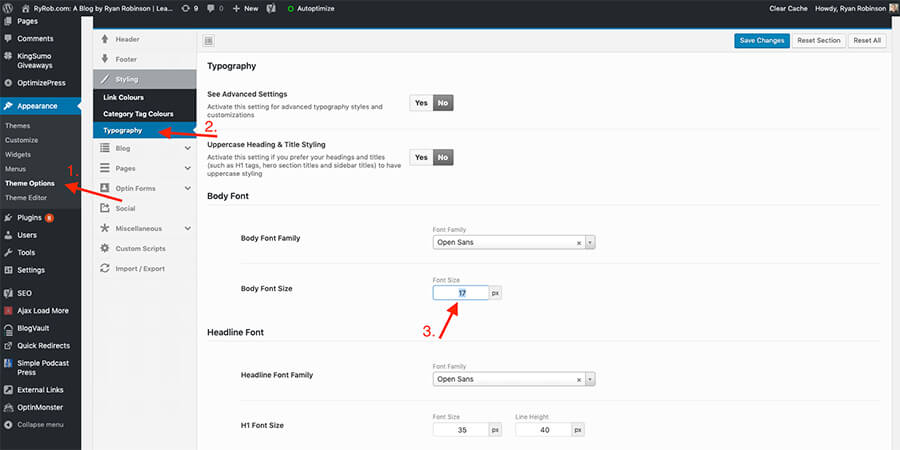
First, log in to your WordPress Dashboard. Use your username and password. Find the login page by adding /wp-admin to your website URL. Once logged in, you will see the dashboard. The dashboard is like a control center. You can make changes to your site here. Look for the Appearance tab. It is usually on the left side. Click on it to see more options.
Under Appearance, find the Customize option. This is where you change your site’s look. Click on Customize to open the Theme Customizer. Here, you can change many settings. Fonts, colors, and more. Navigate through the options to find Font Size. Adjust it to your liking. Always remember to save your changes.
Credit: 10web.io
Locating Theme Customization
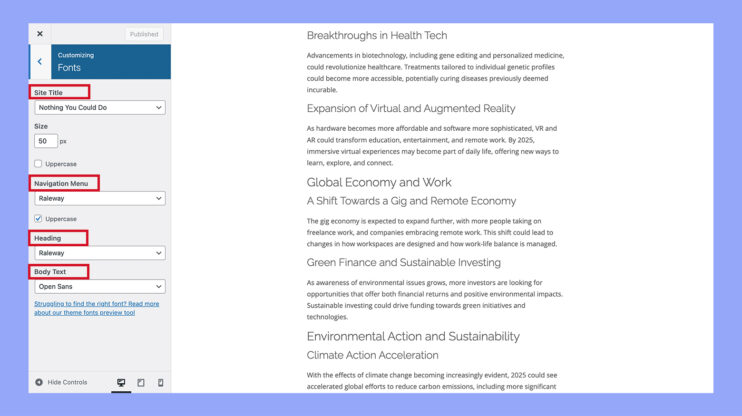
Find the Appearance menu on the left side. Click on it. Next, choose Customize. This opens the Theme Customizer. This is where all changes happen. Look for the Typography section. Here, fonts can be adjusted. You might see a Fonts section instead. Each theme is different. Some themes offer more choices. Others might have fewer options.
Font size can be found under headings. Use sliders or input boxes to change sizes. Save changes by clicking the Publish button. Refresh your site to see changes. Check if the font looks good. Adjust if needed. Experiment with different sizes. Find the perfect balance.
Using The WordPress Customizer
Finding the Typography Section is easy in WordPress. First, go to your dashboard. Then, click on “Appearance.” Next, choose “Customize.” Here, you will find many options. Look for the Typography section. It is usually under “General Settings.” This section lets you change fonts. You can change sizes too. This helps in making your site look good.
Adjusting Font Sizes is simple. First, select the text you want to change. Then, use the sliders to change the size. Make sure the size fits your theme. Larger fonts are easy to read. Smaller fonts can fit more text. Always preview changes before saving. This ensures your site looks perfect. Remember, good font size improves readability.
Changing Fonts Via Css
Adjusting theme font sizes in WordPress using CSS enhances readability and design. Navigate to the theme customizer and access the “Additional CSS” section. Insert CSS code to modify font sizes, tailoring the appearance to suit your website’s aesthetic and improve user experience.
Accessing Additional Css
Open the WordPress dashboard. Go to Appearance and click on Customize. Look for the Additional CSS section. This is where you can add your custom CSS rules. This section helps you change the font size.
Writing Custom Css Rules
To change the font size, write a CSS rule. Use the element name, class, or ID of the text you want to change. For example, to change the paragraph font size, write:
p { font-size: 16px; }. Adjust the font-size value to your liking. Make sure to save changes. This will update the font size on your site.
Installing A Custom Fonts Plugin
Change your WordPress theme font size easily. Install a custom fonts plugin first. Choose from many plugins available. Make sure it’s reliable and popular. Check user reviews. Read ratings to know more. Download the plugin from the WordPress store. Follow instructions to install it properly. Plugins help make your site look unique. Explore different options to find the best one for your needs.
Choosing A Reliable Plugin
Pick a plugin with many good reviews. Look for plugins updated regularly. Check if it works with your WordPress version. Read user comments for real experiences. Ensure it has easy settings. A trusted plugin makes your work easier. Ensure it has a simple interface. This helps you make changes quickly. Avoid plugins with low ratings.
Configuring Plugin Settings
Open the plugin settings after installation. Adjust font size as needed. Choose the right size for headings and text. Test different sizes for best readability. Some plugins offer more features. Explore options like color changes. Don’t forget to save changes. Preview your site to see results. Ensure fonts look good on all devices. This keeps your site user-friendly.
Utilizing Page Builders
Many page builders have built-in typography settings. These settings help in changing font sizes easily. Look for the typography or text options in the builder. This allows you to adjust the size. Choose a size that suits your theme. Make sure the text is readable and fits well with your design.
Some pages need unique font sizes. For this, go to the page settings. Check if there are options to change fonts. Many builders let you do this. It makes your page look special. Always preview your changes. See if they look good before saving.
Testing Font Changes
It is important to preview font changes. This helps you see how your site looks. Make sure the text is clear. Check for any errors. You can use the WordPress customizer. It is a tool to see changes live. Try different sizes and styles. Find the one that fits best. Your site should be easy to read.
Previewing Changes
Click the preview button. This shows how the text will look. Check if the font is too big or small. Adjust as needed. This helps in making your website look good. Remember, fonts affect readability. Choose a font that suits your content.
Ensuring Mobile Compatibility
Many people use phones to view websites. Your text should look nice on small screens. Check the font size on a mobile device. You can use tools to see how it looks on phones. Make sure the text is clear and easy to read. This keeps visitors happy. A mobile-friendly site is important.
Troubleshooting Common Issues
Discover how to change font sizes in WordPress themes easily. Adjust settings in the theme customizer for a fresh look. This simple tweak helps make your website more readable and visually appealing.
Dealing With Cache Problems
Cache can cause old settings to show. Clear your browser cache. Also, clear the cache in your WordPress. Plugins like WP Super Cache help. After clearing, refresh the page. Changes should be visible now. Sometimes, restarting your computer helps too.
Resolving Compatibility Conflicts
Some plugins or themes don’t work well together. Conflicts can stop font changes. Disable all plugins first. Then, enable them one by one. Check after each. This helps find the conflicting plugin. Update WordPress and plugins regularly. Updates fix many issues. If the problem persists, contact support.
Best Practices For Font Selection
Choosing the right font for your website is crucial. Readability is important. Your visitors should read text easily. Fonts need to be clear and easy on the eyes. Avoid using too many font styles. It can make your site look messy.
Style matters too. Fonts should match your website’s theme. They should fit your brand’s look. A clean design is pleasing. Your website should look good and be easy to read. Proper font choice helps achieve this.
Keep your brand’s identity in mind. Fonts should reflect your brand’s voice. Consistent font use builds trust. Your audience recognizes your brand easier. Use fonts that align with your message. This keeps your branding strong.
Avoid changing fonts often. It can confuse visitors. Stick to a few fonts. This keeps your website professional. Consistency in fonts strengthens your brand. It makes your site memorable.

Credit: cyberchimps.com
Frequently Asked Questions
How To Change Font Size In WordPress Themes?
You can change the font size in WordPress themes using the Customizer. Navigate to Appearance > Customize. Look for the Typography section. Adjust the font size sliders to your preference. If your theme doesn’t support this, consider using a plugin like Easy Google Fonts for more control.
Can I Use Css To Alter Font Size?
Yes, you can use CSS to change font size in WordPress themes. Go to Appearance > Customize > Additional CSS. Add custom CSS code to modify font sizes. Use selectors to target specific elements. Ensure to save changes. This method provides flexibility in styling your site.
Are There Plugins For Font Size Adjustments?
Several plugins can help adjust font sizes in WordPress. Easy Google Fonts and Advanced Font Editor are popular options. They offer user-friendly interfaces to customize typography. Plugins can provide more features than theme settings alone, enhancing design flexibility.
Will Changing Fonts Affect Site Speed?
Changing fonts can affect site speed if not optimized. Large font files may slow down loading times. Use web-safe fonts or Google Fonts for better performance. Optimize font delivery and consider lazy loading techniques. Ensure your site remains fast and responsive.
Conclusion
Changing font sizes in WordPress themes is simple and essential. It improves readability and design. Start with the WordPress Customizer. Adjust the font size to suit your needs. Use a child theme for advanced changes. This keeps your main theme safe.
Plugins offer another easy method. They provide flexibility and options. A little effort can enhance your site’s look. Make your content accessible and engaging. Experiment with different sizes. Find what fits your brand best. With practice, adjusting font sizes becomes quick and easy.
Enjoy the process and improve your site effortlessly.


