
Struggling to make your WordPress site truly stand out? The font you choose plays a crucial role in how visitors perceive your content.
If you’re using the One Press theme, you might wonder how you can change the font to better match your brand’s personality. Imagine transforming your website into a more engaging and visually appealing platform with just a few tweaks. This guide will walk you through the steps to customize your One Press theme font effortlessly.
Discover how a simple font change can captivate your audience and enhance your site’s readability, making sure your visitors stick around longer. Read on to unlock the secrets of creating a more inviting and professional-looking website with just a few clicks.

Credit: www.famethemes.com
Understanding The One Press Theme
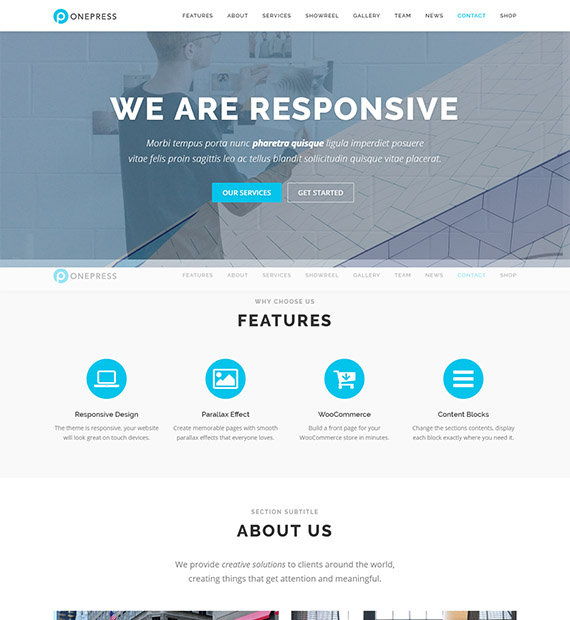
The One Press Theme is simple and clean. It is great for small businesses. The theme is responsive. It works well on phones and tablets. There are many customization options to choose from. You can change colors and fonts easily. It also has a parallax effect. This makes your site look nice.
Changing the font is easy. Go to the customization panel. You can find it in your WordPress dashboard. There, you can change font style and size. Choose the font that suits your brand. Make sure it is easy to read. Check how it looks on different devices. You can also change the font color. This helps to match your website’s theme. Save your changes after you are done.
Locating Font Settings In One Press
Start by logging into your WordPress account. Enter your username and password. Once logged in, you’ll be on the WordPress Dashboard. This is the main control center. Here, you can manage your site. You can change settings or add new content. Look for the sidebar on the left. It has many options. Locate the “Appearance” section. Click on it. This will show more options related to your theme.
After clicking “Appearance”, find the “Customize” option. This is where you can change your theme’s settings. Click “Customize”. This opens the Theme Customizer. It’s a powerful tool. You can adjust many things here. Look for the section labeled “Fonts”. This is where you can change font styles. Choose the font you like. Save your changes when done. Your site will now have new fonts.
Exploring Font Options
The One Press theme has simple default fonts. These fonts work well for many websites. They are easy to read. The style is clean. Many users like these fonts. But sometimes, a change is needed. Choosing a different font can make your site special. It can show your style. Or match your brand.
Adding a custom font is easy. You can use the WordPress Customizer. Go to the “Appearance” section. Then, click on “Customize”. Look for the “Fonts” option. Here, you can add your new font. Google Fonts is a good choice. You can pick from many fonts there. Once you find one, copy the link. Paste it into the customizer. Your site now has a fresh look.

Credit: wpmarmite.com
Changing Fonts Using Theme Customizer
The Theme Customizer helps adjust font sizes easily. Go to the WordPress dashboard. Find the Appearance menu. Click on Customize. Look for the Typography section. This is where you change font sizes. Use the sliders to adjust. Make sure your text is readable. Save changes when done.
Font styles change the look of your text. In the same Typography section, find font style options. Choose from bold, italic, or regular. Each style gives a different look. Try different styles to see what you like. Mix styles for headings and paragraphs. Save your favorite style choices.
Using Custom Css For Font Changes
Custom CSS is a simple way to change fonts in WordPress. Go to your WordPress dashboard. Find Appearance and click on Customize. Look for Additional CSS and click it. Here, you can add your custom CSS codes.
Type your CSS code in the box. Use font-family to select a new font. For example, font-family: 'Arial'; changes the font to Arial. Remember to save your changes.
CSS helps make text look nice. Use font-size to change text size. Example: font-size: 16px; makes text size 16 pixels. Use font-weight for bold text. Example: font-weight: bold; makes text bold.
Color is important too. Use color to change text color. Example: color: red; makes text red. Line-height controls space between lines. Example: line-height: 1.5; adds space between lines.
Credit: beautifulthemes.com
Incorporating Google Fonts
To change the font in the One Press WordPress theme, use Google Fonts for a fresh look. Access the WordPress dashboard, navigate to Appearance, and customize. Select Google Fonts and apply them to your theme. This simple change enhances the site’s visual appeal and readability.
Finding The Right Google Font
Choosing a font can be fun. Google Fonts offers many choices. Some fonts are bold. Some are light. Choose a font that fits your theme. Check how each font looks. Make sure it is clear and easy to read. A good font matches the style of your site. Try different fonts. See what looks best.
Embedding Google Fonts Into One Press
First, visit Google Fonts website. Find the font you like. Click on the font. You will see a code. Copy the code. Go to your WordPress dashboard. Click on ‘Appearance’. Choose ‘Editor’. Find the theme’s stylesheet. Paste the code at the top. Save your changes. Now, your site uses the new font. Check your site. Make sure the font looks right.
Troubleshooting Font Issues
Changing fonts in the One Press WordPress theme involves accessing the theme customizer. Navigate to Appearance > Customize and select Typography to adjust font settings. This simple process allows personalized font choices to enhance your site’s visual appeal, ensuring a unique and engaging user experience.
Common Font Display Problems
Fonts may look strange or not show correctly. Some letters might be cut off. This can make your site hard to read. Wrong font sizes can cause problems too. Text might be too big or too small. Colors can also be wrong. This happens if the theme settings are off.
Solutions And Tips
Check your theme settings first. Make sure the font size is correct. Look at the color settings too. You can change these in the theme options. Sometimes, plugins might cause issues. Disable them one by one to find the problem. Clear your browser cache. This can fix display problems. Update your theme regularly. Updates can fix bugs and improve fonts.
Additional Resources
Explore guides and forums to learn more about changing fonts in the WordPress theme One Press. Useful tutorials and community advice can offer step-by-step instructions and tips for customization.
WordPress Support Forums
The WordPress Support Forums are a great place to get help. Many people ask questions here. Others answer them. You can find tips and tricks. Search for your WordPress theme issues. Many solutions are available. It’s a helpful community. You can read and learn. Ask your own questions too. It’s free to use.
One Press Documentation
Check the One Press Documentation for detailed guides. It explains how to change fonts. Find step-by-step instructions. Easy for beginners to follow. It’s a good resource. Learn about theme settings. Understand how to make changes. The documentation is clear. It helps you customize your site. Make your website look unique.
Frequently Asked Questions
How To Access One Press Theme Settings?
To access One Press theme settings, navigate to WordPress dashboard. Click on ‘Appearance’, then ‘Customize’. Here, you’ll find various options to modify your theme’s appearance, including fonts.
Can I Change Fonts Without Coding?
Yes, you can change fonts without coding. Use the WordPress Customizer to select new fonts for your theme. It’s user-friendly and doesn’t require technical expertise.
Are Google Fonts Compatible With One Press?
Google Fonts are compatible with One Press theme. You can integrate them via the Customizer. This allows you to enhance your site’s typography easily.
How Do I Install New Fonts In WordPress?
To install new fonts, use a plugin like Easy Google Fonts. Install and activate it, then choose fonts from the plugin settings. It’s straightforward and enhances customization.
Conclusion
Changing the font in your One Press theme is simple. Just follow the steps outlined in this guide. Your website will have a fresh look with just a few clicks. Experiment with different fonts to find the best fit. Your content will stand out with the right typeface.
Always preview changes before saving. This ensures your design looks perfect. Remember to keep user readability in mind. A clear font enhances the user experience. Keep learning and exploring new design ideas. Your website’s appearance matters. Make it memorable and engaging for visitors.


