
Are you tired of the same old font on your WordPress site and eager to give your blog or business a fresh look? You’re not alone.
Many WordPress users face the challenge of wanting to customize their fonts without the hassle of installing additional plugins. The good news is, you can easily change the font in your WordPress theme without any extra tools. Imagine how a simple font tweak could enhance your site’s readability and appeal, grabbing your visitors’ attention and keeping them engaged longer.
In this guide, we’ll walk you through straightforward steps to transform your site’s typography using just the built-in features of WordPress. By the end, you’ll not only have a brand-new font but also a more captivating website that stands out. So, if you’re ready to elevate your site’s aesthetic and leave a lasting impression, keep reading!
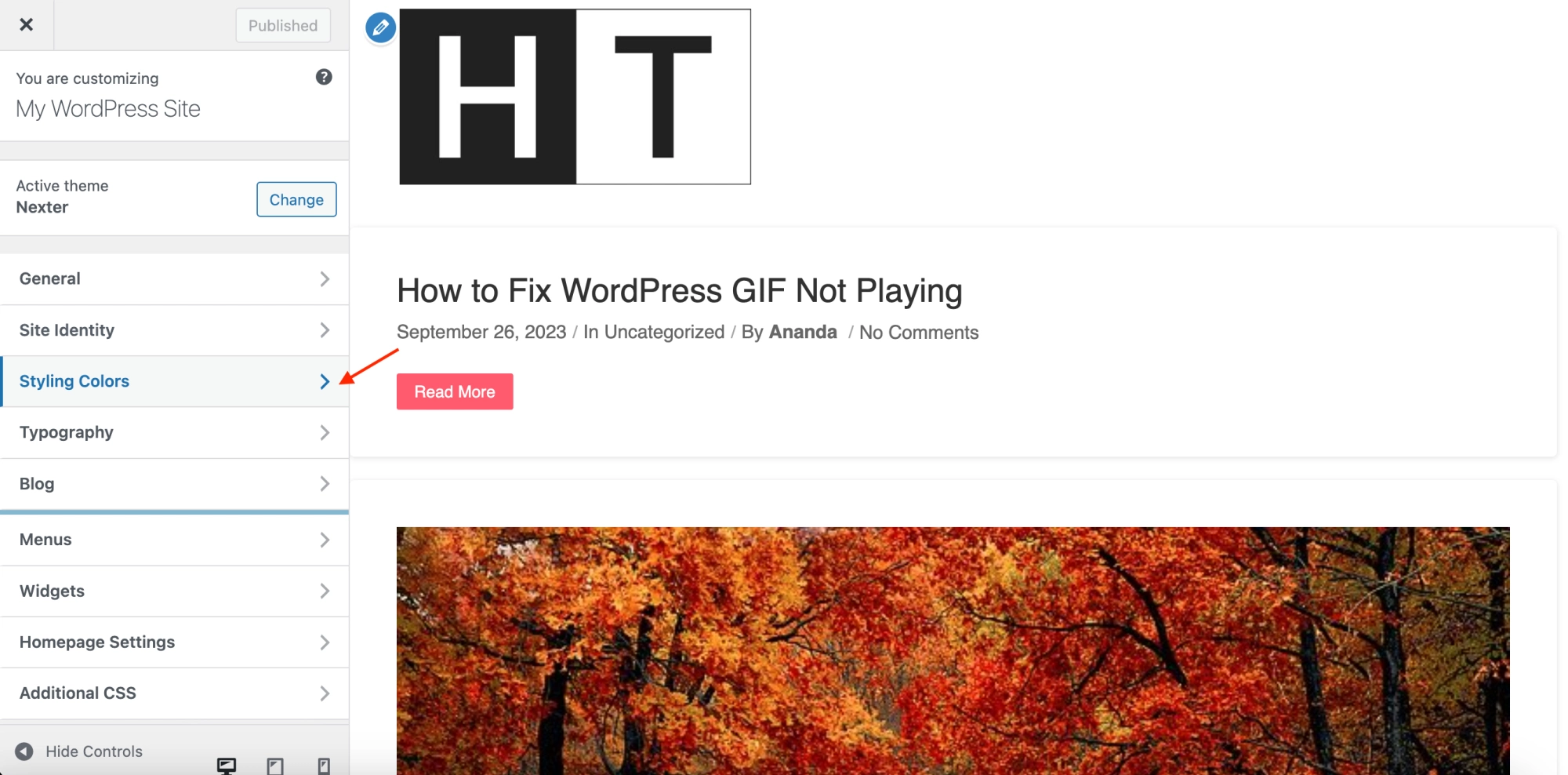
Credit: nexterwp.com
Accessing Theme Editor
First, log into your WordPress dashboard. Click on Appearance in the sidebar. Then, select Theme Editor. This is where you can see your theme’s files.
On the right side, you will see a list of files. Look for the style.css file. Click on it to open. This file controls your theme’s styles, including fonts.
Find the font-family property in the style.css file. Change the font name to the one you want. Ensure the font is available on your website.
After making changes, click on the Update File button. This saves your changes. Now, check your site to see the new font.

Credit: www.elegantthemes.com
Identifying The Correct Css File
Find the right CSS file in your theme folder. Themes have many files. Look for the style.css file. This file controls the look of your site. Open this file in a text editor. Check the top lines for theme information. This helps ensure you have the right file.
Search for font-related properties like font-family. Change the font values to what you like. Save your changes. Refresh your browser to see the new font. If nothing changes, clear your browser cache.
Sometimes fonts are set in other CSS files. Check other files if needed. Always back up your files before editing.
Editing Css For Font Change
First, open the WordPress dashboard. Go to “Appearance” and then “Editor”. Look for the style.css file. This file holds the CSS code. Find the font-family property. It’s usually near the top. This tells you the current font. Remember it for later.
Choose a new font. Google Fonts is a great place. Pick a font you like. Copy its name. Make sure it’s easy to read. Some fonts are hard to see. You don’t want that for your site.
Go back to the style.css file. Find the font-family line again. Replace the old font name with the new one. Save your changes. Refresh your website. Now, your new font should show up. Check if it looks good. If not, try another font. Keep it simple and clear.
Using Google Fonts
Visit the Google Fonts website. Browse through the many fonts available. Choose a font you like. Click on the font to see more details. Check if the font supports your language. Click on the “Select this style” button to choose it.
After selecting a font, look for the embed code. Copy the tag provided. This tag will go in the HTML file. Place it in the section of your WordPress theme’s header file.
Open your theme’s style.css file. Find the body tag or the specific element you want to change. Use the font-family property. Set it to the name of the Google font. Ensure the font name is in quotes. Save your changes. Refresh your site to see the new font.
Testing Font Changes
Changing fonts directly in a WordPress theme involves editing the theme’s CSS file. Locate the CSS file in the theme editor and find the font-related code. Replace the existing font name with your chosen font, ensuring it is available or imported.
Previewing On Different Devices
It’s important to see how fonts look on all devices. Check the font on computers, tablets, and phones. They may look different on each. Open your WordPress theme on these devices. See if the font is clear and easy to read. Adjust if needed. This makes sure everyone can read your website easily.
Ensuring Cross-browser Compatibility
Browsers like Chrome, Firefox, and Safari can display fonts differently. It’s good to test your site on each. Make sure the font looks the same on all. Use the inspect tool in your browser to check. This helps to find any problems quickly. Fixing these will make your site look good everywhere.
Reverting Changes Safely
Changing fonts on WordPress is fun. But sometimes, mistakes happen. It’s important to revert changes safely. Always make a backup before changing anything. This helps you restore the original state easily. Use a child theme for any changes. It keeps the main theme safe.
To revert changes, go to the WordPress dashboard. Click on Appearance and then Customize. Check if there is an option to reset. If not, try uploading the backup. This will bring back your old settings. Ensure you know the steps to undo changes. This keeps your site looking great.

Credit: www.seedprod.com
Frequently Asked Questions
How Can I Change Font In WordPress Without Plugins?
You can change fonts by editing the theme’s CSS file. Access the WordPress dashboard, navigate to Appearance, then Editor. Locate the stylesheet (style. css) and modify the font-family property. Save your changes to apply the new font across your website.
Is It Safe To Edit WordPress Theme Css?
Editing the CSS is safe if done carefully. Always back up your files before making changes. Incorrect edits can break your site layout. Use child themes to prevent loss of changes during theme updates. Testing changes in a staging environment is also recommended.
What Tools Help Edit WordPress Theme Fonts?
Tools like Google Fonts can help in selecting suitable fonts. Use browser developer tools to identify CSS selectors needing changes. Text editors like Notepad++ can assist in editing CSS files. Always preview changes in different browsers for compatibility.
Can Changing Fonts Affect Site Performance?
Yes, changing fonts can impact site performance. Custom fonts may increase loading times. Optimize by selecting web-safe fonts or using font-display settings. Minimize the number of font variants and styles to enhance loading speed and user experience.
Conclusion
Changing fonts in WordPress themes is straightforward. No plugin required. Just a few simple steps. First, access your theme’s style sheet. Next, identify the font code. Then, replace it with your desired font. Preview the changes to ensure satisfaction. Consider readability and style.
Fonts impact your site’s look and feel. They enhance user experience. A personal touch. Make your site unique. Remember, practice makes perfect. Experiment with different fonts. Find the one that suits your brand. A little effort can make a big difference.
Enjoy customizing your WordPress theme effortlessly.


