
Are you feeling restricted by the default font in your WordPress theme? The right font can transform your website, making it more engaging and aligned with your brand’s personality.
Imagine the potential to captivate your audience with just a few tweaks. You might think changing fonts involves complicated coding, but it’s easier than you think. In this guide, you’ll discover straightforward steps to refresh your site’s look without the hassle.
Whether you’re a seasoned WordPress user or just starting out, you’ll find that a few simple changes can make a huge impact. Keep reading to learn how you can effortlessly change fonts in your WordPress theme and make your site stand out.
Credit: www.inmotionhosting.com
Choosing The Right Font
Fonts must be easy to read. Readability matters a lot. Choose fonts that make reading simple. Small letters should not blend. Big letters should not look odd. Arial and Verdana are good examples. These fonts are clear. They help the eyes. Every reader must feel comfortable. Words should not mix together.
Fonts speak your brand’s voice. Match the font with your brand style. A playful brand needs a fun font. A serious brand needs a simple font. Colors and fonts should blend well. They should not clash. Consistency is key. Fonts should look the same everywhere. This keeps your brand strong.
Accessing Theme Customizer
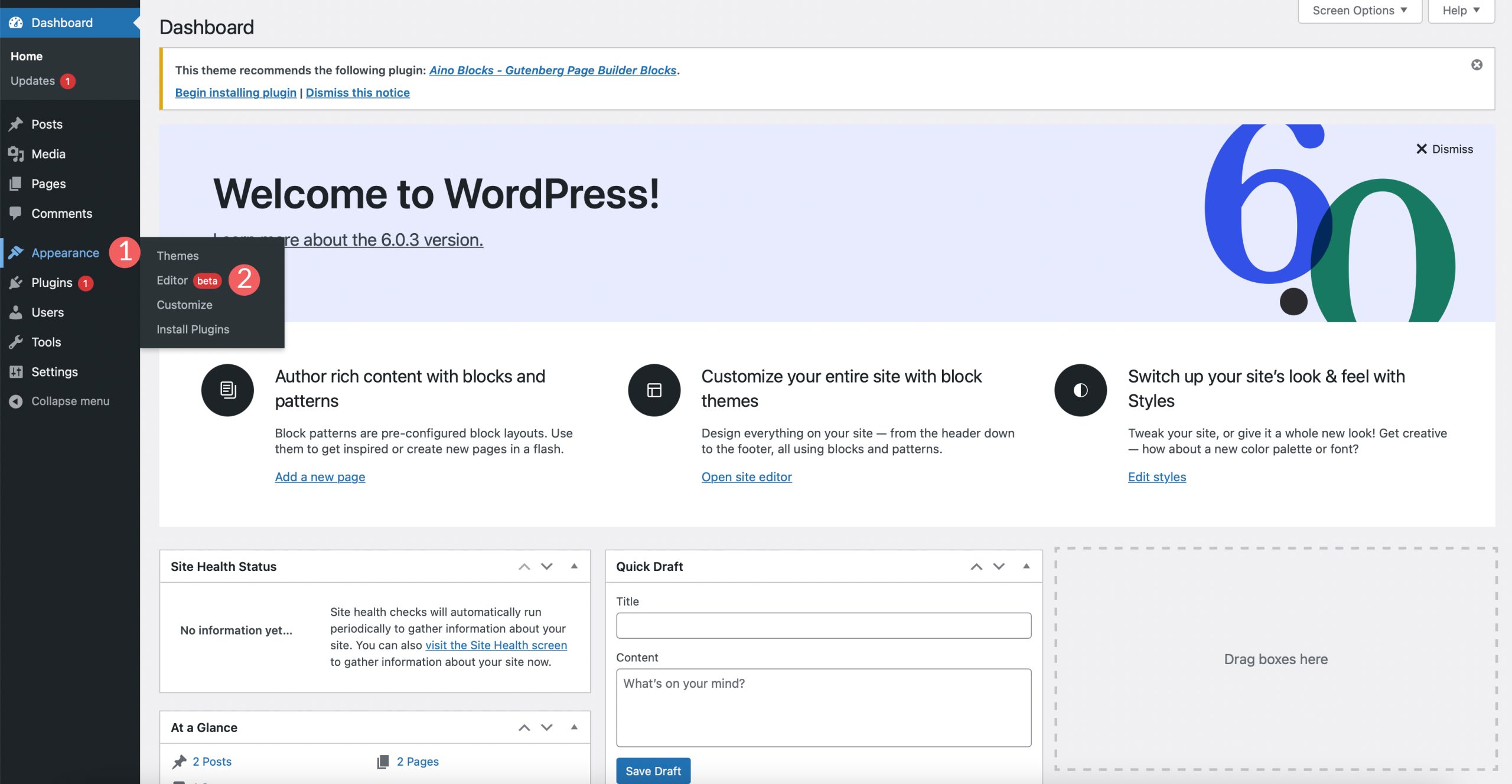
First, log in to your WordPress site. You will see the dashboard. It’s the main area for controls. On the left side, find the Appearance tab. Click on it. A menu will appear. There are many options there.
In the Appearance menu, look for Customize. Click on it. The Theme Customizer will open. Here, you can change fonts. It is easy to do. Look for the Typography section. You can change font style and size there.
Using Theme Options
First, open your WordPress dashboard. Find the Appearance section on the left. Click on Customize. This opens the theme options. Look for Typography or Font Settings. Not all themes have this option. Some themes put it under different names. Explore a bit to find it.
Once you find the typography settings, you can change fonts. Click on the font dropdown menu. A list of fonts will appear. Choose your favorite one. Some themes offer Google Fonts. This gives more choices. After selecting, click Save. Your site will now show the new font. Remember to check how it looks on different devices.
Customizing With Css
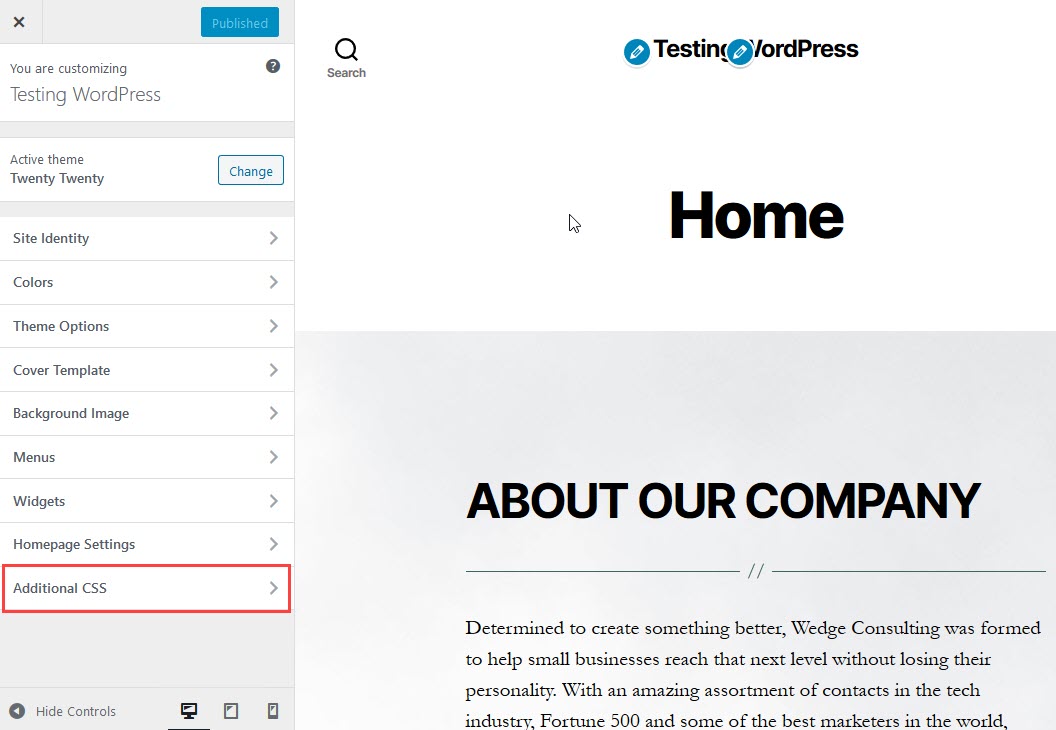
Adding custom CSS can change your website’s look. You can target specific elements to modify their style. Start by accessing the WordPress dashboard. Find the Appearance section and click on Customize. Next, look for the Additional CSS option. Here, you can enter your CSS code.
To change a font, you need to know the element’s name. Use the browser’s inspect tool to find it. For example, to change the font of all paragraphs, use the CSS code: p { font-family: 'Arial', sans-serif; }. Replace ‘Arial’ with your desired font. This will make all paragraphs use the new font.
Always remember to save your changes. Refresh your site to see the new font. Experiment with different fonts to find the best one for your site.
Implementing Google Fonts
Enqueuing Google Fonts is easy. First, find the font you like on Google Fonts. Copy the link provided for the font. Now, open your theme’s functions.php file. Add the code to enqueue the font. It looks like this:
    function add_google_fonts() {
        wp_enqueue_style('google-fonts', 'URL');
    }
    add_action('wp_enqueue_scripts', 'add_google_fonts');
Replace ‘URL’ with your font link. Save the changes. Your font is ready to use. It is quick and simple.
After enqueuing the font, you need to add it to your CSS. Open your style.css file. Use the font-family property. It should look like this:
    body {
        font-family: 'Your Font Name', sans-serif;
    }
Replace ‘Your Font Name’ with the font name. Save the file. Your website now uses the new font. Easy, right?
Credit: www.elegantthemes.com
Utilizing Font Plugins
Exploring Popular Plugins is fun and easy. There are many plugins to choose from. Some popular ones are Easy Google Fonts and Use Any Font. These plugins make font changes simple. You don’t need to know coding. With a few clicks, you can see new fonts on your site. Pick a plugin that fits your needs. Look at the features and reviews. It helps to know what others think. Always choose plugins with good ratings.
Configuring Plugin Settings is the next step. Open the plugin settings in your dashboard. Look for font options. Choose the font you like. You can change the size too. Try different styles and see what looks best. Save the changes when you are happy. Your website will have a fresh look. Remember, you can change it anytime. It’s easy and quick.
Testing Font Changes
Changing fonts in a WordPress theme involves accessing the theme’s settings or using custom CSS. Navigate to the WordPress dashboard, select “Appearance,” then “Customize. ” Look for typography options. For further customization, add custom CSS through the “Additional CSS” section.
Previewing On Different Devices
Check your website on a phone, tablet, and computer. This helps you see if the font looks good everywhere. Sometimes, a font might look nice on a computer but not on a phone. Try different sizes to find the best look. Make sure words are easy to read. Fonts should be clear and simple.
Checking For Consistency
All pages should have the same font style. It makes your site look neat. If one page has a different font, it can be confusing. Check headings and paragraphs too. They should match in style. Use the same font size for similar text. This helps people read easily. Make your site look professional and tidy.

Credit: 10web.io
Troubleshooting Common Issues
Changing fonts in a WordPress theme often involves navigating theme settings or using custom CSS. Start by accessing the WordPress dashboard, locate ‘Appearance’, then ‘Customize’. Look for typography options to adjust font style and size easily.
Resolving Font Conflicts
Font conflicts can make your site look strange. Always check for duplicate font files. Remove them from the theme folder. This helps to clear any confusion. Use a single font file to avoid conflicts. Choose the font style that matches your theme. Ensure that the CSS file links to the correct font file. This keeps your site looking neat and professional.
Ensuring Browser Compatibility
Different browsers may display fonts differently. Always test your website on popular browsers like Chrome, Firefox, and Safari. Use web-safe fonts that are available on all browsers. This ensures that your site looks good everywhere. Update your browser regularly. This helps in displaying the latest font styles. Check the font size and color. Make sure it looks the same on all devices.
Frequently Asked Questions
How To Change Font In WordPress Theme?
To change the font in a WordPress theme, navigate to your dashboard. Go to Appearance > Customize. Click on Typography or a similar option. Select your desired font from the available choices. Save your changes to apply the new font.
Can I Use Google Fonts In WordPress?
Yes, you can use Google Fonts in WordPress. Install a plugin like Easy Google Fonts. Go to Customize in the dashboard. Select Typography to choose from Google Fonts. Save your changes to apply the font.
What Plugins Help Change WordPress Fonts?
Plugins like Easy Google Fonts and Use Any Font help change fonts. Install the plugin from the WordPress repository. Go to the plugin’s settings to choose and apply your desired font. Save changes to see the effect.
Why Is Font Important In WordPress Design?
Font is crucial for readability and aesthetic appeal. It impacts user experience and engagement. A well-chosen font complements your brand and improves overall site aesthetics. It also affects how information is perceived by the audience.
Conclusion
Changing fonts in a WordPress theme is simple and rewarding. It can make your site look unique. The right font helps convey your brand’s message. Remember to check compatibility with different browsers. Test how your new font appears on mobile devices.
Keep an eye on font size and readability. This ensures your visitors enjoy their experience. Experiment with different fonts to find the best fit. Always keep your audience in mind. They will appreciate a clear and attractive design. Happy customizing!


