
Are you tired of the way your WordPress site looks? Maybe you’re craving a fresh start or just want to jazz up your blog with a theme that’s more you.
Changing your WordPress theme can seem like a daunting task, but it’s easier than you think. Imagine your website as a cozy living room: sometimes, all it needs is a new coat of paint or a different piece of furniture to feel brand new.
In this guide, we’ll walk you through the simple steps to change your default WordPress theme. By the end, you’ll have the tools to give your site a makeover that’s as unique as your ideas. Ready to transform your online space? Let’s dive in!

Credit: doc.seatheme.net
Reasons To Change Your Theme
Choosing a new theme can make your site look fresh. It can help your site load faster. A fast site keeps visitors happy. New themes offer more features. These features improve how your site works. They give you more control. Themes also update your website’s security. This keeps your site safe from hackers. A new theme can make your site look better on phones. Many people use phones to browse the web. A mobile-friendly site keeps them coming back. Changing your theme can improve your site’s style and function. A better theme can attract more visitors.
Credit: 10web.io
Preparing For A Theme Change
Backing up your website is crucial. It protects your data. Things can go wrong during theme changes. Use a reliable plugin. UpdraftPlus is popular. It helps in saving files safely. Store backups in multiple locations. Like cloud or external drives. This ensures you can restore them.
Not all themes fit every website. Check the new theme with your plugins. Some themes may not work. This can cause issues. Look for theme details. Read user reviews. This gives you insights. Ensure the theme suits your site’s needs. It should enhance your website. Not just in looks but also in function.
Choosing A New Theme
Free themes are good for beginners. They cost nothing. These themes have basic features. Perfect for small websites. But, they may lack support.
Premium themes offer more features. They often include customer support. These themes are updated regularly. Perfect for larger websites. You may need to pay for them.
A responsive design works on all devices. Phones, tablets, and computers. This design helps your website look good everywhere. It also helps more people visit your site. Search engines like Google rank these sites higher.
Installing A New Theme
First, log into your WordPress Dashboard. Look for the Appearance option on the left side. Click it, then click Themes. Find the Add New button at the top. Click it to explore new themes. Choose one you like. Click Install, then click Activate. Your new theme is now active.
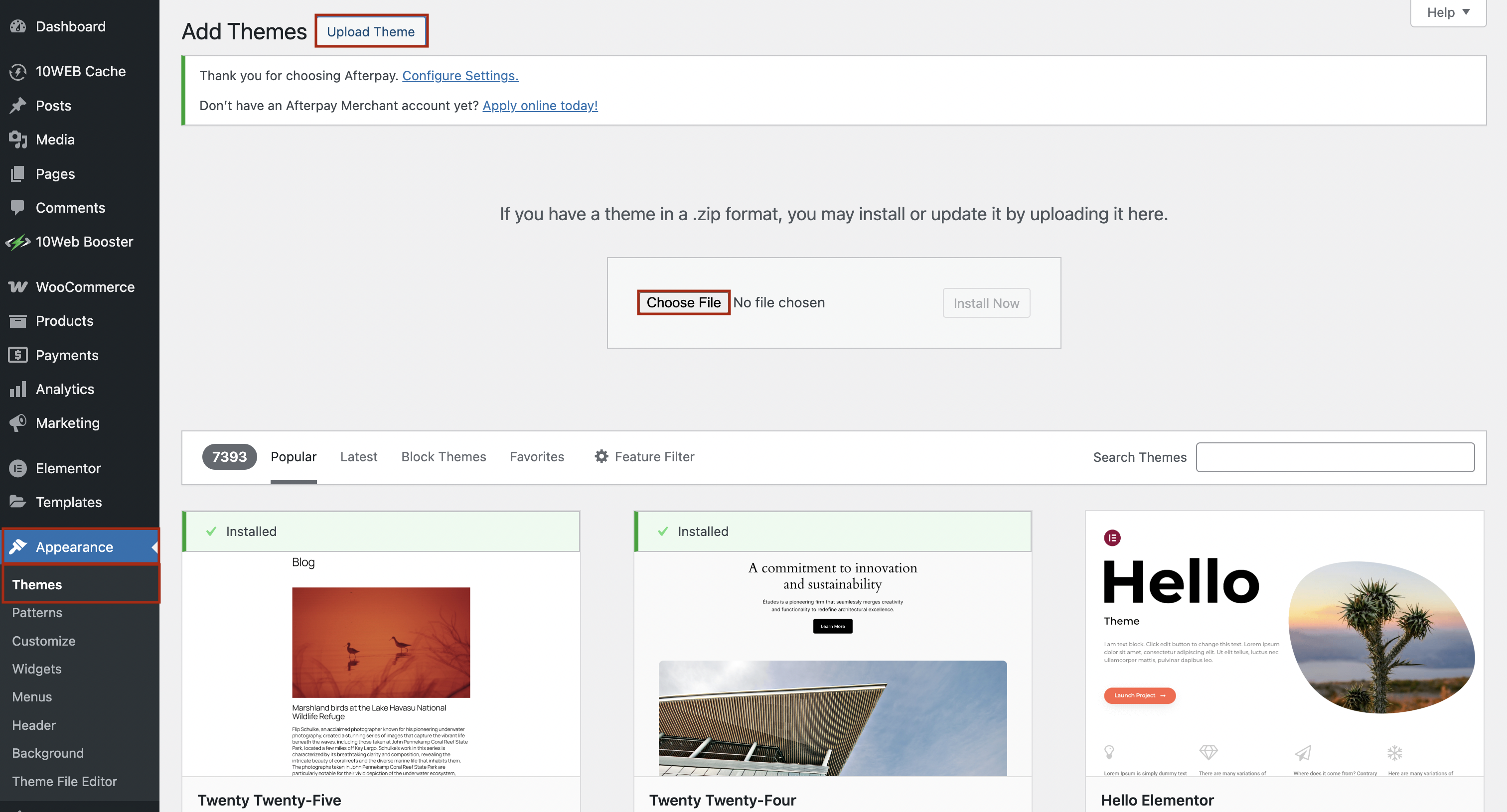
Download the theme file from the internet. It should be a .zip file. Go to your WordPress Dashboard. Click Appearance, then click Themes. Find the Add New button at the top. Click Upload Theme button. Choose your theme file and click Install Now. After it’s done, click Activate. Your new theme is ready to use.
Customizing Your New Theme
Explore the theme settings to make changes. The settings include colors, fonts, and layout. Use the options to make the theme your own. Change the header style for a fresh look. Update the background for better visuals. Adjust the menu to fit your style. Save changes and see your new design.
Widgets make your site more useful. Add a calendar or a search bar. Plugins add features like contact forms. Choose plugins that enhance your theme. Install them from the plugin menu. Activate them for immediate use. Widgets and plugins improve your site’s function. Make sure they work well with your theme.
Testing Your Website
Check your website for broken links. These links can frustrate visitors. Use free online tools. They help find broken links quickly. Fix these links to ensure a smooth experience.
Most people use phones to browse. Make sure your site looks good on phones. Test your website on different devices. This helps find any display problems. Fix issues to keep visitors happy.
Troubleshooting Common Issues
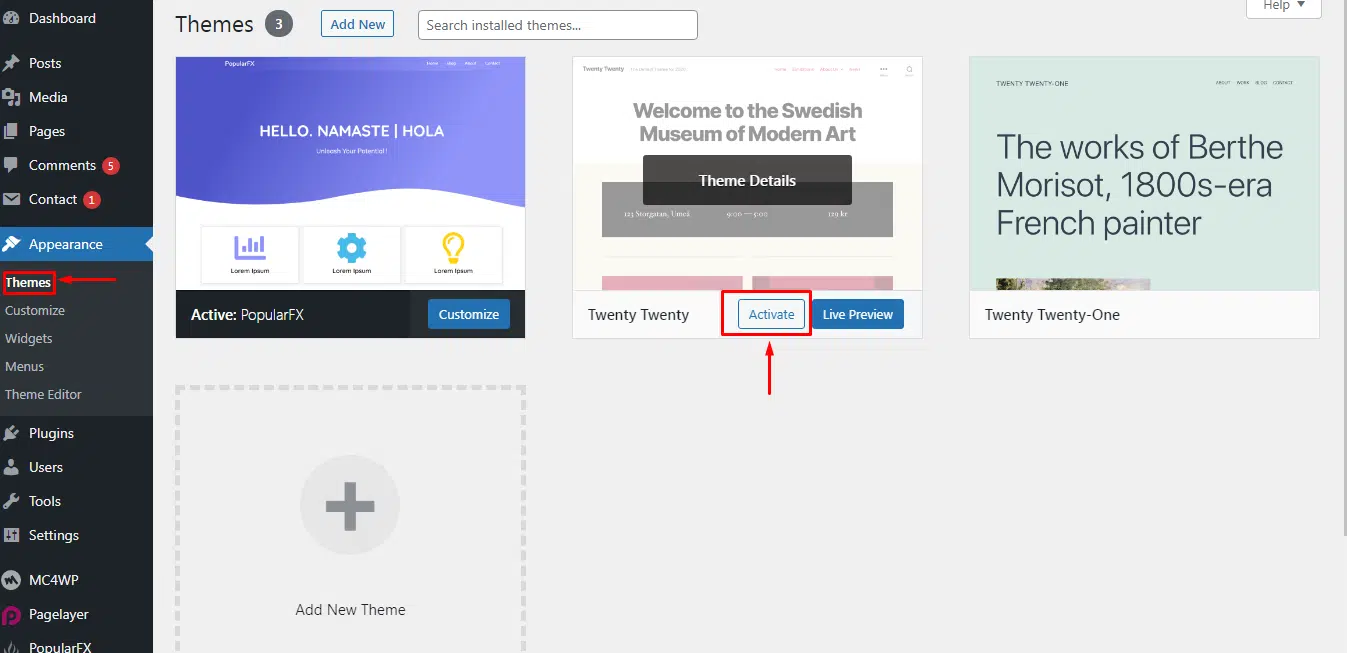
Changing the default WordPress theme is often necessary for customization. Navigate to the Appearance tab in your dashboard. Select Themes, and click on the one you prefer to activate it.
Fixing Theme Conflicts
Sometimes, themes don’t work well together. This causes problems on your site. Theme conflicts can make your site look strange. They might break features or cause errors. To fix this, deactivate all plugins first. Then, reactivate them one by one. This helps find the problem. Check the theme settings for any unusual options. Use the WordPress Customizer to see if changes help. Updating themes and plugins can solve many issues. Always keep your site backup ready before making changes. If the problem continues, seek help from the theme’s support team.
Restoring From Backup
Having a backup is crucial. It saves your site from big trouble. If something breaks, a backup can restore your site. Many plugins offer easy backup options. Use them regularly. Store backups in a safe place. Don’t forget to update the backup after changes. Restoring is easy. Just follow the plugin’s instructions. Always test the restored site. Ensure everything works well after restoration. This helps keep your site safe and running smoothly.
Credit: www.veerotech.net
Maintaining Your Theme
Regular updates are very important for your WordPress theme. They keep your site safe and fast. Developers fix bugs and improve features. Always update to the latest version. Check for updates every month. You can set updates to automatic. This saves time and effort. Never skip updates to avoid problems.
Check your site’s performance often. Slow sites lose visitors. Use tools like Google PageSpeed Insights. They show how fast your site loads. Optimize images and reduce plugins for better speed. Keep your database clean. Remove old data and spam. Good performance keeps visitors happy.
Frequently Asked Questions
How Do I Change My WordPress Theme?
To change your WordPress theme, go to your dashboard. Navigate to “Appearance” then “Themes. ” Click “Add New,” find your desired theme, and install it. Once installed, click “Activate” to apply the theme. Always preview before activation to ensure it fits your site’s design and functionality needs.
Can I Switch Themes Without Losing Content?
Yes, switching themes won’t affect your content. Your posts, pages, and media remain intact. However, theme-specific settings, widgets, and customizations might change. Always back up your site before switching to avoid losing any custom theme settings or configurations.
What Happens When I Change The Theme?
Changing the theme alters your site’s appearance. It might affect layout, design, and widgets. Your content remains safe. Some themes come with unique features and settings. Review them to ensure compatibility with your site’s functionality and aesthetic requirements.
Is It Difficult To Change A WordPress Theme?
No, changing a WordPress theme is easy. Access your dashboard, go to “Appearance,” then “Themes. ” Choose a new theme, install and activate it. Most themes are user-friendly, and WordPress guides you through the process seamlessly.
Conclusion
Changing the default WordPress theme is simple. Follow the steps shared earlier. Customize your site with ease. Themes affect your site’s look and feel. Choose one that reflects your style. Explore different themes in the WordPress library. Each theme offers unique features.
Install and activate with a few clicks. Make your site stand out. Personalize your theme settings. Update your content for better engagement. Regularly check for theme updates. Ensure compatibility with plugins. Enhance user experience on your site. Create a site that aligns with your vision.
Your WordPress journey just got easier!


