
Have you ever wanted to give your WordPress site a personal touch by changing its default theme name? Maybe you’re looking to create a unique brand or simply want a fresh start without the usual identifiers.
Whatever your reason, altering the theme name can make a big difference in how your site feels and functions. By taking this small step, you not only boost your site’s individuality but also give yourself a sense of ownership and creativity.
In this guide, we’ll walk you through the simple yet effective process of changing your default theme name in WordPress. Stick with us to discover how easy it is to make your website truly yours, and unlock the potential for a more personalized online presence.

Credit: docs.themeisle.com
Importance Of Changing Default Theme Name
Changing the default theme name is very important. Security is one key reason. Hackers often target default themes. By changing the name, it becomes harder for them. It also helps in branding. A unique theme name makes your site stand out. This is great for your website’s identity.
There is another reason. SEO benefits. A custom name can include keywords. This helps search engines find your site easily. So, changing the theme name is a smart move for site owners.
Backup Your WordPress Site
Backing up your WordPress site is very important. Mistakes happen, and backups save your work. Use a plugin to make backups easy. Plugins like UpdraftPlus or BackupBuddy are popular. These plugins can create automatic backups. Save your backup files on an external drive or cloud storage. It keeps your data safe if your site breaks.
Remember to backup before making changes. It ensures you can restore your site if needed. A backup is like a safety net. Without it, you might lose important files. Always keep backups updated. Regular backups mean less stress when problems occur.
Accessing Theme Files
Use an FTP client to access theme files. First, connect to your web server. Enter your FTP details carefully. Navigate to the wp-content/themes folder. Find your theme’s folder. Rename it with a new name. Remember to update the theme name in the style.css file.
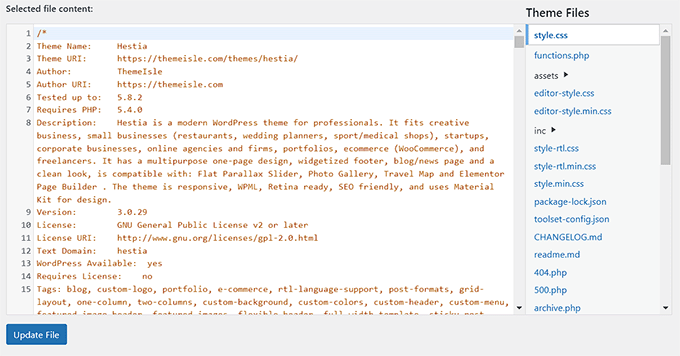
Log into the WordPress dashboard. Go to Appearance and then Theme Editor. Locate the style.css file on the right. Change the theme name at the top. Save the changes. Be cautious with these steps. They can affect your website’s appearance. Always backup your files first.
Editing The Style.css File
First, open your WordPress dashboard. Go to Appearance and click on Theme Editor. On the right side, find the style.css file. This file is important. It holds the theme’s name and other details. Be careful while editing. A wrong change can break your theme. Always make a backup first.
Inside the style.css file, look for the Theme Name line. It usually starts with /. Change the name to whatever you want. Use simple words. Save the file after editing. Refresh your WordPress site. Check if the changes work. If not, try again or seek help.
Updating Theme Name In Functions.php
Changing the default theme name is easy. First, find the functions.php file in your theme folder. This file controls many features. Open the file in a text editor. Look for the line that says theme name. Change the name to what you like. Save the changes.
Be careful with edits. Wrong changes can break the site. Always keep a backup of files. This helps if something goes wrong. After changing, check the site. Make sure everything works fine. Refresh the site to see new changes. It’s simple and quick.
Credit: www.wpbeginner.com
Adjusting Theme Folder Name
Begin by accessing your WordPress installation files. Use a file manager or an FTP client. Find the wp-content folder. Inside, locate the themes directory. This is where all the theme folders are stored. Choose the folder of the theme you want to rename.
Right-click on the theme folder. Select the rename option. Carefully type the new name. Ensure no spaces or special characters. This avoids errors in WordPress. After renaming, update the style.css file. Open the file in a text editor. Look for the Theme Name line. Change it to match the new folder name. Save the changes.
Testing The Changes
Changing the default theme name in WordPress involves editing files within your theme’s folder. This process requires accessing your site’s directory through an FTP client or hosting panel. Ensure backups are made before proceeding, as errors can affect site functionality.
Checking Theme Appearance
Check the theme appearance to see if it looks good. Go to the WordPress dashboard. Click on “Appearance” and then “Themes”. Find your new theme name in the list. Make sure the design is correct. Look at the colors and fonts. They should be as you want them. If they are not right, go back to edit them.
Verifying Theme Functionality
Ensure the theme works well by testing its features. Check the menu and sidebar. Click on links to see if they work. Try the contact form. Does it send messages? Test on a phone and a computer. It should look good on both. If something is broken, fix it quickly. Your site should be easy to use.
Common Mistakes To Avoid
Changing a theme name can be tricky. Never edit the theme files directly. This can break your site. Backup your site before making changes. This keeps your data safe. Using a child theme is smart. It protects the main theme files. Be careful with the theme folder name. It must match the theme name. Keep the theme name simple. Long names can confuse users.
Check the theme functions. Some themes have hardcoded paths. Read the theme documentation. It often has helpful tips. Test changes on a local server. This avoids live site errors. Ask for help if unsure. Many online forums can assist.
Additional Tips For Customization
Changing the theme name is just the start. Always back up your files before making changes. This keeps your data safe. After changing the theme name, update the style.css file. This file holds important theme information. Ensure the new name is consistent everywhere.
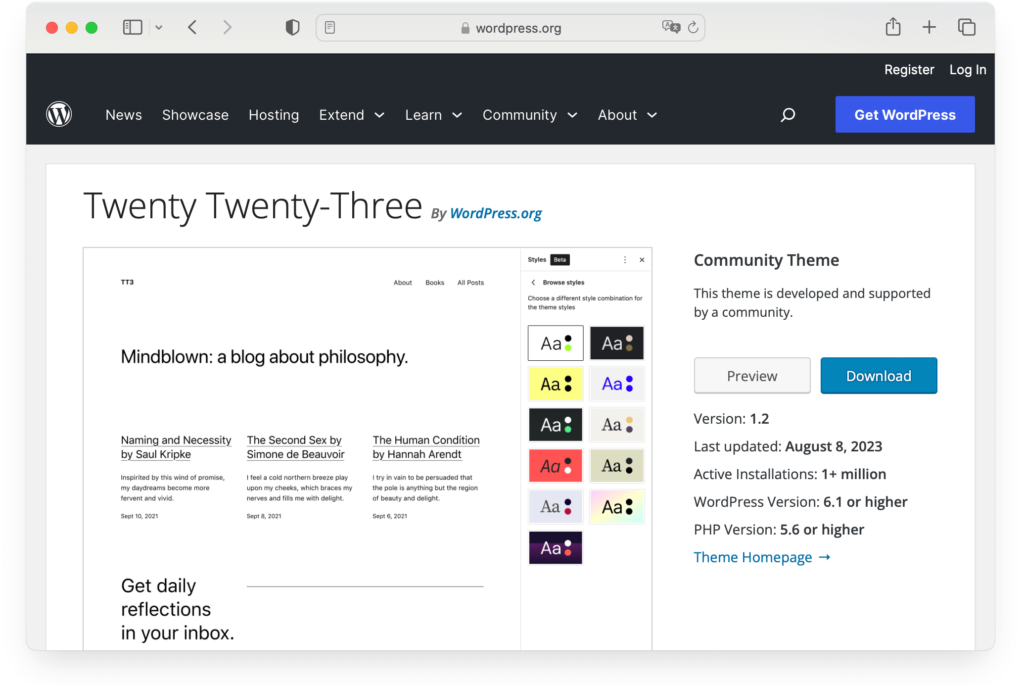
Consider using a child theme. It helps keep custom changes separate. This way, updates won’t erase your edits. Also, explore the WordPress Customizer. It offers many options to tweak your theme. You can change colors, fonts, and more.
Lastly, check your site’s performance. A fast site keeps users happy. Use tools like Google PageSpeed Insights to check speed. Make sure your theme is mobile-friendly. Many users browse on phones and tablets. A responsive theme looks good on all devices.
Credit: www.wpzoom.com
Frequently Asked Questions
How To Find The Theme’s Folder In WordPress?
To locate your theme’s folder, access your WordPress directory via FTP or cPanel. Navigate to wp-content/themes. Here, you’ll find folders for all installed themes. Identify the folder matching your active theme’s name. This folder contains all files related to your theme, including style and functions.
Can Changing A Theme Name Affect Site Functionality?
Changing a theme name doesn’t affect site functionality directly. However, it may disrupt child theme connections or customizations. Ensure backup before modifications. Update child theme configuration if used. Always test your website thoroughly after changes to confirm everything operates correctly without any issues.
What Tools Can Rename A WordPress Theme?
Several tools can assist in renaming a WordPress theme, including FTP clients like FileZilla. You can also use WordPress plugins like WP File Manager. These tools facilitate direct access to your site’s files, allowing easy modifications to theme names without compromising site integrity.
Is It Safe To Change WordPress Theme Name?
Yes, it’s generally safe to change a WordPress theme name. However, proceed with caution, as improper changes can affect child themes and customizations. Backup your site before making changes. Update any configuration files pointing to the theme to prevent issues.
Conclusion
Changing your WordPress theme name is simple and rewarding. It enhances your website’s uniqueness and branding. Follow the steps carefully to avoid any issues. Always back up your files before making changes. This ensures your website stays safe. Check your theme functions after renaming.
This helps in maintaining functionality. Regularly update and test your theme. This keeps your site running smoothly. Personalize your theme name today. Enjoy a more distinctive online presence. Your website deserves a touch of individuality. Make the change and stand out in the digital world.


