
Have you ever found yourself struggling to change the currency in your WordPress theme? You’re not alone.
Many WordPress users encounter this challenge, especially when setting up an online store or a blog that caters to international audiences. The good news? It’s easier than you might think! By the time you finish reading this guide, you’ll have the confidence to switch currencies effortlessly, ensuring your site meets the needs of your global audience.
Don’t let a simple currency change hold you back from reaching your site’s full potential. Dive in, and let’s unlock the secret to customizing your WordPress theme for any currency you choose!
Selecting A Compatible WordPress Theme
WordPress themes have different currency options. Some themes support multiple currencies. Others only support one. Check the theme settings to see if it supports your desired currency. This is important. You don’t want to get stuck with a theme that doesn’t work for you. Some themes have a built-in currency switcher. This is useful for online stores.
Not all themes have a currency switcher feature. It helps users choose their currency. Look for themes with this option. This makes it easier to sell worldwide. If your theme lacks this, use a plugin instead. Plugins can add this feature easily. Always ensure the theme and plugin are compatible. Incompatibility can cause issues.
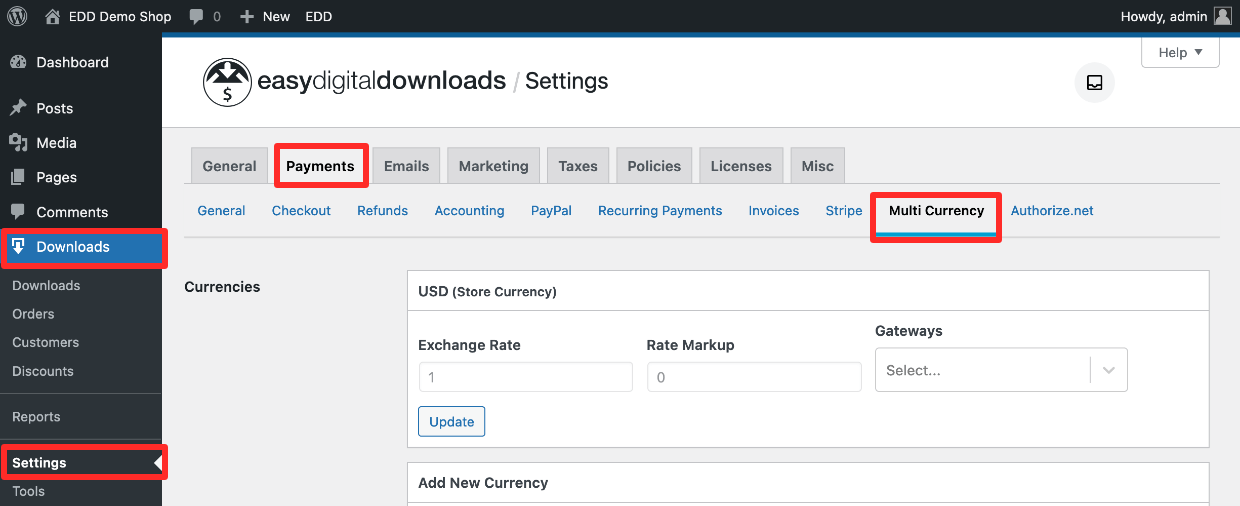
Credit: easydigitaldownloads.com
Installing A Currency Switcher Plugin
Select a plugin that suits your needs. Check reviews and ratings. Look for compatibility with your theme. Consider the features offered. Some plugins provide additional settings. Others offer automatic currency updates. Find one that is easy to use. Compare a few plugins before deciding. Ensure it supports multiple currencies. You might want a plugin with customizable options. This can help tailor the experience. Read user feedback for real insights.
Start by downloading your chosen plugin. Go to your WordPress dashboard. Click on Plugins. Select Add New from the menu. Upload the plugin file. Click Install Now. Wait for the installation to complete. Once done, click Activate. Check the plugin settings. Configure currencies as needed. Ensure the switcher displays correctly. Test the switcher functionality. Save settings once confirmed. Now your site supports currency conversion.
Configuring Currency Settings
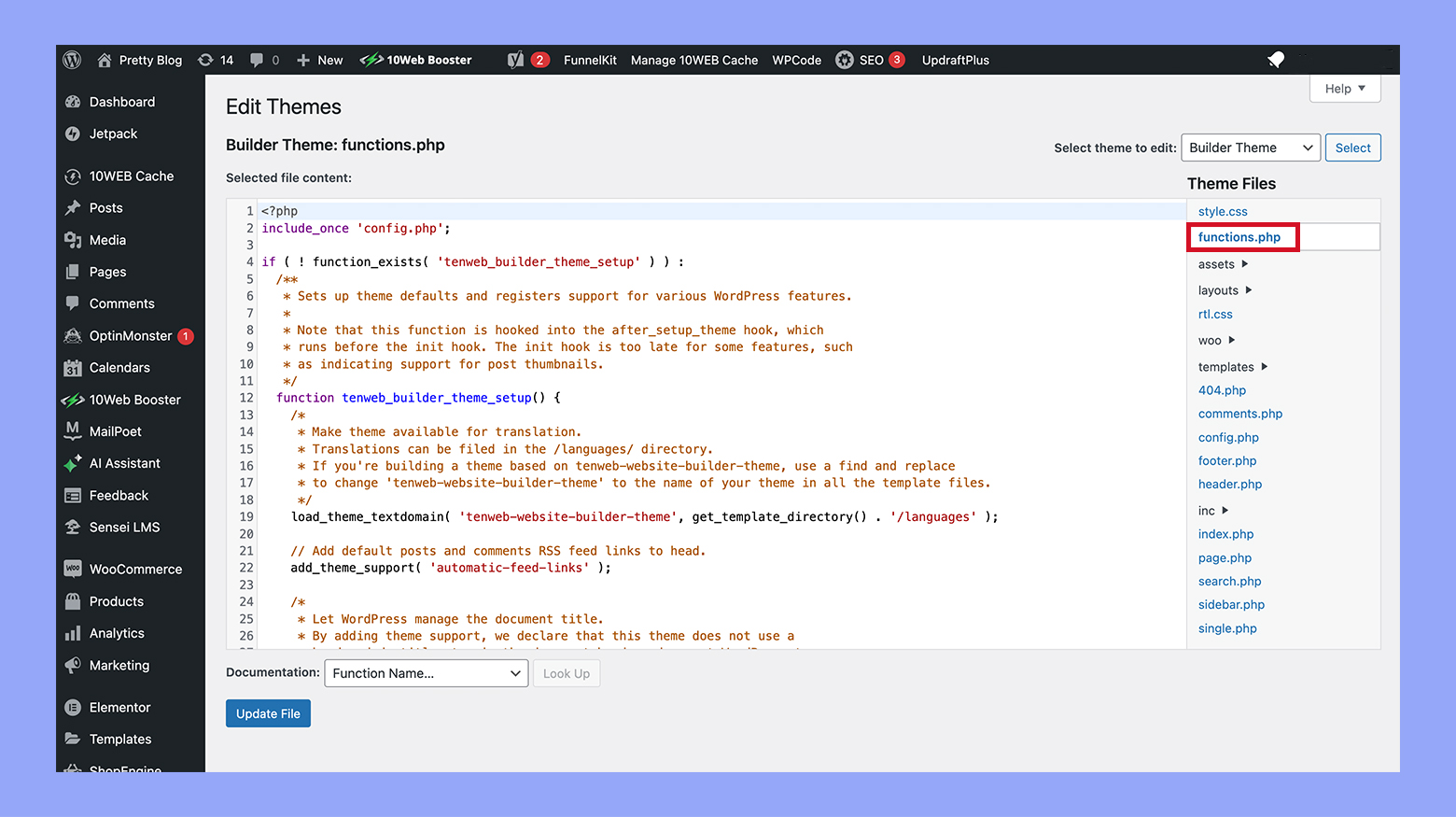
Start by logging into your WordPress dashboard. Find the Appearance tab. Click on it to see options. Choose Customize to open theme settings. Look for a section named Currency or similar. This is where you will make changes.
Inside the currency settings, find the default currency option. Select your desired currency from the list. This will set the main currency for your site. Make sure to save your changes before exiting. This ensures that your selected currency is used.
Some themes allow multiple currencies. Check if your theme supports this feature. If it does, find the add currency button. Click it to add more currencies. Enter the details for each new currency. Don’t forget to save changes after adding them.
Credit: 10web.io
Customizing Currency Display
Changing the currency format in WordPress is simple. First, go to your dashboard. Find the settings menu. Click on “General” settings. Look for the currency options. Choose your desired currency. Make sure to save changes. This will update the format.
Some themes might have extra settings. Check your theme documentation. It might have special instructions. Always save after changes. This ensures everything updates properly.
To change the currency symbol, navigate to the settings. Look for the currency section. Select the symbol you need. Common symbols include $, €, and £. This is important for clarity. It helps users understand prices.
Some plugins offer more options. Check if your theme supports them. Use these tools for more customization. Always double-check your changes. This prevents confusion for visitors.
Testing Currency Changes
Check if the currency is converting correctly. Use a reliable currency converter online. Compare the results with your WordPress theme settings. Accurate conversions are essential for user trust. Wrong conversions might cause confusion. Users may leave if they see errors.
Always test different currencies. Try converting USD to EUR. Check GBP and AUD as well. This ensures your theme handles all currencies well. Regular checks help keep everything working smoothly.
Make sure users can change currency easily. The process should be simple. User-friendly design is crucial. Users should find the currency option quickly. A clear button or dropdown helps a lot.
Gather feedback from users. Ask if the currency change works well. Good feedback helps improve the theme. Fix any problems users face. Happy users will stay longer on your site.
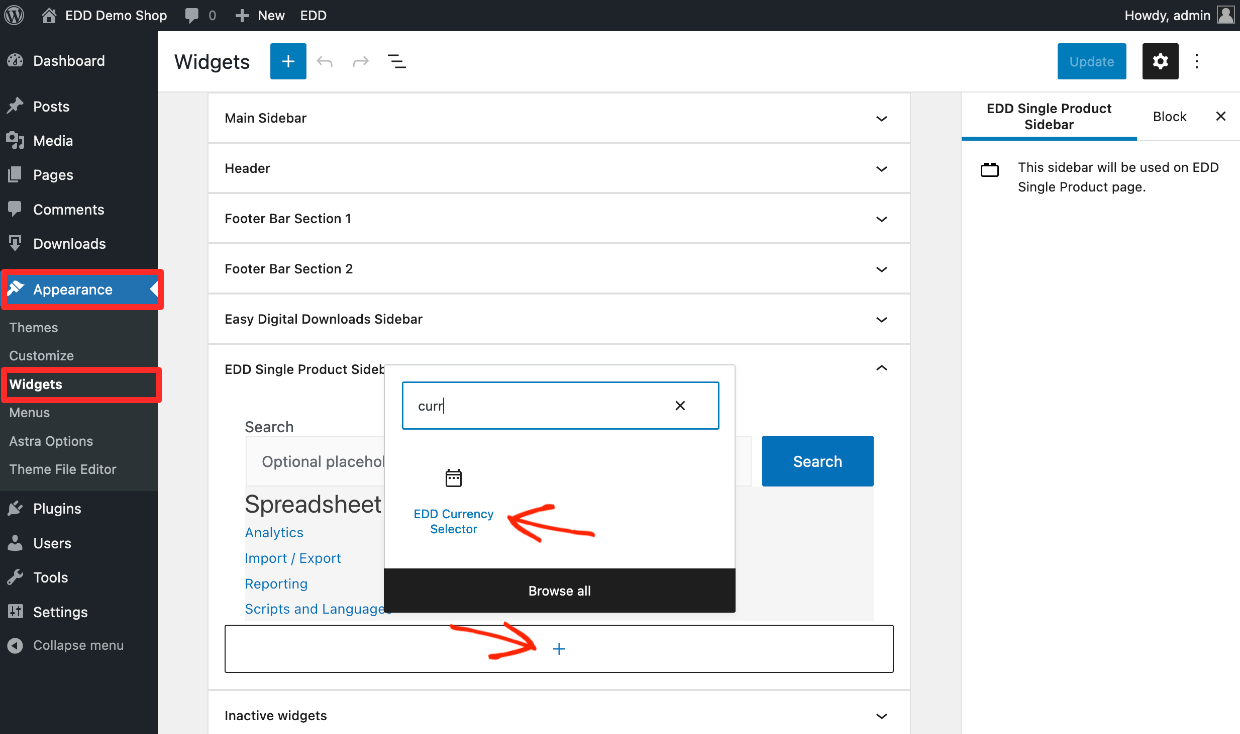
Credit: easydigitaldownloads.com
Troubleshooting Common Issues
Changing currency in a WordPress theme often requires adjusting settings in the theme options or using plugins. Ensure the theme supports multiple currencies and check the documentation for guidance. If needed, seek help from the theme’s support forum or community for specific instructions.
Resolving Plugin Conflicts
Plugins can cause problems with currency settings. Try disabling some plugins. Then, check if the currency changes work. Sometimes, one plugin does not work well with another. You can test them one by one. This helps find the problem plugin. Update your plugins often. This ensures they work well together. Use only trusted plugins. This helps avoid many issues.
Dealing With Theme Limitations
Some themes do not support currency changes. You might need a different theme. Check theme settings first. Look for a currency option. If not there, consider using a child theme. This allows changes without breaking things. Always back up your website. This saves your work if something goes wrong. Themes with good support are helpful. They often have updates and fixes.
Exploring Advanced Currency Features
Payment gateways help in handling currency transactions. They convert currencies automatically. This makes transactions smooth. WooCommerce and Stripe are popular choices. They work with WordPress themes easily. Choose a gateway that supports many currencies. This helps in reaching a global audience. Always check the fees for currency conversion. Some gateways charge extra. Setting up is usually simple. Follow the instructions provided by the gateway. They guide you step by step. Test transactions before going live. Ensure everything works perfectly.
Geolocation detects where users are from. It shows prices in their local currency. This feature enhances user experience. GeoIP is a tool used for this. WordPress themes often support GeoIP. Enable it in the theme settings. Visitors see currency based on their location. This reduces confusion. Users feel more comfortable buying. Ensure geolocation is accurate. Sometimes it can show wrong locations. Regular updates help maintain accuracy. Always respect user privacy. Inform them about geolocation usage. This builds trust with your audience.
Maintaining And Updating Currency Options
Keep your WordPress theme updated for the best performance. Regular updates fix bugs and improve features. Always create a backup before making changes. This ensures safety if something goes wrong. Use plugins to help with backups. Some plugins offer automatic backup options. Check your theme’s compatibility with the latest WordPress version. Sometimes, updates can change currency options unexpectedly. Test updates in a safe environment first. This prevents problems on your live site. Regular maintenance keeps your site running smoothly. Avoid potential issues with consistent updates.
Regular Updates And Backups
Updating your WordPress theme is important. It protects your site from bugs. Regular backups save your data. Use backup plugins for ease. Keep your site safe and secure. Always test updates before applying. This avoids any unexpected errors. Backup files should be stored safely. You can use cloud storage for this. Regular updates keep your site in top shape. Always stay prepared with backups.
Monitoring Exchange Rates
Exchange rates change often. Keep your currency options updated. Check rates regularly. Use online tools for accurate rates. This helps in updating your site promptly. Many plugins can automate this task. Choose a reliable plugin for best results. Stay informed about global currency trends. They can affect your business. Always offer the correct currency on your site. It builds trust with users. Regular monitoring ensures accuracy.
Frequently Asked Questions
How Can I Change Currency In WordPress Theme?
To change currency, navigate to the theme settings or WooCommerce settings. Look for currency options and select your desired currency. Save your changes. Always check your theme’s documentation for specific instructions, as steps can vary based on your theme.
Why Is My Currency Not Displaying Correctly?
Your currency might not display correctly due to caching issues or plugin conflicts. Clear your website cache and check if any plugins are affecting the currency display. Ensure your theme and WordPress are updated to the latest versions for compatibility.
Can I Use Multiple Currencies In WordPress?
Yes, you can use multiple currencies with the right plugins. Consider using plugins like WooCommerce Multi-Currency or WPML to manage different currencies. They allow users to switch currencies easily, enhancing the shopping experience for international customers.
Is It Necessary To Use A Plugin For Currency Change?
Using a plugin simplifies currency management, especially for e-commerce sites. Plugins offer more flexibility and features. However, some themes have built-in options. Check your theme’s capabilities before deciding if a plugin is necessary.
Conclusion
Changing currency in your WordPress theme can be simple. Follow the steps carefully. First, navigate to your WordPress dashboard. Then, access the theme settings. Look for currency options. Select your preferred currency from the list. Save the changes. Your website now displays the chosen currency.
Regular updates ensure compatibility. Keep your theme and plugins updated. This helps avoid glitches. If issues arise, consult your theme’s support. Stay informed with WordPress updates. Consistent management keeps your site running smoothly. Your audience will appreciate the accuracy. Happy website management!


