
Are you tired of your WordPress site’s current look and feel? Sometimes, a fresh new theme can make all the difference, breathing life into your website and captivating your audience.
Whether you’re aiming for a sleeker design, a more vibrant color palette, or simply want to keep your site aligned with your brand’s evolving identity, changing your CSS theme is the way to go. You don’t need to be a coding wizard to make this happen.
In fact, with a few simple steps, you can transform your site’s appearance and make it stand out. Ready to dive into the world of WordPress customization and give your website the makeover it deserves? Let’s get started!
Credit: www.ionos.com
Choosing A New Theme
Picking the right theme is important. You can find free themes in the WordPress directory. These themes don’t cost anything. But they may have fewer features. Many people start with free themes. They are easy to use and install.
Premium themes cost money. They often have more features. These themes can offer more design options. They might also come with better support. This can be helpful if you need help.
Make sure your theme fits your needs. Some themes work well with certain plugins. Others may not. Always check if the theme is compatible with your plugins. This can save you from trouble later.
Sometimes, themes don’t look right on all devices. Test your theme on different screens. This includes phones and tablets. A theme should look good everywhere. That’s important for your visitors.
Credit: wpastra.com
Installing A WordPress Theme
Click on the dashboard. Find Appearance in the menu. Select Themes from the list. You will see many options. Choose Add New to explore more themes. Use the search bar for specific themes. Click on Install for the theme you like. Wait for the installation process to finish. Then, click Activate to set the theme live.
Download your theme file first. It should be a .zip file. Go to the dashboard. Click Appearance and select Themes. Choose Add New. Next, click Upload Theme at the top. Select your .zip file and click Install Now. Wait for the upload to complete. Click Activate to use your theme.
Activating The New Theme
Preview your theme before you activate it. Click on Appearance. Choose Themes. Find your new theme. Click Live Preview. This shows how your site will look. Check if everything is fine. You can see changes without others seeing them.
Theme settings are important. They help your site look good. Go to Theme Customizer. You can edit colors, fonts, and more. Make sure it fits your style. Test every option. Save changes when you are happy. Then activate your theme. Your site will have a new look.
Customizing Theme Css
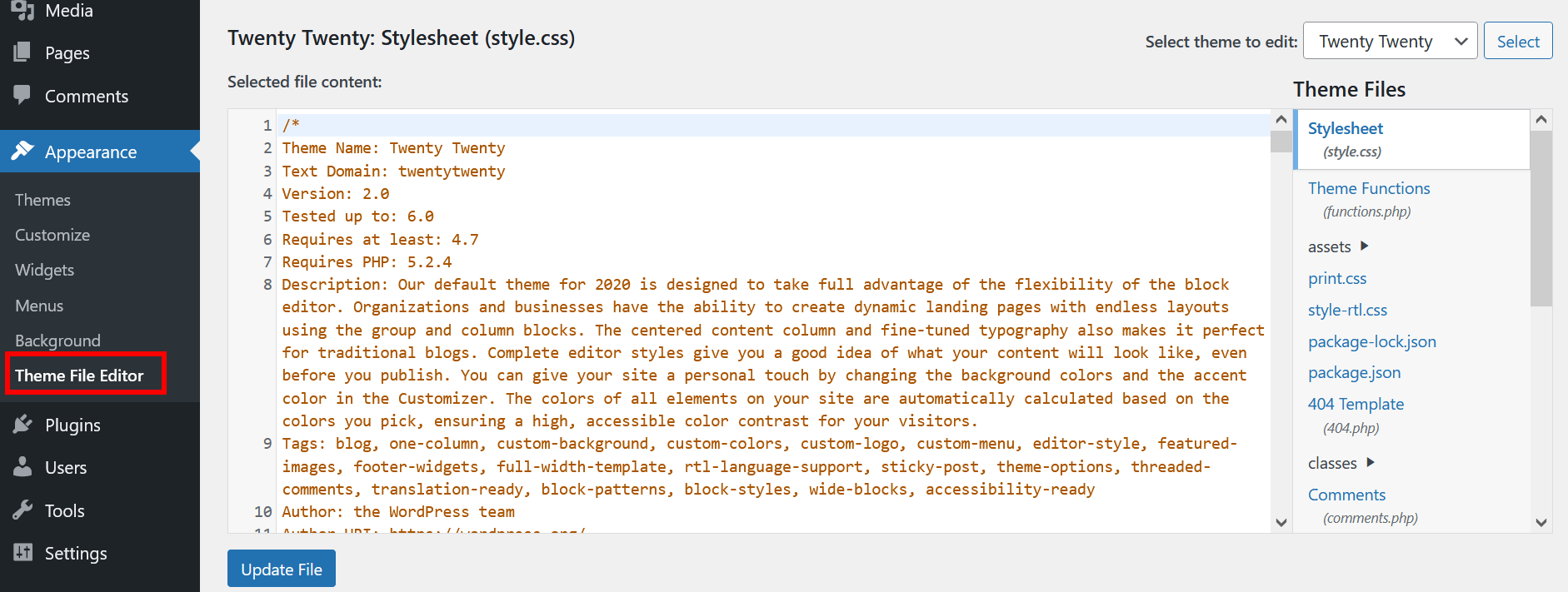
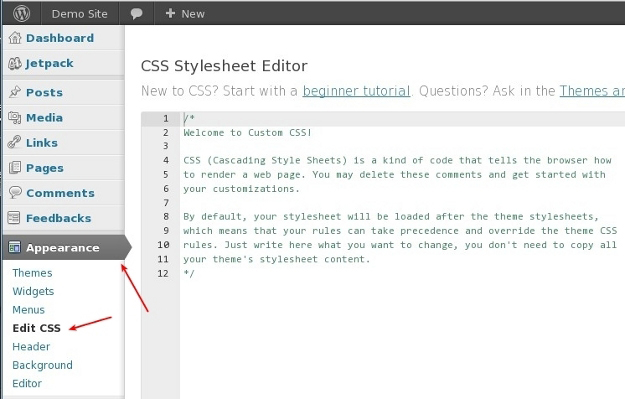
WordPress makes theme changes simple. Use the Additional CSS feature. Open your WordPress dashboard. Go to Appearance and select Customize. Find the Additional CSS option there. Enter your CSS code. This changes the look of your theme. You can change colors, fonts, and more. Save your changes to see the effects. This method is safe. It doesn’t change your main theme files.
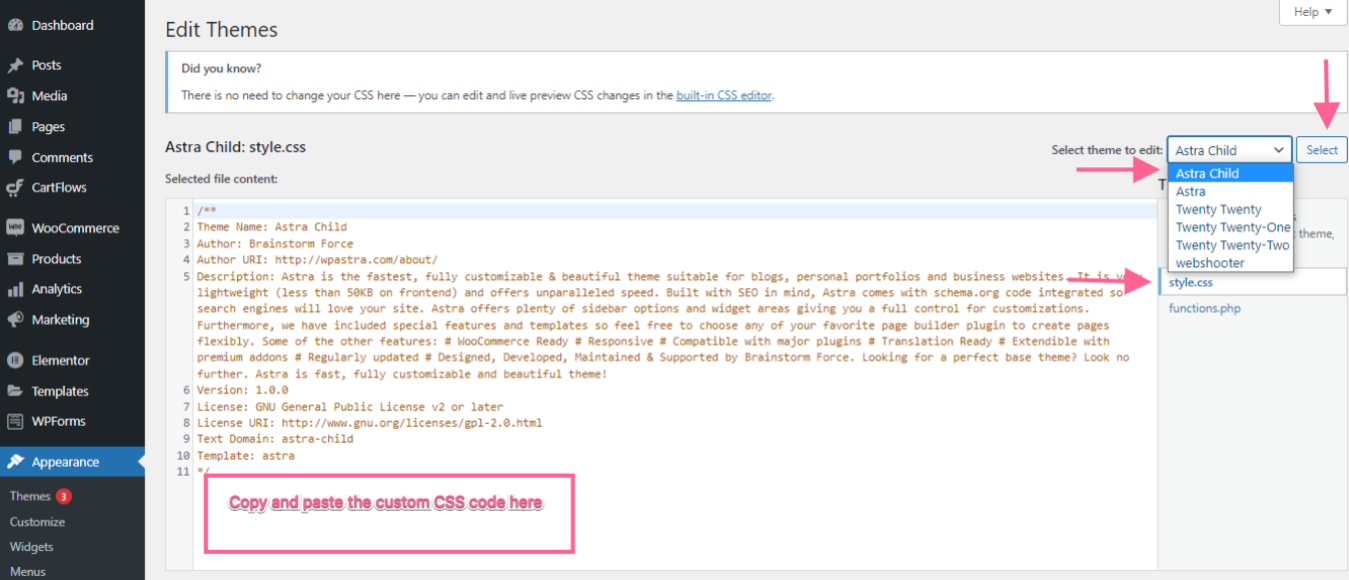
A child theme helps keep changes safe. It uses the main theme but lets you customize. Create a child theme folder. Add a style.css file inside. Link it to your main theme. Add your CSS changes here. This way, updates won’t remove your changes. It’s a best practice for WordPress users.
Using Plugins For Css Modification
Modify your WordPress CSS theme easily by using plugins. These tools offer a user-friendly way to change styles without coding. Enhance your site’s appearance with just a few clicks.
Top Css Editing Plugins
Plugins make changing WordPress themes easy. Simple Custom CSS is user-friendly. CSS Hero lets you edit live. YellowPencil allows visual changes. SiteOrigin CSS gives advanced options. These plugins help edit without coding. Choose one for your needs. Each plugin has special features.
Plugin Installation And Setup
Installing a plugin is simple. First, go to the WordPress dashboard. Click on Plugins. Select Add New. Search for your chosen plugin. Click Install Now. After installation, click Activate. Some plugins need setup. Follow on-screen instructions. Setup steps are clear and easy. Soon, you’ll be ready to edit CSS.
Best Practices For Theme Changes
Before changing your theme, make a backup of your site. This keeps your files safe. Use a plugin like UpdraftPlus or BackWPup. These tools help you save all your work. A backup makes it easy to fix mistakes. Always have a copy of your database and files.
Check if the new theme works on all devices. Use tools like Google Mobile-Friendly Test. This ensures it looks good on phones and tablets. Also, open your site on different browsers. See if it displays well everywhere. Testing helps catch any problems early. Make sure everything is easy to read and use.
Troubleshooting Common Issues
Changing a CSS theme in WordPress can be tricky. Start by accessing the WordPress dashboard. Then navigate to the “Appearance” section. Select “Customize” to find the “Additional CSS” option. Enter your new CSS code here. Ensure to save changes to update the theme.
Solving Theme Conflicts
Theme conflicts can cause many problems. The site may break or look wrong. To fix this, try disabling plugins. Some plugins may not work well with your theme. Check if the theme has updates. Updated themes can fix bugs. Also, try switching to a default theme. This helps see if the theme is causing issues. If conflicts persist, seek help from WordPress support forums.
Restoring Previous Themes
Sometimes a new theme does not work. You may need to go back to the old one. Backup your site first. This saves all changes made. Go to the theme options in the dashboard. Look for the old theme and activate it. Check the site to ensure everything looks good. Restore backups if needed. This ensures no data is lost.
Credit: www.8theme.com
Frequently Asked Questions
How Do I Change Css In WordPress?
To change CSS in WordPress, access your site’s dashboard, navigate to Appearance, then Customize, and select Additional CSS. Here, you can add your custom styles. Remember to save changes. This method allows you to tweak your site’s appearance without altering the theme files directly.
What Is A Css Theme In WordPress?
A CSS theme in WordPress refers to the style definitions that dictate the appearance of your website. It includes colors, fonts, layouts, and other visual elements. Changing the CSS theme allows for customization of your site’s look while maintaining its functionality and structure.
Can I Use A Plugin To Change Css?
Yes, you can use plugins like Simple Custom CSS or SiteOrigin CSS. These tools provide an easy interface to add custom CSS without editing theme files. Using plugins is beginner-friendly and ensures changes are preserved during theme updates.
Will Changing Css Affect Site Performance?
Changing CSS can affect site performance if not done carefully. Excessive or poorly written CSS can slow down page loading times. It’s crucial to keep CSS concise and optimized. Regularly review and test your site’s speed after making changes to ensure optimal performance.
Conclusion
Changing the CSS theme in WordPress is straightforward. Follow the steps above. Your website will look fresh and appealing. Customization options are endless with CSS. Experiment with different styles. Find what suits your brand best. Always preview changes before publishing.
Avoid making too many changes at once. Keep a backup of your original theme. This ensures easy restoration. Regular updates to your theme enhance user experience. CSS changes can greatly impact your site’s appearance. Make adjustments carefully and thoughtfully. Enjoy creating a unique look for your website.


