
Are you trying to give your Qode Bridge WordPress theme a fresh new look but finding the CSS changes a bit daunting? You’re not alone.
Changing the CSS style on this popular theme can feel like navigating a maze. However, with the right guidance, you can easily transform your website’s appearance and make it truly unique. Imagine having a site that not only captures your brand’s essence but also stands out in the crowded digital space.
In this guide, you’ll discover simple, step-by-step instructions that will empower you to customize your theme effortlessly. Dive in and unleash your creativity—your dream website is just a few clicks away.
Credit: bridge.qodeinteractive.com
Understanding Qode Bridge Theme
The Qode Bridge Theme is a popular choice. It offers many design options. You can change CSS styles to fit your needs. The theme provides a user-friendly interface. This makes styling easier. You can access the theme’s settings in WordPress. Go to the customizer to begin. You will find many style options there. To change the style, you can add custom CSS. Look for the “Additional CSS” section. Type your new CSS code there. These changes will update your site’s look. Remember, you can always preview changes first. This helps to see if you like them. The theme’s flexibility is great for beginners. It allows easy changes with simple steps.
Accessing Theme Files
To change the CSS style, start by visiting your WordPress Dashboard. Navigate to Appearance and then click on Editor. You will find different files here. Look for the style.css file. It’s the main file for CSS styles. Click to open it. Make changes to your CSS directly in this file. Always remember to save changes after editing. These steps are simple and easy. They help you change styles without much trouble.
FTP Client helps access theme files from your computer. Use software like FileZilla. Connect to your website server. Find the folder named wp-content. Inside, locate the folder themes. Open the Qode Bridge theme folder. Search for the style.css file here. Download it to your computer. Make your changes to the file. After editing, upload it back to the server. This way, your changes will show on the website.
Locating Css Files
Custom CSS changes how your site looks. It makes your site unique. Find the custom CSS in your WordPress dashboard. Go to the Appearance tab. Click on Customize. Look for a section named Additional CSS. Here, you can add or change CSS styles. It’s simple and easy to use. Make sure to save your changes. This makes them visible on your site.
A theme’s style sheet is very important. It controls the look of your site. To find it, go to the WordPress dashboard. Click on Appearance. Then select Theme Editor. Look for a file named style.css. This is your theme’s style sheet. Edit it to change the look of your site. Always save your edits. This ensures changes are applied.
Modifying Css Styles
Open your WordPress dashboard. Go to Appearance and click on Customize. This is the WordPress Customizer. It lets you see changes live. Look for the Additional CSS section. Click it to open a text box. You can add your own CSS code here. It will change the style of your site. Make small changes and see how they look. This way, mistakes are easy to fix.
Go to the WordPress dashboard. Find the Appearance section. Click on Theme Editor. This shows you files of your theme. Look for style.css. It has all the CSS rules. Be careful when changing these. Save changes to see the effect. Always backup your files first. This keeps your site safe.
Using Child Themes
Child themes help keep changes safe during updates. Start by creating a new folder. Name it after the parent theme with “-child” at the end. Inside, make a style.css file. This file is for your custom styles. Add a functions.php file next. Use this file to connect the child theme with the parent. Use simple code lines for this task. Don’t forget to activate your child theme in WordPress.
Custom CSS changes the look of your site. Open the style.css file in your child theme. Here, write your new CSS rules. This changes colors, fonts, and layout. Test each change in a browser. Refresh to see updates live. Check the site often for errors. Keep your CSS clean and organized. Use comments to remember why you made changes.

Credit: qodeinteractive.com
Implementing Additional Css
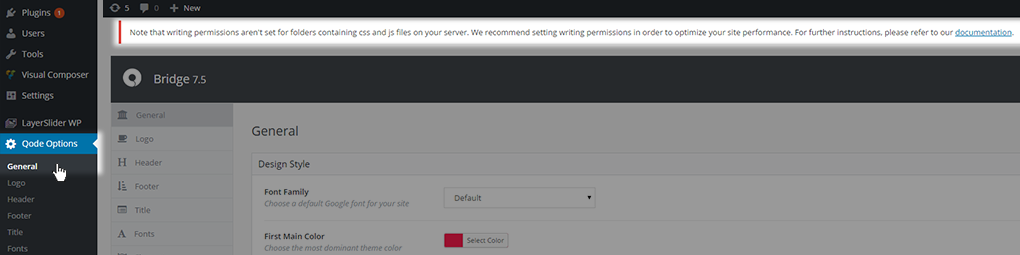
The Theme Options Panel is a helpful tool. You can find it in the WordPress dashboard. Navigate to the Qode options. Click on it. Look for the Custom CSS field. Type your CSS code in this field. Save your changes. Your styles will apply instantly. The panel is easy to use. Perfect for simple CSS changes. No need for coding skills.
Plugins are useful for adding CSS. Install a CSS plugin from the WordPress repository. Many plugins are free. Choose one you like. Activate the plugin. Open the plugin settings. Add your CSS code there. Save your changes. Plugins can handle complex styles. They offer more features. This method is great for advanced users.
Testing And Debugging
Altering CSS styles on the Qode Bridge WordPress theme involves accessing the theme’s custom options. Navigate through WordPress dashboard, locate ‘Appearance’, then ‘Customize’. Use ‘Additional CSS’ to add or modify styles effortlessly.
Using Browser Developer Tools
Browser developer tools are helpful for testing CSS changes. Open the tools in your browser. Find the Inspect option. Click on the element you want to change. The CSS code for that element appears. You can edit the CSS directly in the tools. See how the changes affect the page live. This helps in trying different styles quickly. Make sure to note the changes. Apply them to your theme later.
Ensuring Cross-browser Compatibility
Websites should look good on all browsers. Test your CSS on different browsers. Common ones are Chrome, Firefox, and Safari. Each browser may show styles a bit differently. Use browser developer tools to check this. Adjust the CSS until it looks right everywhere. Focus on basic styles like font size and colors. This ensures users have a good experience.

Credit: qodeinteractive.com
Best Practices
Adjusting CSS styles on the Qode Bridge WordPress theme involves accessing the Theme Options. Navigate to the Custom CSS section. Enter your desired CSS code here to personalize your site’s appearance. Refresh the page to see changes take effect immediately.
Backing Up Original Files
Always save a copy of your original CSS files. This prevents loss if changes go wrong. Use external storage or cloud services for backup. Proper backup ensures your theme stays safe. Restore files easily if needed.
Keeping Styles Organized
Organize your CSS by sections. This makes styles easy to find and edit. Use clear labels for sections and rules. Comments in your CSS help understand changes. Keep styles neat to avoid confusion.
Frequently Asked Questions
How Can I Customize Css In Qode Bridge Theme?
To customize CSS in Qode Bridge, access the WordPress dashboard and navigate to Appearance > Customize > Additional CSS. Insert your custom CSS code to modify styles. Use browser inspection tools to identify selectors and make specific changes. Save changes to apply them across your site instantly.
Is It Safe To Change Css On Qode Bridge?
Yes, changing CSS is safe if done correctly. Use the WordPress Customizer for edits, ensuring your site remains responsive and functional. Backup your theme files before major changes. Test CSS alterations in different browsers for compatibility and avoid directly editing theme files.
Can I Revert Css Changes In Qode Bridge?
You can revert CSS changes by removing the code from Appearance > Customize > Additional CSS. Alternatively, restore a backup if you’ve saved one prior to changes. Consider using a child theme to manage CSS modifications without affecting the main theme.
Does Changing Css Affect Site Performance?
Minor CSS changes generally don’t impact site performance significantly. However, excessive or poorly written CSS can slow down page load times. Optimize your code by removing unnecessary elements and use efficient selectors to maintain performance. Always test site speed after major modifications.
Conclusion
Changing CSS styles on the Qode Bridge theme is straightforward. Follow the steps, and you’ll see results. Customize to match your site’s personality. Small tweaks can make a big impact. Keep experimenting with different styles. Always remember to save your changes.
Preview your site to ensure everything looks right. This will help maintain a professional appearance. Regular updates can keep your website fresh. Practice makes perfect, so keep learning. With these tips, style changes become easy. Enjoy designing your website with confidence.
Happy styling!


