
Ever landed on a website and noticed an outdated copyright year in the footer? It can make a site look neglected and unprofessional.
As a website owner, you definitely don’t want that impression. You’re in the right place if you’re wondering how to change the copyright year in your WordPress theme. This simple update not only enhances your site’s credibility but also reassures your visitors that you keep things current.
In this guide, you’ll discover easy steps to update the copyright year, ensuring your website always looks fresh and up-to-date. Are you ready to give your site the polished look it deserves? Let’s dive in and make that quick fix!
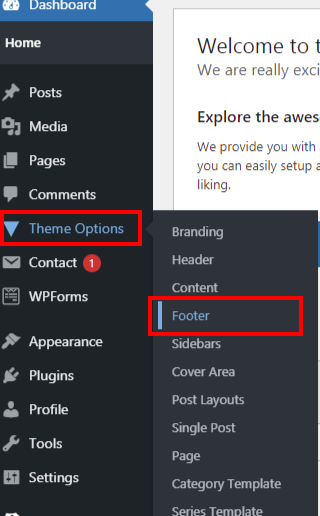
Credit: mekshq.com
Locating The Copyright Year
Look at your website’s footer. This is where the copyright year is usually found. Use your browser’s inspect tool. Right-click on the footer and choose “Inspect”. A panel will open showing the code. Find the line with the copyright year. It usually starts with “©”. Note the exact location of this code. You will need it later.
Log into your WordPress admin dashboard. Look for “Appearance” on the left menu. Click on “Theme Editor”. This will show your theme’s files. Find the “footer.php” file. Open it to see the code. Search for the copyright line. Change the year to the current one. Save your changes. Your site’s copyright year is now updated.

Credit: campaigndonut.com
Editing The Footer Code
Start by accessing your WordPress dashboard. Navigate to Appearance and then Theme Editor. Find the footer.php file on the right side. Click on it to open. This file contains the copyright year.
Locate the line with the copyright year. Change the year to the current one. Use PHP functions like php echo date("Y"); ? to make it update automatically. Save changes by clicking Update File. This ensures the year updates yearly.
Refresh your website to see changes. Check the footer for errors. If the year displays correctly, your changes worked. If errors appear, revisit the footer.php file. Fix any mistakes and save again. Refresh and verify.
Using Dynamic Date Function
Use PHP code to keep the copyright year current. It is simple. It saves time. First, open the functions.php file in your theme. This file controls many parts of the theme. Next, add a small PHP function. It will update the year by itself. Here is an example:
php
echo date('Y');
?
This code will show the current year automatically. You do not need to change it every year. This method is easy. It is quick. It is also very useful. Try it out to make your site better.
Editing the functions.php file is easy. First, find the file in your theme folder. You may need a file manager or FTP. Once you find it, open it. Be careful with this file. It is important for your site. Add the PHP code for the year. Save the changes. Visit your site to check if it works. The year should update on its own. This keeps your site up-to-date. It looks professional. It also saves you time each year.
Utilizing A Child Theme
First, create a new folder in your WordPress themes directory. Name it after your parent theme with “-child” added. Inside this folder, create a style.css file. Add this code at the top:
/
 Theme Name: Parent Theme Child
 Template: parent-theme-name
/
Then, add a functions.php file. This file is optional but useful. Use it to enqueue the parent theme’s stylesheet.
Open the footer.php file from your parent theme. Copy the relevant code for the copyright year. Paste it into your child theme’s folder. Modify the year as needed. Ensure you do this every year. Save changes and upload the file to your server.
Plugins For Copyright Update
Easily update your WordPress theme’s copyright year using plugins. These tools automatically adjust the year without code changes. Keeping your website’s footer fresh is simple and efficient.
Popular Plugins Overview
Many people use plugins to change the copyright year. These plugins make it easy. They save time and effort. Some popular ones are Simple Copyright and WP Copyright Year. These are user-friendly. Anyone can use them. They work well with most themes. They update the year automatically. This keeps your site up-to-date. Always read reviews first. Check if the plugin is reliable. Also, ensure it is compatible with your version of WordPress.
Configuring The Plugin
After installing a plugin, you need to configure it. Open your WordPress dashboard. Find the plugin settings. Follow the instructions given. They are usually simple. You might need to select the year format. Some let you add extra text. Preview changes before saving. This helps you see how it looks. If satisfied, save your changes. Your copyright year should update now.
Best Practices For Copyright Updates
Copyright laws need respect. Update your site’s copyright year. It shows you care. This helps avoid legal issues. Old dates can cause confusion. Visitors may think your content is not updated. Keep things accurate. Follow legal rules. This builds trust with users. It also helps your brand image. Stay informed about copyright laws. This is very important. Knowledge is your best friend.
Check your site often. Make sure the year is correct. Use a plugin if needed. These can help a lot. They make updates easy. No need to worry. Your site will always be current. This is good for your visitors. They like fresh content. Regular updates show you care. They bring people back to your site.
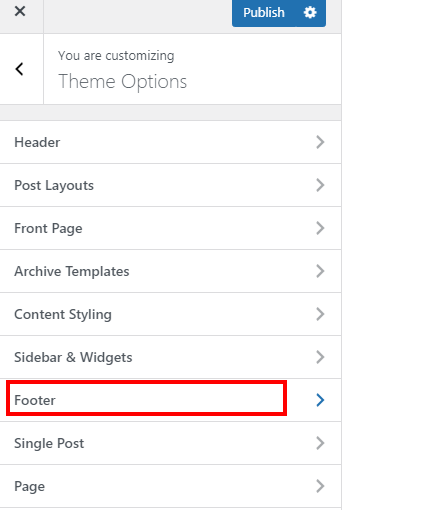
Credit: mekshq.com
Frequently Asked Questions
How To Update Copyright Year In WordPress?
To update the copyright year, go to your WordPress dashboard. Navigate to Appearance, then Editor. Locate the footer. php file. Find the line with the current year, and change it to the desired year. Save your changes to update the copyright year.
Can I Automate Copyright Year Changes?
Yes, you can automate this by using PHP. Replace the year in your footer. php with “. This code automatically updates the year to the current year, so you won’t need to change it manually every year.
Is It Safe To Edit Theme Files?
Editing theme files can be risky if done improperly. Always back up your site before making changes. Consider using a child theme to ensure your customizations are safe. This protects your changes from being overwritten during theme updates.
Where Is The Copyright Year In WordPress Theme?
The copyright year is typically found in the footer section of your theme. Access it through Appearance, then Editor, and locate footer. php. You can find and modify the year there. It’s often near the bottom of the file, within a copyright notice line.
Conclusion
Updating the copyright year in WordPress is simple. Follow the steps shared earlier. Your site will stay current and professional. Regular updates show your visitors you care. They trust your site more. It’s crucial for maintaining credibility. Plus, it improves your site’s look.
Keep your content fresh. Small changes make a big difference. Stay ahead by keeping things updated. It’s a quick task but important. Your site deserves this attention. Now, you know how to do it efficiently. Your WordPress site will look better instantly.
Make sure to check it every year. It’s worth the effort.


