
Are you tired of the same old colors on your WordPress theme? Changing the color scheme can breathe new life into your website, making it more appealing and on-brand.
But where do you start? In this guide, you’ll discover simple and effective ways to change the colors of your WordPress theme. Imagine your site standing out with a unique look that captures your audience’s attention. Don’t let color limitations hold you back from creating an eye-catching website.
Dive into this article, and soon you’ll have the tools to transform your site’s appearance with ease and confidence.

Credit: doc.seatheme.net
Choosing A Color Scheme
Colors can make us feel different things. Blue is calming. Red can be exciting. Green feels fresh and natural. Think about how you want people to feel. Then pick colors that match those feelings. This is called color psychology. It helps create the right mood.
Your brand has its own look. Colors are a big part of that look. Choose colors that match your brand. If your brand is fun, use bright colors. If your brand is serious, use softer colors. This helps people remember you. It makes your brand feel strong and clear.
Many tools can help you choose colors. Online tools show you color ideas. They help you see how colors look together. Adobe Color and Coolors are two good tools. They are easy to use. Just pick a color, and they suggest others. This makes choosing colors simple and fun.
Accessing Theme Customizer
First, go to your WordPress dashboard. Look at the left sidebar. Find the Appearance option. Click on it. This opens a new menu. Look for the Customize link. It’s usually at the top. Click on it to open the Theme Customizer. The customizer lets you change many things. Colors, fonts, and layout. Easy to use, even for beginners. Explore the options one by one. Take your time.
The Theme Customizer has many tabs. Each tab is for different settings. Click on the Colors tab. Here, you can change the site colors. Choose a color scheme that you like. Preview changes in real time. Makes it easy to see how your site looks. Once satisfied, save your changes. The save button is on top. Your site now has new colors. Enjoy your fresh design!
Modifying Theme Colors
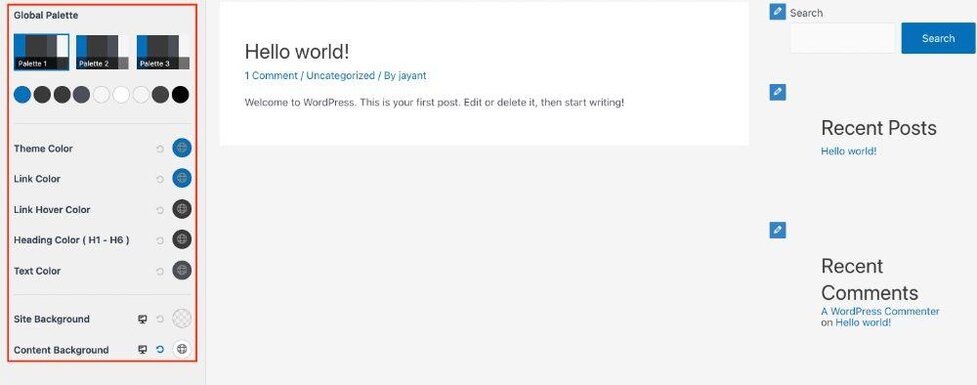
Open your WordPress dashboard. Find the “Appearance” section. Click on “Customize.” Here, you see many options. Select “Colors.” Look for the primary color setting. It’s the main color of your site. Change it to your favorite color. Click “Save” to keep changes. Your site now has a new look.
Visit the “Customize” section again. Choose “Background Colors.” This changes the site’s backdrop. Pick a color that matches your style. Soft colors are easy on the eyes. Click “Save” after choosing. Your site background changes instantly. It gives your site a fresh feel.
In “Customize,” find “Typography.” Here, you can change text colors. Choose a color for headings. Then pick one for body text. Ensure text is readable. Next, find “Link Colors.” Choose a color for links. Make sure links stand out. Click “Save” to apply changes. Now, texts and links look new and appealing.
Using Additional Css
First, go to your WordPress dashboard. Find the Appearance menu. Click on Customize. A new screen will open. On this screen, look for the Additional CSS option. Click on it. You can now add your custom CSS here. This is where you will change your theme colors.
Choose a color you like. Use its hex code in your CSS. For example, body { background-color: #ff5733; }. This changes the background color. To change text color, use color: #333333;. Place this code under the Additional CSS section. Save your changes. Refresh your page to see the new colors.
Exploring Third-party Plugins
Discovering third-party plugins simplifies changing colors in WordPress themes. These tools offer customization options for vibrant designs. Enhance your site’s appearance with easy-to-use features and intuitive controls.
Popular Color Change Plugins
Plugins make color changes easy. They offer simple tools for everyone. Colorlib is a popular choice. It is user-friendly and quick. WordPress Customizer plugin is also great. It helps with theme color changes. These plugins are easy to install.
Installing And Activating Plugins
First, go to your WordPress dashboard. Click on the Plugins tab. Search for your chosen plugin. Click Install Now. After installing, hit Activate. Your new plugin is ready to use. Start changing colors with ease. Plugins make theme color tweaks simple. Kids can do it too!
Credit: wpastra.com
Testing And Previewing Changes
The Live Preview feature is a helpful tool. It lets you see your theme changes right away. You can easily test different colors. Try new backgrounds and fonts without saving. This helps you make sure everything looks good before going live. Your visitors will see a well-designed website.
Mobile responsiveness is very important. Use the preview tool to check how your site looks on phones. Make sure buttons and text are easy to read. Colors should be clear and not hurt the eyes. This ensures a good experience for mobile users. Always test your site on different screen sizes. This way, it looks great everywhere.
Finalizing And Publishing
Changing colors in a WordPress theme involves navigating the customization settings. Select ‘Appearance’ and then ‘Customize’ to access color options. Experiment with hues and shades until satisfied, then finalize and publish to update your site’s look instantly.
Saving Changes
Always save your changes after editing. This keeps your work safe. Click the “Save” or “Publish” button. This button is usually at the top or bottom of the page. It’s important to click this button. If you don’t, your changes won’t be saved. You can lose your work.
Publishing The Updated Theme
Ready to show your theme? Click “Publish”. This makes your changes live. Your visitors will see the new look. Check your site after publishing. Make sure everything looks good. If there’s a problem, you can go back and fix it.
Troubleshooting Common Issues
Changing colors in a WordPress theme often involves accessing the theme customizer. Navigate to “Appearance” and click “Customize” to find color settings. Adjust the colors to your preference, and preview changes before publishing. This process helps personalize your site effectively.
Restoring Default Colors
Sometimes, themes get changed. This causes color issues. Restore default colors to fix this. Go to your WordPress dashboard. Find “Appearance” and click “Customize.” Look for color options. Choose “Default” or “Reset” colors. Save changes to apply them. This will bring back the original look.
Fixing Css Conflicts
CSS conflicts can mess up colors. Check your theme’s stylesheet. Search for color codes that are clashing. Replace or remove conflicting codes. Use specific selectors to avoid errors. Custom CSS can help fix issues. Use clear, precise rules for better results. Test changes to ensure they work well. This helps your site look neat and tidy.

Credit: qodeinteractive.com
Frequently Asked Questions
How Do I Change My WordPress Theme Colors?
To change WordPress theme colors, go to your dashboard. Navigate to Appearance > Customize. Look for the Colors section. Here, you can modify your theme’s color scheme. Save your changes once you’re satisfied.
Can I Customize Theme Colors Without Coding?
Yes, many WordPress themes offer built-in customization options. Use the WordPress Customizer to change colors without coding. This feature is accessible via Appearance > Customize on your dashboard.
Why Don’t My Color Changes Appear?
If changes don’t appear, try clearing your browser cache. Also, verify if caching plugins are active. Sometimes, themes use specific settings overriding customizations. Ensure your theme supports color changes.
Are There Plugins To Change Theme Colors?
Yes, several plugins can help change theme colors. Plugins like “YellowPencil” or “CSS Hero” offer advanced customization. They allow real-time design edits without coding skills.
Conclusion
Changing theme colors in WordPress is simple and rewarding. Personalize your site easily. Make your website stand out. Follow the steps carefully for best results. Experiment with different colors. See what works for your audience. Keep your brand consistent. Choose colors that reflect your message.
Stay creative and keep it fresh. Regular updates keep your site appealing. Visitors appreciate a visually appealing website. Engage them with your color choices. This enhances their experience. Your site becomes more memorable. Enjoy customizing your WordPress theme. Happy designing and best of luck with your website journey!


