
Are you tired of the same old colors on your WordPress page theme? Imagine transforming your website into a vibrant, eye-catching masterpiece that captures your visitors’ attention from the moment they land.
The good news? You can easily change the colors of your WordPress theme without needing a degree in design or coding expertise. In this guide, you’ll discover simple steps to refresh your site’s look, making it more appealing and engaging for your audience.
Dive in, and let’s unlock the potential of your website’s aesthetics, ensuring it stands out in the crowded digital landscape.
Choosing The Right Theme
Picking a theme is important. It sets the page’s look. Some themes are colorful. Others are simple. Make sure the theme fits your style. Check if the theme allows color changes. Some themes have limited options. Others offer many choices. You can change colors easily with these. This makes your website unique.
Look for a theme with customization options. This helps in changing colors. Read reviews about the theme. Users often share their experiences. A good theme is easy to use. It should be flexible. This way, you can make your website look great.

Credit: doc.seatheme.net
Accessing The WordPress Dashboard
First, log into your WordPress account. Use your username and password. Once inside, locate the dashboard. The dashboard is the main control center. Here, you can manage your site. You’ll see many options on the left side. Find the Appearance tab. Click on it to open the menu. Under Appearance, choose Customize. This is where you change colors. The Customize option lets you adjust your theme. You can change background colors. You can change text colors too. Explore all the choices available. Make sure to save your changes. Your site will now have new colors.
Navigating To Theme Customizer
First, go to your WordPress dashboard. Look for the Appearance tab. Click it. Then, find and select Customize. This opens the Theme Customizer. Here, you can change your theme colors.
On the left, you will see options. Find Colors or Color Scheme. Click it to see different color settings. You might see sections for Background, Text, or Links. Choose what you want to change. Use the color picker to pick new colors. Preview changes on the right side. Happy with the new colors? Click Publish to save.
Exploring Color Options
Colors make your WordPress page look great. To change them, go to the WordPress dashboard. Next, click on Appearance. Then, select Customize. Here, you find many color choices. Choose a section you want to change. It could be the header or background. Click on the color box. A color picker will appear. Pick a new color. See it change on your page. Happy with the new look? Click Publish. If not, try another color. Play around until it looks right. Colors can make your site fun and lively!
Using Built-in Color Settings
WordPress themes often have easy options for changing colors. Visit your WordPress dashboard. Find the Appearance tab. Click on Customize. Look for the Colors section. You can see color palettes there. Pick the one you like. Change background and text colors easily.
Some themes may have advanced settings. They allow you to change link colors or button styles. Save your changes. Refresh your page to see them. This feature helps make your site unique.

Credit: qodeinteractive.com
Customizing With Css
Find your WordPress dashboard. Click on Appearance. Then, choose Customize. You will see many options. Look for Additional CSS. This is where you can add your own code. Click on it. Now, you can start customizing. Be careful. Small mistakes can change your whole page.
CSS helps you change your page’s look. To change colors, use the color property. Type your CSS code in the box. Use simple commands like color: red; for text. Or background-color: blue; for backgrounds. Save your changes. Refresh the page. See the new colors appear. Practice makes perfect. Keep trying different colors. Your page will look great.
Using Plugins For Color Changes
Selecting Appropriate Plugins can make color changes easier. Many plugins are available. Choose a plugin with good reviews. A user-friendly plugin is best for beginners. Check if the plugin is updated regularly. Compatibility with your theme is important. Some plugins are free. Others may require payment. Always read the plugin description carefully.
Installing and Activating Plugins is a simple process. First, go to your WordPress dashboard. Click on “Plugins” in the menu. Then, click “Add New.” Search for your chosen plugin. Once you find it, click “Install Now.” After installation, click “Activate.” The plugin is now ready to use. Follow any setup instructions. You can now change colors on your page.
Saving And Previewing Changes
After making changes to your theme colors, it’s crucial to save them. Look for the Save button in the customizer. Click it to keep your new colors. This ensures you don’t lose your work.
Previewing is also important. Before making changes live, check how they look. Use the Preview option in the customizer. This shows your page with the new colors. It’s a good idea to make sure everything looks right.
Saving and previewing help keep your page looking good. They protect your work and let you see changes before others do.
Troubleshooting Common Issues
Themes have default colors. Changing them may be tricky. Access the theme settings from the WordPress dashboard. Look for the color options. Some themes allow easy changes. Others need custom CSS. Add CSS in the customizer under “Additional CSS”. Use simple code to change color. This is safe. Test the changes. Refresh the page to see results. Always backup your site before editing. This prevents loss of data.
Plugins can cause trouble with themes. They may override colors. Disable plugins one by one. Check if the color changes. The problem plugin will reveal itself. Contact the plugin support for help. They might provide solutions. Keep plugins updated. Updates fix bugs and improve compatibility. Use minimal plugins to avoid conflicts. Less is more in this case.
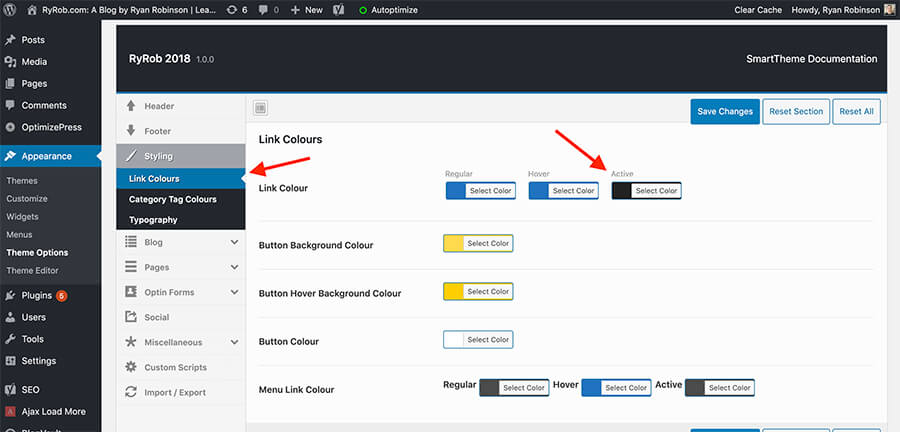
Credit: www.ryrob.com
Frequently Asked Questions
How Can I Change Theme Colors In WordPress?
To change theme colors in WordPress, navigate to the Customizer. From the dashboard, click “Appearance” then “Customize. ” Select “Colors” and adjust as needed. Save changes to apply them. Always preview your changes before publishing to ensure they look as expected.
Can I Use Custom Colors In WordPress Themes?
Yes, you can use custom colors in WordPress themes. Access the Customizer and select the “Colors” option. Use the color picker to define your custom shades. Save your selections to apply them across your site. Custom colors can enhance branding and aesthetics.
Is It Possible To Change Theme Colors Without Coding?
Absolutely, changing theme colors without coding is possible in WordPress. Use the built-in Customizer tool. Navigate to “Appearance” then “Customize” and choose “Colors. ” Adjust options as desired and save. This user-friendly feature simplifies the process for non-developers.
Do All WordPress Themes Allow Color Changes?
Most WordPress themes allow color changes via the Customizer. However, some themes may have limited customization options. Check the theme documentation or preview settings in the Customizer. If needed, consider a more flexible theme for extensive color adjustments.
Conclusion
Changing colors on your WordPress theme is simple. Start by accessing the customization panel. Pick colors that match your brand. Experiment with different shades. Preview changes before saving. This helps ensure a cohesive look. You can adjust colors for backgrounds, fonts, and buttons.
Consistent colors enhance user experience. They make your site visually appealing. Keep your audience in mind when choosing colors. Bright shades can grab attention. Softer tones offer a calming effect. Regular updates keep your site fresh. Now, you can confidently personalize your WordPress theme.
Enjoy a unique and engaging website!


