
Are you tired of the same old color scheme on your WordPress site? Maybe you’re looking to inject some fresh energy into your design or align it with your brand’s vibrant identity.
Whatever your reason, changing the colors of a WordPress theme can significantly impact how visitors perceive your site. It’s not just about aesthetics—it’s about creating an emotional connection with your audience. Colors can evoke feelings, drive actions, and shape perceptions.
Imagine turning your website into a visual experience that resonates with your audience at first glance. In this guide, you’ll learn how to effortlessly change the colors of your WordPress theme, allowing you to transform your site into a captivating and personalized space. Get ready to dive in and discover how simple tweaks can lead to a profound impact on your visitors’ experience.
Choosing A Suitable Theme
First, pick a theme that fits your style. Look for themes with simple customization options. Popular themes often have many color choices. This makes it easy to change colors. Always check the theme’s reviews. Good reviews often mean the theme is user-friendly.
Some themes have a color palette. This lets you pick colors easily. Pick a theme with a color picker tool. This tool helps in changing colors without coding. Many themes also have a live preview. With live preview, you can see changes instantly. This helps you choose the best color combination.

Credit: qodeinteractive.com
Accessing The WordPress Dashboard
First, log into your WordPress account. Use your username and password. After logging in, you will see the WordPress Dashboard. This is where you make changes. The dashboard is easy to use. Find the menu on the left side. Look for the Appearance tab. Click on it. You will see options like Themes and Customize. Choose Customize to change colors. The Customize section lets you edit many things. You can change the background color. You can change the text color. You can also choose different header colors. Play with these options. Find the colors you like. Make your website look great!
Navigating To The Theme Customizer
Start by logging into your WordPress dashboard. Look for the Appearance tab on the left side. Click on it to see more options. Choose Customize from the list. This opens the Theme Customizer.
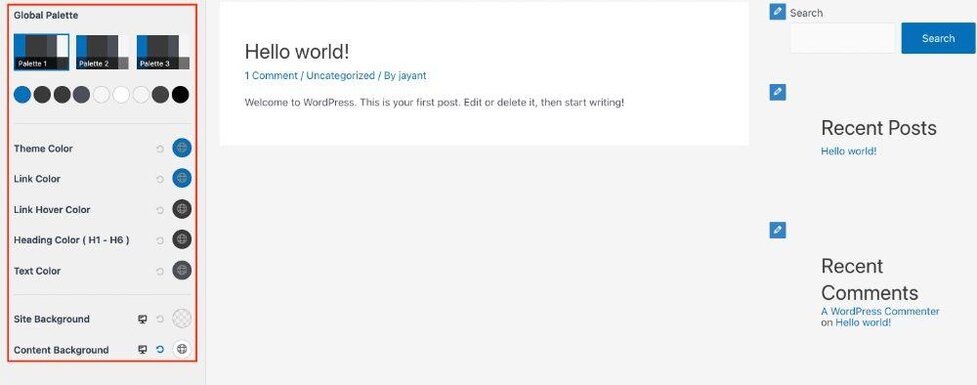
Once in the Customizer, find the Colors section. It may be under General settings. Click on it to explore color choices. You can change background, text, and link colors. Use the color picker to find the perfect shade. Preview changes before saving. This helps see how your site looks.
Credit: wpastra.com
Exploring Color Options
Change your WordPress theme colors easily with a few simple steps. Visit the theme customizer and find the color options. Experiment with different shades to match your brand and enhance your site’s visual appeal.
Default Color Schemes
WordPress themes come with default color schemes. These schemes help keep your site looking nice. Each theme has its own set of colors. Some themes are bright, others are soft. You can find these settings in your WordPress dashboard. Go to Appearance, then Customize. Look for the Colors section. Here, you can see the default colors. Changing them is easy. Click on a color, and choose a new one. Watch your site change!
Custom Color Palettes
Want a unique look? Create a custom color palette. This is fun and easy! Start in the Colors section. Choose Custom Colors. Pick colors that you like. Try matching them to your brand. You can save these settings. This makes your site special. Remember, colors can affect how people feel. Bright colors are happy. Soft colors are calm. Have fun creating your perfect palette!
Changing Background Colors
Solid backgrounds are easy to change. Open your WordPress theme editor. Find the section for colors. Choose a color you like. Click save to keep the changes. The new color will show up. It changes the look of your site.
Gradients add style to your site. Go to the color settings. Select gradient options. Pick two or more colors. Adjust the angle. Hit save to see the effect. Image backgrounds are fun too. Upload an image to the theme. Set it as the background. Make sure the size fits well. Click save to apply. Both options make your site unique.
Modifying Text Colors
Changing headings and titles colors is simple. Go to the customize section. Find typography settings. Choose colors for each heading level. Use the color picker for a perfect match. Save changes to see updates.
Paragraph colors affect readability. Choose a color that is easy on the eyes. Links need a distinct color. This helps users know they are clickable. Underline links to make them stand out. The theme settings have options for link color changes. Make sure to test the look on different devices. This ensures your theme looks good everywhere.
Adjusting Button Colors
Changing button colors in a WordPress theme is simple. Start by accessing the theme customizer. Navigate to the color settings. Choose your preferred shades to match your site’s design. Save your changes to see the new look instantly. This quick adjustment boosts your site’s appeal.
Primary And Secondary Buttons
Changing button colors can be easy. Primary buttons are often bold. Secondary buttons are less bright. Go to the WordPress Customizer. You will find it in the dashboard. Select “Colors” or “Button Style”. You can change colors here. Pick a color from the color picker. Save your changes. Refresh your page to see the new look.
Hover Effects
Hover effects make buttons fun. Choose a different color for hover. This means when you move the mouse over, the color changes. Go to the Customizer again. Click on “Hover Effects”. Select a color that you like. Test it by moving your mouse over a button. Save your settings. See your changes live on the site.
Saving And Publishing Changes
Save changes after editing your WordPress theme. Click the Save button. This will store your color choices. You won’t lose your work. Now, publish your changes. Click on the Publish button. This makes your edits live. Your site will show new colors. Visitors will see your design.
Remember to check your site. Make sure colors look good. This ensures your site is appealing. If necessary, adjust the colors again. Repeat the save and publish steps. Your site will always look its best.
Using Custom Css For Advanced Tweaks
Use your browser to find CSS classes. Right-click on the part you want to change. Choose “Inspect” or “Inspect Element” from the menu. A new window will open, showing the code. Look for words that start with a dot (.) or a hash (#). These are your CSS classes or IDs. Copy these words. You will use them for changing colors.
Open your WordPress dashboard. Go to Appearance and then Customize. Find the section labeled Additional CSS. Paste the CSS class or ID you found. Write your CSS like this: .class-name { color: blue; }. Replace “class-name” with your copied class. Replace “blue” with your desired color. Click save to apply your changes. Your theme will now have new colors.
Testing Theme On Different Devices
Mobile Responsiveness is key for themes. A theme should look nice on phones and tablets. Check how your theme looks on small screens. Colors must stay clear and bright. Use tools to test the theme on different devices. Adjust settings for better looks on mobile. This makes sure users have a good experience.
Ensuring Cross-Browser Compatibility is vital. Themes should work on all browsers like Chrome, Firefox, and Safari. Test your theme on each browser. Some colors might not show up well in certain browsers. Fix any issues for a smooth look. This helps every user see your site perfectly.

Credit: doc.seatheme.net
Frequently Asked Questions
How Do I Change Theme Colors In WordPress?
To change theme colors, navigate to the WordPress dashboard. Select ‘Appearance’ and then ‘Customize’. Look for a ‘Colors’ section. Modify colors as desired and click ‘Publish’. If your theme supports custom colors, you can easily make adjustments here.
Can I Customize Theme Colors Without Coding?
Yes, you can customize theme colors without coding. Use the WordPress Customizer tool found under ‘Appearance’. It offers a user-friendly interface. Simply select your preferred colors and publish the changes. Ensure your theme supports this feature.
Are Plugins Available For Color Customization?
Yes, several plugins assist with color customization. Popular ones include ‘Customify’ and ‘CSS Hero’. They offer advanced options for color adjustments. Plugins provide additional features beyond the WordPress Customizer. Always check compatibility with your theme.
Will Changing Colors Affect Website Speed?
Changing colors typically doesn’t affect website speed. It’s a minor adjustment within your theme’s settings. However, excessive customizations or large images might impact performance. Always test your site’s speed after making changes to ensure optimal functionality.
Conclusion
Changing your WordPress theme colors can be simple and rewarding. It helps your site feel unique and personal. Use the WordPress customizer for easy changes. Experiment with different colors to find the best fit. Be mindful of color combinations for readability.
Use contrast to make text stand out. Always preview changes before publishing. Consider using plugins for advanced options. Remember to save your work often. A visually appealing site can attract more visitors. Keep your design consistent with your brand. Enjoy creating a vibrant look for your WordPress site.


