
Are you looking to give your WordPress site a fresh new look? Changing the colors in your WordPress theme is one of the simplest ways to make a big impact.
Whether you want to match your brand’s identity or just want to try something new, customizing your site’s color scheme can capture your audience’s attention and keep them engaged. Imagine the excitement of creating a website that not only looks stunning but also feels uniquely yours.
In this guide, we’ll walk you through the easy steps to change colors in WordPress themes. You don’t need to be a tech wizard to do it. By the end of this article, you’ll have the tools to transform your website into a vibrant and inviting space. Dive in and discover how you can make your site stand out with just a few clicks!
Choosing A Theme
Many themes offer easy ways to change colors. Look for a theme with a customizer option. This tool lets you change colors without coding. It is easy and quick. Some themes have a color picker. You can choose any color you like. Check if the theme supports live preview. It shows changes before saving them. This helps in making sure the colors look right.
Not all themes work with all plugins. Check if the theme supports popular plugins. This ensures better compatibility. Some themes might not support color changes. It is important to read the theme documentation. This tells you about any restrictions. Make sure the theme works well with your WordPress version. An updated theme is usually more compatible. It also provides better features.

Credit: doc.seatheme.net
Using The WordPress Customizer
Easily change colors in WordPress themes using the Customizer. Navigate to Appearance, then Customize. Select Colors and adjust your theme’s color palette to match your style.
Accessing The Customizer
First, log into your WordPress dashboard. Look on the left side. Find Appearance. Click on it. A menu will show up. Choose Customize. This opens the WordPress Customizer. Here, you can change how your site looks. It’s easy and fun. You can see changes live. No need to worry about mistakes.
Navigating To Color Settings
Inside the Customizer, spot the Colors section. Click on it. A new panel appears. This is where you change theme colors. Pick a color you like. You might see color pickers or sliders. Use them to find the perfect shade. Once done, hit Publish. Your site updates instantly. Now your site has fresh colors. It looks new and exciting.
Changing Colors With Css
CSS changes how your website looks. It controls colors, fonts, and more. Every part of your webpage can have its own style. A simple CSS rule can change a background color. To change text color, you use color. For backgrounds, use background-color.
CSS uses selectors. These tell the browser what to style. For example, h1 styles all main headers. Colors are often written in hex codes. You might see something like #FF5733. This is a shade of orange.
WordPress has a special panel for extra CSS. This is called Additional CSS. You find it in the Customizer. Here, you can write your own CSS rules. Type your rule in the box. See changes live on your site.
Always test your CSS changes. Make sure everything looks right. Simple CSS can make your site look fresh. Try changing one color at a time. This way, you see what each change does.

Credit: qodeinteractive.com
Utilizing Theme-specific Options
Most themes have settings you can change. These settings let you pick new colors. Start by opening your WordPress Dashboard. Find the “Appearance” menu. Click on “Customize”. Here, you can see your theme’s settings.
Look for a section called “Colors”. It’s often listed in the side menu. You can change the background color, text color, and more. Choose colors that match your style. Remember to save changes when done.
Many themes have built-in color pickers. These tools let you choose colors easily. You can find them in the “Customize” section. Click on the color box. A palette will appear. Use it to find the color you like.
Drag the circle around to explore more colors. You can also enter a color code if you have one. This makes it easy to get the exact shade you want. Always preview your changes. This helps you see how your site will look.
Plugins For Color Customization
Color customization in WordPress is easy with plugins. Some plugins are popular for this. They help change theme colors fast. Colorlib lets you change colors easily. It offers many options.
SiteOrigin CSS is another good choice. It helps you adjust colors with no coding. The plugin is user-friendly. WP Color Picker lets you pick colors for your site. It is simple and effective.
Install plugins from the WordPress dashboard. First, go to Plugins. Then click ‘Add New’. Search for the plugin name. Click ‘Install Now’. After installing, activate the plugin. Go to ‘Installed Plugins’. Find your plugin and click ‘Activate’. Now you can change theme colors.
Testing And Previewing Changes
Explore changing colors in WordPress themes by testing and previewing changes. Easily customize your site’s appearance without coding. Experiment with different hues using the WordPress Customizer, ensuring your design suits your vision before applying changes.
Previewing In Real-time
See changes as you make them. WordPress offers a live preview feature. Go to the Customizer. Click on the “Colors” section. Pick a new color. Watch the change immediately. Make sure you like it before saving. This saves time and effort.
Ensuring Cross-browser Compatibility
Test your theme on different browsers. Use Chrome, Firefox, and Safari. Check that colors look the same. Sometimes, browsers show colors differently. Fix any issues you find. This ensures everyone sees your site correctly. Your site will look good for everyone.
Troubleshooting Common Issues
Struggling to change colors in WordPress themes? Explore theme settings and customize your site’s appearance effortlessly. Use the WordPress Customizer for a user-friendly interface, ensuring your design stands out.
Dealing With Cached Styles
Cached styles can block changes from showing. Clear your browser cache often. This helps see updates faster. Use a plugin to manage cache in WordPress. This keeps everything fresh.
Check your theme settings for cached styles. Some themes have built-in cache options. Disable these temporarily to see if it helps. Regularly updating your theme can also fix cache issues. This keeps your site running smoothly.
Identifying Css Conflicts
Conflicts in CSS stop color changes from working. Use browser tools to inspect CSS. Look for conflicting rules. These tools show what styles are applied.
Check your custom CSS. It might have errors causing issues. Fix any mistakes to resolve conflicts. Sometimes, plugins add CSS that causes problems. Deactivate plugins to test if they are the cause. After finding the issue, fix or update the plugin.
Best Practices For Color Changes
Changing colors in WordPress themes enhances your website’s visual appeal. Start by accessing the theme customizer. Then, adjust color settings to match your brand. Save changes to see the new look.
Maintaining Brand Consistency
Colors show your brand’s identity. Changing colors should not confuse users. Use your brand’s colors to keep a familiar look. Choose colors that match your logo and style. This helps users recognize your brand easily. Keep the color theme same across your site.
Choosing Accessible Color Combinations
Colors should be easy to see for everyone. Some people can’t see all colors. Choose colors that contrast well. Dark text on light background is best. Light text on dark background works too. Avoid colors that blend into each other. Test your color choices with tools online. This ensures all users see your site clearly.
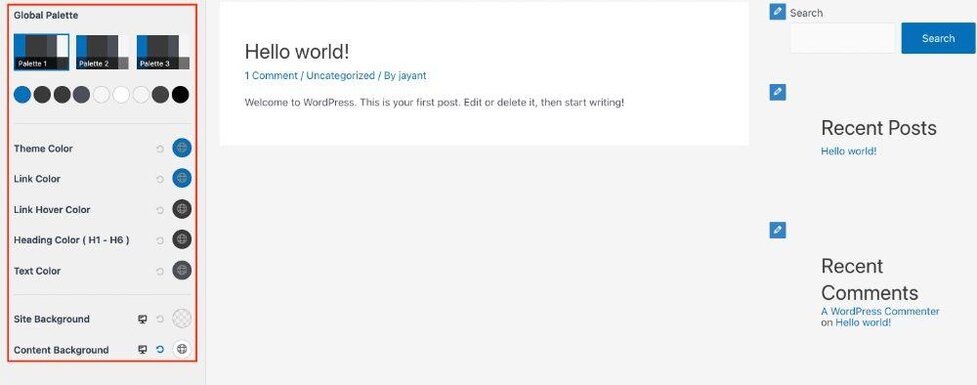
Credit: wpastra.com
Frequently Asked Questions
How Do I Change Theme Colors In WordPress?
To change colors in a WordPress theme, access the Customizer. Navigate to Appearance > Customize. Look for a ‘Colors’ section. Here, you can adjust various color settings. Save changes by clicking ‘Publish’. Always preview changes before finalizing them to ensure desired look.
Can I Customize Colors Without Coding?
Yes, you can customize colors without coding using WordPress Customizer. Many themes offer built-in color options. Navigate to Appearance > Customize. Select ‘Colors’ to modify as needed. Some plugins also enable color customization. Explore theme settings for additional options and features.
Why Don’t My Color Changes Appear?
Color changes might not appear due to caching issues. Clear your browser cache and reload the page. Ensure you’ve saved changes in the Customizer. Check if your theme supports color customization. Sometimes, changes require refreshing the WordPress theme or updating your browser.
Are Plugins Useful For Color Changes?
Plugins can enhance color customization in WordPress. Install plugins that offer advanced styling options. Plugins like ‘CSS Hero’ or ‘YellowPencil’ can be helpful. They allow detailed adjustments beyond built-in theme settings. Always check plugin compatibility with your theme before installation.
Conclusion
Changing colors in WordPress themes is simple and effective. It helps create a unique website look. Start by exploring the theme options panel. Use the WordPress customizer for easy adjustments. Experiment with different color schemes. Always preview changes before saving.
Consistent colors enhance your brand identity. They also improve user experience. Remember to check mobile responsiveness too. Color changes should look good on all devices. Regular updates keep your site fresh and engaging. Enjoy the process and let your creativity shine.
Keep learning and exploring new design possibilities. Your website deserves the best!


