
Are you eager to give your WordPress website a fresh look but unsure how to change colors in the Enfold theme? You’ve landed in the right place.
The colors on your website aren’t just about aesthetics; they play a crucial role in how visitors perceive your brand. A captivating color scheme can grab attention, evoke emotions, and even influence the actions your visitors take. If you’ve been struggling with color customization, you’re not alone.
Many website owners find themselves stuck with default themes that don’t quite match their vision. But worry not! In this guide, you’ll discover simple, step-by-step methods to transform your Enfold theme’s colors, making your site uniquely yours. Ready to turn your website into an eye-catching masterpiece? Let’s dive in and unlock the power of color for your online presence.

Credit: themeforest.net
Accessing Theme Options
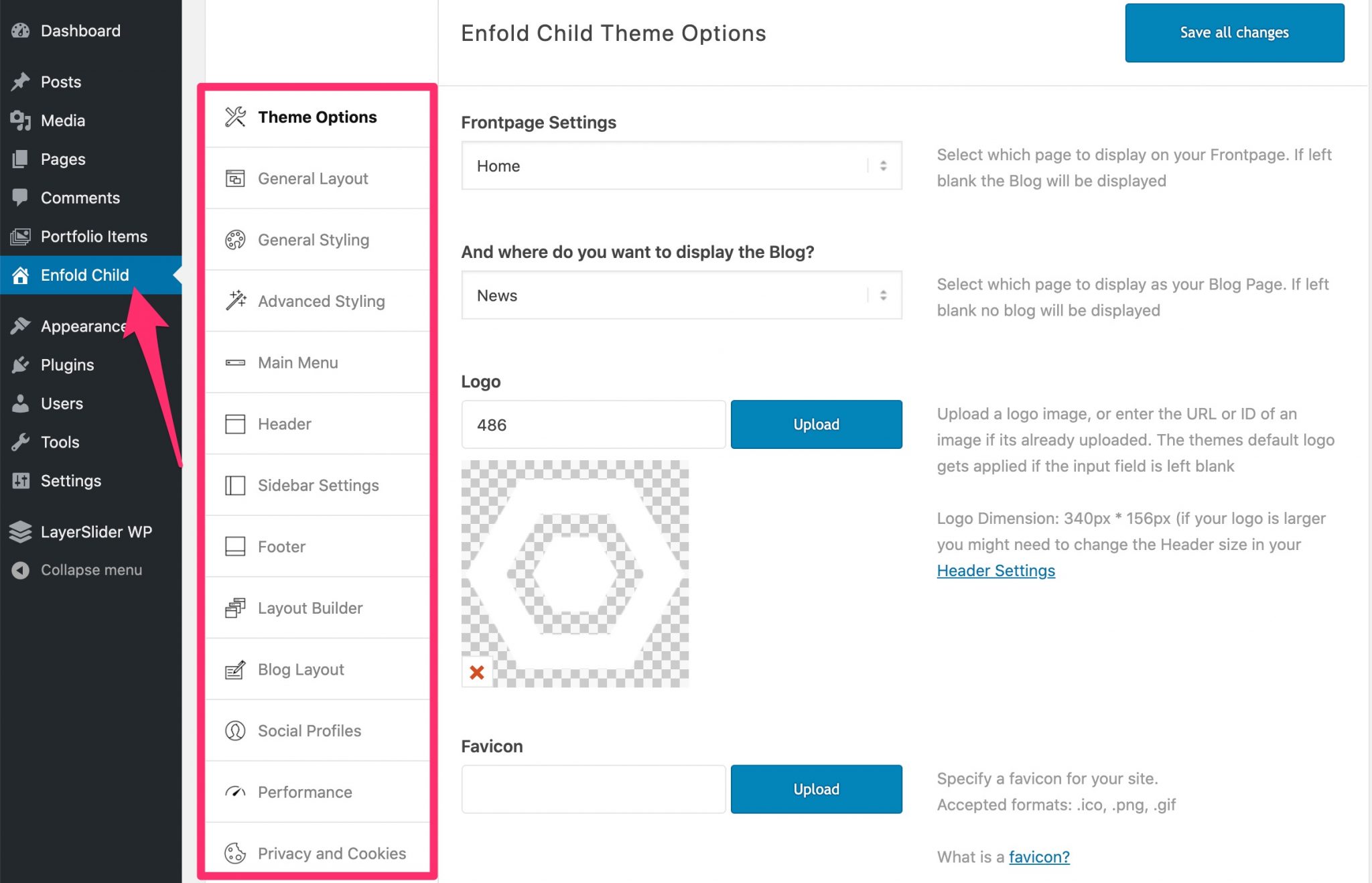
First, log into your WordPress dashboard. Look for the Enfold option on the left. Click it. A new menu will appear. This menu is for theme settings. Here you can change colors. Find the General Styling tab. Click it to open. You will see color options. These options include the header, footer, and links. Select the color you like. Use the color picker tool. Save changes by clicking Save all changes. Your site will update with new colors. Check your site to see the changes. If you need more adjustments, go back to the options. Repeat the steps until you are happy.
Navigating To General Styling
First, log into your WordPress dashboard. Find the menu on the left. Click on Enfold Theme Options. This opens a new page. Look for the General Styling tab. It’s usually near the top. Click it to explore color settings.
Inside, you’ll see many options. Change background colors here. Adjust font colors too. There are choices for header colors. Each change is easy. Just click and pick a color. Save changes at the bottom. Your site gets a new look!
Colors create moods. Bright colors feel happy. Dark colors seem serious. Choose colors that match your style. It’s fun to make your site colorful!
Choosing Your Color Scheme
Enfold theme offers preset color schemes. These are ready to use. Each scheme fits different styles. You can find these in the settings. Choose one that matches your website’s look. This is a quick way to change colors. Each scheme has unique colors. Some are bright, others are calm. Pick one that fits your taste. It makes your site look nice.
Want your own colors? You can do that too. Enfold lets you pick custom colors. Go to the color settings. Here, you see many options. Pick a color for each part. Like the background or text. This way, your site looks unique. It will match your brand or style. Choosing colors is fun and creative.

Credit: kriesi.at
Customizing Header Colors
To change the header background color, go to your WordPress dashboard. Find the Enfold Theme Options. Click on General Styling. Look for the Header section. Here, you can select a new color. Click on the color picker to choose a color. Make sure it’s a color you like. Press Save to apply changes. Your header will now have a new background color.
Changing the menu text color is easy. Stay in the Enfold Theme Options. Navigate to the Advanced Styling tab. Select Main Menu Links from the list. Here, you can change the text color. Click on the color box to choose a color. Choose a color that is easy to read. Press Save to see the new menu text color. Now your menu will look just right.
Adjusting Footer Colors
Changing the footer background color is easy. Go to the Enfold theme options. Find the section for footer settings. Choose the color you like. Pick a dark color for contrast. This makes the text stand out. Save your settings. Check your site to see the change. The footer looks fresh now.
Widget text color is also customizable. Navigate to the widget settings in Enfold. Select a color for the widget text. Bright colors are great for readability. Make sure the text is clear. Save the changes you made. Refresh your page. Notice how the text pops. Easy and effective!
Changing Button Colors
To change button colors in the Enfold theme, go to your WordPress dashboard. Find the Enfold theme options and click on it. Look for the Advanced Styling section. Select the button you want to change. You will see a color picker tool. Choose your desired color. Click save to apply changes.
It’s easy and quick. The new color updates instantly. Make sure to refresh your page to see changes. If you don’t like the new color, you can change it again. Experiment with different colors until satisfied. This tool helps make your site unique. Enjoy customizing!
Tweaking Link Colors
Changing the default link color in Enfold is easy. First, go to the WordPress Dashboard. Click on Enfold in the menu. Then, select General Styling. Here, you can find the option to change the link color. Choose a color that matches your site’s theme. This ensures a consistent look across your website. Remember, a good contrast makes the text readable.
You can also change the hover effect color for links. This is done in the same section. Hover effects help users know a link is clickable. Choose a color that stands out. It should be different from the default link color. This makes it easy for users to interact with your website. A bright color often works well for hover effects.
Utilizing Advanced Styling
Explore advanced styling with Enfold Theme to change colors effortlessly. Navigate to the styling options in the WordPress dashboard, select your desired color scheme, and watch your site’s appearance transform instantly. Enhance your website’s visual appeal with personalized color choices.
Custom Css
To change colors, use Custom CSS. It helps make your site unique. First, go to the WordPress Dashboard. Click on Appearance. Then, choose Customize. Find the Additional CSS section.
Here, you can add your CSS rules. Change the colors you want. For example, type body { background-color: #f0f0f0; } to change the background. Always remember to save changes.
Additional Styling Options
Enfold Theme offers more styling features. Use the Advanced Styling tab. Access it through the theme options. This feature provides many color choices. You can change header and footer colors. Also, adjust button and link styles.
Make sure to preview your changes. This helps you see the results before publishing. Always save your work once happy.
Saving And Previewing Changes
After changing colors, saving is important. Click the Save Changes button. This keeps your edits safe. You can see how the website looks with new colors. Click on the Preview button. This lets you check how the changes appear. You don’t need to publish yet. You can still make more edits if needed.
Previewing helps catch mistakes. It shows the website with new colors. Make sure everything looks good. Check if text is readable. Look at images too. If anything seems wrong, go back and fix it. Saving and previewing make sure your website looks just right. They help avoid problems before going live.
Credit: wpmarmite.com
Frequently Asked Questions
How Can I Change Enfold Theme Colors?
To change colors in Enfold, navigate to the WordPress dashboard. Go to Enfold > General Styling. Here, you can customize the primary color scheme by selecting predefined styles or using the color picker for each element, like background or text.
Save changes and preview your website.
Can I Customize Enfold Theme Background Color?
Yes, you can customize the background color in Enfold. Go to Enfold > General Styling. Under the ‘Background’ section, choose your desired color using the color picker. Make sure to save your changes and check your site to ensure the new background color is applied correctly.
Where To Find Enfold Theme Color Settings?
You can find Enfold theme color settings in the WordPress dashboard. Navigate to Enfold > General Styling. This section lets you alter various color elements like background, header, and footer. Use the color picker to select your preferred hues and save your changes for instant updates.
Does Enfold Support Custom Color Schemes?
Yes, Enfold supports custom color schemes. You can create unique color combinations by accessing Enfold > General Styling. Use the color picker to personalize different site elements, including text, links, and backgrounds. Save your selections to apply the new color scheme across your website.
Conclusion
Changing colors in the Enfold theme is easy. Follow simple steps. Customize the look of your WordPress site. Use the theme options menu. Experiment with different color schemes. Make your website unique and appealing. This guide helps you refresh your site’s design.
Enjoy exploring new colors and styles. Enhance your site’s visual appeal. Improve user experience with vibrant colors. Keep your site engaging and fresh. Now, your WordPress site stands out. Happy customizing!


