
Are you tired of the default colors in your WordPress theme? You’re not alone.
Many website owners want their site to reflect their unique style, and color is a powerful tool for that. Imagine creating a visual experience that not only catches your visitors’ eyes but also keeps them engaged. The good news is, changing colors in a WordPress theme is easier than you might think.
This guide will walk you through the simple steps to customize your site’s colors, ensuring it aligns perfectly with your brand identity. Dive in, and discover how a splash of color can transform your website into an inviting and memorable space.

Credit: doc.seatheme.net
Choosing The Right Theme
Picking a theme is fun. Themes come in many styles. Some are bright. Some are dark. Color affects how your site looks. It can make your site pretty. Or it can make it hard to read. Find a theme that looks good to you.
Make sure the theme is easy to change. Some themes have simple settings. Others are hard to change. Look for themes with color options. This makes changing colors easy. Check if the theme lets you pick colors for different parts.
Choose a theme that fits your site’s topic. A theme for cooking may not work for tech. Always check the reviews. Good reviews mean the theme is liked. Bad reviews can be a warning. Take your time to pick the right theme.
Accessing The Theme Customizer
Open your WordPress dashboard. Look for the Appearance option. Click on it. You will see Customize. This opens the Theme Customizer. Here, you can change colors. Choose Colors from the menu. You will find different color options. Click to select a color. Watch the preview change. Save changes by clicking Publish. Now, your theme has new colors. Make sure to save your work.
Some themes have extra options. Look for Advanced Colors. You can change background and text colors. Find more settings under Theme Options. Experiment with different color combinations. See which colors look good. Remember to save each change. Always check the preview before you publish. This helps you avoid mistakes.
Using The WordPress Editor
First, open your WordPress dashboard. Look for the Appearance option on the left side. Click on it. Then, select the Customize option. This will open the theme editor. The editor lets you change many things. It’s a simple way to change your site’s look.
In the editor, find the Colors or Color Scheme section. This section allows you to change theme colors. You can pick new colors for your site. Make sure to save changes. This will update your site’s colors instantly.
Custom Css For Color Changes
Open your WordPress dashboard. Go to Appearance and click on Customize. Find the Additional CSS section. Type your CSS code there. Use CSS to change colors. For example, to change the background color, use body { background-color: #yourcolor; }. Save changes.
Check your site to see the color changes. Refresh the page to view updates. Look for any mistakes. Adjust the CSS code if needed. Try different colors. Make sure the text is easy to read. Use contrasting colors. Save each change you make. Your site should look nice and clear.
Utilizing Plugins For Advanced Customization
Explore color changes in WordPress themes by using plugins for advanced customization. These tools allow easy adjustments to your site’s appearance, enhancing its visual appeal. Simplify the process of updating colors to align with your brand effortlessly.
Popular Color Plugins
Plugins help change colors in WordPress themes. They are easy to use. Colorlib is a popular choice. It has many features. You can change background colors. You can change text colors too. WP Customizer is another good plugin. It offers many options. You can adjust every color. These plugins make customization simple.
Installation And Setup
Install plugins from the WordPress dashboard. First, go to the Plugins tab. Click on “Add New”. Search for your desired plugin. Click “Install Now”. After installation, click “Activate”. Your plugin is now ready. You can start customizing colors. Follow setup instructions. Each plugin has unique steps. Read the guide carefully.

Credit: qodeinteractive.com
Exploring Theme Options Panel
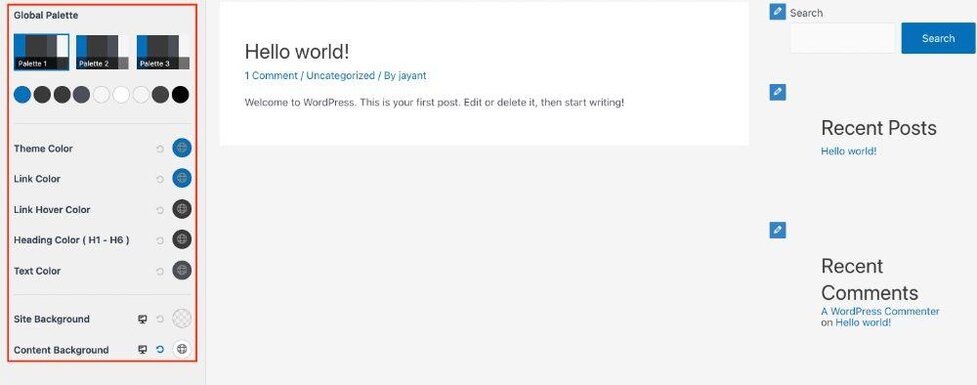
Many WordPress themes come with a Theme Options Panel. This panel helps you change colors easily. You will find a section called Color Schemes. Different themes offer various palettes. Pick one that suits your style. Choose colors that match your website’s mood. Sometimes, you can customize each color. This means you change the background, text, and link colors. Make sure your choices are readable.
After picking colors, save your changes. The save button is often at the top. Preview your changes before going live. This helps you see how the website looks. Sometimes changes might not appear right. If so, try refreshing the page. Always check on different devices. Colors might look different on each. Make sure everything looks good. Once satisfied, publish your changes. Your website will now show your new colors.
Troubleshooting Common Issues
Changing colors in a WordPress theme involves accessing the theme customizer. Navigate to the “Appearance” section, then select “Customize”. Use the color options to select new shades for headers, backgrounds, and text. Save changes to see the new look instantly.
Changes Not Applying
Changes may not show due to cache issues. Clear your browser’s cache. Check your theme settings for custom CSS. Verify if plugins are overriding styles. Look for theme updates. Updates might revert changes. Sometimes, child themes need adjustments separately. Ensure you save changes after editing.
Resetting To Default Colors
Resetting colors can solve many problems. Go to theme settings. Find the color options. Click on reset. This restores original colors. If not visible, check for theme updates. Some themes hide the reset option. Use the customizer to reset colors manually. Reinstalling the theme might help. But back up your data first.
Best Practices For Color Choices
Colors have power. They can set mood and tone. Primary colors are red, blue, and yellow. Mixing them creates secondary colors. Warm colors like red and orange feel cozy. Cool colors like blue and green feel calm. Complementary colors are opposite on the color wheel. They make each other pop. Analogous colors sit next to each other. They create harmony. Choose colors wisely. They tell a story.
Accessibility matters. Everyone should enjoy your website. High contrast is key. Make text easy to read. Dark text on light background works well. Color blindness affects many people. Avoid using color alone to show meaning. Use symbols too. Test your site. Check color combinations. Use tools like contrast checkers. This ensures your site is friendly for all visitors.
Credit: wpastra.com
Frequently Asked Questions
How Can I Change Theme Colors In WordPress?
To change theme colors in WordPress, navigate to Appearance > Customize. Select ‘Colors’ or ‘Theme Options’ to modify colors. Some themes may have specific color settings. Save changes after customizing. Always preview before saving to ensure the desired look.
Can I Use Custom Colors In My WordPress Theme?
Yes, custom colors can be used in WordPress themes. Use the color picker in the Customizer or enter hex codes for precision. Some themes offer advanced color settings for various elements. Plugins can enhance color customization capabilities.
Why Are Theme Color Changes Not Visible?
If theme color changes aren’t visible, try clearing your browser cache. Ensure you’ve saved changes in the Customizer. Some themes might require additional steps. Check theme documentation for specific instructions. Refresh your site to view updates.
Do All WordPress Themes Support Color Changes?
Not all WordPress themes support extensive color changes. Basic themes may have limited customization options. Premium themes often provide more flexibility. Always check the theme’s features before installation. Plugins can offer additional color customization options.
Conclusion
Changing colors in a WordPress theme can enhance your site’s look. With simple steps, you can create a unique and engaging design. Explore different palettes to find what suits your brand best. Always preview changes before saving to ensure satisfaction.
This small effort can greatly impact user experience and site appeal. Remember, consistency in color choices helps maintain a professional appearance. Don’t hesitate to experiment and refine your color scheme. Enjoy the process, and watch your website come to life with vibrant colors that reflect your style.
Happy designing!


