
Are you tired of the same old colors in your WordPress theme? Do you want to infuse a fresh vibe into your website without altering its core design?
Changing the color of your text can make a huge difference. It not only enhances readability but also adds a personal touch to your site. Imagine your words popping off the screen, grabbing attention, and conveying your message more effectively.
In this guide, you’ll discover how easy it is to transform your WordPress text colors. Whether you’re a beginner or a seasoned WordPress user, this simple tweak can refresh your site in just a few steps. Let’s dive in and bring your website to life with the perfect palette!
Choosing The Right Text Color
Colors are important. They can change the mood of a page. Bright colors can make text stand out. Soft colors can make it calm. Use complementary colors for a nice look. They are opposite on the color wheel. Analogous colors are side by side. They give a smooth feel. Balance is key. Too many colors can be confusing. Few colors keep the design clean.
Everyone should read your text easily. Some people have trouble seeing colors. Use high contrast between text and background. Black text on white is good. Avoid color combinations that are hard to read. Red and green can be tricky for some. Ensure text size is big enough. This helps everyone read better.
Your text color should match your brand. Brands often have specific colors. These colors make them unique. Use these colors in your text. This keeps everything looking the same. It helps people know your brand. Stick to your brand’s color palette. It builds trust and recognition.
Using WordPress Customizer
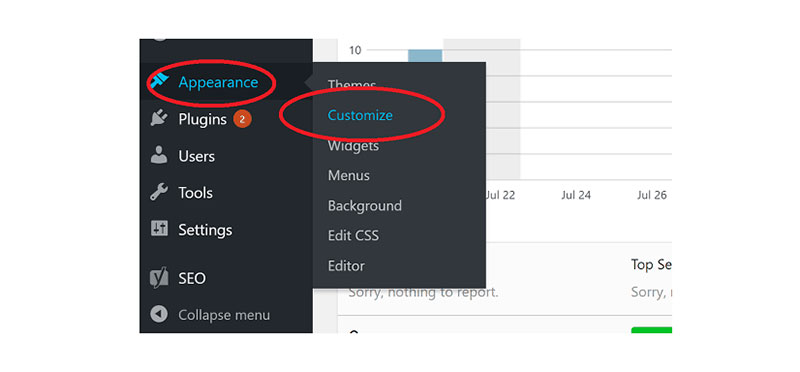
Go to your WordPress dashboard. Find the Appearance tab. Click on Customize. The customizer will open. This tool helps you change your theme.
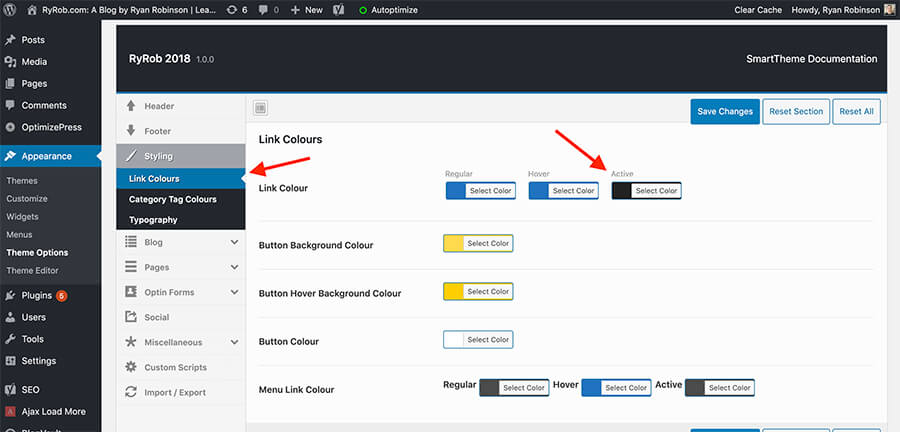
Look for the Typography section. You might see Colors or Text Styles. These options let you adjust text colors. Choose the one you need. It could be for headings or paragraphs.
Change the color and watch the preview. The screen shows real-time changes. Experiment with different colors. Make sure it looks good. You can see how your site will appear. Don’t forget to save your changes.
Editing Theme Css
Find the right CSS class to change text color. Open your WordPress dashboard. Go to the theme editor. Check the style.css file. Look for the text elements you want to change. Note the class names used.
Go back to the WordPress dashboard. Navigate to Appearance and click on Customize. Find the Additional CSS section. Add new CSS rules here. Use the class names found earlier. Change the color property to your desired value. For example, color: red;.
After adding your CSS, click the Publish button. This saves your changes. Now, go to your website. Refresh the page. You should see the new text color. If it doesn’t show, clear the browser cache. Sometimes changes need this to update.
Credit: wpdatatables.com
Utilizing Plugins
Changing text color is easy with the right plugins. WP Customizer is popular. Colorful Text works well too. Both plugins are user-friendly. They help you pick colors easily. Customizer lets you preview changes. Colorful Text is great for beginners. Simple and effective.
First, go to the WordPress dashboard. Click on Plugins. Choose Add New. Search for your plugin. Click Install Now. Once installed, click Activate. Your plugin is ready to use. Easy steps for everyone.
Open the plugin settings. Look for color options. Pick your favorite color. Save the changes. Now, your text will look different. Enjoy your new text color! Remember to refresh your page. Your changes will appear then. Happy editing!
Troubleshooting Common Issues
Sometimes, changes don’t appear instantly. Clear your cache to see updates. Refresh your page often. Check theme settings. Ensure you saved changes. These steps often solve the problem.
Default styles can be tricky. Use custom CSS to override. Add your code in the theme editor. Locate “Additional CSS” under Appearance. Make your changes there. Always preview your edits. This ensures your design matches.
Mobile views need special attention. Check your theme’s responsive settings. Inspect changes on different devices. Use browser tools for testing. Optimize for tablets and phones. Ensure text color looks good everywhere.
Credit: www.ryrob.com
Advanced Techniques
Discover ways to change text color in WordPress themes using advanced techniques. Explore theme customizer, and modify CSS files for personalized styling. Enhance your site’s appearance with easy tweaks.
Custom Fonts And Colors
Custom fonts give your site a unique look. Many themes support Google Fonts. This allows easy changes. Select a font style you like. Change colors using the theme’s options. Some themes have a color picker. Use this tool to find the right shade. Make sure your text color matches your brand. Contrast is key. Light text on a dark background works well. The opposite is true too.
Using Developer Tools
Developer tools are found in web browsers. Press F12 to open them. Find the Inspect Element feature. Click it and choose a text area. You will see CSS rules for that text. Change the color code there. This will not save changes. It only shows how it looks. Update the CSS file to make it permanent.
Creating A Child Theme
A child theme lets you change your theme safely. First, create a new folder in the themes directory. Add a style.css file. This file will have your changes. Point to the parent theme in the CSS file. Add your new styles here. This keeps your changes separate. Updates to the parent theme will not erase your changes. Use this method for complex customizations.

Credit: www.greengeeks.com
Frequently Asked Questions
How Can I Change Text Color In WordPress?
To change text color in WordPress, go to your theme’s Customizer. Navigate to the “Colors” section and select “Text Color. ” Choose your desired color from the palette. Save your changes to see the updated text color on your website.
Can I Use Css To Change Text Color?
Yes, you can use CSS to change text color. Add custom CSS in the “Additional CSS” section under Appearance > Customize. Use the “color” property to specify your desired text color. Save the changes to apply the new color.
What Tools Help With WordPress Text Color Change?
WordPress offers the Customizer for easy text color changes. Plugins like YellowPencil and CSS Hero provide advanced customization options. These tools allow you to tweak colors without coding knowledge, ensuring a seamless design experience.
Does Changing Text Color Affect Seo?
Changing text color doesn’t directly affect SEO. Ensure your text is readable and contrasts well with the background. This improves user experience, which can indirectly benefit SEO by reducing bounce rates and increasing engagement.
Conclusion
Changing text color in a WordPress theme is simple. Follow the steps outlined, and you’ll have vibrant text. Customizing your site’s appearance enhances its uniqueness. It also improves user experience. Experiment with different colors to find what suits your brand.
Always preview changes before publishing. This ensures your design looks professional. Keep in mind, consistency is key. Use colors that complement each other. This helps maintain a clean, appealing look. Remember, a well-designed site attracts visitors. Happy editing! Your WordPress site will shine with your personal touch.


