
Are you looking to give your WordPress site a fresh new look by changing its color theme? Whether you want to reflect your brand better or simply refresh your website’s appearance, adjusting the color scheme can make a significant impact.
But where do you begin, and how can you ensure the changes enhance your site’s appeal without overwhelming your visitors? In this guide, we’ll walk you through the simple steps to customize your site’s colors, helping you create a visually engaging experience that keeps your audience coming back for more.
Don’t worry if you’re not a tech wizard—these tips are designed to be easy to follow, ensuring you can transform your WordPress site with confidence and ease. Stay with us as we unlock the secrets to a more vibrant and captivating website!
Accessing WordPress Dashboard
First, you need to log in to your WordPress site. Enter your username and password. Once logged in, you will see the WordPress dashboard. The dashboard is where you can control your site. Look to the left side of the screen. This is the menu area. You will find all the options here.
To change the site color, find the Appearance tab. Click on it. A drop-down menu will appear. Choose Customize from the list. This will open the theme customizer. Here, you can change colors, fonts, and more. Explore the options to make your site unique.
Credit: www.ryrob.com
Navigating To Appearance Settings
Start by logging into your WordPress dashboard. Find the Appearance tab on the left side. Click it to explore options. Look for customization features. These allow changes to your site’s look.
Discover the Color section. It’s part of the customization menu. Here, select new colors for your site theme. Use the color picker for precise shades. Experiment with different choices. Preview changes to see results. Save your work to apply the new colors.
Appearance settings offer more than just colors. Customize fonts, layouts, and backgrounds too. Make your site unique and attractive. Repeat steps for adjustments anytime. Your site can always have a fresh look.
Using The Customizer Tool
Locating the Customize Option is simple. Start by logging into your WordPress dashboard. On the left side, find the Appearance menu. Click it to see the Customize option. This tool lets you change your site’s color theme easily.
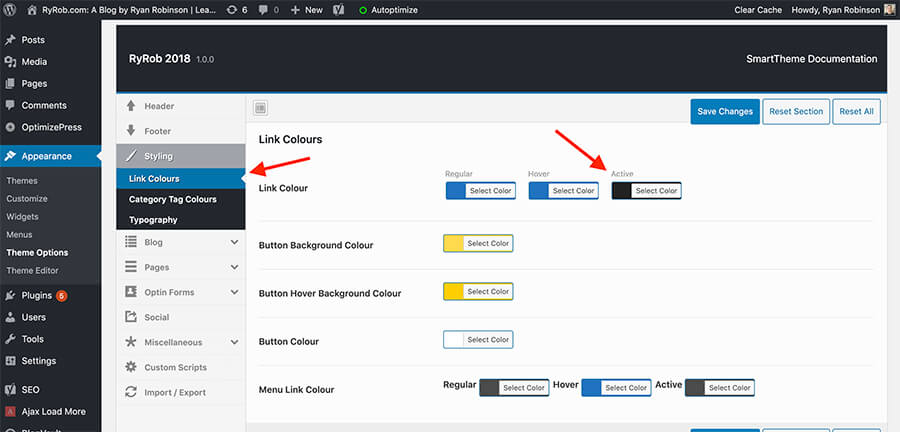
Next, go to Exploring Theme Options. Once in the Customizer, look for the Colors or Theme Options section. Each theme has different settings. You can change the background, text, and link colors. Adjust these settings to match your style. Remember to save changes before exiting.

Credit: doc.seatheme.net
Changing Colors In The Theme
First, log in to your WordPress dashboard. Find the Appearance tab on the left. Click on it. Then choose Customize. You will see many options. Look for Colors or Color Scheme. This is where you can change colors. You might see some preset schemes. These are ready-made options. You can choose any of them. If not, you can make your own.
To set custom colors, find the Color Picker. It lets you choose any color. Click on the color box. A color wheel will appear. Drag the circle around. Find the shade you want. You can also enter a color code. This is a specific number for each color. Copy it from a color chart. Paste it into the box. Press Save to keep changes. Now, your site has new colors!
Saving And Publishing Changes
After making the color changes, it’s important to save them. Use the save button to keep your work. This action ensures your changes are not lost. Once saved, check if the colors look right. Preview your site to see the new theme. If satisfied, proceed to publish. Click the publish button to make your changes live. This step is crucial for visitors to see the new colors. Remember, saving and publishing make your site updates official. Always double-check before publishing.
Using Additional Plugins
Exploring Plugin Options can help you change your site colors easily. Many plugins offer amazing tools. Each plugin has unique features. Some are free, others are paid. Always check user reviews. They can tell you a lot. Popular plugins include ColorWay and SiteOrigin CSS. These are easy to use.
For Installing a Color Customization Plugin, first go to your WordPress dashboard. Click on “Plugins” and then “Add New”. Type the plugin name in the search box. Once found, click “Install Now”. After installing, click “Activate”. Now, you can change your site’s colors. It’s simple and quick. No coding needed. Just a few clicks and you are done.
Testing The New Color Theme
Check if the new color theme looks nice on your site. Visit different pages to see the changes. Make sure that text is easy to read. Sometimes, colors can make text hard to see. Try to fix any problems you find.
Ask friends to look at your site. They can tell you what they think. Listen to their advice. It’s important to know if they like the colors. Also, test on phones and tablets. Colors can look different on each device.
Be sure that buttons and links are visible. They should stand out from the background. This helps users find them easily. Good color choices make your site look professional.
Troubleshooting Common Issues
Changing the color of your site theme in WordPress can be simple. Access your dashboard, navigate to Appearance, then Customize. Select Colors to adjust your theme’s palette to suit your preference.
Color Changes Not Appearing
Sometimes, color changes don’t show on your site. This can be frustrating. Clear the cache first. This helps your browser load new changes. Check theme settings. Ensure changes are saved. Update your theme. An old theme might not support new colors. Try a different browser. Some browsers may not show changes well. Contact support if problems persist. They can help fix issues.
Reverting To Default Settings
Reverting to default settings can solve many issues. Access the theme settings. Look for the reset button. Press the reset button to revert changes. This brings back original colors. Confirm your changes. Some themes ask for confirmation. Update plugins. Plugins can affect colors. Reinstall theme if issues remain. This installs fresh settings. Backup your site before major changes. This saves your work.

Credit: qodeinteractive.com
Frequently Asked Questions
How Can I Change My WordPress Theme Color?
To change your WordPress theme color, navigate to Appearance > Customize. Click on ‘Colors’ or ‘Theme Options’. Here, you can select a new color scheme. Save your changes and preview your site to see the new color theme in action.
Where Do I Find Color Settings In WordPress?
In WordPress, color settings are found under Appearance > Customize. You may see options like ‘Colors’ or ‘Theme Options’. These sections allow you to change your site’s color scheme easily. Always preview changes before saving to ensure your design looks as desired.
Can I Use Custom Colors In WordPress Themes?
Yes, you can use custom colors in WordPress themes. Navigate to Appearance > Customize, then select ‘Colors’ or ‘Theme Options’. Here, you can choose custom colors using a color picker tool. This allows for a personalized and unique look for your website.
Do All WordPress Themes Support Color Changes?
Not all WordPress themes support color changes. It depends on the theme’s customization options. Most premium themes offer extensive color options. Always check the theme’s documentation or demo before purchasing to ensure it meets your customization needs.
Conclusion
Changing your site’s color theme in WordPress is straightforward. Follow these steps and experiment with different colors. Make sure to preview changes before publishing. This will ensure your site looks appealing to visitors. A cohesive color theme enhances user experience and brand identity.
Don’t hesitate to revisit and adjust colors as needed. Regular updates keep your site fresh and engaging. Remember, small tweaks make a big difference. Keep exploring creative options to find what suits your site best. Your unique color theme will help your site stand out.
Enjoy customizing your WordPress site!


