
Are you feeling stuck with your current WordPress theme? Maybe it’s not quite matching the vision you had for your website.
Don’t worry, you’re not alone, and there’s a solution. Changing the code of your WordPress theme might sound intimidating, but it can be the key to unlocking the full potential of your site. Imagine having total control over every detail, ensuring your website is not only visually stunning but also perfectly aligned with your brand’s identity.
In this guide, you’ll discover step-by-step instructions tailored for both beginners and seasoned users, so you can confidently make those necessary tweaks and transform your site into exactly what you want it to be. Let’s dive in and empower you to take charge of your WordPress theme like never before!

Credit: kinsta.com
Choosing The Right Tools
Choosing a good text editor is important. It helps in writing and editing code. Some popular options are Notepad++, Sublime Text, and Visual Studio Code. These editors highlight syntax and make coding easier. They are user-friendly and free to use.
FTP clients help in transferring files to the server. FileZilla is a popular choice. It is free and easy to use. With FTP, you can upload and download files quickly. It is important for accessing theme files on the server.
Local development environments let you build and test websites offline. XAMPP and Local by Flywheel are good options. They are free and easy to set up. Testing locally ensures your website works well before going live.
Creating A Child Theme
A child theme lets you change your site safely. It protects your changes from future theme updates. Main themes update often. Updates can erase direct changes to code. Child themes keep your changes intact. This way, your website stays safe.
First, create a new folder. Give it the name of your child theme. Inside, make a style.css file. Add your theme details here. Next, create a functions.php file. This helps in loading parent theme styles.
Go to the WordPress admin area. Click on Appearance, then Themes. Find your child theme. Click Activate. Your child theme is now live. It runs alongside the parent theme. You can now make changes without worry.
Accessing Theme Files
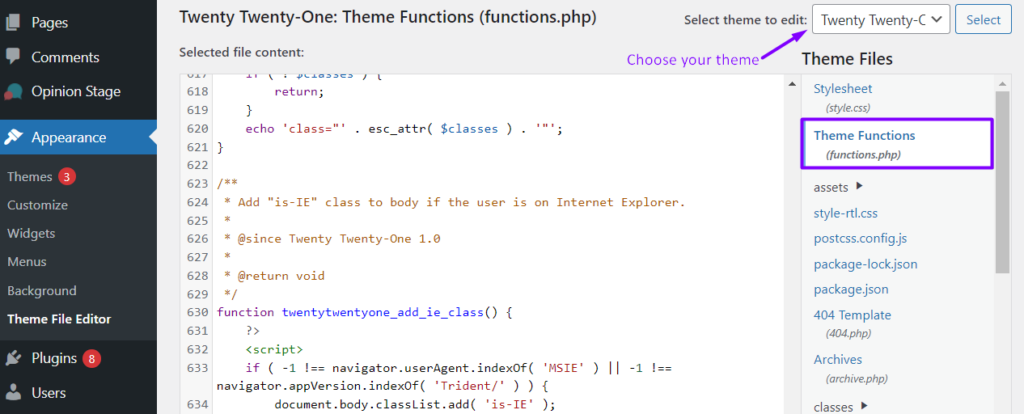
The WordPress Dashboard is easy to use. Log in to your WordPress site. Find the Appearance section. Click on Theme Editor. Now, see the files. Make changes safely. Always back up your files. Mistakes can happen.
FTP helps when you need more control. Download an FTP client like FileZilla. Enter your website’s FTP details. Navigate to the wp-content/themes folder. Find your theme. Make changes as needed. Be careful. Only edit files if you understand them.
A local environment is a safe playground. Install a tool like XAMPP or MAMP. Set up WordPress locally. Make changes without risks. This method is for advanced users. Beginners should ask for help if needed. Save changes and test before going live.
Editing Theme Code Safely
Making a backup of your site is very important. A backup keeps your data safe. Use a plugin or hosting service for this task. Save the backup files on your computer. Check the backup to make sure it’s working. This way, you can restore your site if needed. Keep a regular schedule for backups.
Always use a child theme for changes. This keeps the original theme safe. Make small changes and test them. Write comments in your code. This helps you remember what you changed. Use a good text editor. This makes coding easier and error-free. Learn basic HTML and CSS. It helps you understand the changes.
Test your changes on a staging site first. This is a copy of your site. It lets you see changes without risk. After testing, check your live site. Make sure everything works fine. Look at your site on different devices. This ensures a good experience for all users. Fix any errors you find quickly.
Common Customizations
To change colors, locate the style.css file. Find the color code you want to change. Replace it with your new color. For fonts, go to the same file. Search for font-family. Type the new font name. Save your changes. Refresh your site to see results.
Layouts can be tricky. Find the index.php file. This controls the homepage. Look for div tags. Change their order to modify layout. Use CSS for size and spacing. Check theme options for easy changes. Always make a backup first. Mistakes can happen.
Widgets add fun features. Go to the functions.php file. Add code to register a new widget. Use register_sidebar() function. Add HTML code for the widget. Test it on your site. Widgets are cool but need care. Check for errors often.
Troubleshooting And Debugging
Changing the code of a WordPress theme requires careful troubleshooting and debugging. Start by accessing the theme editor in your WordPress dashboard. Make backup copies before making any changes to avoid potential errors.
Common Errors
Errors can stop your website. Syntax errors are common. Check for missing brackets or semicolons. Compatibility issues happen when plugins clash. Always update plugins.
Using Debugging Tools
Tools help find problems. Use WP Debug to see errors. It logs them for you. Developer tools in browsers show errors too. They help track code issues.
Reverting Changes
Sometimes changes break things. Backup your theme before edits. Restore it if needed. Use version control like Git. This helps track changes. Easy to go back if something fails.
Resources For Further Learning
Explore online tutorials and forums to learn how to change WordPress theme code. Step-by-step guides simplify complex coding tasks. Access video demonstrations for visual clarity in code customization.
Online Tutorials
Online tutorials are great for learning. Many websites offer free lessons. These tutorials teach you step-by-step. Videos make learning easy. Some sites have quizzes. Quizzes help test your knowledge. You can learn at your own pace. Tutorials are available anytime. Use them to improve your skills.
WordPress Codex
WordPress Codex is helpful. It is like a big book online. It explains everything about WordPress. You find guides and tips there. Codex helps understand themes better. It is very detailed. Codex is updated often. You can learn new things there. Use Codex for coding help.
Community Forums
Community forums are full of people. They share ideas and help each other. You can ask questions there. People are friendly and supportive. Forums have many topics. You find answers and solutions. Learn from others’ experiences. Join forums to connect with experts. Forums make learning fun.

Credit: www.youtube.com
Credit: www.easywp.com
Frequently Asked Questions
How Can I Safely Edit A WordPress Theme?
To safely edit a WordPress theme, create a child theme first. This preserves your customizations during updates. Use FTP or a file manager to access theme files. Make necessary changes in the child theme’s directory. Always back up your site before making any modifications to prevent data loss.
What Tools Help Edit WordPress Theme Code?
Several tools can assist in editing WordPress theme code. Use a text editor like Sublime Text or Notepad++ for coding. The WordPress Customizer allows basic CSS changes. For advanced edits, FTP clients like FileZilla or a hosting control panel’s file manager are useful.
Is Coding Knowledge Necessary For WordPress Theme Changes?
Basic coding knowledge is helpful but not mandatory for theme changes. WordPress offers user-friendly interfaces for minor edits. For more complex modifications, understanding PHP, HTML, and CSS is beneficial. Online tutorials and forums can assist beginners in making coding adjustments.
Can I Preview Changes Before Applying Them?
Yes, you can preview changes before applying them. Use the WordPress Customizer for live previews of design alterations. For code changes, consider using a staging site. This allows you to test modifications without affecting your live site, ensuring everything works correctly.
Conclusion
Changing WordPress theme code is simple with practice. Start small. Understand each code segment before editing. Always back up your files. Mistakes happen; backups save time. Use online forums for help. Many developers share tips. Remember, themes affect site appearance.
Choose edits wisely. Test changes on a local server first. Ensures no site disruptions. Explore different coding methods. Learn as you go. Every change enhances your skills. Grow your confidence gradually. Coding knowledge opens many doors in web design. Enjoy the process.
Each step brings you closer to a unique website vision.


