
Are you tired of seeing the same old background image on your WordPress site every day? Changing the background can breathe new life into your website and make it more engaging for your visitors.
Whether you’re looking to create a personal blog, a business site, or an online portfolio, a fresh background can make all the difference. Imagine the impact of a well-chosen image that perfectly aligns with your brand’s message. It’s easier than you think, and in this guide, you’ll discover step-by-step how to change background images in WordPress themes.
Stick around, and by the end of this article, you’ll have the tools and confidence to give your website a stunning new look that captivates your audience and keeps them coming back for more.
Credit: www.greengeeks.com
Choosing The Right Image
Choosing a background image? Size and resolution matter. Large images can slow your site. Small images might look blurry. Use images that are 1000 pixels wide or more. This ensures clarity. Always check the resolution. Higher resolution means better quality. But be careful. It can also mean a larger file size. Aim for a balance between the two.
Not all themes support custom images. Check your theme’s settings. Some themes allow easy changes. Others might not. Use a theme that supports background changes. This makes the process simple. If unsure, consult your theme’s guide. Always ensure images fit well with your theme. This avoids cut-off or stretched images. A good fit looks professional.

Credit: colibriwp.com
Accessing The WordPress Dashboard
First, open your web browser. Type your website URL. Add “/wp-admin” at the end. Press Enter. A login page will appear. Enter your username and password. Click the Log In button. You will now see the dashboard. This is where you manage your site.
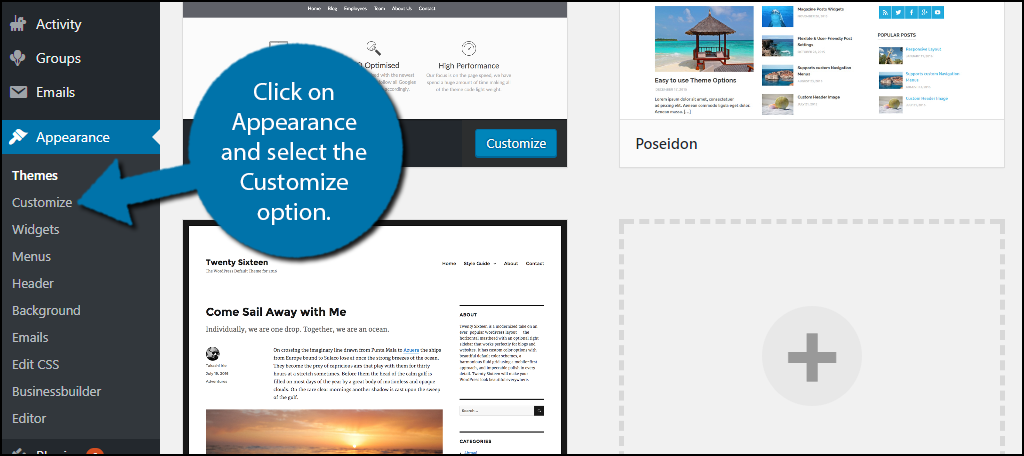
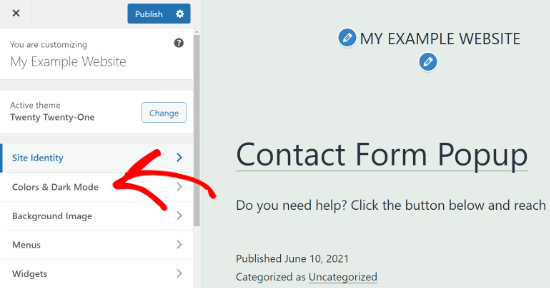
Look at the left sidebar. Find the Appearance option. Click it. A menu will drop down. Select Customize. This opens the theme customizer. Here, you can change the background image. Click on Background Image. You can upload a new image or select from existing ones. Make sure to save changes before exiting.
Customizing The Background
The theme customizer is a helpful tool in WordPress. It allows you to change your site’s look. You can add or change the background image easily. First, go to your WordPress dashboard. Find the Appearance menu. Click on Customize. Now, you are in the theme customizer. Here, find the option for background images. Upload your favorite picture. You can also choose from the media library. Preview your changes live. This helps you see how it looks. Remember to click Save to apply changes.
Position and size matter for background images. Use the options to adjust them. You can choose from center, left, or right positions. Try different positions to see what fits best. You can also repeat the image. This is useful for small images. Check the size options too. Choose cover to fill the whole screen. Try contain to fit the image in the area. Play with these settings. Find what looks best for your site.
Uploading A New Image
First, log in to your WordPress dashboard. Go to Appearance and click on Customize. Find the Background Image option. Select it to open your Media Library. Browse the images you have already uploaded. Click on an image you like. Press the Select button. Your new background will show up on your site.
Start by accessing your WordPress dashboard. Navigate to Appearance and then Customize. Look for the Background Image tab. Click on Upload Files. Hit the Select Files button. Choose an image from your computer. Press Open to upload it. Wait until the upload finishes. Click Select to set it as your background. Your site now has a fresh look.
Utilizing Custom Css For Backgrounds
Custom CSS lets you change the look of your site. It helps you change the background image. This is useful if you want a unique design.
Adding Css In The Customizer
Find the Customizer in the WordPress menu. Click on it. Look for the section called “Additional CSS.” You can add your code here. This is where you type your CSS code. It changes the background.
Styling Tips For Better Aesthetics
Choose images that match your site’s theme. Use simple patterns. Avoid very bright colors. They can be hard to look at. Make sure text is easy to read. Use contrast between text and background. This helps visitors read easily.
Credit: www.wpbeginner.com
Using Plugins For Background Changes
Plugins simplify background image changes in WordPress themes. Easily swap visuals without coding skills. Enhance site aesthetics with versatile options.
Top Plugins For Background Customization
WordPress offers many plugins for changing backgrounds. Some popular ones include Simple Full Screen Background Image and Background Manager. These plugins help you easily customize your site. They are user-friendly and often free. You can change images, colors, and patterns. It makes your site look unique.
Step-by-step Plugin Installation
First, go to your WordPress dashboard. Click on the Plugins section. Then, choose Add New. Type the plugin name in the search bar. Click Install Now next to the plugin. After installing, click Activate. Now, you can use the plugin to change your background. Follow the plugin instructions for best results.
Testing And Previewing Changes
Changing background images in WordPress themes involves accessing the theme’s customizer. Navigate to “Appearance” and select “Customize. ” Then, locate the “Background Image” option to upload a new image. Preview your changes before saving to ensure the desired look. This process helps personalize your site with ease.
Preview Mode In WordPress
WordPress has a Preview Mode feature. It helps see changes before they go live. This feature is very useful. You can check if the background image looks right. If not, you can change it. This keeps your site looking good and professional. Be sure to use this tool. It is easy and safe. Changes are not seen by others until you save them. So, take your time to make the best choice.
Cross-device Testing
Websites look different on phones and computers. Cross-device testing helps find problems. Check how your site looks on a phone and a tablet. Also, try it on a computer. Make sure the image fits well on all devices. This helps everyone have a good experience. Use online tools to test your site on many screens. This way, you know your site looks great everywhere.
Troubleshooting Common Issues
Changing background images in WordPress themes can sometimes be tricky. Users often face issues like incorrect image size or difficulty in locating the right settings. Understanding the theme’s customization options helps in solving these common problems efficiently.
Image Not Displaying
Sometimes, images don’t show up on WordPress. Check the image URL. It must be correct. Ensure the image file exists. Verify the image format. JPG and PNG work best. Inspect theme settings. Themes might block images. Clear your browser cache. Old cache can hide new images. Update your WordPress version. Outdated versions cause errors. Check plugin conflicts. Some plugins block images. Disable them to test.
Slow Loading Times
Slow images can frustrate users. Optimize image size. Smaller images load faster. Use tools like TinyPNG. Choose the right format. PNGs are larger than JPGs. Use lazy loading. It loads images as users scroll. Check server speed. Slow servers delay images. Reduce image resolution. High resolution increases load time. Enable caching. Caching speeds up image display. Use caching plugins for help.
Best Practices For Background Images
Choosing the right background image is crucial. It should be clear and relevant to your content. Large images can slow down your website. Resize them to improve loading speed. Websites should load fast. No one likes waiting too long.
Balance is key. Images should not distract from the main content. They should enhance it. Use images that match your brand colors. This keeps your site looking consistent. Visitors should feel they know your brand instantly.
Image quality matters a lot. Use high-resolution images. But keep them small in size. Compress images without losing quality. This helps speed up your site. Faster sites keep users happy.
Your brand has a unique look. Use images that match this look. Stick to your brand colors and themes. This builds trust with your audience. They know what to expect every time.
Frequently Asked Questions
How Do I Change Background Images In WordPress?
Changing background images in WordPress is simple. Go to your theme’s customizer in the dashboard. Navigate to ‘Appearance’ then ‘Customize. ‘ Find the ‘Background Image’ section. Upload your desired image and save changes. Ensure the image is optimized for web use to enhance loading times.
Can I Use Custom Images As Backgrounds?
Yes, you can use custom images as backgrounds in WordPress themes. Access the customizer and select ‘Background Image. ‘ Upload your custom image from your computer. Ensure your image is high-quality and fits the theme’s dimensions. This helps maintain a professional and visually appealing website design.
Why Can’t I Change Theme Background Image?
If you can’t change the theme background image, your theme might not support it. Check theme documentation for customization options. Alternatively, install a plugin that enables background changes. Ensure your WordPress version is updated. This might fix compatibility issues with customization features.
Are Plugins Helpful For Background Image Changes?
Plugins are helpful for more advanced background changes. They offer additional features like slideshow backgrounds and video backgrounds. Search for plugins in the WordPress repository. Install and activate them to enhance background customization. Always choose reputable plugins to ensure site security and performance.
Conclusion
Changing background images in WordPress is simple and rewarding. It enhances your site’s visual appeal. Follow the steps outlined for a smooth experience. Customize your theme to reflect your style. Practice makes perfect, so experiment with different images. Remember, a well-chosen background can make your site stand out.
Don’t hesitate to explore various options. Enjoy the creative process and watch your site transform. With patience and creativity, your WordPress site will shine. Make adjustments as needed for the best results. Happy designing, and may your site attract more visitors.


