
Are you ready to give your WordPress site a fresh new look? If you’re using the Twenty Seventeen theme, changing your background image can make a big difference.
Imagine the impact a stunning visual can have on your visitors, drawing them in and setting the perfect tone for your content. You don’t need to be a tech whiz to make this change—it’s simpler than you might think. In this guide, you’ll discover the step-by-step process to customize your site’s background with ease.
Whether you’re aiming for a professional vibe or a cozy feel, the right background image is just a few clicks away. Dive in, and let’s transform your website together!
Accessing The WordPress Dashboard
First, log in to your WordPress account. Use your username and password. After logging in, find the Dashboard on the left side. The Dashboard is your main control center. You can change settings here.
Look for the Appearance tab. It is on the left menu. Click it to open more options. Now, you are ready to change the background.
Credit: www.abrightclearweb.com
Navigating To Customize Options
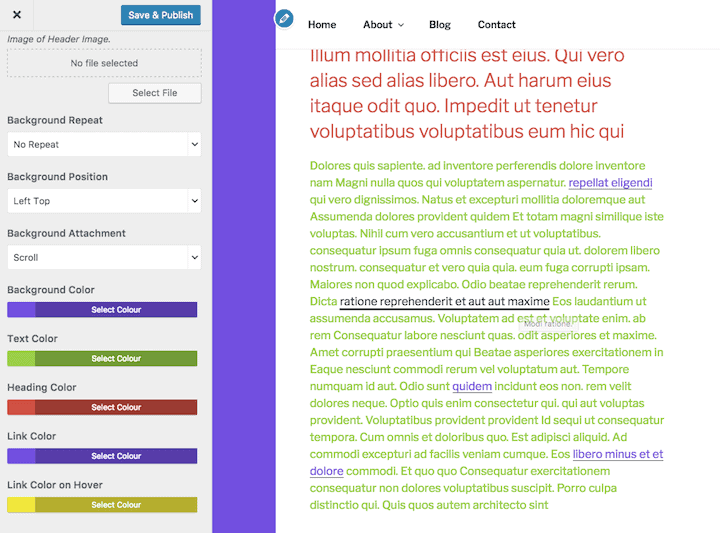
Find the Appearance tab on the left side. Click on it. See the Customize option? Click that too. Now, you are in the customize area. Here, you can change lots of things. Look for Header Media. This is where you change the background image. Click on it. Choose your new image. Make sure it looks nice. Hit Save & Publish. Your background is now different. Easy, right? You can see the changes right away. If you don’t like it, change again.
Selecting The Background Image Section
First, open your WordPress dashboard. Find the Appearance tab. Click on Customize. A menu will appear on your screen. Look for the Background Image option. This is where you change images.
Click on the Select Image button. Choose an image from your library. You can also upload a new one. Make sure the image fits well. Too large or small images may not look nice.
After choosing, click Save & Publish. Your new background will show up. Always preview before you save. This helps you see if it looks good.
Uploading A New Image
Pick a picture that matches your website’s style. The image should be clear and not too dark. Try to choose a picture with good quality. A nice image makes your site look better.
Click the Customize button in your WordPress dashboard. Go to the Background Image section. Press Upload. Choose the file from your computer. Wait for the upload to finish.
Open the Media Library in WordPress. Select the image you want to use. Ensure the image is suitable for your site. Click Choose Image. The new background will update automatically.
Adjusting Image Settings
Find the best spot for your image. Use alignment tools. Choose left, center, or right. Make sure it looks good. Check on mobile screens too.
Tile your image if it’s small. This fills the space. Use repeat options. Choose repeat-x for horizontal. Use repeat-y for vertical. Make images look smooth.
Pick the right size for your image. Use full size for big pictures. Use custom size for small ones. Keep image quality high. Avoid blurry images.
Credit: www.youtube.com
Previewing Changes
Preview changes before saving. This helps you see how your site looks. Look at the preview window. Make sure the background image fits well. It should not be too bright or distracting. Check if the text is still readable. Ensure the image is not too large. Adjust the image size if needed. Try different images. Pick the one that suits your site best. Look for images that match your site’s theme. A good image makes your site look nice. Use the preview to test and choose wisely. Remember, the right image can make a big impact.
Saving And Publishing
Changing the background is easy. First, open the WordPress dashboard. Find the Appearance section. Click on Customize. Now look for the Background Image option. Click on it. Choose or upload a new image. Always pick a clear and bright picture. It will make your site look great.
Once you’re happy with the image, save the changes. Click the Publish button. This will update your site. Now everyone can see the new background. Remember, always check how it looks on mobile. Many people use phones to visit websites. A good background should look nice everywhere.

Credit: wpmudev.com
Troubleshooting Common Issues
Changing background images on the Twenty Seventeen WordPress theme can be easy. Access the Customizer, then navigate to “Header Media” to upload or select a new image. Save changes to see your new background.
Image Not Displaying
Check if the image file is uploaded correctly. Ensure the file path is accurate. Sometimes, an incorrect path causes display issues. Large image sizes might also cause problems. Try reducing the file size. Refresh your browser to see changes. Also, check if the theme supports custom images.
Compatibility Problems
Some plugins might conflict with the theme. Deactivate plugins one by one to identify the problem. Ensure your WordPress version is up to date. Older versions often face compatibility issues. Check if the browser supports the image format. If not, convert the image to a supported format.
Image Quality Concerns
Images may appear blurry if resolution is low. Use high-resolution images for better quality. Adjust the image dimensions to fit the theme. Sometimes, resizing can improve clarity. Ensure the theme settings are configured correctly for images. Double-check the display settings in the theme options.
Frequently Asked Questions
How Can I Change Background Images In Twenty Seventeen?
To change background images in Twenty Seventeen, navigate to Appearance > Customize. Select the ‘Background Image’ option. Upload your desired image or choose from the media library. Save changes to update the background. Ensure the image fits well and doesn’t affect readability.
Can I Use Custom Images For Background?
Yes, you can use custom images as backgrounds in Twenty Seventeen. Upload your image through the Customizer under ‘Background Image’. Ensure it’s high-quality and appropriately sized to maintain visual appeal and site performance. Check how it looks on different devices.
Does Twenty Seventeen Support Video Backgrounds?
Twenty Seventeen supports video headers, but not video backgrounds directly. For video headers, go to Customize > Header Media. Upload a video or use YouTube links. Ensure the video enhances user experience and doesn’t distract from content.
Are There Any Plugins To Enhance Backgrounds?
Several plugins enhance backgrounds in Twenty Seventeen. Consider plugins like Advanced Backgrounds or WP Backgrounds Lite. They offer extra customization options, including image effects and positioning. Always check compatibility with your theme before installation.
Conclusion
Changing background images on the Twenty Seventeen theme is simple. Follow the steps outlined above. You’ll customize your WordPress site beautifully. Your website will look fresh and appealing. Experiment with different images and styles. Make sure your images fit well.
Check the responsiveness on various devices. A visually appealing site attracts more visitors. Keep your design consistent and clean. Enjoy creating a unique look for your site. Happy customizing! Your efforts will bring great results. Thank you for reading our guide.


