
Are you tired of the same old background color on your WordPress page? Changing it could be the fresh update your site needs to captivate visitors and keep them engaged.
Imagine the impact a new color could have on your brand identity and how it could enhance user experience. Whether you’re looking to brighten up your site or give it a sleek, professional look, learning how to change the background color is simpler than you might think.
You’ll discover step-by-step instructions to transform your WordPress page with ease. Unleash your creativity and make your website truly yours. Dive in to find out how to bring your vision to life!
Choosing The Right Theme
Picking a theme is fun and important. It makes your site look good. Some themes let you change colors. Others might not. Always check the theme details first. Look for themes with color options. These themes are easy for beginners. You can find them in the WordPress theme store.
Read the reviews. They help you know if a theme is easy to use. Check if the theme is updated often. This keeps your site safe and fast. Use the preview option to see how it looks. Make sure it fits your style.
Free themes are good for starters. They have basic options. Paid themes give you more choices. Choose what fits your needs best.

Credit: colibriwp.com
Accessing WordPress Dashboard
First, open your browser and go to your WordPress site. Find the login page. Enter your username and password. Click the login button. You will see the WordPress dashboard.
The dashboard is the control center. Here, you manage your site. Look for the Appearance option on the left menu. Click it to access theme settings. You will find many options to customize.
Select Customize under Appearance. A new screen appears. This is where you can change the background color. Explore the settings and find Colors. Click on it to change your page background color. Save changes before leaving.
Navigating To Theme Customizer
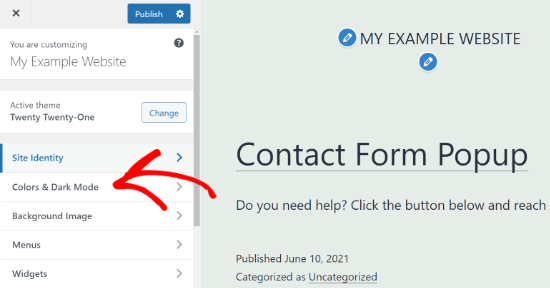
First, log in to your WordPress Dashboard. Use your username and password. Once logged in, find the sidebar menu. Look for the word “Appearance.” Click on it. Then, select “Customize” from the dropdown. This takes you to the Theme Customizer. Here, you can change the look of your site.
In the Theme Customizer, find the “Colors” option. Click on it. You will see a section for background color. Choose a new color. Use the color picker or enter a color code. Make sure you like the new look. Finally, click “Publish” to save changes. Now, your page has a new background color.
Credit: themelooks.com
Finding Background Settings
To change the background color, first open your WordPress dashboard. Look for the Appearance section on the left side. Click on Customize under the Appearance menu. This will open the theme customizer. Now, search for a menu labeled Background or Colors. Some themes use different names. Choose the one that matches your theme. Inside, find the option to change the background color. Click to open the color picker tool. Choose your favorite color from the palette. Once done, remember to save your changes. Your WordPress page will now have a new background color.
Selecting A New Color
Choose a color you like. Colors can change a page’s look. Use the WordPress Customizer. Find it in the dashboard. Click ‘Appearance’, then ‘Customize’. Look for ‘Colors’. You might see ‘Background Color’. Click it. A color picker appears. Choose a new color. Try different shades. Some themes might not support changes. Test a few colors. See how they look. Refresh your page to view changes. If unsure, ask for help. Find guides online. Changing colors can be fun. Make sure it matches your theme. Use colors that are easy on the eyes.
Using Custom Css
Open your WordPress dashboard. Click on Appearance, then Customize. Find the Additional CSS option. It is usually at the bottom. Click on it. A box will open. This is where you add CSS.
In the CSS box, type: body { background-color: #ffffff; }. Replace #ffffff with your color code. Use a color picker to find codes. This changes the page’s background color. Click Publish to save changes.
Previewing Changes
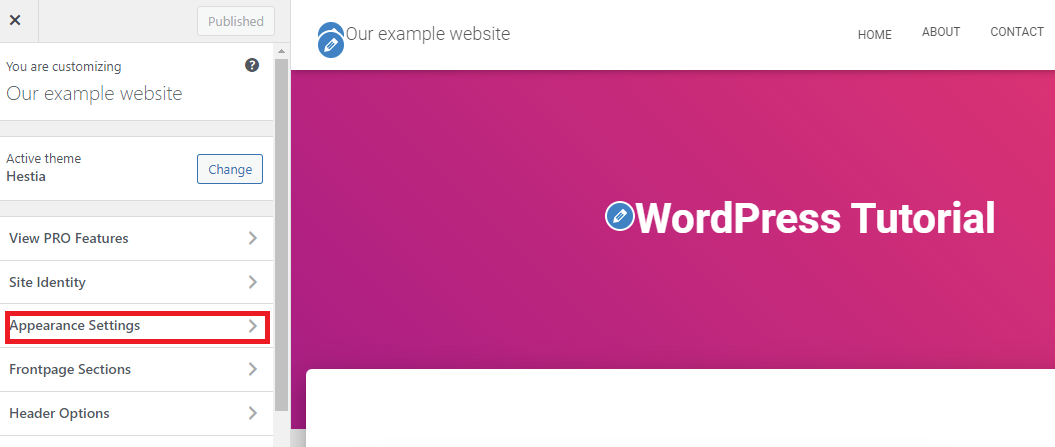
Before saving your changes, always preview them. Use the WordPress Customizer to see how the new background looks. This tool helps you view changes without making them live. Click on the Preview button to activate it.
Look at your site’s pages and posts. Ensure the new background color fits well. Check for any readability issues. Make sure text is easy to read against the background.
Adjust the color if needed. Use the color picker to find a better shade. Preview again until satisfied. This step ensures the design looks good before publishing. Your visitors will see a polished and professional website.
Credit: ltheme.com
Saving And Publishing
After choosing your new background color, it’s important to save it. Look for the ‘Save Changes’ button. You usually find this at the top or bottom of the page. Click on it to save your new settings. Your color choice will not change until you save it.
Next, you need to publish these changes. This step makes your new background visible to everyone. Find the ‘Publish’ or ‘Update’ button. Again, this is usually at the top or bottom. Click on it to make your changes live.
Remember, saving and publishing are two different steps. Saving keeps your changes safe. Publishing makes them visible to all. Be sure to do both. This ensures your background color changes appear on your website.
Troubleshooting Common Issues
Changing the background color of a WordPress page in a theme often involves navigating the theme customizer. Locate the “Background” option under “Appearance” and select your desired color. If unavailable, custom CSS may be needed to update the theme’s style.
Color Not Changing
Sometimes, changing the background color in WordPress does not work. This can be frustrating. Check your theme settings first. Make sure the color is saved. Refresh your page. Clear your browser cache. This helps to see the changes. Update your WordPress theme. Old themes can cause problems. Also, check if the theme supports color changes. Some themes do not have this feature.
Conflicts With Other Plugins
Plugins can cause conflicts. Deactivate all plugins and try again. If the color changes, a plugin is causing the problem. Reactivate plugins one by one. This helps find the problem plugin. Some plugins override theme settings. Check for plugin updates. New updates can fix issues. Sometimes, you need to change plugin settings. Look for any color settings in the plugin. Adjust these if needed.
Exploring Advanced Options
Discover how to easily change the background color of your WordPress page. Navigate to your theme’s settings, locate the color options, and select your desired shade. Make your page stand out with a fresh look.
Using Page Builder Plugins
Page builder plugins help change the background color. Plugins offer easy tools. Choose a plugin you like. Install it from the plugin store. Open the page builder tool. Select the page to edit. Find the background settings. Choose a new color. Save your changes. The page will show the new color. Some plugins have extra features. You can add images or gradients. Experiment with different styles. Make your page unique and fun.
Changing Background For Specific Pages
Some pages need different colors. Go to the page you want to change. Look for settings on the side. Find the background option. Pick a color just for this page. Save the setting. Refresh the page to see changes. Every page can have its own look. This helps make your site special. Use colors that fit your theme. Try new ideas and see what works.
Frequently Asked Questions
How Do I Change Background Color In WordPress?
To change the background color, navigate to Appearance > Customize in your WordPress dashboard. Select the ‘Background’ option, where you can choose a new color. Click ‘Publish’ to save changes. This process may vary slightly depending on your theme’s customization options.
Can I Customize Theme Background Color Easily?
Yes, most WordPress themes offer easy customization options. Use the ‘Customize’ feature in your dashboard to access background settings. You can select colors, patterns, or even upload images. Ensure to save changes by clicking ‘Publish’ after customization.
Which Plugin Helps Change Background Color?
Plugins like ‘Simple Custom CSS’ or ‘Advanced WordPress Backgrounds’ can help change background color. Install and activate the plugin through the dashboard. Use plugin settings to customize background color. Plugins offer additional styling options for more customization flexibility.
Are Theme Settings Enough For Background Change?
Theme settings are usually sufficient for basic background color changes. Navigate to Appearance > Customize to find the background settings. However, for advanced customization, you might need CSS tweaks or plugins. Always check your theme’s documentation for specific instructions.
Conclusion
Changing the background color of your WordPress page is simple. Follow the steps and customize your site easily. Personalize your theme to match your style. Experiment with different colors to see what suits best. Your website will look unique and appealing.
Visitors enjoy a visually engaging site. Always remember to save changes after editing. This ensures your new color displays correctly. Keep your website fresh and updated. Happy designing!


