
Are you looking to give your WordPress site a fresh look by changing an image on your background theme? Whether you’re a seasoned blogger or just starting out, customizing your site’s appearance can significantly impact how your audience perceives your content.
A well-chosen image can draw your visitors in, set the tone for your brand, and make your site memorable. But, you might be wondering, “Is it difficult to change an image on a background theme in WordPress? ” Rest assured, it’s simpler than you think! In this guide, you’ll discover easy, step-by-step instructions to help you effortlessly update your site’s visuals.
By the end, you’ll have the skills to transform your WordPress theme into something truly eye-catching, keeping your readers engaged and wanting more. Let’s dive in and get started on enhancing your website’s visual appeal!
Choosing The Right Image
Picking the right image is crucial. Consider image resolution. High resolution images look sharp. Low resolution images may appear blurry. Choose images that are clear and detailed.
Select appropriate image format. JPEG and PNG are common. JPEG is good for photos. PNG is better for graphics. Each format has its strengths.
Ensure image relevance. The image should match the theme. It should relate to the content. An unrelated image can confuse viewers. Always keep the theme in mind when choosing.
Accessing WordPress Dashboard
First, visit your WordPress site. Look for the login page. It’s often at /wp-admin. Enter your username and password. Click the login button. Now, you see the WordPress dashboard. It has many options. You can manage posts, pages, and settings here.
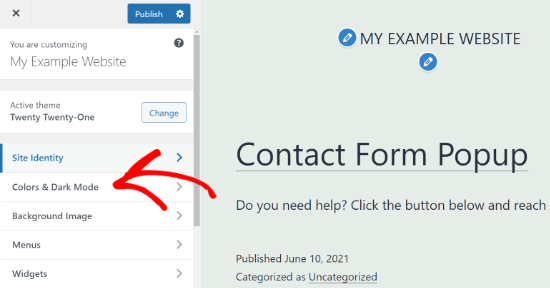
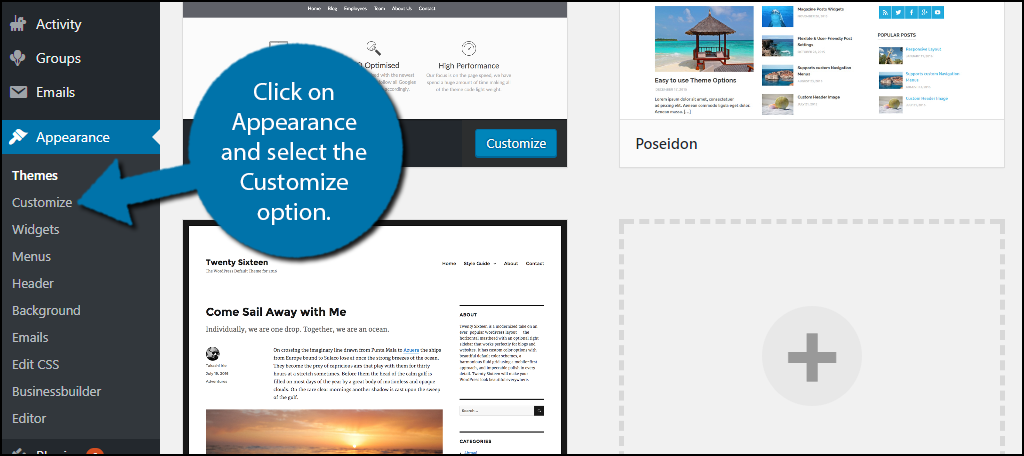
Find the Appearance option on the left menu. Click it. Next, select Customize. This opens the theme settings. Here, you can change many things. Look for the Background Image section. Click it to change the image. Upload a new image or choose from the library. Save changes before you exit. Your new background image is ready.
Locating The Background Image Section
Start by visiting your WordPress dashboard. Click on the Appearance tab. Look for the Customize option. This is where most theme settings are found. Once there, search for a section named Background Image.
Different themes have different customization choices. Check for specific instructions for your theme. Some themes have a direct Background Image link. If not, look under General Settings or Appearance.
Once you’ve found the right section, look for an option to upload or change the image. Click on it to upload a new image from your computer. Ensure the image fits the theme style. Save your changes to see the new background.

Credit: colibriwp.com
Uploading A New Image
The WordPress Media Library helps you find images easily. Click on the Media tab in your dashboard. Press the Add New button to upload. Choose an image from your computer. The image should be the right size for your theme. Once uploaded, select the image. Then, click on Insert into Post. The image is now in your library. You can use it anytime.
Start by going to your WordPress Dashboard. Click on Appearance and then Customize. Find the section for background images. Click on Change Image. Choose Upload Files in the window. Select the image from your computer. Wait for it to upload. Once done, click Choose Image. The new image is now your background. Refresh to see the change.
Adjusting Image Settings
Set Image Position by clicking the image in your WordPress theme. Choose where you want it. You can align it left, center, or right. This helps your site look neat.
Choose Image Size that fits your theme. Large images can slow down your site. Smaller images load faster. Select the best size for your design.
Apply Image Effects to make pictures stand out. You can add shadows or borders. Effects change how images look on your theme. Try different effects to see what you like best.
Credit: themelooks.com
Saving Changes
Check how your new background looks. Click on the preview button. See the changes before saving. Look at the picture and colors. Make sure you like them. If not, make changes.
Preview New Background
Go back to the editor. Adjust the image if needed. Now, you can see the new background. It shows how your site will look. Once happy, go to the next step.
Confirm And Save Adjustments
Check everything again. Click save changes button. Make sure the image is perfect. You will see the updated background now. Your site will look fresh and new. Remember to save often. It keeps your work safe. Enjoy your new design!
Troubleshooting Common Issues
Changing an image on a WordPress background theme can be simple. Access the dashboard and navigate to “Appearance. ” Then select “Customize” and find the “Background Image” option. Follow the prompts to upload a new image. Save your changes to see the updated look.
Image Not Displaying
Check the image URL. It should be correct. Ensure the image file exists. Sometimes files are missing. See if there are any file permissions issues. WordPress needs permission to access files. Verify if the image format is supported. Use JPEG or PNG formats. Refresh the page to see if the image loads. Clear your browser cache. Caches can cause display problems.
Image Quality Issues
Consider the image resolution. High resolution is best for clarity. Compress images to reduce load time. Use tools like TinyPNG for compression. Examine the image size. Large images can cause slow loading. Resize images with image editors. Ensure WordPress settings don’t downsize images. Check theme settings for image display options. Test different formats like PNG or JPEG.
Reverting To Previous Image
Locate the original image in your media library. Select the image and click “Restore”. This will replace the current image. If the original image is deleted, upload it again. Use backup plugins to restore old images. Save a copy of important images. Always keep backups for safety.
Tips For Effective Background Images
A consistent style is key for a website. This helps in creating a brand identity. Matching colors and design elements make the website look neat. Use similar colors for your images. This keeps the design simple and professional. Avoid using too many styles at once. This can confuse users.
Fast loading speed is important for websites. Large images can slow down a site. Compress images to make them smaller. Use JPEG or PNG formats. These are light and efficient. A fast website keeps visitors happy. Slow sites can lose visitors quickly.
A good user experience is necessary. Images should be clear and easy to see. Choose high-quality images. They should relate to the website content. This makes the site interesting. Users stay longer when they enjoy the view. Happy users often return.
Credit: www.greengeeks.com
Frequently Asked Questions
How To Change WordPress Theme Image?
To change a theme image, go to the WordPress dashboard. Navigate to Appearance > Customize. Find the section for background or header images. Upload a new image or select one from the media library. Save your changes to update the theme with the new image.
Can I Use Custom Images In WordPress Themes?
Yes, you can use custom images in WordPress themes. Upload your desired image to the media library. Access the theme customizer and select the image for the background or header. This allows you to personalize your theme with unique visuals.
Where To Find Theme Image Settings In WordPress?
Find theme image settings in the WordPress Customizer. Go to Appearance > Customize in the dashboard. Look for sections labeled “Background Image” or “Header Image. ” These sections allow you to change or update theme images directly from the customizer.
Does Image Size Affect WordPress Theme Design?
Yes, image size affects the theme design. Large images may slow down loading times. Ensure images are optimized for web use. Properly sized images enhance the theme’s appearance and performance. Always check your theme’s recommended image dimensions for best results.
Conclusion
Changing an image on a WordPress background theme is straightforward. Follow the steps outlined, and you’ll succeed. First, locate the theme settings. Next, upload your desired image. Finally, save your changes. Remember to check the preview. Does it look good?
Great, you’re done! This simple process helps personalize your site. Your website will feel unique and fresh. Don’t forget to update regularly. Keeping your site current enhances user experience. Happy customizing! Enjoy your new, visually appealing WordPress site.


