
Are you struggling to make your WordPress site look just right? If you’ve ever felt frustrated by the way your paragraphs appear on your theme, you’re not alone.
Many website owners face this challenge, and the good news is, it’s easier to fix than you might think. In this guide, you’ll discover simple, step-by-step methods to change all paragraph text on your WordPress theme. By the end of this article, you’ll have the tools to transform your site’s text to match your unique style and branding.
Dive in, and let’s make your website look exactly the way you envision it!
Credit: www.kadencewp.com
Choose The Right Theme
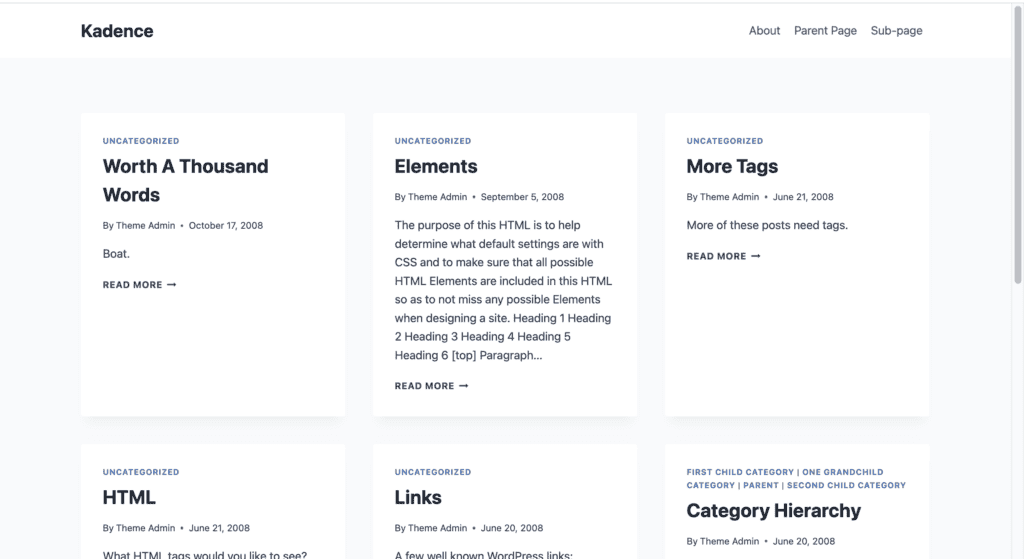
Check if your theme allows paragraph changes. Some themes have built-in options. Others do not. Look at the theme’s customization tools. Are there settings for text style? Some themes have detailed guides. These guides help with changes. Read the theme’s documentation. It may give hints about text changes.
Explore theme settings for text changes. Many themes have customizer tools. These tools are easy to use. They let you change text style. Check for plugins too. Some plugins help with text changes. Use them if the theme does not support it. Always keep a backup of your site. This helps if changes do not work. Try different settings until you find what you like.

Credit: www.fixrunner.com
Access WordPress Dashboard
First, enter your username and password. Click on the login button. You will see your WordPress dashboard. It shows your site’s details. You can edit or manage your site here.
Look for Appearance in the menu. Click on it. Then select Theme Editor. The Theme Editor lets you change your site’s look. You can find your theme files here. Be careful when making changes.
Edit Css For Paragraph Text
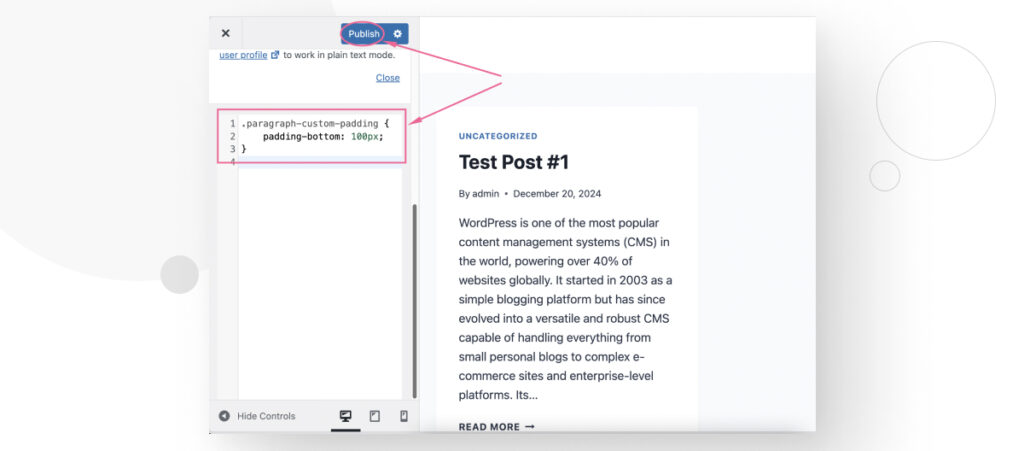
First, log into your WordPress dashboard. Then, find the Appearance menu. Click on Customize to open the customizer. Here, look for the Additional CSS section. This section allows you to add custom styles. Use this to change paragraph text styles.
In the Additional CSS section, type p { }. This targets all paragraphs on your site. Inside the brackets, add your CSS rules. For example, use font-size to change text size. Use color to change text color. Here is a sample:
p {
    font-size: 16px;
    color: blue;
}
Save changes and refresh your site. Your paragraph styles should now be updated. Test different styles to see what you like best. Experiment with font-family and line-height too.
Use A Child Theme
Creating a child theme is very simple. First, make a new folder for your child theme. Use a name related to the parent theme. Inside, make a style.css file. This file is important. Next, add a comment at the top of the file. It should include the parent theme’s name. This connects the child to the parent theme.
Copy the parts you want to change. Paste them in the child theme’s style.css file. Change the CSS to suit your needs. This keeps the parent theme’s settings safe. Your changes stay even if the parent theme updates. This method is safe and simple.
Leverage Page Builders
Easily change all paragraph text on your WordPress theme by leveraging page builders. Customize fonts and styles without coding. Simplify your design process and ensure consistency across your website.
Install A Page Builder Plugin
Choose a popular page builder plugin for your WordPress site. Some favorites are Elementor, Beaver Builder, and Divi. These plugins have many features and are easy to use. Install the plugin through the WordPress dashboard. Search for your chosen plugin and click ‘Install Now’. Once installed, activate the plugin to start using it.
Customize Paragraphs With Page Builder
Open a page where you want to change the paragraphs. Click ‘Edit with Elementor’ or similar option. Select the paragraph you wish to edit. Use the plugin’s tools to change text styles. Modify font, size, or color with simple clicks. Adjust text alignment for a better look. Save changes and preview your page. Easy customization with the page builder.
Implement Custom Fonts
Choosing the right font is fun. Fonts change how text looks. Go to a font website like Google Fonts. Pick a font you love. Check if it’s easy to read. You want your readers happy. A clear font is best. Download the font files. Save them on your computer. You will need them later.
Now, let’s add the font. Open your WordPress dashboard. Go to the Appearance section. Click on Customize. Find the Additional CSS tab. Here, you can add new styles. Copy the CSS code from the font website. Paste it into the CSS tab. Update the font-family to your new font. Save changes and check your site. The new font should appear. Your text looks fresh now!
Test And Save Changes
Always preview your changes before saving them. This helps to check if the new paragraph text looks good. It’s important to see how your theme appears to visitors. Visit your website to get a clear view of the changes. Check the colors, fonts, and styles. If anything seems off, go back and fix it. Previewing gives you a chance to make sure everything is perfect.
Backup your theme files regularly. Saving changes is crucial. If something goes wrong, a backup helps you restore your previous settings. Use plugins to assist with backups. They are easy to use and keep your data safe. Always save your work after editing. This ensures that your changes are kept and reflected on your site. Saving also helps you maintain a record of your modifications.
Troubleshoot Common Issues
Identify styling conflicts to fix text problems. Sometimes, themes have their own styles. These might clash with your custom changes. Check your theme’s CSS file. Look for any rules that may override your settings. Use a simple tool like the browser inspector to see which styles are being applied. This helps you find conflicts easily.
To resolve caching problems, clear your browser cache. Sometimes changes don’t show up right away. This might be due to stored data. Refresh the page after clearing. If you use a caching plugin, clear its cache too. This ensures that all changes are visible. Always check your site on different devices. This confirms that everything works fine.
Credit: wcanvas.com
Frequently Asked Questions
How Do I Change Paragraph Text In WordPress?
To change paragraph text, access the WordPress Dashboard. Navigate to Appearance > Customize > Additional CSS. Add your custom CSS code to style paragraphs. You can also use a child theme for more extensive changes. Always preview changes before publishing to ensure correct formatting and appearance.
Can I Use A Plugin To Change Text?
Yes, you can use a plugin to change text styles. Plugins like “YellowPencil” or “CSS Hero” allow for easy customization. They offer a user-friendly interface for styling without coding. Ensure the plugin is compatible with your theme for optimal performance and results.
Is It Safe To Modify Theme Files?
Modifying theme files can be risky if not done correctly. Always back up your theme before making changes. Use a child theme to avoid losing changes after updates. Consider consulting documentation or professionals if unsure about code modifications.
What Is A Child Theme In WordPress?
A child theme inherits styles and functions from a parent theme. It allows you to make changes without affecting the original theme. This is beneficial for updates, ensuring customizations remain intact. Creating a child theme requires minimal setup and offers safer customization options.
Conclusion
Changing paragraph text on a WordPress theme can be simple. Follow the steps carefully. Check your theme settings first. Use theme customization options. Try using CSS for more control. Remember to save changes. Preview your website often. This ensures everything looks right.
Experiment with different styles. Find what suits your site best. Keep your website design clean. Maintain readability for visitors. Regular updates help keep your site fresh. Stay informed about WordPress changes. Practice makes perfect. With patience, you will succeed. Your site will look great.
Enjoy your newly customized WordPress theme.


