
Are you looking to give your WordPress site a fresh look by changing the paragraph text on your Astra theme? You’re in the right place.
Your website’s typography can significantly impact readability and user experience. But making changes might seem daunting if you’re not a coding expert. Don’t worry—this guide will walk you through the process step-by-step. Imagine the satisfaction of having a site that not only looks great but also keeps visitors engaged longer.
By the end of this article, you’ll have the skills to customize your site’s text effortlessly, enhancing both its style and functionality. Let’s dive in and transform your website into a compelling platform that captures your audience’s attention.
Astra Theme Overview
The Astra theme is very popular. It is known for its speed and simplicity. Many people like it for its customization options. You can change colors, fonts, and layouts easily. Astra works well with many page builders like Elementor. This makes it flexible for all kinds of websites.
Astra is also SEO-friendly. It helps your site rank better. It has clean code and fast loading times. These features are important for search engines. Many developers trust Astra for its quality. Plus, it has a large support community. This helps you solve problems quickly.
Credit: wcanvas.com
Accessing The WordPress Dashboard
First, open your web browser and enter your site’s URL. Add “/wp-admin” to the end. You will see the login page. Enter your username and password to log in. The dashboard appears after logging in. The dashboard is the main area to manage your site. Here, you can change settings, add content, and more. To change text, you’ll use the Appearance section. It’s on the left side of the dashboard. Click on Appearance to see more options. You will find the Customize option there. This helps you change your site’s look. The dashboard is easy to use. Follow the steps to make changes. Remember to save your work often.
Navigating To The Customizer
First, go to your WordPress dashboard. Look for the Appearance option on the left menu. Click on it to find the Customize option. This will open the theme customizer.
Inside the customizer, you will see many options. Find the Typography section. Click on it to change text styles. You can adjust fonts, sizes, and colors here. This is how you change paragraph text in Astra.
Modifying Paragraph Text
Changing text styles on Astra is easy. First, find the customizer in your WordPress dashboard. Look for the section called Typography. Here, you can find different text options. This place lets you change the way text looks.
In the Typography section, select Paragraph. You can see many settings. Choose the font type you like. Pick from many options. You can also change the font size. Make it bigger or smaller.
To change font size, find the Font Size slider. Slide it to adjust. Try different sizes. Check what looks best. For style, choose bold or italic. Make sure the text is clear and easy to read.
Save your changes. Then, check your website. See if you like the new text style. If not, go back and adjust again. Keep trying until you are happy.
Using Additional Css
To change all paragraph text in the Astra theme on WordPress, use Additional CSS. Access the WordPress dashboard, navigate to Appearance, then Customize, and find Additional CSS. Enter your custom CSS code to modify paragraph styles site-wide.
Locating The Additional Css Section
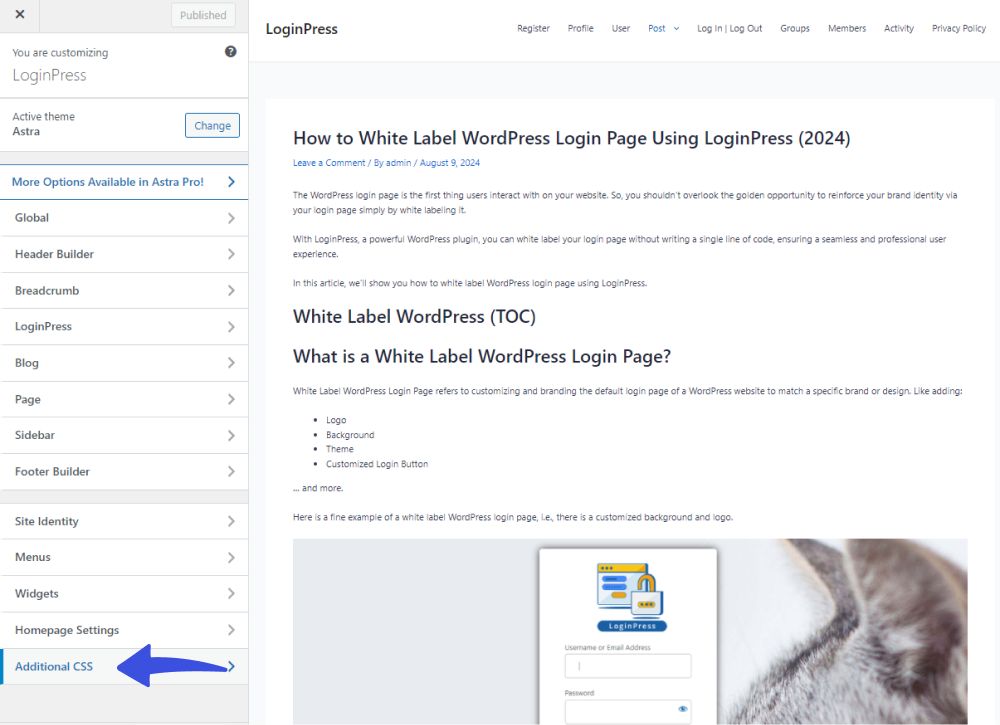
The Additional CSS section helps you change styles. First, open your WordPress dashboard. Find the Appearance tab. Click on it. Next, select Customize. You see many options now. Look for the Additional CSS option. Click it. This opens a box. You write code here. It’s easy to find. Remember, changes show live.
Writing Custom Css For Paragraphs
Use CSS to change paragraph text. Write code in the box. Start with p { }. This targets paragraphs. Add color for text color. Choose a color name or code. Example: color: red; makes text red. Change font-size to make text bigger. Example: font-size: 16px;. Test with different sizes. Style your theme easily. Always preview changes before saving. Be careful with code. Mistakes can affect your site.

Credit: www.fixrunner.com
Installing A Child Theme
A child theme protects your changes. It keeps them safe during updates. You can tweak your site without worry. It helps preserve your design. Your work remains untouched when the main theme updates. It also allows for easy customizations. No need to modify the main theme. Your website will look unique. A child theme acts as a safety net. It guards against losing changes. Child themes are important for WordPress users.
First, create a new folder. Name it your child theme. Next, make a style.css file. Add basic information. Then, create a functions.php file. This file helps load your parent theme. After that, zip your child theme folder. Go to WordPress dashboard. Click ‘Themes’. Select ‘Add New’. Upload your zip file. Install and activate your child theme. It’s easy and quick.
Testing Changes Across Devices
Easily change paragraph text on the Astra WordPress theme by navigating to the customization settings. Adjust typography to test different devices. This ensures consistency across all platforms, enhancing user experience.
Previewing On Desktop
Check your changes on a desktop first. Open your WordPress site in a browser. Look at the paragraph text. Does it look good? Make sure the font size is right. Try different browsers. Some browsers show text differently. Adjust settings if needed.
Checking Mobile Responsiveness
Mobile view is very important. Open your site on a phone. Paragraph text must be easy to read. Check if the text fits the screen. Avoid text that is too small. Adjust font size if needed. Test on different phones. Android and iPhone might show text differently. Make sure everything looks great.
Credit: loginpress.pro
Troubleshooting Common Issues
Changing paragraph text in Astra theme involves accessing the WordPress Customizer. Navigate to ‘Typography,’ then adjust the ‘Base Font Size’ settings. This approach helps ensure uniform text appearance across your website.
Resolving Font Conflicts
Font conflicts can make your site look odd. Check your theme settings first. Astra might use default fonts. Use the customizer to change fonts. Make sure the font is correct. Some plugins also affect fonts. Disable them to see changes. Update your theme to the latest version. Old versions might have bugs. Clear your browser cache after changes. Sometimes changes do not show up immediately.
Ensuring Changes Are Saved
Saving changes is important. Open the WordPress customizer. Make your font changes there. Click the ‘Publish’ button to save. Check if your changes appear. Refresh your website page. Use a different browser if changes do not show. Backup your settings before making changes. Restoring them later is easy. Keep your WordPress updated. Updates fix many issues.
Utilizing Plugins For Typography
Astra works well with many plugins. Some plugins help with text design. Google Fonts is popular. It offers many font styles. Easy Google Fonts plugin is easy to use. It lets you change fonts from the customizer. FontPress is another choice. It supports Google Fonts and Adobe Fonts. These plugins make font changes simple. They give you many choices. Try them to see what fits best.
Integrating Plugins With Astra
Using plugins with Astra is easy. First, install the plugin. Next, activate it. Then, go to the customizer. You will find a new option for fonts. Click it to see settings. You can change size, style, and color. Adjust until you like it. Save changes to see the new look. Your website now has better fonts. Astra and plugins work together well.
Backing Up Your Customizations
Backing up is important before changing anything in Astra. You don’t want to lose your hard work. Many methods can help you save your customizations.
Methods For Backing Up
Use a plugin like UpdraftPlus for easy backups. It saves your site quickly. You can also manually copy files using FTP. This is a bit tricky. Make sure you know what you’re doing.
Another way is exporting settings. Astra has a feature for this. Go to the customizer and click export. This keeps your settings safe.
Restoring Previous Versions
If something goes wrong, you can restore. Plugins like UpdraftPlus make it simple. Just click restore to bring everything back. Manual methods need more steps. You must re-upload files. It takes more time.
Always check your backups. Ensure they are up-to-date. This prevents problems when restoring. Keep your backups safe and accessible.
Frequently Asked Questions
How Can I Change Paragraph Font In Astra?
To change paragraph font in Astra, navigate to the WordPress customizer. Select ‘Typography’ and then ‘Body’. Here, you can choose a new font. This allows you to customize text appearance across your site, enhancing readability and style. Make sure to preview changes before publishing.
Is Astra Theme Customizable For Text Styles?
Yes, Astra is highly customizable for text styles. You can modify fonts, sizes, and colors through the WordPress customizer. This flexibility allows you to tailor your site’s appearance to match your brand. Use the options under ‘Typography’ for precise control over text elements.
Can I Adjust Paragraph Spacing In Astra?
Absolutely, adjusting paragraph spacing in Astra is simple. Access the customizer and select ‘Typography’. From there, choose ‘Body’ and modify the line height and spacing settings. This helps improve text readability and overall site aesthetics. Always preview your changes to ensure they meet your design goals.
Do I Need Plugins To Change Text In Astra?
No plugins are necessary to change text settings in Astra. The theme offers built-in customization options via the WordPress customizer. You can adjust fonts, sizes, and colors without additional tools. This makes Astra a convenient choice for users seeking easy and efficient design adjustments.
Conclusion
Changing paragraph text on Astra is easy with the right steps. You now know how to customize your WordPress theme. This helps in creating a unique look. A personalized site feels more engaging. Remember to save your changes. Test your site to ensure everything looks good.
Keep experimenting with different styles. Astra offers flexibility for creative designs. Your website can truly reflect your brand. Practice these tips regularly for improvement. Enjoy building a site that suits your vision. Happy designing!


