
Are you tired of your WordPress site looking the same as everyone else’s? Does the current color scheme feel off-brand or just not as vibrant as you’d like?
Changing the color scheme of your WordPress theme can refresh your website’s look and make it more appealing to your visitors. It’s simpler than you think, and you don’t need to be a coding expert to do it. In this guide, we’ll walk you through the step-by-step process of transforming your site’s colors to better reflect your personal style or brand identity.
Imagine the impact of a stunning visual makeover that captures attention and keeps your audience engaged. Ready to give your website a fresh, unique look? Let’s dive in and unlock the secrets to customizing your WordPress theme like a pro!
Choosing A New Color Scheme
Start by knowing your brand’s main colors. These colors show who you are. They make your site special. Think of colors that fit your brand. Use colors that match your logo. This helps people know your brand. Your colors should look good together. They need to work well on your site.
Colors make people feel things. Red can mean energy. Blue can be calm. Choose colors that match your message. Bright colors grab attention. Soft colors feel friendly. Think about how you want people to feel. Pick colors that fit your goal. This helps your site work better.

Credit: qodeinteractive.com
Using WordPress Customizer
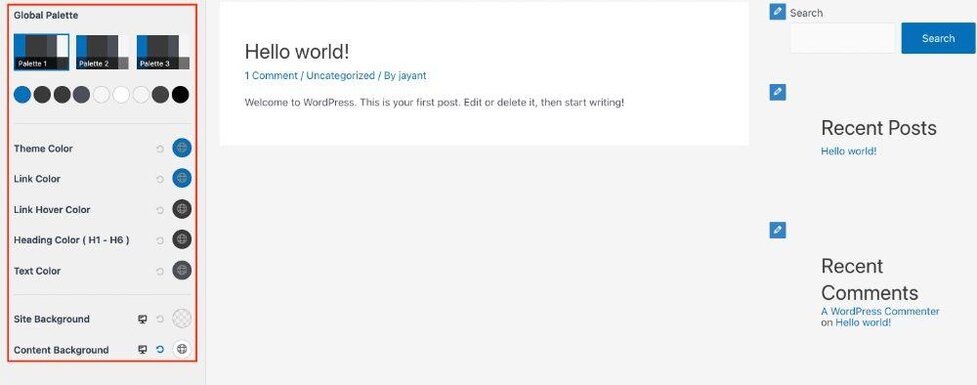
Accessing the Customizer is simple. Start by logging into your WordPress dashboard. Find the “Appearance” section on the left menu. Click on “Customize” to open the WordPress Customizer. Now, you can change the look of your site easily.
In the Customizer, you will see many settings. Navigating to Color Settings is easy. Look for the “Colors” or “Color Scheme” option. Click it to see the available color options. Choose colors for background, text, and more.
After selecting your colors, Saving and Publishing Changes is crucial. To save your new colors, click the “Publish” button at the top. This updates your site with the new color scheme. Visitors will see the changes immediately.
Editing Css For Custom Colors
Find the style.css file in your WordPress theme folder. This file holds the key to your theme’s colors. Use a file manager or FTP client. Open the file to see the CSS code. Changes here will affect your site’s look. Always back up your original file first.
Create your own CSS rules in WordPress. Go to the Appearance menu and click Customize. Look for the Additional CSS option. Enter your new CSS code here. This will change your site colors. Use simple CSS to change text and backgrounds. Save to see your changes live.
Open your web browser. Right-click on any webpage element. Choose “Inspect” or “Inspect Element”. This opens the Developer Tools. Find the styles tab to see CSS. Test changes live without editing files. Make note of new styles to add them later. This helps you see changes in real time.
Credit: wpastra.com
Utilizing Plugins For Color Management
WordPress has many plugins for color changes. Color Scheme Customizer is one of the best. It helps change colors fast. Yellow Pencil is another good choice. It works with any theme. CSS Hero is powerful too. It offers many design options. Pick one that fits your needs best.
Go to your WordPress dashboard. Find the Plugins section. Click on Add New. Search for the plugin name. Click Install Now. Wait for a few seconds. Then, click Activate. Your plugin is now ready to use.
Open the plugin settings. You will see options for colors. Choose your favorite colors. Save your changes. Look at your site. See the new colors. If needed, make more changes. Keep your site looking fresh.
Testing And Previewing Changes
Check if the site looks good on all devices. Use different screens like phones and tablets. Make sure buttons and menus work well. Test with different browsers too. A responsive design is important for all users. Use tools to see how your site looks on mobile.
Make sure all people can use your site. Check if text is easy to read. Use colors that help those with vision problems. Offer text descriptions for images. Follow rules for accessibility. Tools can help you check these things. It’s important everyone can access your content.
Ask users what they think of your changes. Use surveys or feedback forms. Listen to their ideas and problems. Make changes based on their feedback. Happy users are key to a good site. Always look for ways to improve.
Troubleshooting Common Issues
Changing all color schemes in a WordPress theme can solve many design issues. Start by accessing the theme customizer. Adjust colors by selecting options under ‘Colors’ or ‘Appearance’. Save changes to apply.
Reverting To Default Settings
Sometimes changes don’t look good. You can revert to default settings easily. Go to your theme settings. Find the option to restore defaults. Click it. Your theme returns to its original look. Be careful, though. You might lose custom changes. Always backup your work before reverting.
Resolving Cache Problems
Cache can show old colors. This can confuse you. Clear your browser cache regularly. Use a plugin to clear your site cache. This helps display the latest changes. Sometimes, cache plugins interfere. Disable them temporarily if needed. Then, refresh your page. You should see the new colors.
Addressing Compatibility Issues
Themes sometimes clash with plugins. This can cause color issues. Check your plugins for compatibility. Update them if necessary. If problems persist, deactivate one plugin at a time. This helps find the culprit. Always keep your theme and plugins updated. This ensures smooth operation.
Credit: motopress.com
Frequently Asked Questions
How Can I Change Color Schemes In WordPress?
To change color schemes in WordPress, navigate to the Appearance section. Select Customize and choose Colors. Adjust the color settings to your preference. Save changes to apply the new color scheme. Some themes may offer additional customization options for more precise control.
Are There Plugins For Changing Theme Colors?
Yes, there are plugins available for changing theme colors in WordPress. Popular plugins include Colorlib Customizer and SiteOrigin CSS. These plugins provide enhanced customization features, allowing you to easily adjust colors without modifying the theme’s code. Install and activate a plugin to begin customizing your theme’s color schemes.
Can I Use Custom Colors In WordPress Themes?
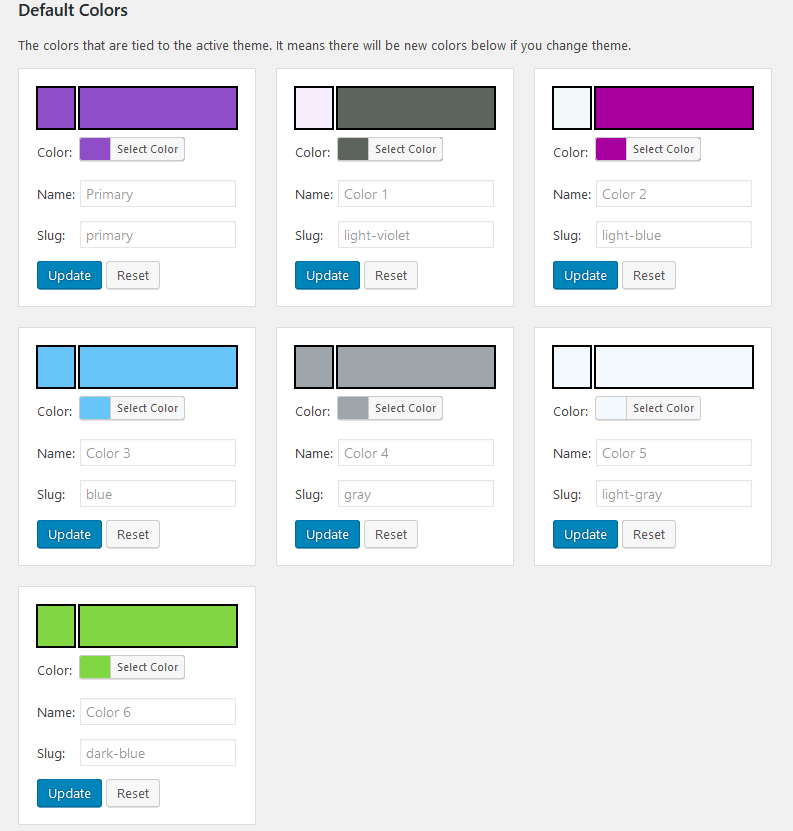
Yes, you can use custom colors in WordPress themes. Access the Customize section under Appearance. Select the Colors option and input your desired hex codes. This allows you to personalize your theme’s appearance by utilizing specific colors not included in the default palette.
Do All Themes Support Color Customization?
Most WordPress themes support color customization, but capabilities vary. Premium themes often offer more flexibility. To check, go to the Appearance section and select Customize. If the Colors option is available, your theme supports customization. For more advanced options, consider using a plugin or upgrading to a premium theme.
Conclusion
Changing color schemes in WordPress themes is straightforward. Follow the steps carefully. You can create a unique look for your site. Custom colors help your brand stand out. Remember to preview changes. Ensure the colors fit your overall design. Adjust hues to match your brand identity.
Use the theme settings for easy tweaks. Experiment with different combinations. Color changes can impact user experience. Keep it simple and consistent. Your website will look more professional. Enjoy crafting a visually appealing site. Your efforts will boost engagement. Happy designing with WordPress!


