
Are you looking to give your WordPress site a fresh look by changing its fonts? Fonts play a crucial role in defining the personality of your website, affecting both readability and aesthetic appeal.
In this guide, you’ll learn how to change a WordPress theme stylesheet specifically for fonts, making your site not only more engaging but also more aligned with your brand’s identity. Imagine the impact of a well-chosen font that captivates your audience and keeps them coming back for more.
By the end of this article, you’ll be equipped with the knowledge to effortlessly modify your theme’s stylesheet and elevate your website’s design. Stick with us as we unravel the simple steps to transform your site’s typography and make it stand out.

Credit: stackoverflow.com
Choosing The Right Theme
Think about what you want from your website. Are you looking for a simple layout or something more complex? Consider the color scheme and font style that fits your brand. Write down the features you need. This helps in finding the right theme.
Search online for themes that match your needs. Many websites offer free themes. Some themes might cost money. Read reviews and check ratings. This will guide you in choosing the best option.
Ensure your theme works well with your plugins. Check if it supports your WordPress version. Make sure the theme is responsive. This means it will look good on phones and tablets. Compatibility is important for a smooth user experience.
Accessing The Theme Editor
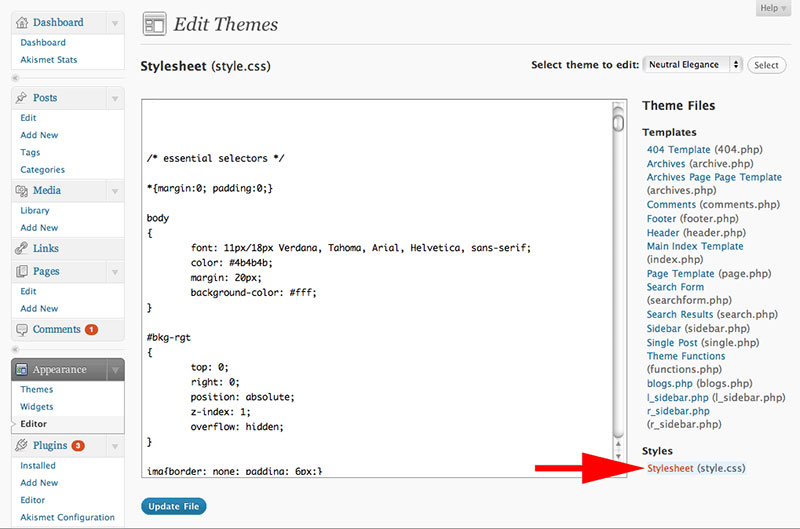
Accessing the Theme Editor allows for easy modification of fonts in a WordPress theme stylesheet. Navigate to Appearance, then select Theme Editor. Locate the stylesheet file, often named style. css, and adjust font styles to suit your preferences.
Locating The Appearance Menu
Find the Appearance menu in the WordPress dashboard. It’s on the left side. Click on it. A list will appear. Look for the Theme Editor. It’s usually at the bottom. The Theme Editor lets you change code. Be careful when changing code. Small mistakes can break the site. It’s a good idea to backup the site first.
Navigating To Theme Editor
Click on the Theme Editor. A new page will open. You’ll see files on the right side. Find the Stylesheet file. It’s named style.css. This file controls fonts and styles. Click on it to open. Now you can edit the fonts. Change the font size, color, or family. Save your changes after editing. See the changes on your site.
Identifying The Stylesheet
A stylesheet is like a set of instructions. It tells the website how to look. The main file is called style.css. It controls how fonts, colors, and layouts appear.
Each theme has its own stylesheet. It’s important to find it first. The stylesheet is in the theme’s folder. This folder is inside the WordPress directory.
Go to your WordPress dashboard. Click on Appearance and then Theme Editor. A list of files will appear. Look for style.css. This is where you will make changes.
Make sure to backup the file first. This helps if mistakes are made. You can restore the original version later.
Credit: www.inmotionhosting.com
Modifying Font Styles
Choose your favorite fonts for your website. Visit Google Fonts or other font sites. Search and pick fonts you like. Make sure they are readable. Note the font names. You will use these names later in the stylesheet. Keep in mind, not all fonts are the same. Some fonts load faster. Others might slow your site. Always test different fonts. Check how they look on different screens.
Open your theme’s style.css file. This file controls how your site looks. Find the body tag. It sets the default font for the site. Change the font name in the body tag. Use the font you picked. Save the file. Refresh your site. See the changes. If needed, adjust font size and weight. Use the `font-size` and `font-weight` properties. Always preview changes. Make sure everything looks nice.
Using Custom Css
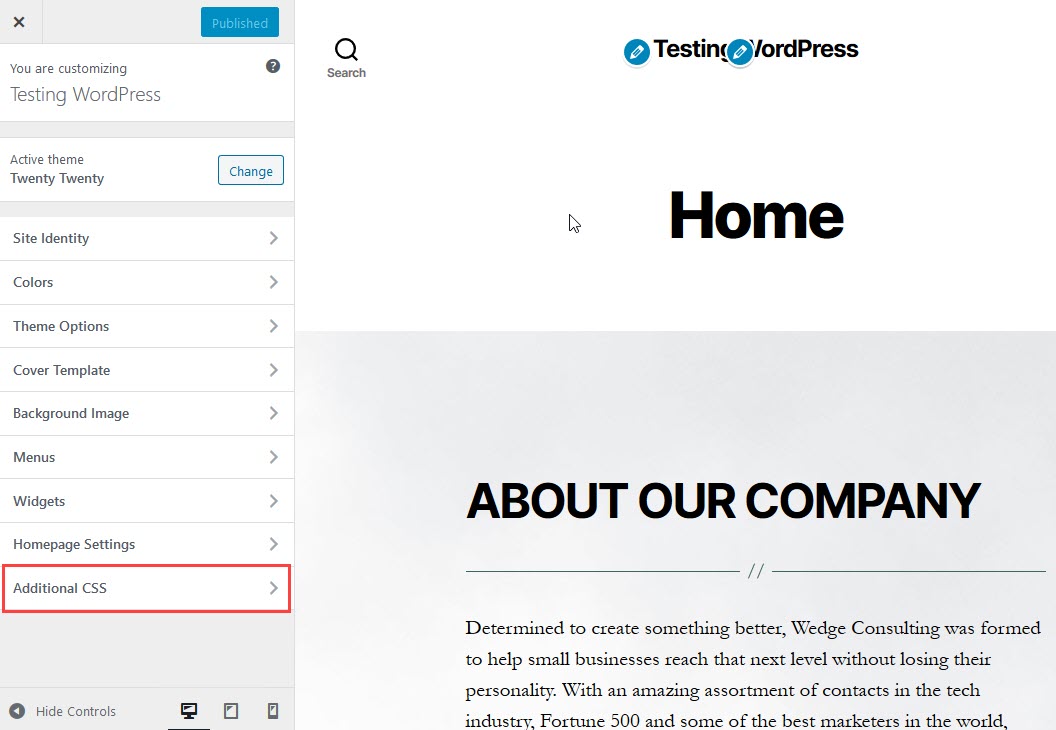
Custom CSS allows easy changes to a WordPress theme’s stylesheet for fonts. Access the WordPress dashboard, navigate to Appearance, and select Customize. Choose Additional CSS and paste the desired font style code. This method personalizes your site’s typography without altering the original theme files.
Advantages Of Custom Css
Custom CSS lets you change your site look without touching the main theme. It’s like painting your room in a new color. You can make your fonts bigger or smaller. You can choose different styles for your text. This helps to make your site special. It gives you control over how it appears. Your site will look just how you want. This makes your site unique.
Implementing Custom Css
To use custom CSS, you start by finding the right section in WordPress. Go to your dashboard. Look for ‘Appearance’. Find ‘Customize’. Click on it. You will see a box that says ‘Additional CSS’. This is where you can write your own styles. Write the code to change your fonts. Save your changes. You will see your new styles. Your site now looks different. This is how you use custom CSS.
Testing Changes
It’s fun to see your changes. Check the new font style. Does it look good? You can view it on your website. Make sure it’s easy to read. Colors and sizes should fit well. You can switch back if needed. Try to keep a backup of the old style. This helps in case you want to revert. Enjoy your website’s new look!
Consistency is key. Ensure all pages have the same font. Headings and paragraphs should match. Look for differences in style. Are buttons using the new font? Check lists and links too. They should match the overall design. This keeps your website neat. Make sure it looks the same on all devices. Test it on a phone and a computer. Consistent style makes your site look professional.
Troubleshooting Common Issues
Changing the WordPress theme stylesheet for fonts involves accessing the theme editor. Navigate to Appearance, then Editor, and select the stylesheet file. Locate the font properties and modify them as needed, ensuring consistency across the site. Save changes to apply new styles effectively.
Resolving Font Display Problems
Fonts sometimes don’t show up as expected. This is a common issue. Check if the font file is missing. Make sure the font URL is correct. Another step is to clear the cache. This can fix display issues. Also, check browser compatibility. Some fonts don’t work on all browsers. Try using a different browser to see if it helps.
Restoring Original Settings
Accidentally changed settings can cause problems. Find the theme’s default stylesheet. You can copy it back to your site. This will restore original settings. Always backup files before making changes. This helps if you make a mistake. Use a plugin for easy restoration. Many plugins help reset settings quickly.
Credit: wpdatatables.com
Frequently Asked Questions
How To Locate The Theme Stylesheet In WordPress?
To find the stylesheet, access your WordPress dashboard. Navigate to Appearance > Theme Editor. Locate the style. css file. This file contains the CSS code controlling your theme’s fonts and other styles. Editing this file allows you to modify font styles across your site effectively.
Can I Change Fonts Without Coding?
Yes, you can change fonts using WordPress plugins. Plugins like Easy Google Fonts let you customize fonts easily. They provide an interface to select fonts and styles without coding. This method is user-friendly and ideal for those unfamiliar with CSS.
What Precautions Should I Take Before Editing Css?
Always back up your theme files before editing CSS. Use a child theme to prevent losing changes during updates. Test changes on a staging site first. This ensures your live site remains unaffected by potential errors. These steps protect your site from unintended consequences.
Can Changing Fonts Affect Website Speed?
Yes, changing fonts can impact website speed. Custom fonts may increase load times. Choose web-safe fonts or optimize font delivery. Use tools like Google Fonts, which provide optimized font loading. This ensures minimal impact on your site’s performance and user experience.
Conclusion
Editing a WordPress theme stylesheet for fonts is quite simple. Follow the steps carefully. Customizing fonts enhances your site’s look. Make sure to choose readable fonts. Test your changes thoroughly. This ensures a smooth user experience. Regularly update your stylesheet for consistent branding.
Backup your site before making changes. This prevents data loss. Experiment with different styles to find the best match. Fonts play a crucial role in design. Keep learning and improving your skills. Feel free to explore more customization options. Happy styling!


